
Smarter by Design.Simpler for Business
AI Learning & Teacher Tracking
What Is AI Learning & Teacher Tracking?
AI Learning & Teacher Tracking is the screen that shows what the automatic learning running on a vService does. The AI learning and teacher (Teacher) methods enabled from the Learning Methods screen soften the rule set by themselves in the background; this screen makes those decisions visible.
It answers two questions: what is about to be learned right now and what has been learned so far. For the first, a dry run that writes nothing is executed; for the second, the learning log is read.
Learning is a mechanism that works silently: a signature that produces a false positive is taken into the exception when enough evidence accumulates, a parameter is added to the allow list. Without this screen these changes are noticed only by looking at the rule set one by one. Thanks to the screen, which path, which inspection field, with which evidence and from which source has been learned is read in a single table.
The automatic learning is the part of WAF that saves the most labor but that is seen the least. In a rule maintenance carried out manually, for every false positive the log is examined, the signature is found and the exception is written; in the automatic learning the same work is done by itself when enough evidence accumulates. This screen is the audit surface of that work: it does not hide what has been done, it shows it together with its justification.
The auditability is two-way. Forward, the tracking views show the suggestions that have not been applied yet; that a learning is approaching is seen beforehand and, if it is not wanted, it is prevented by changing the thresholds or the learning method. Backward, the history views document when and with which evidence every softening in the rule set was written; an unwanted learning can be reverted over its record.
4
View
A separate tracking and history view for every method
Dry Run
It writes nothing
The tracking views only calculate, they do not touch the rule set
With Evidence
Why it was learned
In the preview, the number of requests and the client list that feeds the suggestion
Apply Manually
Teach without waiting
A suggestion whose threshold is not filled can be selected and applied instantly
Revertible
Reverting the learning
An applied learning is reverted over its record
Cluster
A single list
The suggestions of the two devices are gathered in a single list
5
Progress axis
A separate threshold can be defined for the request, the client, the country, the network and the duration
Adjustable
Dry run thresholds
The suggestions that have not matured are seen beforehand by lowering the threshold
The name of the tab changes according to the enabled method
The tab is displayed only while at least one of the AI learning or teacher methods is on in the vService and its name is written accordingly:
| The enabled method | The name of the tab |
|---|---|
| Only the AI learning | AI Learning Tracking |
| Only the teacher | Teacher Tracking |
| The two together | AI Learning & Teacher Tracking |
For the tab to appear, a record is not required to be present; the method being on is enough. When the method is turned off, the tab disappears, but the learning log on the disk is not deleted.
Supported vService Types
Since the AI learning and the teacher methods work in the vServices with WAF protection on, this screen is present only in the HTTP vServices:
HTTP
L7 TCP
Network
How Does It Work?
The automatic learning advances in four steps. This screen makes the second and the fourth steps of the chain visible: it shows which suggestion has accumulated how much evidence and what has been applied.
01 · ObservationThe traffic is monitoredThe requests WAF counts as an attack are evaluated. In the AI learning the traffic as a whole, and in the teacher method only the requests that come from the sources defined as a teacher are taken into account. In the AI round the filters defined on the Learning Methods screen (the country, the blacklist, the domain name and the browser inspections) are additionally applied; in the teacher round these filters are skipped.
02 · EvidenceThe progress accumulatesThe requests that come for the same host group, path, inspection field, parameter and rule field to be learned are gathered into a single suggestion. From how many requests, from how many clients, from how many countries and spread over how long a duration they come are measured separately.
03 · ApplicationThe rule set is softenedWhen all the thresholds are met, the suggestion is written into the rule set: the signature is taken into the exception, the parameter is added to the allow list or the inspection is loosened.
04 · TraceThe learning record is writtenEvery applied learning falls into the learning log together with its evidence. The history views read these records; the reverting is also done over these records.
The Difference Between the AI Learning and the Teacher
The two methods follow the same chain, they gather the evidence from a different place. The AI learning draws the evidence from the traffic as a whole: if a request shape has come from enough clients, from enough countries and spread over a long enough duration, it counts as legitimate use. The teacher, on the other hand, takes the evidence from the identity of the source: if the request has come from an address, a cookie or a header defined as a teacher, it is already accepted as trusted.
| Comparison | The AI Learning | The Teacher |
|---|---|---|
| The basis of the evidence | The repetition of the request shape in the traffic as a whole | The source of the request being defined as a teacher |
| The traffic evaluated | All the requests WAF counts as an attack | Only the requests that come from the teacher sources |
| The Learning Methods filters | They are applied (the country, the blacklist, the domain name and the browser inspections) | They are not applied |
| The progress axes | Five axes: Request, Client, Country, ASN Network, Time Interval | A single axis: Teacher |
| The Learning Progress value | The lowest of the axes | The number of teacher clients that feed the learning |
| The maturing speed | Slow; all the axes are waited to reach the threshold | Fast; a single axis is enough |
| The views | AI Learning Tracking, AI Learning History | Teacher Tracking, Teacher History |
| The main risk | If the attack traffic looks spread enough, it can count as legitimate | A wrongly defined teacher loosens the rule set directly |
How Is Learning Progress Read?
Learning Progress tells how much evidence a suggestion has accumulated. The single percentage in the table is separated into its breakdown in the preview.
In the AI learning a separate rate is calculated for every threshold and the value in the table is the lowest of these. A suggestion counts as matured only when it meets all the thresholds at once.
| Breakdown | What it measures |
|---|---|
| Request | The ratio of the number of requests that feed the suggestion to the threshold. |
| Client | The ratio of the number of different clients to the threshold. |
| Country | The ratio of the number of different countries to the threshold. |
| ASN Network | The ratio of the number of different autonomous systems to the threshold. |
| Time Interval | The ratio of the duration over which the evidence is spread to the threshold. |
In the teacher tracking there is a single breakdown: Teacher. This value reflects, rather than a ratio, the number of teacher clients that feed the learning.
A suggestion may have been fed by more than one teacher definition; in this case all the sources are written together in the preview title.
It can go above 100 percent
Since the breakdowns are calculated as a ratio to the threshold, in a suggestion in which evidence has accumulated far above the threshold, values above 100 percent can be displayed. The summary value in the table, on the other hand, is usually more measured because it is equal to the lowest breakdown.
Operational Best Practices
- The tracking view should be read regularly after the learning is turned on. The learning works silently; where the rule set is softening towards is seen only from this screen. Especially in a newly opened vService, the accumulation being reviewed in the first days makes it possible to catch an unwanted learning before it is applied.
- The client list should be examined before a suggestion is applied. The client table in the preview is the evidence of the learning. A suggestion fed from a single address may be reflecting not a general use shape but the behavior of that client.
- Learn Selected should count as an exceptional operation. The button skips the thresholds and does not ask for a confirmation; it writes into the rule set instantly. It is suitable for speeding up a known false positive, not for cleaning the list collectively.
- The dry run thresholds should be lowered temporarily. The Min Progress value being lowered only widens the view; it is not a permanent setting and does not change the real learning thresholds. It is used to see beforehand what will happen, and afterwards the default is returned to.
- The teacher definitions should be kept narrow. Since there is a single axis in the teacher, the learning matures fast; a widely defined teacher address or cookie loosens the rule set more than wanted. What the teacher teaches should be monitored from the Teacher Tracking view.
- The color distinction in the Description column should be observed. The changes that widen the permission are written in green, and the changes that turn an inspection off in red. The red rows mean that an inspection is disabled entirely and should be evaluated more carefully.
- The history should be used as the source of the rule set changes. When an unexpected loosening is noticed in the rule set, first the history view of this screen should be opened; when and with which evidence the learning was written is read from here.
- An unwanted learning should be reverted, not corrected manually. The reverting operation removes the values the learning has written in a targeted way; editing the rule manually, on the other hand, leaves the record and confuses in the following examinations.
- It should be known that the history is not lost while the method is being turned off. When the learning method is turned off, the tab is removed from the screen, but the past records stay on the disk; when the method is turned on again, the same records are listed again.
Accessing AI Learning & Teacher Tracking
- Left Monitor Panel is opened.
- WAF-Protected vServices is selected from the category tabs at the top left.
- The vServices defined on TR7 with WAF protection enabled are listed.
- The vService to be monitored is clicked; the screen opens with the Dashboard tab that carries the vService's name.
- On the screen that opens, the AI Learning & Teacher Tracking tab is clicked.
Views
The list at the top left of the screen offers two views for every enabled learning method, one tracking and one history. While the two methods are on at once, there are four views in the list; while only one of them is on, only the two views belonging to it are listed.
The difference between the tracking and the history is important.
| View | What it shows | The data source |
|---|---|---|
| AI Learning Tracking | Which suggestions the AI learning is accumulating right now | The instantaneous dry run |
| AI Learning History | What the AI learning has applied in the past | The learning log |
| Teacher History | What the teachers have applied in the past | The learning log |
| Teacher Tracking | Which suggestions the teachers are accumulating right now | The instantaneous dry run |
The tracking views do not touch the rule set
The tracking views are a dry run: the same calculation is executed again with the live data and the result is only written to the screen. No change is made in the rule set, no line falls into the learning log.
The history views, on the other hand, are the opposite: they list only the learnings that have really been applied.
The tracking views do not pull data at the opening
The two tracking views do not execute a query by themselves when the screen is opened; since the dry run is costly, the Refresh button is waited to be clicked. The history views, on the other hand, read the log when they are selected.
The screen opens with the first view in the list: if the AI learning is on, with AI Learning Tracking (it comes empty, Refresh is waited for), and if only the teacher is on, with Teacher History (it comes full).
The tracking dry run does not scan the whole history
Every dry run looks back as far as the own working period of the method: the AI dry run scans the round interval of the AI learning, and the teacher dry run the teacher period, with a two-minute overlap margin. For this reason the tracking view does not show the suggestions that have accumulated in an older period but have not been applied yet.
The AI Learning Tracking Screen
By selecting AI Learning Tracking from the view list, the suggestions the AI learning is accumulating at that moment are reached. Over this screen the suggestions are examined, listed by changing the dry run thresholds and the selected suggestions are applied to the rule set.
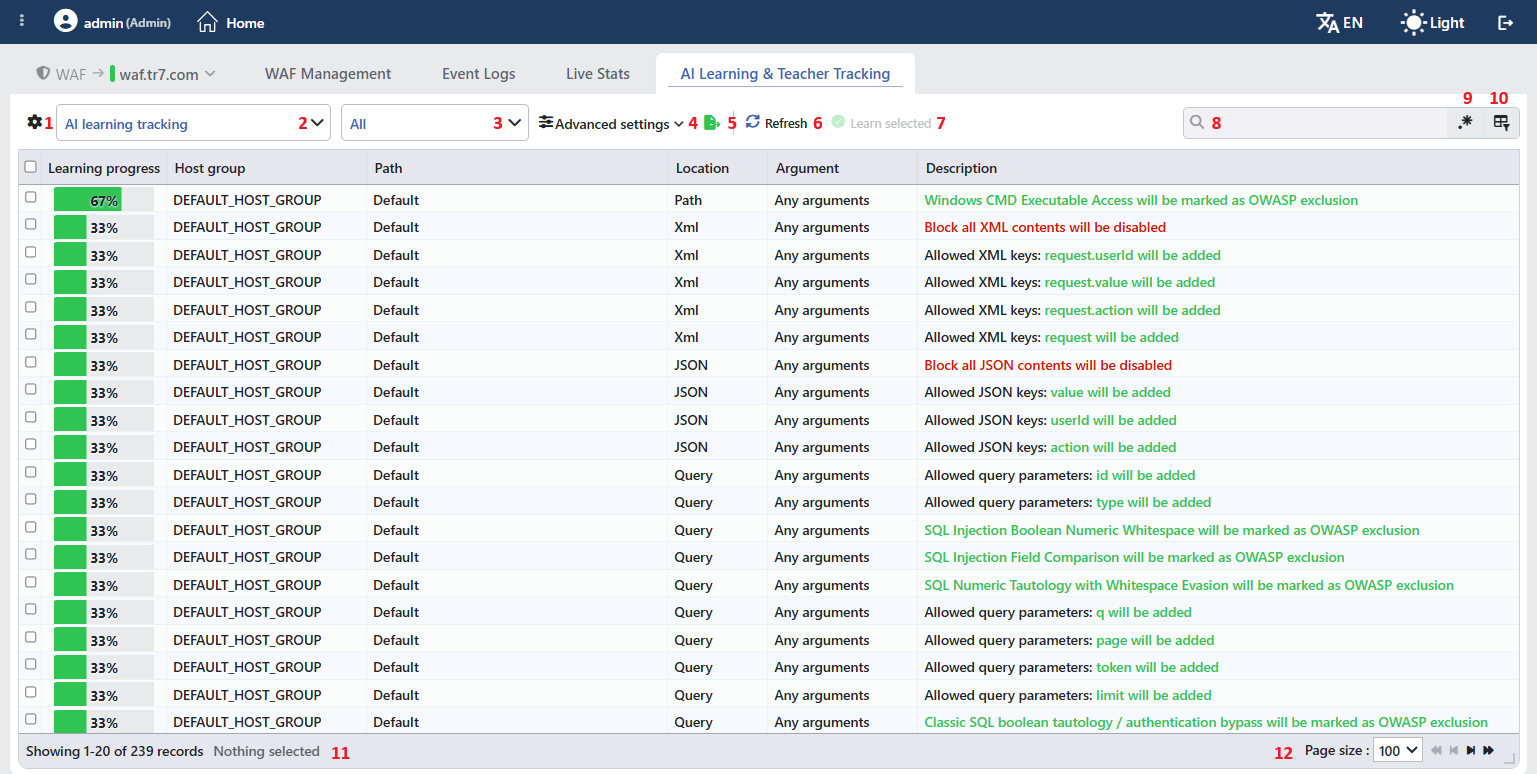 The AI Learning Tracking Screen
The table opens with the following columns by default:
| Column | Description |
|---|---|
| Learning Progress | The learning progress; it is shown as a green bar and as a percentage (How Is Learning Progress Read?). |
| Host Group | The Virtual Host Groups group the learning belongs to. |
| Path | The page type rule the learning is written into. In the learnings written into the shared rule Default is written; this rule appears with the name Any Paths on the WAF Rules screens. If the learning will create a new rule, the path is written in green. |
| Location | The inspection field the learning is applied to (the path, the query, the header, the form, JSON, XML or the raw body). |
| Argument | The parameter the learning is applied to. In the learnings that are not bound to a parameter Any Arguments is written. |
| Description | What the learning will do. The color is applied not to the whole of the sentence but to the value that changes: the permissions added are written in green, and the permissions removed and the inspections turned off in red. |
The following columns are hidden by default and are added from the column selector:
| Column | Description |
|---|---|
| Requests | The number of requests that feed the suggestion. |
| Client | The number of clients that feed the suggestion. |
| Country | The number of countries that feed the suggestion. |
The items in the toolbar are arranged from left to right in the following order; the last two items (Page Information and Page Size) are located in the information strip below the table.
Columns
It is selected which columns will be shown in the table. On the same panel the columns are reordered by being dragged and an alignment is selected per column; with the Fit rows to the page button the row height is fitted to the page, and with the Reset button the column layout is taken to the default. The layout is stored per user and is common in the four views.
View
The view is selected: AI Learning Tracking, AI Learning History, Teacher History or Teacher Tracking.
Type Filter
It is selected from which inspection family the suggestions will come: all of them (All, the default), only the OWASP signatures or only the structural inspections. This field is present only in the AI Learning Tracking view.
Advanced Settings
It opens the strip that shows the thresholds of the dry run. It is present only in the AI Learning Tracking view.
Export
The table is exported as Excel, CSV or PDF by clicking the Export button. In the window that opens, the Filename, Format and Data Source, together with the Columns to be exported, are determined; the remaining fields are displayed according to the format: CSV Separator for CSV, Excel Sheet Name for Excel, and Page Orientation and Page Size for PDF.
Refresh
The dry run is executed again and the suggestions are updated by clicking the Refresh button.
Learn Selected
The selected suggestions are applied to the rule set immediately. When no row is selected, the button is passive.
Search
Used to search all information in the table.
RegExp Search
Used to search all information in the table with a regular expression (RegExp).
Column Based Search
Used to perform a column-based search on the information in the table.
Page Information
Contains information about the total number of fetched records and the range of records displayed in the list: Showing N-M of T records and the number of selected rows (N selected, or Nothing selected when there is no selection).
Page Size
The maximum number of records to be displayed on the page is selected. The default is 100; the options are 50, 100, 250 and All. The selection is not stored, at the next opening it is started with 100 again.
The Advanced Settings Strip
When the Advanced Settings link is clicked, the strip that carries the thresholds of the dry run opens.
 The Advanced Settings Strip
INFO
Min Progress (%) Default: 50
The lowest learning progress a suggestion has to reach to enter the list is determined; a value between 1 and 100 is entered. When the value is lowered, the suggestions that have not matured yet are seen as well.
INFO
Max Suggestions Default: 1,000
The maximum number of suggestions the dry run will produce is determined.
INFO
Line Limit Default: 1,000,000
The maximum number of log lines to be read during the dry run is determined.
These thresholds affect only the view
The values in the strip belong to the dry run itself; they do not change the real learning thresholds of the vService. The real thresholds are managed from the Learning Methods screen. For this reason a suggestion that becomes visible by lowering the threshold does not mean that the learning will apply it by itself.
On the other hand all three values are stored per user and are preserved in the following sessions. A threshold lowered once stays valid in all the following examinations unless it is deliberately taken back.
Manual Application with Learn Selected
The suggestions selected with the boxes at the beginning of the rows are applied to the rule set with the Learn Selected button. The operation does not ask for a confirmation and the selection is written into the live rule set the moment it is applied.
The applied suggestions are removed from the list; the list is not pulled again, only the applied rows disappear. The same suggestions are displayed in the AI Learning History view together with the name of the user who did the learning type operation.
The manual application skips the thresholds
This button does not wait for the suggestion to fill the learning threshold. A suggestion whose threshold is not filled is applied before enough evidence accumulates; for this reason the number of requests and the client list in the preview of the row should be examined before the application.
The button is present only in the AI Learning Tracking view; in the other views it is not displayed at all and the Teacher Tracking rows cannot be selected.
Right-Click Menu
When a row is right-clicked in this view, a menu without a title and with a single operation opens. The operation is applied only to the right-clicked suggestion; the selection made in the list does not affect the menu. In the other three views there is no right-click menu for the rows.
| Operation | What it does |
|---|---|
| Learn Selected | It applies the right-clicked suggestion to the rule set immediately; just like the Learn Selected on the toolbar it does not ask for a confirmation and does not wait for the threshold. |
Preview of the Selected Suggestion
When a row is clicked in the list, the preview window opens on the right side of the screen. The title of the window is the source of the learning; below it the path the learning is written into is displayed. In the learnings written into the shared rule Default is written in this line.
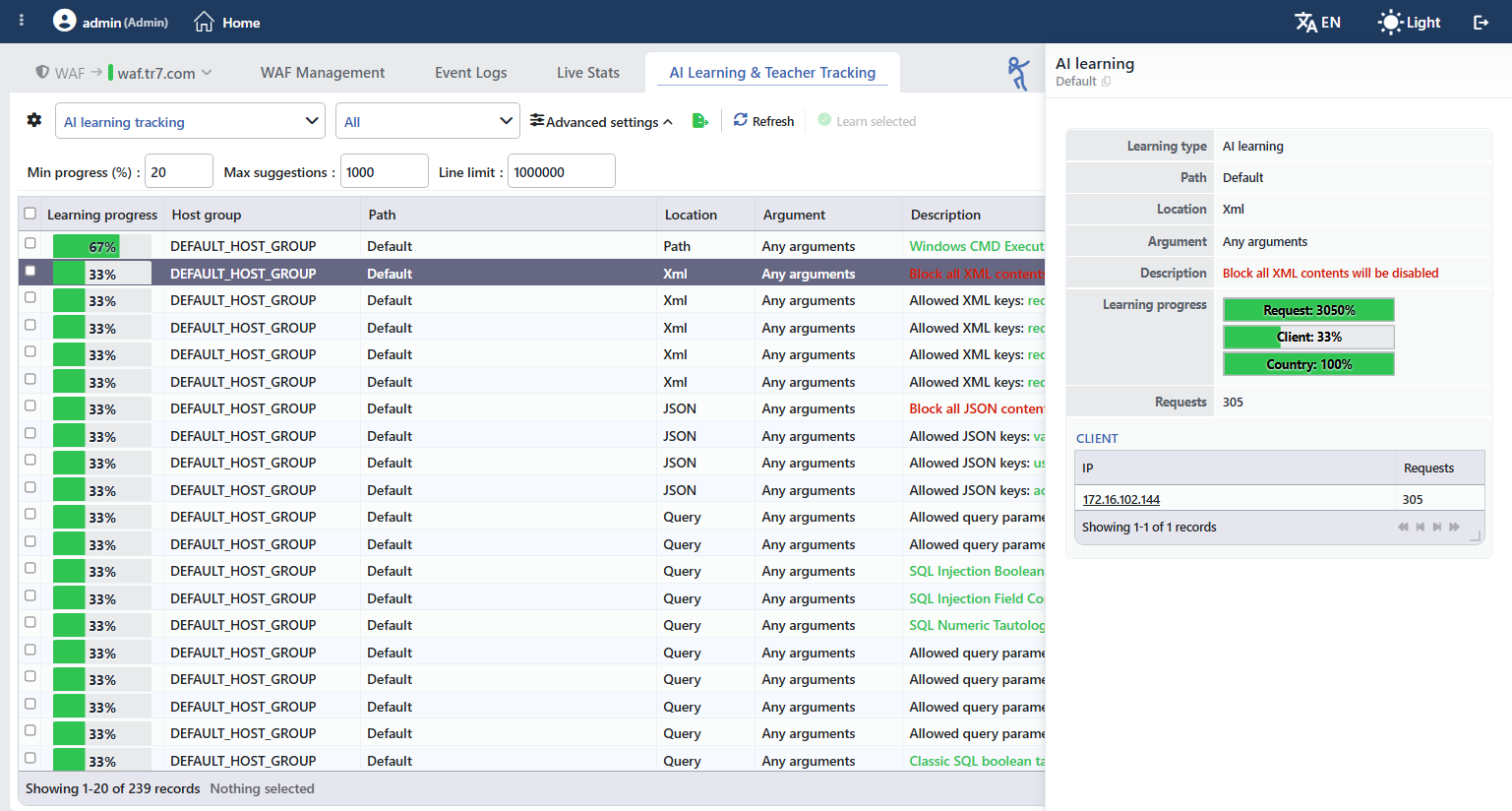 Preview of the Selected Suggestion
The preview repeats most of the fields in the table and adds on top of them the Learning Progress breakdown and the client list that feeds the suggestion. The host group information does not take place in the preview; Learning Type, on the other hand, is displayed in every view in the preview although it is present in the table only in the AI history. In the client table every address and the number of requests that come from that address are listed; the addresses can be clicked and open to the reputation information of the address.
This table is the evidence of the learning: if a suggestion is fed from a single client, the probability that the learning reflects not a general use shape but the behavior of a single client is high.
In this view the title shows the source of the suggestion; in the suggestions that come from the AI learning AI Learning is written.
The AI Learning History Screen
By selecting AI Learning History from the view list, the learnings the AI learning has applied in the past are reached. Over this screen which rule has been learned when and from which source is examined.
In the history view the toolbar differs at two points: the type filter, Advanced Settings and the Learn Selected button are not present, and in their place the time range selector comes.
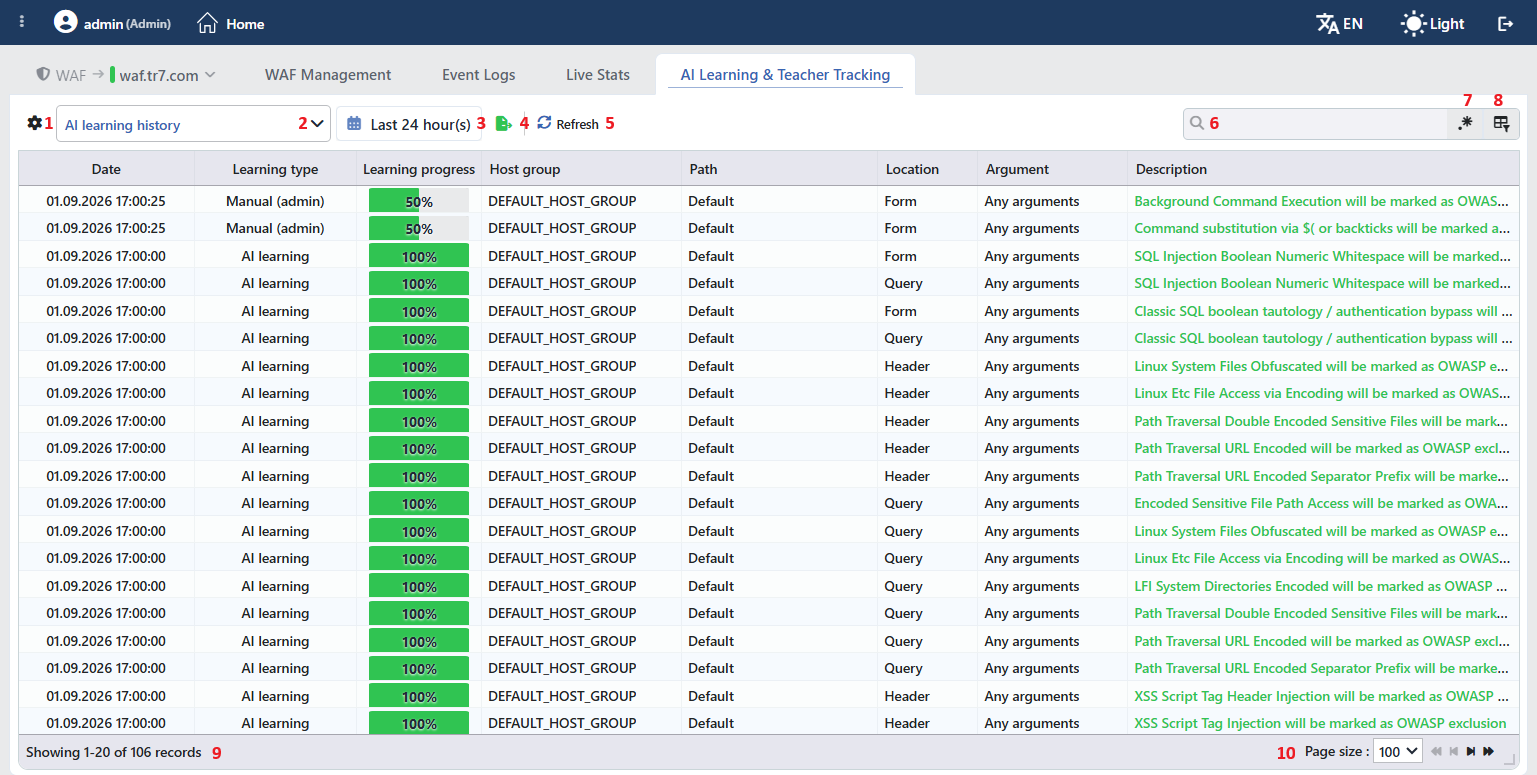 The AI Learning History Screen
The table opens with the following columns by default:
| Column | Description |
|---|---|
| Date | The date and time at which the learning was applied. |
| Learning Type | The source of the learning; while the preview is open, it is hidden from the table. |
| Learning Progress · Host Group · Path · Location · Argument · Description | They are the same as the explanations in the AI Learning Tracking column table. |
The Requests, Client and Country columns are hidden by default and are added from the column selector. To the beginning of the table the Date and Learning Type columns that are not present in the tracking views are added; Learning Type takes the following values:
| The Learning Type value | Meaning |
|---|---|
| AI Learning | The learning has been applied by the AI learning by itself. |
| Manual (<user>) | The learning has been applied by a user with Learn Selected. |
The items in the toolbar are arranged from left to right in the following order; the last two items (Page Information and Page Size) are located in the information strip below the table.
Columns
It is selected which columns will be shown in the table. On the same panel the columns are reordered by being dragged and an alignment is selected per column; with the Fit rows to the page button the row height is fitted to the page, and with the Reset button the column layout is taken to the default. The layout is stored per user and is common in the four views.
View
The view is selected: AI Learning Tracking, AI Learning History, Teacher History or Teacher Tracking.
Date Range
It is selected which period the history belongs to; the default range is the last 24 hours. The view lists only the learnings applied in this range. The selected range is stored per user and is common with the other log screens.
Export
The table is exported as Excel, CSV or PDF by clicking the Export button. In the window that opens, the Filename, Format and Data Source, together with the Columns to be exported, are determined; the remaining fields are displayed according to the format: CSV Separator for CSV, Excel Sheet Name for Excel, and Page Orientation and Page Size for PDF.
Refresh
The records of the selected range are read again by clicking the Refresh button.
Search
Used to search all information in the table.
RegExp Search
Used to search all information in the table with a regular expression (RegExp).
Column Based Search
Used to perform a column-based search on the information in the table.
Page Information
Contains information about the total number of fetched records and the range of records displayed in the list: Showing N-M of T records. Since the rows cannot be selected in this view, the number of selected rows is not shown.
Page Size
The maximum number of records to be displayed on the page is selected. The default is 100; the options are 50, 100, 250 and All. The selection is not stored, at the next opening it is started with 100 again.
Preview of the Selected Record
When a row is clicked in the list, the preview window opens on the right side of the screen. The title of the window is the source of the learning; below it the path the learning is written into is displayed. In the learnings written into the shared rule Default is written in this line.
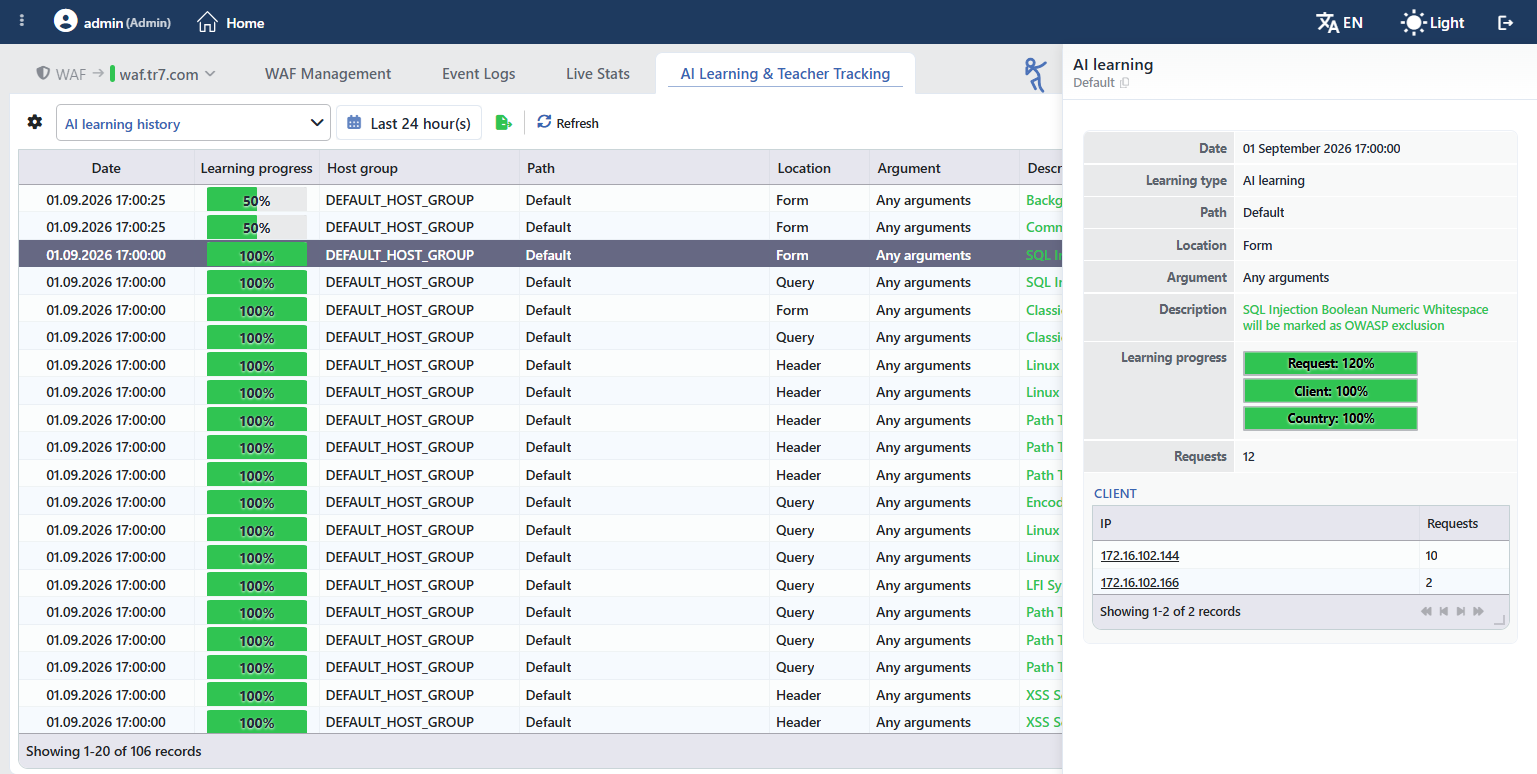 Preview of the Selected Record
The preview repeats most of the fields in the table and adds on top of them the Learning Progress breakdown and the client list that feeds the suggestion. The host group information does not take place in the preview; Learning Type, on the other hand, is displayed in every view in the preview although it is present in the table only in the AI history. In the client table every address and the number of requests that come from that address are listed; the addresses can be clicked and open to the reputation information of the address.
This table is the evidence of the learning: if a suggestion is fed from a single client, the probability that the learning reflects not a general use shape but the behavior of a single client is high.
The preview of the history records also carries, in addition to the one in the tracking view, the Date information at which the learning was applied.
The Teacher Tracking Screen
By selecting Teacher Tracking from the view list, the suggestions the teachers are accumulating at that moment are reached. Over this screen which rules the teachers are about to teach is monitored.
The teacher tracking is a dry run that imitates exactly the teacher mechanism running in the background: the requests that come from the sources defined as a teacher are evaluated and which rules will be learned is calculated.
The toolbar is plainer than the AI tracking: the type filter, Advanced Settings and Learn Selected are not present. The thresholds of the teacher dry run cannot be adjusted, because the dry run reflects the real teacher behavior as it is. The rows cannot be selected either.
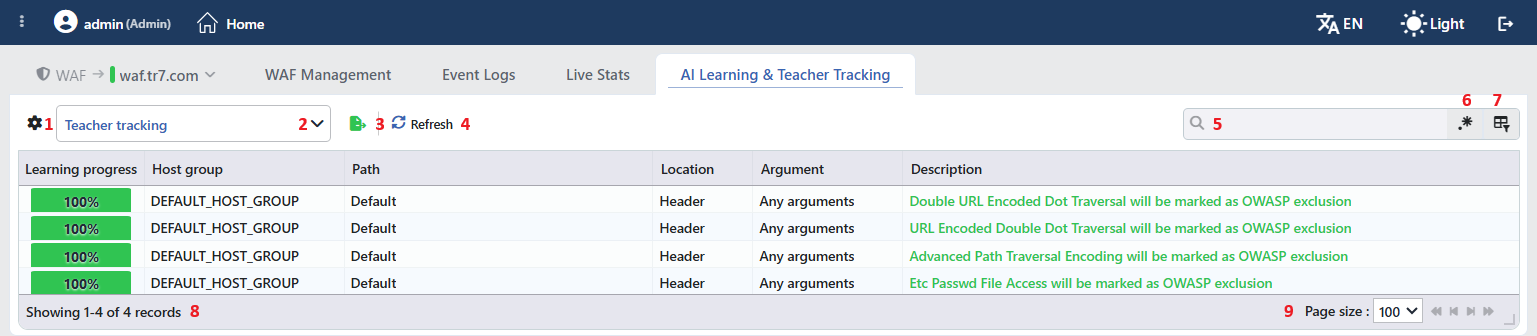 The Teacher Tracking Screen
The table opens with the following columns by default:
| Column | Description |
|---|---|
| Learning Progress · Host Group · Path · Location · Argument · Description | They are the same as the explanations in the AI Learning Tracking column table. |
The Requests, Client and Country columns are hidden by default and are added from the column selector.
The items in the toolbar are arranged from left to right in the following order; the last two items (Page Information and Page Size) are located in the information strip below the table.
Columns
It is selected which columns will be shown in the table. On the same panel the columns are reordered by being dragged and an alignment is selected per column; with the Fit rows to the page button the row height is fitted to the page, and with the Reset button the column layout is taken to the default. The layout is stored per user and is common in the four views.
View
The view is selected: AI Learning Tracking, AI Learning History, Teacher History or Teacher Tracking.
Export
The table is exported as Excel, CSV or PDF by clicking the Export button. In the window that opens, the Filename, Format and Data Source, together with the Columns to be exported, are determined; the remaining fields are displayed according to the format: CSV Separator for CSV, Excel Sheet Name for Excel, and Page Orientation and Page Size for PDF.
Refresh
The dry run is executed again and the suggestions are updated by clicking the Refresh button.
Search
Used to search all information in the table.
RegExp Search
Used to search all information in the table with a regular expression (RegExp).
Column Based Search
Used to perform a column-based search on the information in the table.
Page Information
Contains information about the total number of fetched records and the range of records displayed in the list: Showing N-M of T records. Since the rows cannot be selected in this view, the number of selected rows is not shown.
Page Size
The maximum number of records to be displayed on the page is selected. The default is 100; the options are 50, 100, 250 and All. The selection is not stored, at the next opening it is started with 100 again.
Preview of the Selected Suggestion
When a row is clicked in the list, the preview window opens on the right side of the screen. The title of the window is the source of the learning; below it the path the learning is written into is displayed. In the learnings written into the shared rule Default is written in this line.
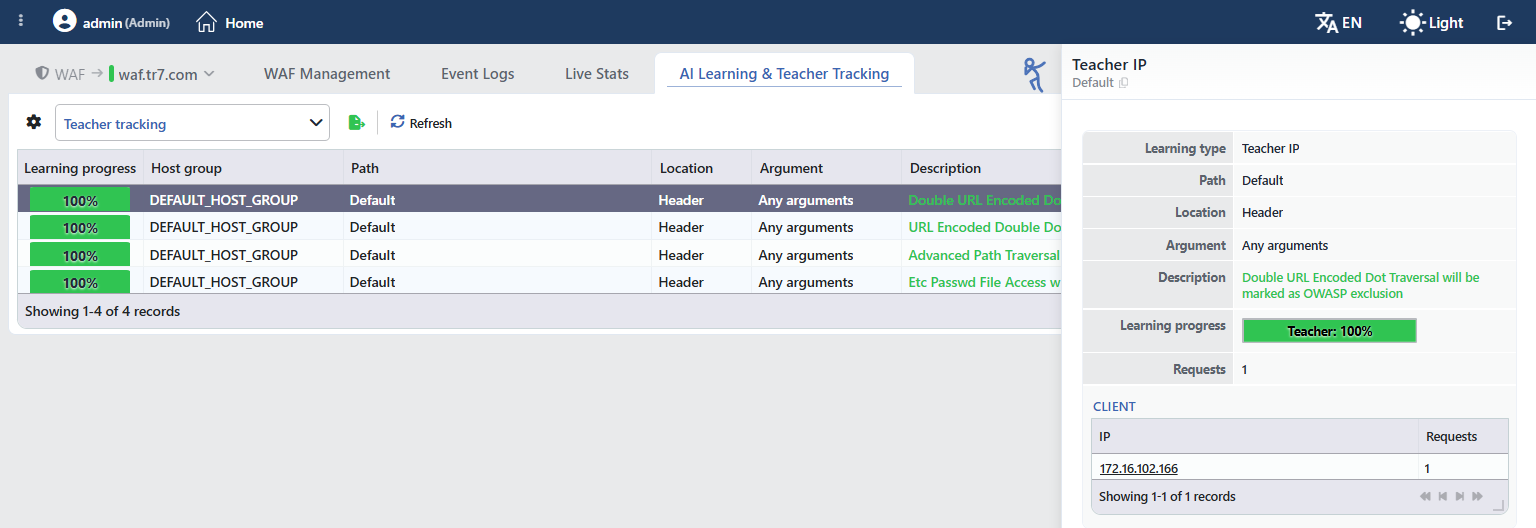 Preview of the Selected Suggestion
The preview repeats most of the fields in the table and adds on top of them the Learning Progress breakdown and the client list that feeds the suggestion. The host group information does not take place in the preview; Learning Type, on the other hand, is displayed in every view in the preview although it is present in the table only in the AI history. In the client table every address and the number of requests that come from that address are listed; the addresses can be clicked and open to the reputation information of the address.
This table is the evidence of the learning: if a suggestion is fed from a single client, the probability that the learning reflects not a general use shape but the behavior of a single client is high.
In the teacher suggestions, in the title it is written from which teacher definition the learning comes (such as Teacher IP) and the Learning Progress breakdown consists of a single line.
The Teacher History Screen
By selecting Teacher History from the view list, the learnings the teachers have applied in the past are reached. Over this screen which teacher has taught what is examined.
The toolbar is the same as the AI history.
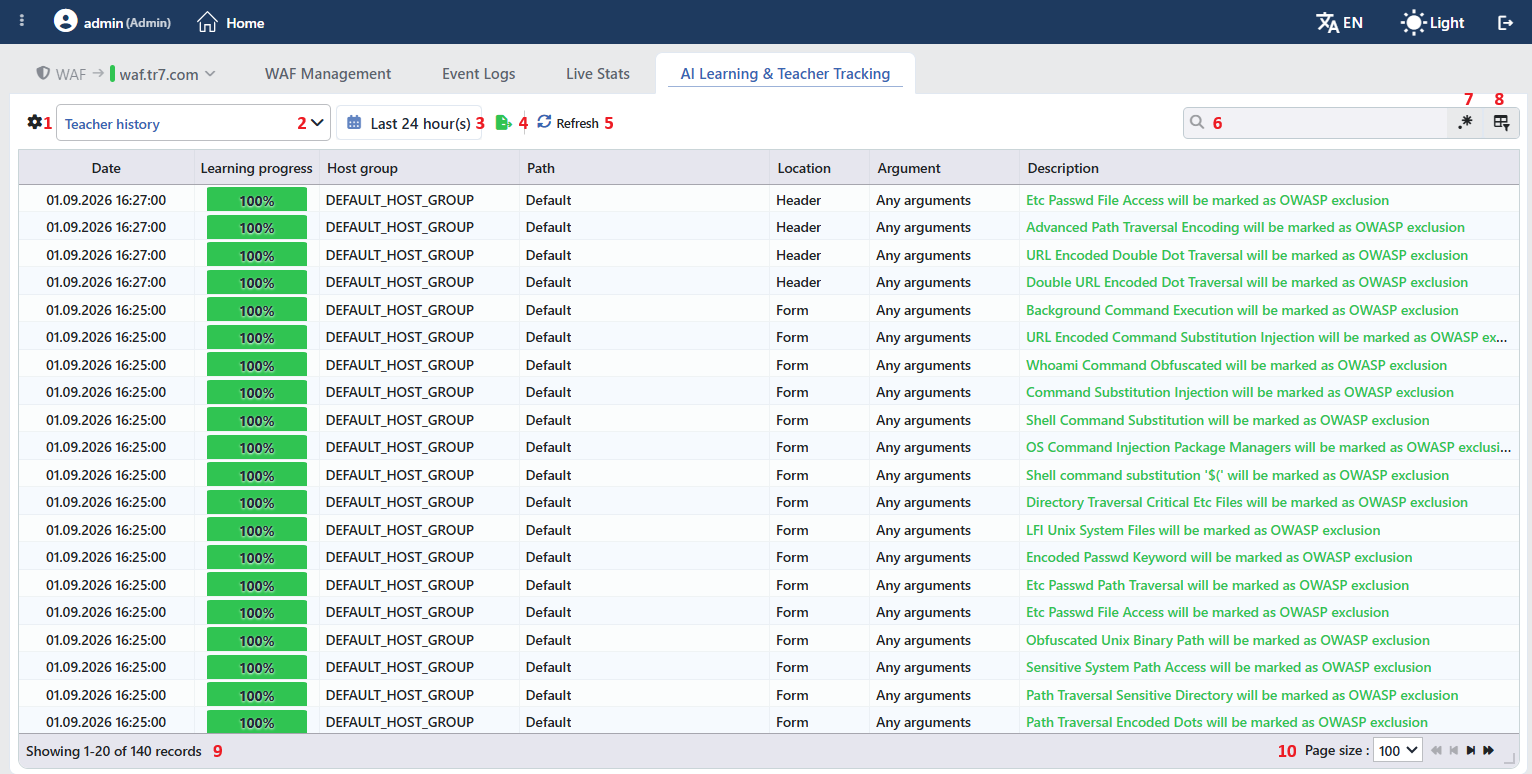 The Teacher History Screen
The table opens with the following columns by default:
| Column | Description |
|---|---|
| Date | The date and time at which the learning was applied. |
| Learning Progress · Host Group · Path · Location · Argument · Description | They are the same as the explanations in the AI Learning Tracking column table. |
The Requests, Client and Country columns are hidden by default and are added from the column selector. In the table there is no Learning Type column: all the rows in this view already come from the teacher.
The items in the toolbar are arranged from left to right in the following order; the last two items (Page Information and Page Size) are located in the information strip below the table.
Columns
It is selected which columns will be shown in the table. On the same panel the columns are reordered by being dragged and an alignment is selected per column; with the Fit rows to the page button the row height is fitted to the page, and with the Reset button the column layout is taken to the default. The layout is stored per user and is common in the four views.
View
The view is selected: AI Learning Tracking, AI Learning History, Teacher History or Teacher Tracking.
Date Range
It is selected which period the history belongs to; the default range is the last 24 hours. The view lists only the learnings applied in this range. The selected range is stored per user and is common with the other log screens.
Export
The table is exported as Excel, CSV or PDF by clicking the Export button. In the window that opens, the Filename, Format and Data Source, together with the Columns to be exported, are determined; the remaining fields are displayed according to the format: CSV Separator for CSV, Excel Sheet Name for Excel, and Page Orientation and Page Size for PDF.
Refresh
The records of the selected range are read again by clicking the Refresh button.
Search
Used to search all information in the table.
RegExp Search
Used to search all information in the table with a regular expression (RegExp).
Column Based Search
Used to perform a column-based search on the information in the table.
Page Information
Contains information about the total number of fetched records and the range of records displayed in the list: Showing N-M of T records. Since the rows cannot be selected in this view, the number of selected rows is not shown.
Page Size
The maximum number of records to be displayed on the page is selected. The default is 100; the options are 50, 100, 250 and All. The selection is not stored, at the next opening it is started with 100 again.
Preview of the Selected Record
When a row is clicked in the list, the preview window opens on the right side of the screen. The title of the window is the source of the learning; below it the path the learning is written into is displayed. In the learnings written into the shared rule Default is written in this line.
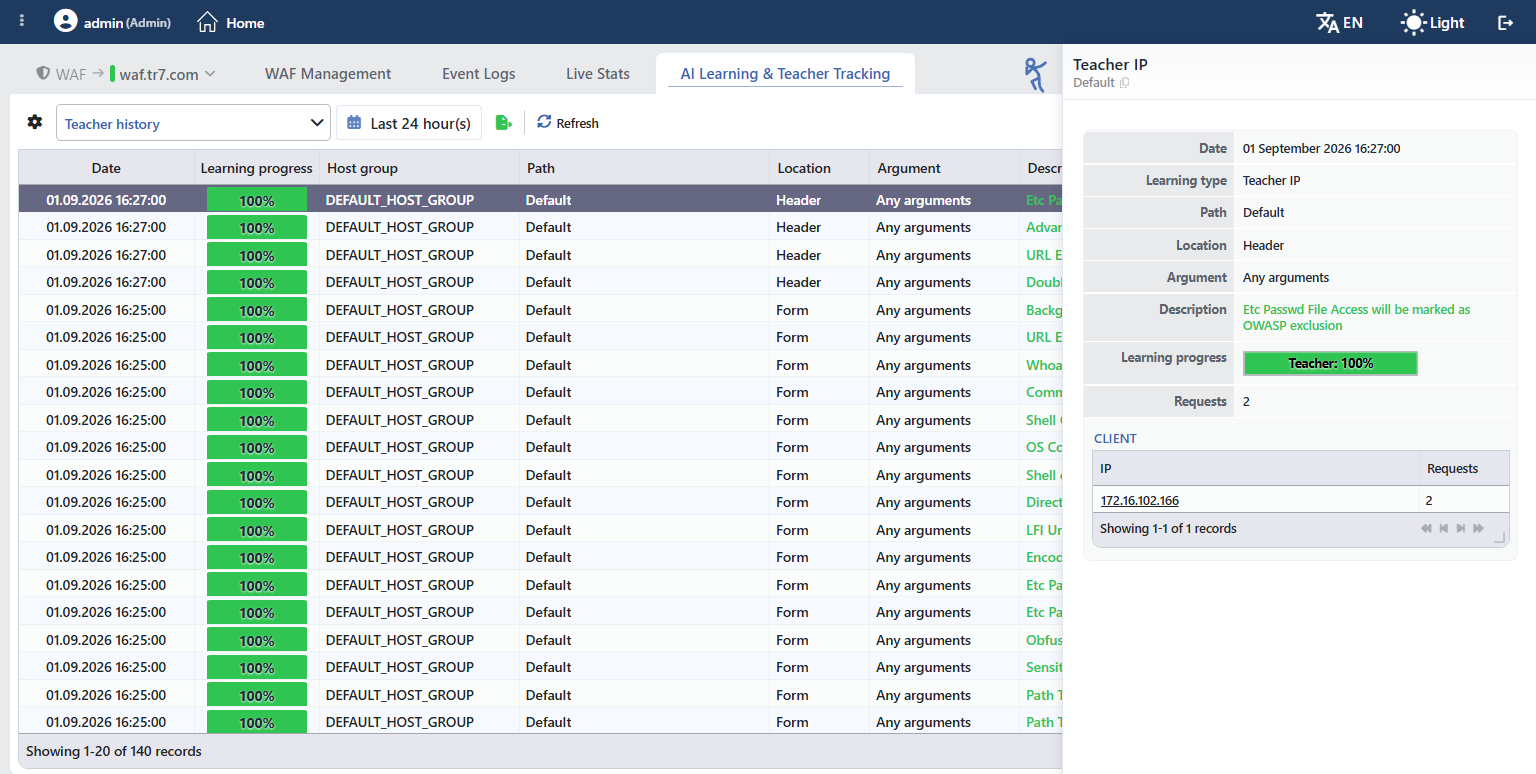 Preview of the Selected Record
The preview repeats most of the fields in the table and adds on top of them the Learning Progress breakdown and the client list that feeds the suggestion. The host group information does not take place in the preview; Learning Type, on the other hand, is displayed in every view in the preview although it is present in the table only in the AI history. In the client table every address and the number of requests that come from that address are listed; the addresses can be clicked and open to the reputation information of the address.
This table is the evidence of the learning: if a suggestion is fed from a single client, the probability that the learning reflects not a general use shape but the behavior of a single client is high.
The preview of the teacher history also carries the Date information at which the learning was applied.
Reverting the Learning
An applied learning is not reverted from this screen. The reverting is done over the learning's own record, on the Log tab of the WAF - WAAP Data Flow Panel on the right of the screen. The panel is open only on the Dashboard and WAF Management tabs; it is not displayed on the AI Learning & Teacher Tracking tab.
- The Left Monitor Panel is opened.
- From the category tabs at the top left, WAF-Protected vServices is selected.
- The vService on which the learning was applied is clicked; the screen opens with the Dashboard tab that carries the name of the vService.
- From the Details, Log and Status Logs tabs at the top of the WAF - WAAP Data Flow Panel on the right, Log is selected. If the panel is collapsed, it is first opened by clicking the handle figure on its left outer side.
- The learning record is found on the timeline. The learning records start with a graduation cap icon and are in the form
<Host group>@<vService> · "<path>": … learned from <N> attacks (<source>). The source shows the method the learning came from: WAF logs (Allow / Teach on the Event Logs screen), Teacher or AI learning. If the learning created a new rule, the text also contains the phrasea new rule was created. - The Revert Learning button on the bottom row of the record is clicked.
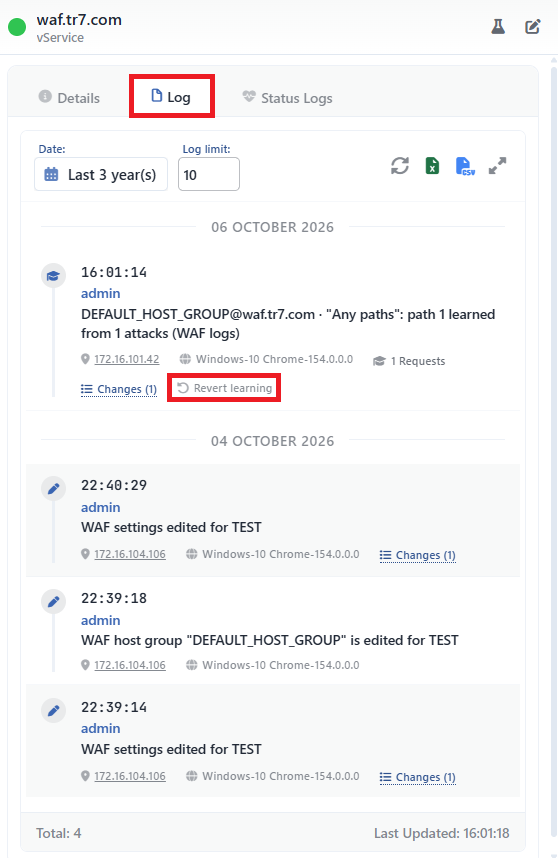 The Learning Record on the Log Tab of the WAF - WAAP Data Flow Panel
On the bottom row of the record, next to the IP address and the browser information the record was made from, there are two more markers. When the Requests count with the graduation cap icon is hovered over, the clients the learning relies on and their request counts are listed; when the Changes marker is hovered over, the changes the learning made in the rules are listed.
If the learning record is not seen in the list
By default the Log tab lists the newest 10 records within the last 3 years and shows all the WAF changes of the vService (WAF settings, host group and rule edits) in the same list. If the learning record has fallen outside this limit, the value in the Log limit field is increased and the refresh icon is clicked. The expand icon on the toolbar opens the records on the full log screen; the Revert Learning button, however, is located only on this timeline.
Confirmation Window
When the button is clicked, the effect of the reverting is first calculated without any change being made in the rules, and then a single confirmation window opens. The title of the window gives the number of settings to be reverted: "N learned rule settings will be reverted. Are you sure?" Depending on the situation, the following notes are located under the title:
| Situation | Note Displayed in the Window |
|---|---|
| The learning was written into the default Any Paths rule | "This learning was written to the "Any paths" rule, which is shared: reverting it affects every path." |
| The setting was changed manually after the learning | "N of these settings have changed since they were learned and now hold a different value." The window opens in the warning color; if it is confirmed, the change made later is overwritten. |
| The rule the learning created has not changed since that day | "The N rules this learning created will be removed too. They were created for this learning alone and have not been changed since." |
| The rule the learning created was changed later | "The N rules this learning created have been changed since. They are kept, and only the values this learning wrote are reverted." |
| The rule or check of the setting no longer exists | "N settings cannot be reverted: their rule or check no longer exists." |
| The setting already holds its old value | "N settings already hold their old values." |
| The record does not carry the rule the learning created as it stood at the time | "The record does not hold the rule this learning created as it stood at the time. It may have been changed since, so it is kept and only the learned values are reverted." |
| The record does not carry the rule the setting was written to | "N settings cannot be reverted: their record does not carry which rule they were written to." |
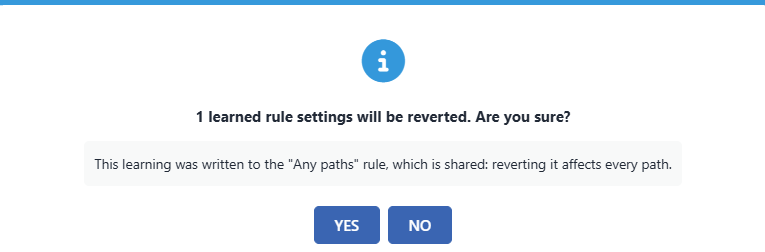 The Revert Learning Confirmation Window
When it is confirmed by clicking the Yes button, all the changes are written at once and the message "Learning reverted: N settings restored." is displayed. The reverting's own record falls on the timeline: … learned rule settings were reverted (…), and if the rule the learning created was deleted as well, … learning reverted, the rule it created was deleted (…).
If no setting is left to revert, an information message is displayed instead of the confirmation window: if the settings no longer carry the learned values, "Nothing to revert: these settings no longer hold their learned values."; if the rules the learning was written to have been deleted, "This learning can no longer be reverted: the rules it was written to are gone."; if the record does not carry which rules the learning was written to, "This learning record does not carry which rules it was written to, so it cannot be reverted."
Who can revert, which learnings are reverted
The Revert Learning button is displayed only for the users that have full authorization in the WAF area (Admin, WAF Manager, Traffic+WAF Manager); see Device Users. The button is located only on the operations that produce a learning record: AI learning, Teacher and the Allow / Teach operations on the Event Logs screen can be reverted. The Analysis & Learning applications do not produce a user log record, so they are not located on the timeline and cannot be reverted this way.
Scope and Limits
INFO
- The screen covers only the automatic learning. This screen monitors the AI learning and the teacher methods. Analysis & Learning, which produces a rule set by reading the log, is a separate surface and its results are not seen here.
- The behavior in a cluster. The tracking dry run works on both devices in a cluster setup and the suggestions are gathered in a single list. The evidence of the devices is not combined: if the same request shape has been seen on both devices, it can appear in the list as two separate rows and every row carries only the request, client and country numbers of its own device. The practical result of this is that a request whose traffic is distributed over two devices has to reach the learning threshold with the data of a single device. The history views also list the records of the two devices together. The automatic learning itself, on the other hand, works in a cluster only on the first device.
- The storage of the learning log. The learning records are written into hourly files and are compressed after ninety minutes. Automatic deletion is not applied for these records; they do not enter the scope of the disk cleaning. When the learning method is turned off, the tab disappears, but the past records continue to stay on the disk.
