
Smarter by Design.Simpler for Business
Notifications
What Is Notifications?
Notifications makes a notification be produced when there is a threshold exceeding in the WAF traffic of the vService. Two types of trigger are defined:
- The per-second rate thresholds: the speed of the blocking or of the attack detection exceeding the value stated per second.
- The advanced triggers (Advanced Notifications): the number of events accumulated in a certain scope (the source IP, the country, the host etc.) and in a certain time window exceeding the threshold.
From which channels (the interface notification, e-mail, SMS, SNMP) the notification will go is defined on the same screen as well.
The recipients come from this screen
The e-mail addresses and the SMS numbers on this screen are valid only for the WAF notifications of this vService; the notification entries and the contact groups on the Notification Management screen are not used in these notifications. What comes from Notification Management is the infrastructure: the e-mail (SMTP) server, the SNMP trap target and the night silencing setting. The notifications are written into the Notification Logs record independently of the channel selection.
The scope
The Notifications settings are valid across the vService and are common in all the host groups.
The Notifications Card on WAF Management
The Notifications card in the Learning & Reporting section of the WAF Management screen lists every defined trigger with a separate sentence: A notification is sent when 10 blocks per second is exceeded, A notification is sent when 10 detected attacks per second is exceeded, and in the advanced triggers A notification is sent when one Country exceeds 100 blocks in 5 minute(s) (in the triggers that cover all the traffic … is exceeded across all traffic). The sentence of the triggers that have a report attachment defined ends with the phrase report attached (PDF).
Below the card the channels that are on are displayed as badges: the E-mail and SMS badges also show the number of addresses/numbers, and the SNMP Notification and UI Notification badges take place only when they are on.
While no trigger is defined, the card goes dim and the Disabled pill is displayed; the channel badges continue to be seen in this case as well, because the channels do not produce a notification on their own.
The Notification Log → link at the bottom right is present also while the card is Disabled. The link does not go to another page; it opens the WAF notifications of the vService as a closable tab on the same screen (see Notification Log Tab).
When the pencil icon at the top right of the card is clicked, the edit screen opens.
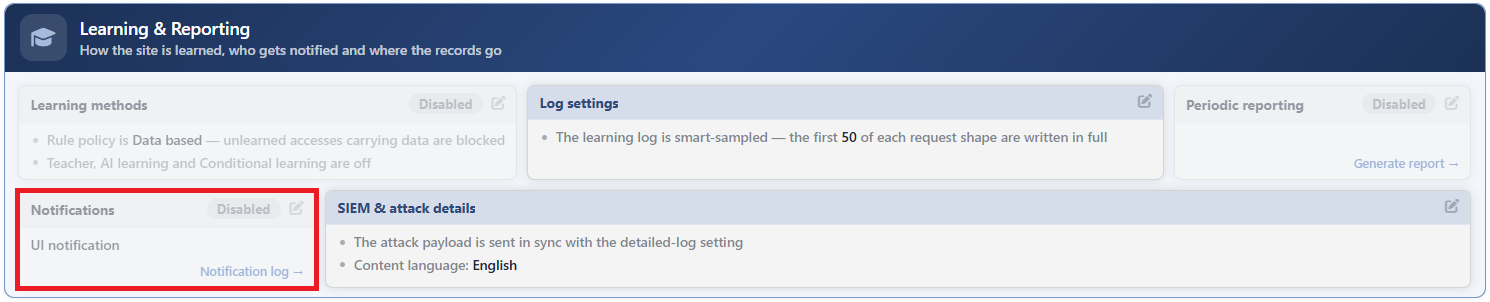 WAF Management - The Notifications Card
The Notifications Edit Screen
- The WAF Management tab is opened.
- The pencil icon at the top right of the Notifications card in the Learning & Reporting section is clicked; the editing window titled Notifications opens.
- The following fields are edited and confirmed with the
Editbutton.
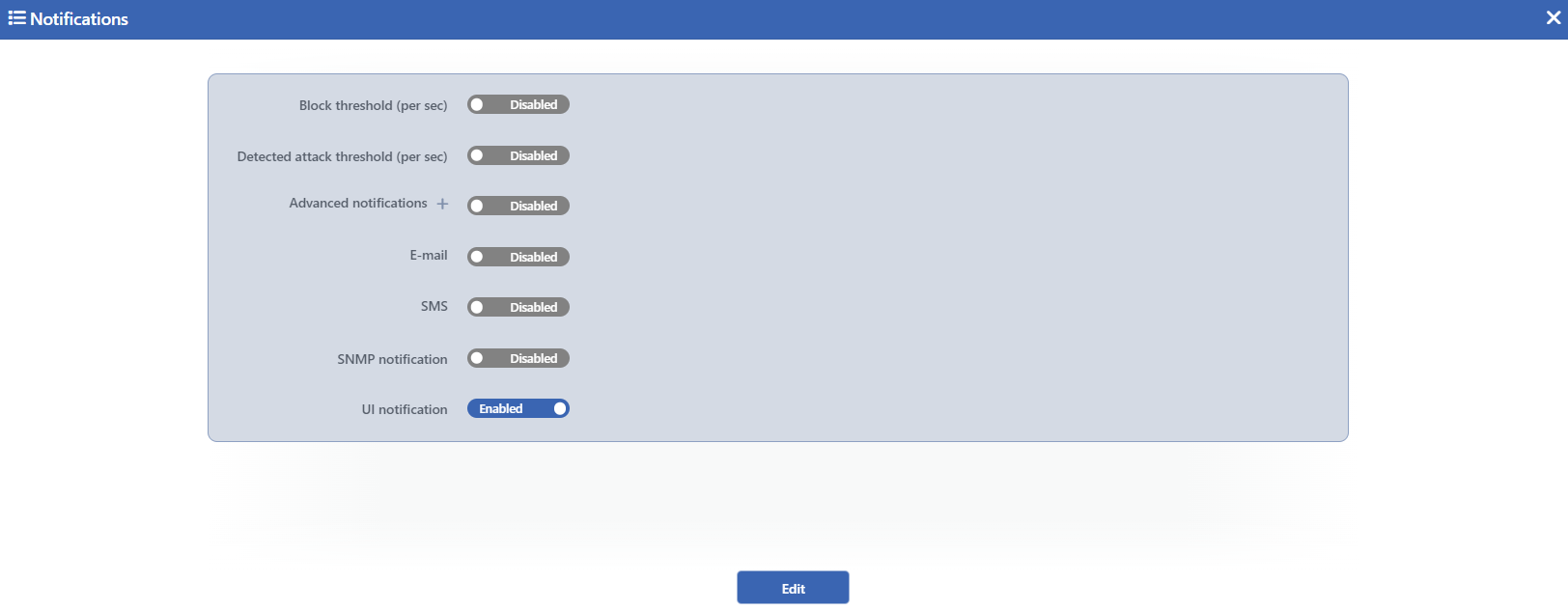 The Notifications Edit Screen
INFO
Block Threshold (per sec) Default: Off
A threshold for the number of blockings per second is defined; the field is off by default (Disabled) and when it is turned on, it comes with the value 10. At least 1 can be entered. When the blocking speed exceeds the threshold, a notification is sent; when the speed falls below four fifths of the threshold, the situation returns to normal and a normalization notification is sent. This threshold at the same time produces an alarm that stays on the alarm panel.
INFO
Detected Attack Threshold (per sec) Default: Off
A threshold for the number of attacks detected per second is defined; the field is off by default and when it is turned on, it comes with the value 10. The counting covers, besides the blocked requests, the detections coming from the monitored (Monitor) and teacher traffic as well; for this reason it is triggered earlier than the blocking threshold. The normalization behavior is the same as the Block Threshold (per sec) field.
INFO
Advanced Notifications Default: Off
The scope and time window based triggers are defined; the field is off by default. When it is turned on, a trigger card comes ready with the default values below; with the + icon next to the label (Add trigger) a new trigger card is added and at most 6 triggers can be defined. When the field is turned off, the defined triggers are taken out of the list. Its difference from the per-second thresholds is that the events are counted per scope key throughout a window: for example a single source IP producing 100 blockings in 5 minutes.
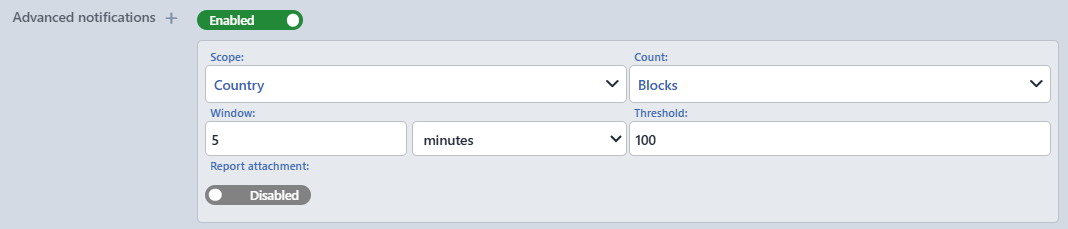 The Advanced Notifications Screen
Scope
It is selected per which key the counting will be done. Every scope has its own lowest threshold value and a number below this value cannot be entered in the Threshold field:
| Option | Meaning | The lowest threshold | The report attachment |
|---|---|---|---|
| Global (all traffic) | The events are gathered for all the traffic of the vService, without being divided into keys. | 20 | Supported |
| Source IP | The events are counted separately for every client IP address. | 5 | Supported |
| Source Subnet | The events are counted separately for the network blocks formed according to the prefix lengths below. | 10 | Supported |
| Country | The events are counted separately for the country the client IP address belongs to. | 10 | Supported |
| ASN | The events are counted separately for the autonomous system (ASN) the client IP address belongs to. | 10 | Supported |
| Network Type Group | The events are counted separately for the network type group the client IP address belongs to. | 10 | Not supported |
| Network Type Category | The events are counted separately for the network type category the client IP address belongs to. | 20 | Not supported |
| Host Header | The events are counted separately for the domain name in the Host header of the request. | 10 | Supported |
In the TCP vServices the Host Header scope does not work.
Count
The type of event to be counted is selected:
| Option | Meaning |
|---|---|
| Blocks | Only the blocked requests are counted. |
| Detections | Besides the blocked requests, the attacks detected in the monitored (Monitor) and teacher traffic are counted as well. |
IPv4 Prefix Default: 24
With this field that appears in the form when Source Subnet is selected in the Scope field, it is defined at which prefix length the IPv4 addresses will be grouped; it takes a value between 8 and 32 and its default value is 24.
IPv6 Prefix Default: 64
With this field that appears in the form when Source Subnet is selected in the Scope field, the prefix length of the IPv6 addresses is defined; it takes a value between 16 and 128 and its default value is 64.
Window Default: 5 minutes
The time window in which the counting will be done is defined in seconds, minutes or hours; its default value is 5 minutes. The window cannot be shorter than 30 seconds and longer than 1 hour.
Threshold Default: 100
The number of events in case of whose exceeding within the window a notification will be produced is entered; its default value is 100 and it cannot go below the lowest threshold of the selected scope. A new trigger card opens with Country selected in the Scope field and Blocks in the Count field.
Report Attachment Default: Off
The WAF report being attached to the notification is provided; the field is off by default and when it is turned on, PDF comes selected. The field is displayed in the form only in the scopes that support the report attachment:
| Option | Meaning |
|---|---|
| The report is attached to the e-mail as a PDF file. | |
| XLSX | The report is attached to the e-mail as an Excel workbook. |
The report covers the full range of the counting window and is filtered according to the key that triggered the trigger; in the Global (all traffic) scope the key filter is not applied, and the event type filter is added only in the Blocks counting. When the report attachment is selected, the e-mail notification is sent as a single message with a short delay so that the attachment can be prepared; the other channels do not wait.
INFO
E-mail Default: Off
The e-mail addresses to which the notifications will be sent are entered line by line; the field is off by default. The address format is not validated in the interface and a warning is not given while a faulty address is being saved; when the same setting is gone to over REST/CLI, a valid e-mail format is required. The sending uses the e-mail (SMTP) setting on the Notification Management screen.
INFO
SMS Default: Off
The telephone numbers to which the notifications will be sent are entered line by line; the field is off by default. The SMS sending is done over the notification service of TR7 and the notification text is converted to plain text and delivered. While the night silencing is active on the Notification Management screen, SMS is not sent between 22:00 and 08:00; the other channels work in this interval as well.
INFO
SNMP Notification Default: Off
It makes the notifications be sent as an SNMP trap; it is off by default. The trap target, the version and the community information come from the Notification Management screen.
INFO
UI Notification Default: On
It makes the notifications be displayed in the notification bell in the interface; it is on by default. The notification is seen by all the users on the device. When this switch is turned off, the notification is not seen in the bell but continues to be written into the Notification Logs record.
INFO
Edit
The changes in the form are saved by clicking the Edit button; the button becomes enabled when no error remains in the form. There is no additional confirmation window or deployment (deploy) step; the WAF configuration is automatically produced again and applied.
The repetition and the closing of the notifications
As long as the alarm of an advanced trigger continues, the notification is repeated at certain intervals; the repetition interval is derived from the window length and has no separate setting. The alarm closes when the counting falls below four fifths of the threshold; the normalization notification, on the other hand, is sent only for the alarms that have been repeated at least once, the short exceedings do not produce a closing notification.
If a large number of keys exceed the threshold at the same time, the notifications are still sent one by one but the flow is limited: in a trigger at most 100 keys are kept in alarm and in every evaluation round at most 10 new keys are taken into alarm. When the ceiling is filled, a separate notification that reports the number of the extra keys that exceed the threshold is sent; when the ceiling is emptied, this situation is reported as well.
An e-mail address is required for the report attachment
If the E-mail field is left empty in a trigger in which Report Attachment is selected, the report is not produced and this situation is not displayed as a warning in the interface; the notification goes only from the other channels that are on. In the same way, if the trap target is not defined in Notification Management while SNMP is on, the trap silently cannot be sent.
Notification Log Tab
The Notification Log → link below the card opens the WAF notifications of the vService as a closable tab named Notification Log on the upper strip of the screen. The tab is not permanent: it is opened only with this link and when it is closed, it returns to the WAF Management tab. Whether triggers are defined or not does not affect the opening of the tab.
The log lists the WAF notifications that belong to this vService among the notification records of the device. In a cluster installation the records of the peer device are also fetched and they are distinguished in the Source column; if the cluster is not active, this column is not displayed.
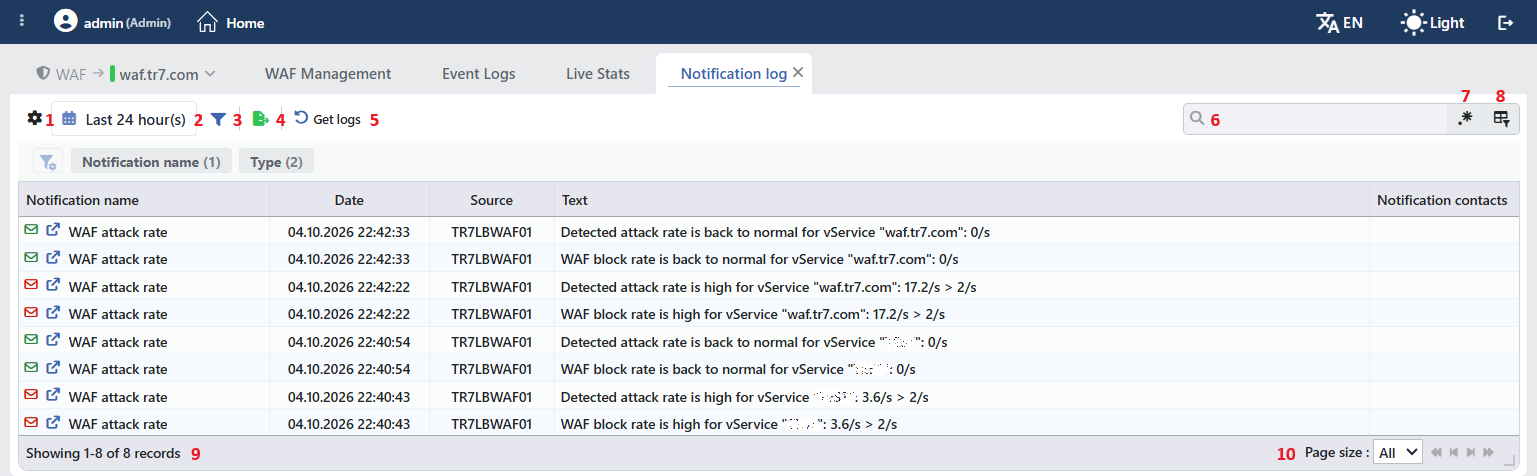 Notification Log Tab
The table opens with the following columns by default:
| Column | Description |
|---|---|
| Notification Name | The type of the notification. The names that can arise from this screen are WAF Attack Rate (the Block Threshold and Detected Attack Threshold triggers) and Advanced WAF Notification (the Advanced Notifications triggers). The column has its own multiple selection filter. |
| Date | The time at which the notification has been produced. |
| Source (only in a cluster) | The name of the TR7 device that produces the record. |
| Text | The text of the notification; e.g. WAF block rate is high for vService "<name>": 17.2/s > 2/s, Detected attack rate is back to normal for vService "<name>": 0/s. The text is kept untranslated in the record and is translated at the moment of display: the same record is displayed to every user in their own interface language. |
| Notification Contacts | The result of the transmission. For every sending an envelope or message icon and the number of recipients are displayed; it is green if the sending is successful and red if it has failed. When it is hovered over, the recipients, the error message if there is one and the text transmitted are displayed. Only the e-mail and SMS channels are located in this column: the SNMP and interface notifications are not displayed here. |
The colored icon at the beginning of the rows shows the type of the notification: red means an alarm, green a return to normal and neutral information. The external link icon next to it leads to the WAF Dashboard screen of the vService.
INFO
This log is the same as the general notification log on the Notification Logs screen and is only its version filtered to the WAF notifications of this vService. The filtering is done on the interface side: the server returns all the notification records of the device and the vService filter is applied during the listing.
The items in the toolbar are arranged from left to right in the following order; the last two items (Page Information and Page Size) are located in the information strip below the table.
Columns
Which columns are shown in the table is selected. In the same panel, columns are reordered by dragging and alignment is selected per column; the row height is fitted to the page with the Fit rows to the page button, and the column layout is reset to default with the Reset button. The layout is stored per user and is shared with the Notification Logs screen.
Date Range
The time range that the query will cover is determined with the date range picker in the toolbar. The default range is the last 24 hours.
Filter
The Filter button is used to filter the list. In the chip strip there are the Notification Name and Type filters; both of them are multiple selection and the number of active selections is written next to the chip. The values of the Type filter are Alarming, Info and OK.
Export
The table is exported as Excel, CSV or PDF by clicking the Export button. In the window that opens, the Filename, Format and Data Source, together with the Columns to be exported, are determined; the remaining fields are displayed according to the format: CSV Separator for CSV, Excel Sheet Name for Excel, and Page Orientation and Page Size for PDF.
Get Logs
The records in the selected date range are brought again by clicking the Get Logs button. While the operation is going on, the icon spins and the button becomes passive.
Search
Used to search all information in the table.
RegExp Search
Used to search all information in the table with a regular expression (RegExp).
Column Based Search
Used to perform a column-based search on the information in the table.
Page Information
Contains information about the total number of fetched records and the range of records displayed in the list: Showing N-M of T records. Since the rows cannot be selected on this screen, the number of selected rows is not shown.
Page Size
The maximum number of records to be displayed on the page is selected: 5, 10, 20, 50, 100, 200, 500 or All, which shows all of them on a single page. The default value is All: all the fetched records are listed on a single page. The selection is not stored.
On this screen the rows cannot be selected; there is no right-click menu and no preview panel for the rows.
