
Smarter by Design.Simpler for Business
NTP Time Sync
What Is NTP Time Sync?
NTP Time Sync is the screen where the NTP (Network Time Protocol) server that TR7 uses to keep its system clock accurate and the time zone of the device are defined. From this screen, the time server that the device will synchronize its clock with is entered; whether the device is synchronized with the configured server is monitored from the Time Info row and, when needed, the clock is synchronized instantly with Force Synchronization. There are two protection settings against a broken or misleading time source: Minimum Agreeing Time Sources and Maximum Accepted Clock Correction. NTP servers running on the local network or ones open to the outside can be used.
Time Zone
Time zone
The time zone of the device's system clock
NTP Server
Time server
One or more NTP servers
Accuracy Protection
Hardening
Source agreement and correction limit
Force Sync
Manual synchronization
Instant synchronization with a single click
Time Info
Sync status
Synchronization with the server and time difference
Cluster Behavior
In the TR7 installations running as a cluster (two devices), when the NTP settings are changed on one device, they are automatically synchronized with the other TR7 device; there is no need to set them separately. Only the synchronization status (Time Info) and the Force Synchronization button are separate for each device, because each device synchronizes its own clock independently. In a cluster the screen is displayed in two columns: the common configuration values are in a single cell, and the Time Info and the Force Synchronization are in the column of each device. The Edit entry, on the other hand, is found only in the column of the first device; the setting is already common to the two devices.
What Is It For?
Having the system clock of the device accurate and consistent is critical in terms of security and traceability. Keeping the clock continuously synchronized with NTP provides the following:
- The TLS/SSL certificate validity is evaluated correctly; if the clock has drifted, the certificates may incorrectly appear as "expired" or "not yet valid" and the handshakes may fail,
- The log and audit records carry the correct timestamp; time correlation with the SIEM/external systems is done properly,
- In a cluster environment the events of the two devices are evaluated on the same timeline,
- The scheduled tasks (e.g. automatic disk cleanup) run at the correct time,
- All the time-dependent operations (certificate/session duration calculations etc.) become consistent.
How to Edit?
The NTP settings are edited via the TR7 web management interface with the steps below:
- The Configuration Menu is opened by clicking the TR7 logo at the bottom left.
- The steps Settings → General Settings → NTP Time Sync are followed.
- The Edit NTP Settings editing tab is opened by clicking the Edit button.
- The related fields are updated according to the requirements.
- The changes are saved by clicking the
Savebutton.
TIP
Reaching the page via quick search
Instead of navigating the menu step by step, the related page is reached directly by using the search bar in the bottom left corner of the screen. The search bar opens with the Alt + T shortcut on Windows and Opt + T on macOS; typing the name of the feature being searched for is then sufficient.
The NTP Time Sync Screen
By following the path Settings → General Settings → NTP Time Sync, the NTP information belonging to the TR7 device is displayed. On the screen there are, in order, the Timezone, NTP Server, Minimum Agreeing Time Sources, Maximum Accepted Clock Correction (if it is not defined, None is written) and Time Info rows. In a cluster setup the screen is displayed in two columns, with the Server Name values of the devices in the column headings.
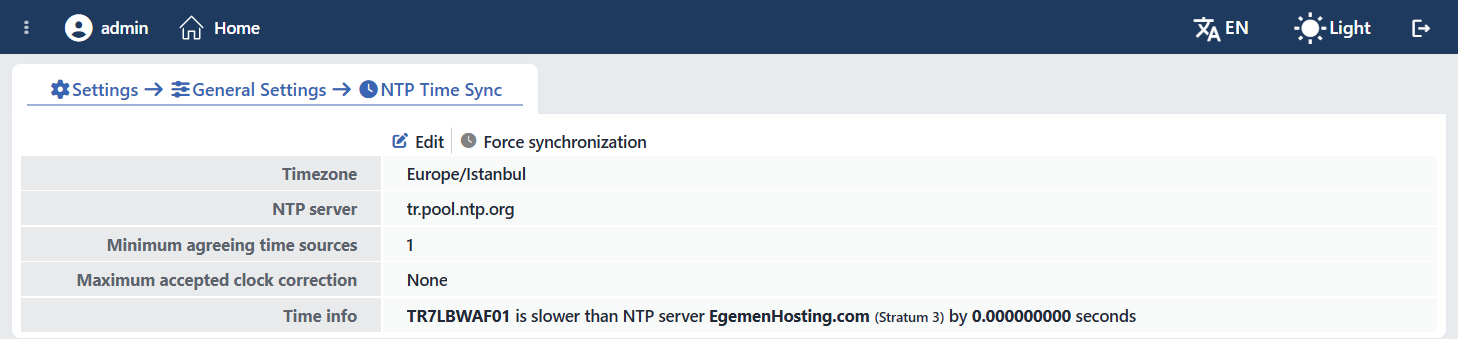 The NTP Time Sync Screen (Standalone)
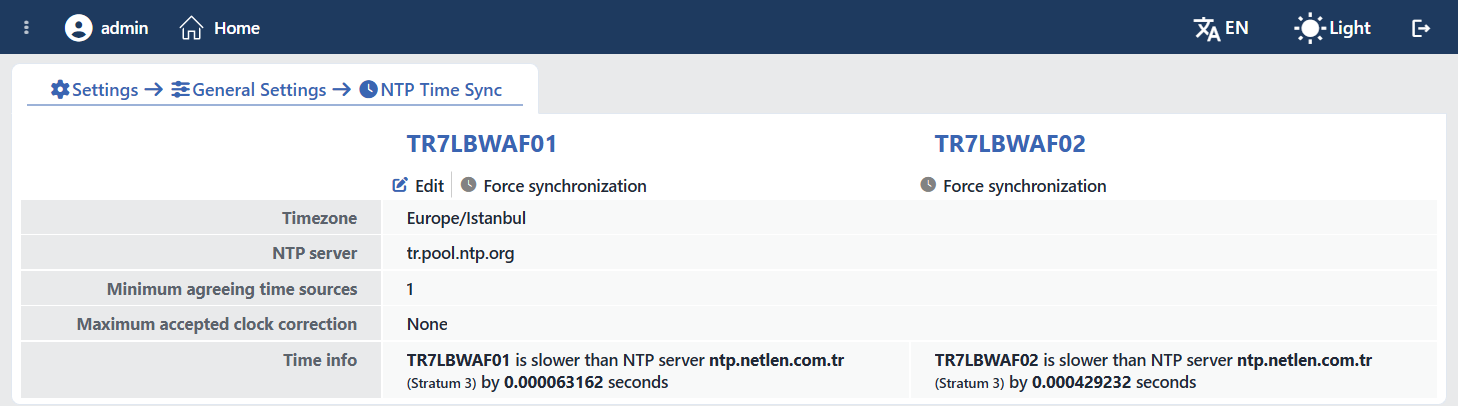 The NTP Time Sync Screen (Cluster)
Button Details
There are two entries at the top of the display screen: Edit and Force Synchronization.
INFO
Edit
By clicking the Edit button, a closable Edit NTP Settings tab in which the NTP settings are edited is opened. On the left of the NTP Server, Minimum Agreeing Time Sources and Maximum Accepted Clock Correction fields in the form there is an information icon each; when the icon is hovered over, the short description of the field is displayed.
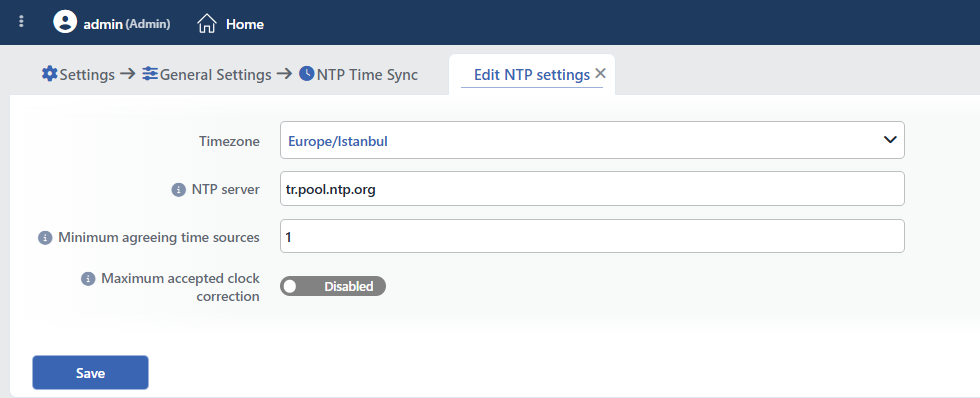 The Edit NTP Settings Tab
Time Zone Required
The time zone to be used in the system clock of the device is selected. The list comes from the IANA time zone database and can be filtered by searching. When the selection is saved, it is applied to the operating system with timedatectl set-timezone. The default value is Europe/Istanbul.
NTP Server Default: tr.pool.ntp.org
The IP address or the domain name of the time server that the device will synchronize its clock with is entered. More than one server can be defined by separating them with spaces (e.g. pool1.ntp.org pool2.ntp.org); with 4 or more sources, a single server whose clock is broken is eliminated by the others. Every value separated by a space must be a valid server name or IP on its own; a port is not written. When it is saved, every server entered is added to the configuration of the time synchronization service (chrony) and the service is restarted with the new servers.
Minimum Agreeing Time Sources Default: 1
The number of time sources that must agree at the same time for the clock to be corrected is determined (1–8). If a single (e.g. in-house) NTP server is used, the value is left at 1; a higher value stops the synchronization in this setup. The value should be raised only while more than one independent source is defined; a pool address counts as more than one source.
Maximum Accepted Clock Correction Optional · Default: unlimited
The largest clock correction to be accepted at once is limited. The measurements that request a correction larger than this limit are ignored; in this way a broken or malicious time source cannot drag the device clock. If a large deviation becomes permanent, the time synchronization service is restarted and selects its sources again.
The field is an on/off switch and is off by default; while it is off, Disabled is written in the editing form and None on the display screen. When the switch is turned on, a value is entered in the range 30 seconds – 24 hours, in the second, minute or hour unit (the suggested value is 10 minutes).
Save
The changes made are saved by clicking the Save button and the tab closes.
INFO
Force Synchronization
By clicking the Force Synchronization button, the device clock is synchronized instantly, without waiting: the device takes time samples from the server one after another; if needed, it restarts the time synchronization service and corrects the clock with a step. While the operation is in progress, the button icon spins; since the progress is kept on the device, the other sessions looking at the same screen also see the operation.
The button is conditional; it stays disabled in the following cases:
- if a synchronization operation is already in progress,
- if the NTP Server field is empty,
- (in a cluster) if there is no service connection with the target device.
In a cluster setup the button is placed separately in the column of each device; the clock of each device is synchronized with its own button.
Time Info
On the NTP screen there is a Time Info row that shows whether the device is synchronized with the configured time server. The status information is refreshed from the device every 15 seconds and the following are displayed on the row:
- The synchronization status: if the synchronization fails, the row shows the message "Cannot synchronize with NTP server" in red.
- The time difference: when the synchronization is achieved, how many seconds the device is ahead (faster) or behind (slower) of the reference server is written in color together with the Server Name value of the device; the difference is shown in the second unit and with nine decimal places.
- The reference source and the stratum: the name of the server the clock is synchronized to and its stratum (layer) level are shown within the same message. The name written here is not the value entered in the NTP Server field but the server that is actually being synchronized with at that moment: when a pool address (e.g.
tr.pool.ntp.org) is entered, the name of the concrete server that the pool selects at that moment is displayed and it can change over time.
In a cluster setup the Time Info is displayed separately in the column of each device. The same Time Info row is also found on the Home & Dashboard screen.
Time Info: Synchronization Successful
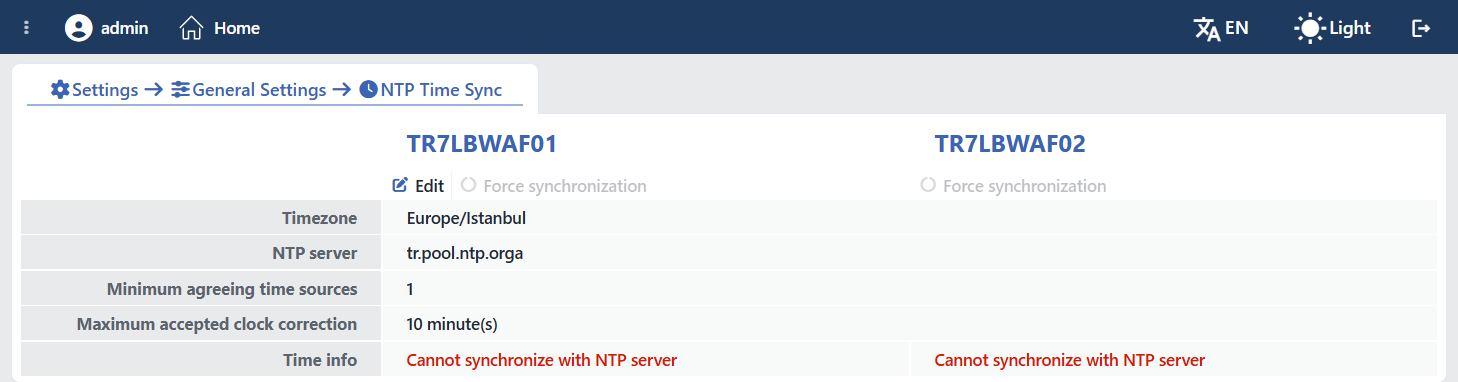 Time Info: Synchronization Failed
The NTP notification
Under Notification Management a notification entry of the NTP type is defined: a warning is produced when the device loses the synchronization or when the clock moves away more than the determined deviation threshold (Alert When the Clock Is Off by More Than; by default 5 seconds, 1 second – 24 hours). So that temporary fluctuations do not produce an alarm, the notification is sent when the state lasts approximately 5 minutes; while Force Synchronization is in progress, the evaluation is suspended.
