
Smarter by Design.Simpler for Business
Bandwidth Limitation
What Is the Bandwidth Limitation Action?
The Bandwidth Limitation action is used to bring the bandwidth of the traffic coming to and going from the vServices under control. Separate limits can be defined for the download and the upload traffic.
This action works only at the request stage and, by being used together with conditions, limits specific to certain traffic types or user groups can be applied.
The Importance of the Bandwidth Limitation Action
Bandwidth limitation is a critical traffic management mechanism for ensuring the fair and efficient use of the network resources.
The Bandwidth Limitation action;
- provides the fair distribution of the network resources,
- prevents a single user from consuming all the bandwidth,
- makes it possible to give priority to critical services,
- brings the file download and video streaming traffic under control,
- offers the possibility of bandwidth-based rate limiting for API services,
- enables different speed levels to be offered to different user groups.
For this reason, the Bandwidth Limitation action is an indispensable tool for the effective management of the network resources.
Limiting Modes
This action offers two different limiting modes.
Dynamic
The requests grouped according to the specified key(s) share a common limit. For example, all the requests coming from the same IP share the total limit. It requires at least one key.
Stream
A separate limit is applied for each single connection. Each connection uses its own limit independently.
| Mode | Description |
|---|---|
| Dynamic | A common limit is applied for the requests grouped according to the specified key(s). For example, all the requests coming from the same IP address share the total limit. It requires at least one key. |
| Stream | A separate limit is applied for each stream; each request in a keep-alive connection is a separate stream. Each stream uses its own limit independently. |
The limiting is calculated over the amount of data transferred per second. When the limit is exceeded, the traffic is slowed down (throttled), it is not blocked completely.
Supported vService Types
HTTP
L7 TCP
Network
Execution Timing
On Request
On Response
How to Add?
A new Bandwidth Limitation Action can be added through the TR7 web management interface by following the steps below:
- The Configuration Menu is opened by clicking the TR7 logo at the bottom left.
- The Load Balancer → Actions → Add steps are followed.
- A unique and descriptive name is entered for the action.
- Bandwidth Limitation is selected as Action Type.
- The related configurations of the action are made.
- In the Conditions tab, the condition/conditions under which the action takes effect are determined.
- The action is added by clicking the
Addbutton.
Bandwidth Limitation Action Add Form
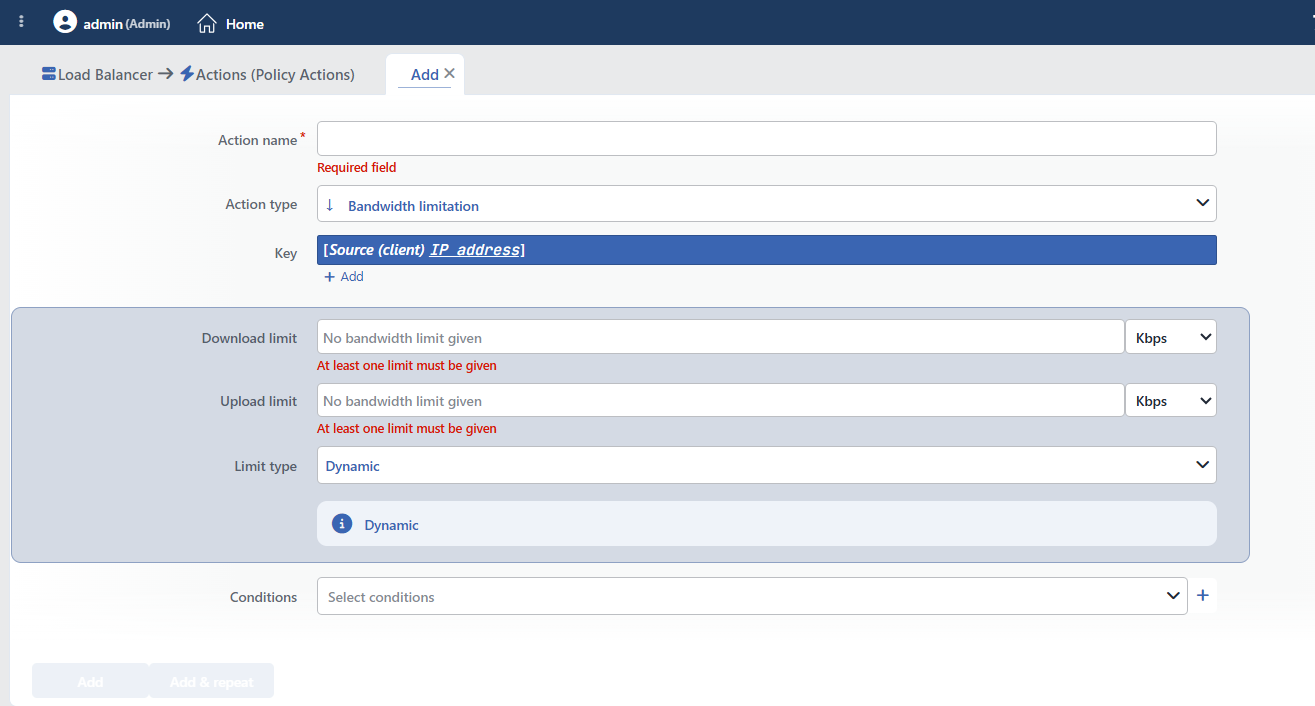 Bandwidth Limitation Action Add Form
INFO
Key
It is visible when Dynamic is selected in the Limit Type field. The field comes filled with the Source client IP variable by default.
When the variable row (or the fx button) is clicked, the Add variable / Edit variable window opens. In this window, the Variable name is selected from the searchable list, the related field is filled in if the variable takes an argument (a header name, a cookie name, etc.), and a smart function chain is defined with Add functions if necessary; the preview of the resulting expression is seen in the Summary field and it is written to the field with Submit.
The key variables to be used for creating the limiting groups are selected in this field. The requests that have the same key combination share the defined limit.
DANGER
When Dynamic is selected as the Limit Type, at least one key must be defined. Dynamic mode rules created without defining a key do not work and are skipped silently. In Dynamic mode, at most 100,000 different keys are monitored at the same time; the rate record of a key drops 1 hour after its traffic stops.
Dynamic grouping can be done by using Smart Variables. For example:
- Client IP address: Grouping according to the client IP
- Client port number: Grouping according to the client port
- Path/page of the request [URI]: Grouping according to the request path
- Request HTTP header content: Grouping according to a specific header value
More than one key can be added:
 Example of Selecting More Than One Key
When more than one key is added, the combination of all the keys is used as the unique group identifier.
TIP
This field supports Smart Variables. Existing variables can be accessed with the fx button and dynamic content can be created.
Detailed information is on the Variables page.
INFO
Download Limit
The maximum speed of the traffic sent to the client (download) is determined in this field. After the value is entered, the unit can be selected:
- Kbps: Kilobit/second
- Mbps: Megabit/second
- Gbps: Gigabit/second
The value is entered as an integer; the range is 1 Kbps – 32 Gbps. The unit multipliers are binary: 1 Mbps = 1024 Kbps, 1 Gbps = 1024 Mbps (the default of the unit box is Kbps).
INFO
Upload Limit
The maximum speed of the traffic received from the client (upload) is determined in this field. After the value is entered, the unit can be selected:
- Kbps: Kilobit/second
- Mbps: Megabit/second
- Gbps: Gigabit/second
WARNING
The Download Limit and the Upload Limit cannot both be left empty: at least one limit must be entered; otherwise the form does not allow saving.
INFO
Limit Type Default: Dynamic
It is the field in which the limiting mode is selected.
- Dynamic: In this mode, a common limit is applied for the requests grouped according to the specified key(s). All the connections that have the same key combination share the defined limit. This mode is ideal for a fair bandwidth distribution on a user or IP basis. Example: when a 10 Mbps limit is defined on an IP basis, all the simultaneous connections coming from the same IP share a total of 10 Mbps.
- Stream: In this mode, a separate limit is applied for each stream; each request in a keep-alive connection is counted as a separate stream. This mode is suitable for scenarios where a fixed speed guarantee per stream is needed. Example: when a 10 Mbps limit is defined, each stream can independently take a speed of up to 10 Mbps.
INFO
Conditions
In this field, it is defined under which condition or conditions the related action takes effect.
By adding one or more conditions, the behavior can be applied in a targeted and controlled way with the and/or structure.
Detailed information about conditions is on the Conditions page.
WARNING
If no condition is defined in this field, the related action runs unconditionally (Always). In this case, the action is applied to all traffic coming to the related vService.
In live environments, using an action without defining a condition can lead to unexpected situations (service outages). For this reason, it is recommended that at least one condition always be defined when an action is created.
INFO
Form Buttons
Add
The action adding process is completed by clicking the Add button.
Add & Repeat
With the Add & Repeat button, the action adding process is completed, and another new action can be added with different configurations without leaving the related window.
 Action Added
Operational and Safe Usage Recommendations
The correct mode is selected:
| Scenario | Recommended Mode |
|---|---|
| Fair sharing per user | Dynamic (IP-based) |
| Fixed speed per connection | Stream |
| API rate limiting | Dynamic (API key or user ID based) |
| Video streaming | Stream |
- Realistic Limits Should Be Determined. Limits that are too low affect the user experience negatively, and limits that are too high remain ineffective. The optimum values should be determined by analyzing the existing traffic patterns.
- It is used together with conditions. Instead of applying a limit to all traffic, targeted limits are defined for specific paths, content types or user groups.
- The Key Selection in Dynamic Mode Should Be Made Well. Only IP: the most common use, a limit per user. IP + Path: access of the same user to different resources with different limits. User ID/Session: more precise control on a session basis.
- The Download and Upload Distinction Should Be Evaluated. In most web applications, the download traffic is much heavier than the upload traffic. The download limit is generally more critical, but in applications that have file upload features, the upload limit is also important.
- It is used together with monitoring. The effect of the bandwidth limitation actions is observed through the vService live statistics and the logs (this action does not have a hit counter of its own). Whether the limits are frequently exceeded is checked.
Common Usage Scenarios in Live Environments
The examples below show how the related action is applied in the most frequently encountered use cases in real systems. These scenarios are based on practices that are widely preferred in live environments and rest on experience gained in the field.
Scenario 1: Limiting the File Download Speed per User
Problem: Some users consume all the bandwidth by downloading large files and the access of the other users slows down. The network resources are not distributed fairly.
Solution: Fair sharing is provided by applying a maximum 10 Mbps download limit for the /downloads/ path to each user (on an IP basis).
Configuration:
- Key: The Client IP address variable is selected from the Smart Variables (fx) button
- Download Limit:
10 Mbps - Upload Limit: Empty (no upload limit)
- Limit Type: Dynamic
- Conditions: Path STARTS WITH
/downloads/
Result:
- ✅ The requests made to the /downloads/ path → Each IP address downloads at a maximum speed of 10 Mbps.
- ✅ The network resources → Are distributed fairly, a single user cannot consume the whole band.
- ❌ The paths outside /downloads/ → The bandwidth limit is not applied, they work at normal speed.
Scenario 2: API Endpoint Bandwidth Protection
Problem: The large data export requests made to the API endpoints overload the Backend Service and the network. Some users continuously pull large data sets.
Solution: By applying an IP-based bandwidth limit to the API export endpoints, both the download and the upload traffic are brought under control.
Configuration:
- Key: The Client IP address variable is selected from the Smart Variables (fx) button
- Download Limit:
5 Mbps - Upload Limit:
2 Mbps - Limit Type: Dynamic
- Conditions:
Result:
- ✅ /api/export or /api/bulk-download requests → A 5 Mbps download and 2 Mbps upload limit is applied for each IP.
- ✅ The Backend Service and the network → Are protected from being overloaded and remain stable.
- ❌ The other API endpoints → The bandwidth limit is not applied.
