
Smarter by Design.Simpler for Business
License Management
What Is License Management?
License Management is the screen on which the license status of the TR7 device is displayed and the license file is managed. The screen consists of two sections: Current State shows the current license status of the device, the restrictions in force, the licensed modules and the device fingerprint; License File shows the content of the installed license file (customer, license identifier, type, issue and expiry dates, capacity limit).
The license is bound to the device: each device has a fingerprint of its own and the license is issued for that device; it cannot be used on another device. The modules the license covers are open on the device; when the license expires, the device is restricted gradually.
Cluster Behavior
The license is single per cluster: the license installed on one device is synchronized automatically with the other TR7 device, and it does not need to be installed there separately. On the other hand, each device evaluates the license with its own fingerprint; for this reason the license must cover both devices. If it does not, the device that stays out of the coverage is locked on its own account.
The device fingerprint is separate for each device and both must be collected separately and sent to the TR7 Support Team.
What Is It For?
This screen answers three questions:
- What is the current state of the device? Whether the license is valid, its expiry is approaching, it is in the grace period or it is locked; when the next change will occur and what it will be.
- Which restrictions are in force? Whether the configuration can be changed, whether the traffic services are running, whether the software updates are open.
- What does the license cover? Which products/modules are open, what the bandwidth limit is, which device the license is issued for.
Installing and removing the license and adding a support ticket are also performed on this screen.
License Statuses
The license status of the device is displayed in the Status row; in the time-dependent statuses the number of remaining days is added next to it as Days left. The statuses that can be displayed are below.
| Status | When it is seen |
|---|---|
| No license — open for setup | On a device that has never held a license, within the 3-day setup window that follows the first startup. All the modules are open and there is no restriction. |
| Valid | The license is valid, the device matches and the expiry warning has not started yet. |
| Valid — expiring soon | The expiry date is approaching and the expiry warning has started. |
| Expired — grace period | The license has expired and the grace period is running. |
| Expired — grace period, read-only | The grace period continues and the configuration has become read-only. |
| Expired | The grace period has ended as well. |
| Support and updates ended | The end of the period on a Perpetual license; the device keeps working, only the software updates are closed. |
| No license — locked | There is no installed license and the setup window has closed, or the device has held a license of its own before. |
| License not usable — locked | There is a license file but it cannot be used: it is unreadable, not valid or belongs to another device. |
Restrictions
In the Restrictions row the restrictions in force are listed separated by ·; when there is none, None is written. There are three restrictions:
INFO
Configuration is read-only
Configuration changes are rejected; read operations continue. The The device is read-only because of its license state; configuration can be changed again once a valid license is installed message is returned on the rejected requests.
The Network settings and the License Management screen are out of this restriction; thus a valid license can be installed on a locked device as well.
INFO
Traffic services stopped
The Load Balancer vServices and the GTM services stop. The network, the firewall, the Backend Services and the health checks do not stop. When a valid license is installed, the services start by themselves.
INFO
Software updates closed
Installing a software update and checking for updates are rejected. The The support and update period of this license has ended; software updates are closed until the license is renewed message is returned on the rejected requests.
A module that is not in the license
The module coverage is not shown in the Restrictions row, it works separately. A module that is not in the license is hidden from the Configuration Menu; when an attempt is made to enter it with a direct link, the screen does not open and an information page that says the module must be added to the license is displayed. The settings of the module are preserved and, when the module is added to the license, they come into force again as they were.
How Is a License Installed?
The license is installed through the TR7 web management interface with the following steps:
- The Configuration Menu is opened by clicking the TR7 logo at the bottom left.
- The Settings → General Settings → License Management steps are followed.
- The fingerprint of the device is copied with Copy fingerprint and sent to the TR7 Support Team for the license to be issued.
- The license text that arrives is pasted into the License text field in the Install license window.
- The license is installed by clicking the
Acceptbutton.
TIP
Reaching the page via quick search
Instead of navigating the menu step by step, the related page is reached directly by using the search bar in the bottom left corner of the screen. The search bar opens with the Alt + T shortcut on Windows and Opt + T on macOS; typing the name of the feature being searched for is then sufficient.
License Management Screen
The license information of the device is displayed by following the Settings → General Settings → License Management path. At the top of the screen there is the Current State section and four operation entries; if there is an installed license, the License File section is below it. In a cluster installation the screen opens in two columns.
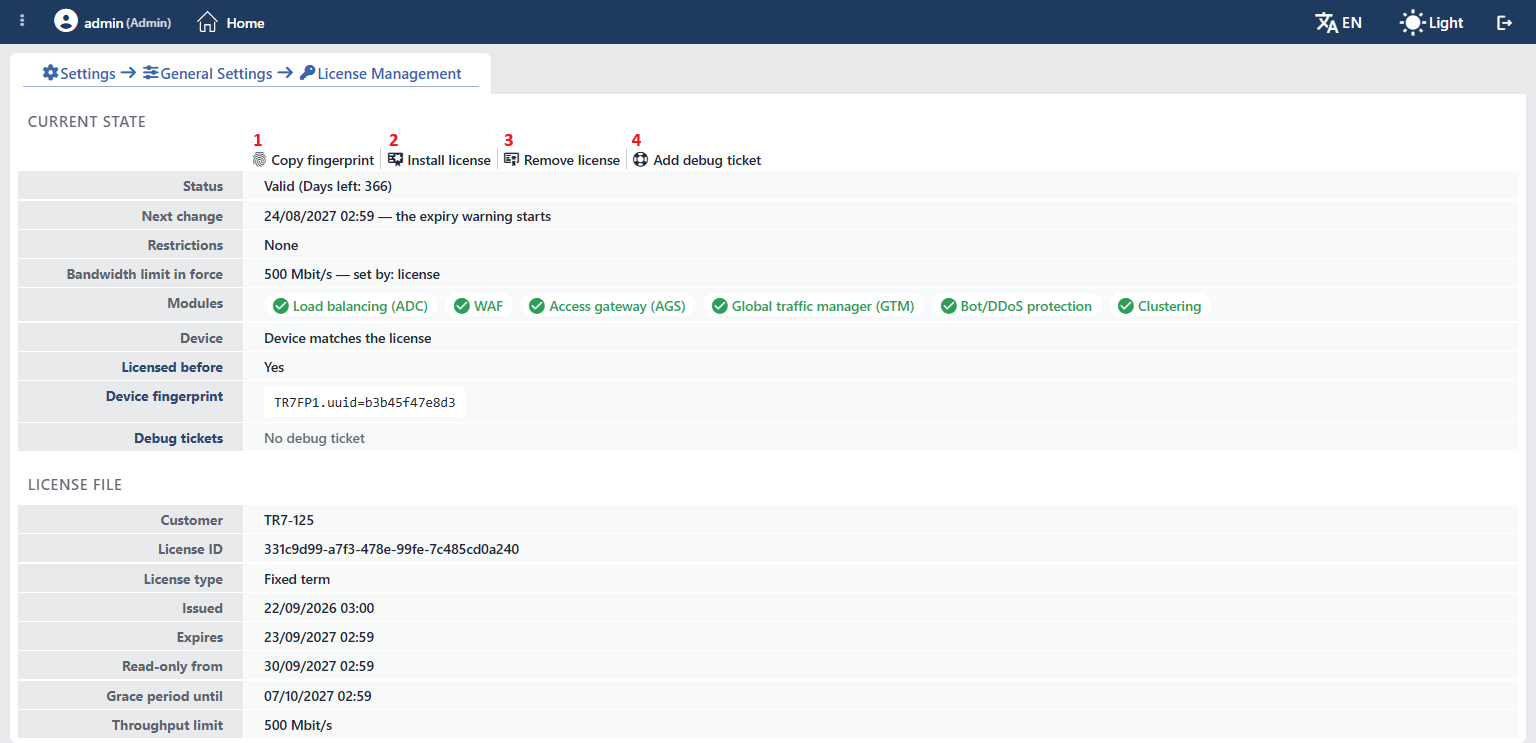 License Management Screen (valid license)
While the setup window is open, the screen is displayed as below; since there is no license file, the License File section is not present.
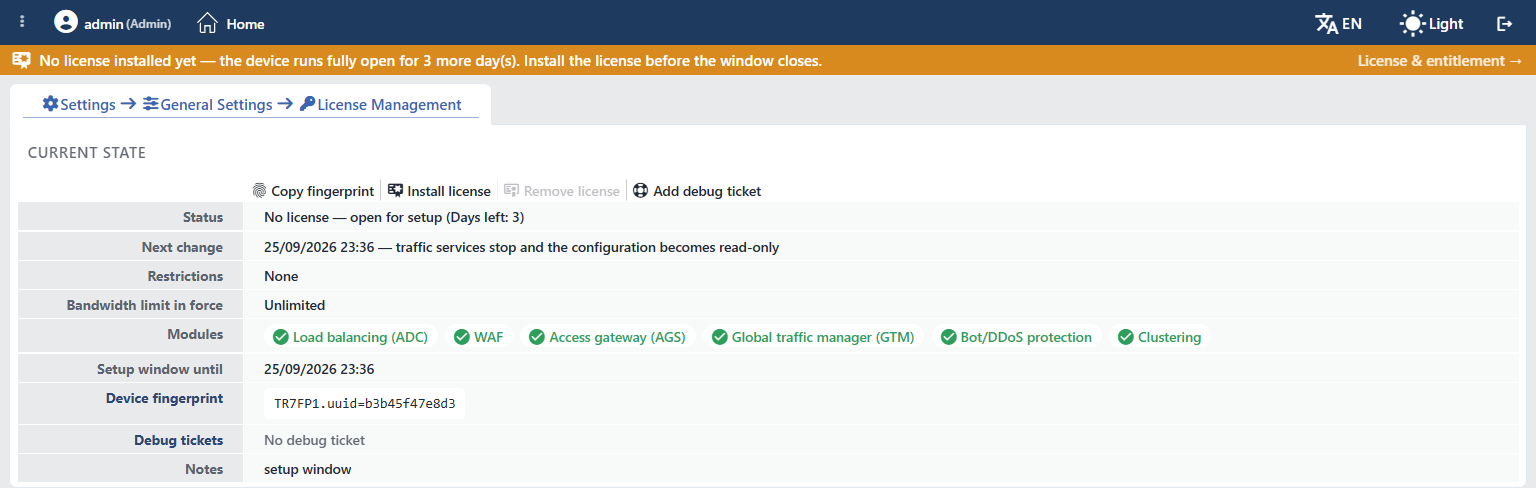 License Management Screen (setup window)
When the setup window closes and the license is still not installed, the device is locked.
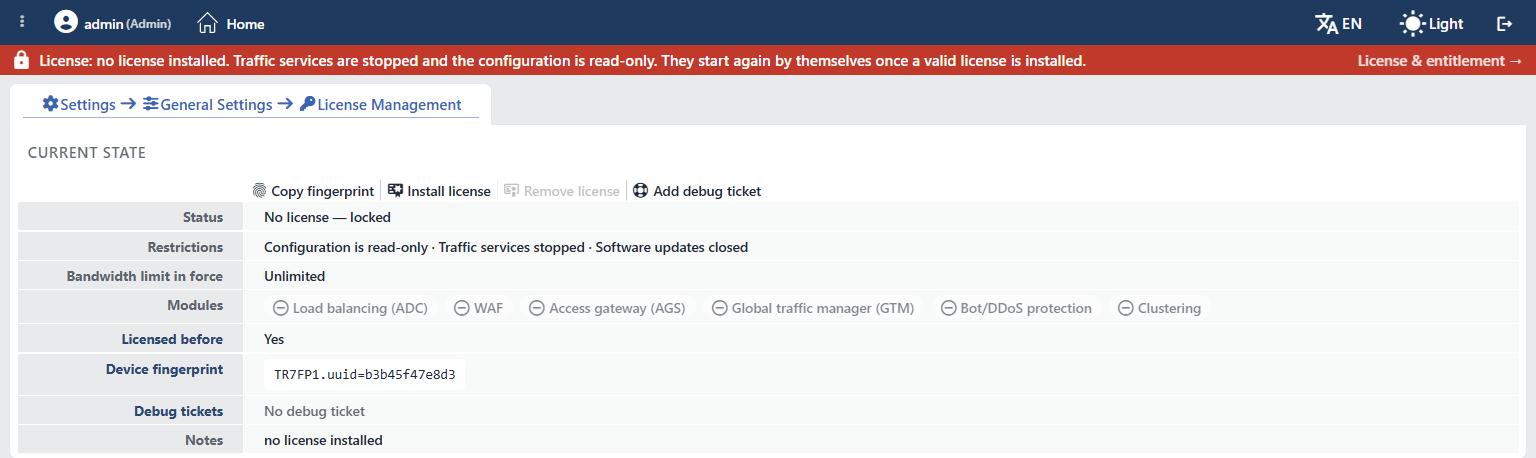 License Management Screen (locked)
The Current State Section
In this section the following information is displayed, in order. Some rows are present only when the related condition occurs.
INFO
Status
Shows the license status of the device (see License Statuses). In the time-dependent statuses the number of remaining days is added as Days left.
INFO
Next change
Displayed only if a status change is expected in the future; the row is not present on a locked device. Shows when the next change in the license status will occur and what it will be, in the <date> — <change> format.
INFO
Restrictions
Lists the restrictions in force (see Restrictions); when there is no restriction, None is written.
INFO
Bandwidth limit in force
Shows the bandwidth limit that is actually applied on the device and who set that limit, in the <value> Mbit/s — set by: <source> format; when there is no limit, Unlimited is written. The source can be license, Azure plan, AWS plan or manual setting. If the limit the license asks for and the applied limit are different, (license and cloud plan ask for: …) is added to the end of the row.
INFO
Cloud offer
Displayed only in the cloud marketplace installations. Shows whether the offer the box was purchased with trims the license: when there is trimming <offer> — trimmed: <trimmed items>, otherwise <offer> — covers the license. Besides the module names, throughput can also be in the list of trimmed items.
INFO
Modules
Shows the modules the license covers as chips: Load balancing (ADC), WAF, Access gateway (AGS), Global traffic manager (GTM), Bot/DDoS protection and Clustering. The chip has three states:
| Appearance | Meaning |
|---|---|
| Green check icon | The module is active |
| Orange lock icon | The module is in the license but has been trimmed by the cloud offer |
| Gray minus icon | The module is not in the license |
INFO
Setup window until
Displayed only while the setup window is open; shows the date on which the window will close.
INFO
Device
Displayed only while there is a verified license file; the row is not present in the setup window. Shows the result of the comparison between the fingerprint of the device and the device record in the license:
| Value | Meaning |
|---|---|
| Device matches the license | The device matches the license. |
| Matches. One identifier has changed since the license was issued (…) | The match continues, but a part of the identity has changed; requesting a new license without haste is recommended. |
| Matches. A difference was just seen (…) and is being checked | A difference has just been seen and is being verified; nothing changes unless it is permanent. |
| Device does NOT match the license (changed: …) | The device does not match the license. If a mismatch window has opened, Mismatch window until: <date> is added to the end. |
INFO
Licensed before
Shows whether the device has held a license of its own before; if it has, Yes is written, and if it has not, the row is not displayed. This information is permanent: even if the license is removed, the device never returns to the setup window.
INFO
Device fingerprint
Shows the identity specific to the device as a single-line text that starts with TR7FP1.. The license is issued for this identity.
The text is copied with Copy fingerprint and sent to the TR7 Support Team for the license to be issued.
INFO
License file error
Displayed only when the license file cannot be used and shows the reason in the The installed file could not be used: <error> format.
INFO
Debug tickets
Lists the debug tickets installed on the device as chips; on each chip there is the purpose of the ticket (Debug mode or Admin recovery) and the until <date> information, and when it has expired, expired is written. The ticket is deleted with the remove icon on the chip; the tooltip text of the icon is Remove ticket and, before the deletion, the Remove the debug ticket (<purpose>) now? The temporary password stops working immediately. confirmation is asked for. When there is no ticket, No debug ticket is written.
INFO
Notes
Shows the reasons for the status as short notes: setup window, no license installed, license file unreadable, device does not match the license, device mismatch window, expiring soon, grace period, grace period, read-only, license expired, trimmed to the cloud offer. When there is no note, the row is not displayed.
The License File Section
If there is an installed license file, the content of the file is displayed in the second section.
INFO
Expires
The expiry date of the license. On Perpetual licenses this row is displayed with the name Support and updates until; the device works after this date as well, only the support and update period is closed.
INFO
Read-only from
Displayed only on Fixed term licenses; shows the date on which the configuration will become read-only.
INFO
Grace period until
The end date of the grace period; on the licenses that have no grace period (such as Proof of concept) the row is not displayed. On Perpetual licenses this row is displayed with the name Updates close on.
INFO
Throughput limit
The capacity limit written in the license file. This value can be different from the Bandwidth limit in force row; the limit that is actually applied on the device is shown there.
Button Details
At the top of the screen there are four operation entries from left to right.
Copy fingerprint
The Device fingerprint text of the device is copied to the clipboard by clicking the Copy fingerprint button and the Device fingerprint is copied to clipboard notification is displayed. If the browser prevents writing to the clipboard, the text is shown in a window from which it can be copied. When the fingerprint cannot be found, the button is inactive.
Install license
The Install license window is opened by clicking the Install license button.
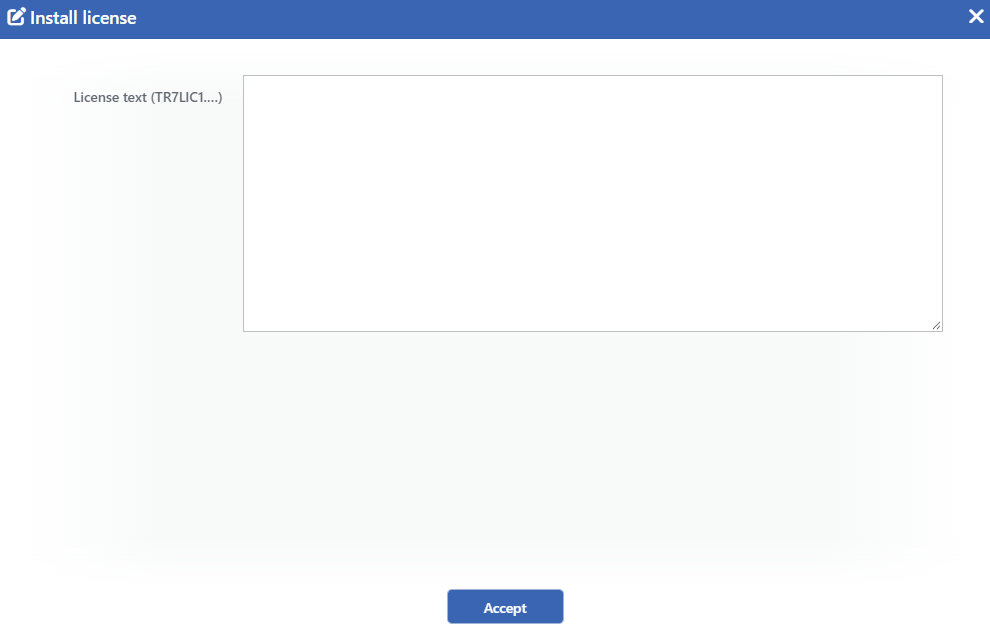 The Install license Window
The license text that comes from TR7 is pasted into the License text (TR7LIC1.…) field and the Accept button is clicked.
| Result | Message |
|---|---|
| Successful | License installed |
| The same license is already installed | This license is already installed |
| The field is empty | License text is empty |
| Belongs to another device | License refused: it was issued for another device. Send this device's fingerprint to have a license issued for it; the installed license was left as it is. |
| Other errors | License refused: <error> |
When the installation is successful, the license status is evaluated again and the traffic services start by themselves. The license is sent to the cluster peer as well. The operation is written to the user operation record.
Remove license
When the Remove license button is clicked, a confirmation is asked for first: Remove the installed license? Licensed modules stop being applied when no valid license is present. When it is confirmed, the installed license file is deleted and the status is evaluated again; the removal is reported to the cluster peer as well.
The button is active only while there is a valid license file that is in force and belongs to this device; it appears inactive when there is no license, when the file is unreadable or when the file belongs to another device.
After the license is removed
Since the device has held a license of its own before, the setup window does not come back. When the license is removed, the device goes directly into the locked status: the configuration becomes read-only, the traffic services stop and the software updates are closed.
Add debug ticket
The Add debug ticket window is opened by clicking the Add debug ticket button.
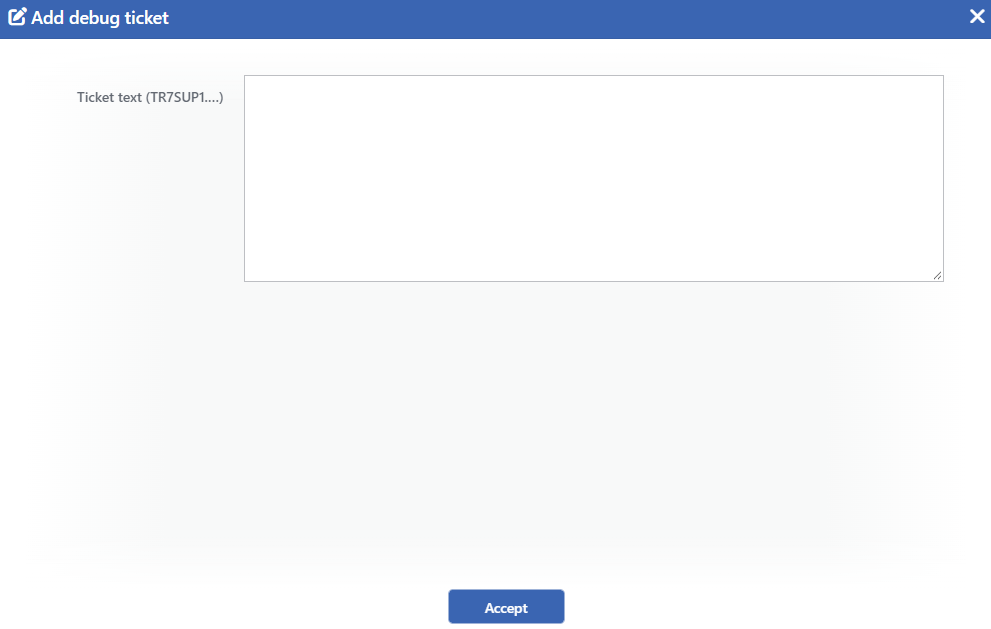 The Add debug ticket Window
The ticket text that comes from the TR7 Support Team is pasted into the Ticket text (TR7SUP1.…) field and the Accept button is clicked.
| Result | Message |
|---|---|
| Successful | Debug ticket added |
| A ticket for the same purpose was replaced | Debug ticket added; the previous ticket for the same purpose was replaced |
| The field is empty | Ticket text is empty |
| Refused | Ticket refused: <error> |
What is a debug ticket?
A debug ticket is a text that the TR7 Support Team sends, which is bound to the device and time-limited; it is not a request sent to the TR7 Support Team. It opens a temporary access for a single purpose: Debug mode or Admin recovery.
The ticket is given for a period; when the period ends, it falls away by itself and, if necessary, it is removed earlier from this screen.
The ticket does not remove any license restriction. The read-only configuration, the stopped traffic services and the closed updates continue as they are.
The Top Warning Strip
If the license is in a state that requires attention, a full-width strip is displayed right below the top header bar and stays in place even if the page is scrolled. At the right end of the strip there is the License & entitlement → label; the whole strip is clickable and leads to this page.
The red strip is displayed while the device is locked:
License:
<reason>. Traffic services are stopped and the configuration is read-only. They start again by themselves once a valid license is installed.
The orange strip is displayed while the device is not locked, according to the priority order below:
| Situation | Strip text |
|---|---|
| Setup window | No license installed yet — the device runs fully open for <N> more day(s). Install the license before the window closes. |
| Grace period | The license has expired — the device keeps working fully for <N> more day(s), then configuration becomes read-only. Renew the license. |
| The second half of the grace period | The license has expired and the configuration is read-only — the grace period ends in <N> day(s), then the traffic services stop. Renew the license. |
| Perpetual, grace period | The support and update period has ended — software updates close in <N> day(s). The device itself keeps working. |
| Perpetual, the period has ended | The support and update period has ended: software updates are closed. The device keeps working; renew the license to reopen updates. |
| Device mismatch | This device no longer matches the license (changed: …) — <N> day(s) left to have it re-issued. |
| Perpetual, the period is approaching | The support and update period ends in <N> day(s). The device keeps working after that, but software updates will close. |
| The expiry is approaching | The license expires in <N> day(s). Renew it to avoid the grace period. |
When none of these situations is present, the strip is not displayed.
Device Mismatch
A hardware change can change the fingerprint of the device. In such a case a mismatch is displayed in the Device row and a window is opened for the license to be issued again; the date on which the window will close is in the Next change row.
Before the window closes, the new fingerprint of the device must be sent to the TR7 Support Team and the license that arrives must be installed. When the window closes, the device is locked: the configuration becomes read-only and the traffic services stop.
Scope and Permission
INFO
- Seeing the screen requires the view permission in the Settings permission area; installing and removing the license and the ticket operations require the change permission in the Settings area.
- The license installation is not affected by the restrictions. The license can be installed on a device on which the configuration is read-only or the traffic is stopped as well.
- Installing and removing the license are performed only from the web interface; there is no REST API or Web CLI endpoint for these operations.
- The license events produce notifications. A status change, a device mismatch, a file error and a cloud offer trimming are reported through Notification Management.
- The operations are written to the user operation record and monitored on the User Logs screen.
