
Smarter by Design.Simpler for Business
Document Verification
The PDF copy of every page in this documentation is signed digitally at the moment it is produced, and an independent timestamp is embedded into the signature. Thus whether a PDF is the same as the state produced by TR7 is checked without asking TR7.
The check is made in two ways: looking with Adobe Acrobat Reader is sufficient in most cases; when a detailed report is needed, the pyHanko command line tool is used. Both are explained below.
What Does the Signature Tell?
The signature answers three separate questions and these are independent of each other:
INFO
Has the document been modified?
If even a single character has been changed after the PDF was produced, the signature breaks. If a new revision has been appended to the end of the file, this is also shown separately. This check works independently of the certificate and gives the same result in every PDF reader.
INFO
Who signed the document?
The signature is made with a certificate issued in the name of TR7 Ltd. The fingerprint of the certificate is published below; the signer is verified as TR7 by comparing it with the value shown in the signature panel.
INFO
When was the document produced?
An RFC 3161 timestamp is embedded into the signature. The timestamp is issued not by TR7 but by an independent timestamping service; a third party attests that the document existed on that date.
Two checks that must not be confused
The certificate fingerprint and the document integrity are two separate things. The fingerprint is the identity of the signer and is the same in every TR7 document; it does not change even if the document is modified. Whether the document has been altered is a separate check and its result is written separately in the signature panel. A correct fingerprint on a document does not mean that the document has not been modified; the opposite is valid as well.
Checking with Adobe Acrobat Reader
The document is opened with Adobe Acrobat Reader and two places are looked at: the warning strip at the top of the screen and the Signature Panel on the right. The panel is opened with the Signature Panel button at the right end of the strip.
How Does a Modified Document Look?
If the document has been modified after it was signed, the following warning is displayed in the top strip:
 Adobe Acrobat Reader: the warning strip on a modified document
In the Signature Panel the icon in the signature row turns into a red cross and the number of modified pages is added below it as N Page(s) Modified:
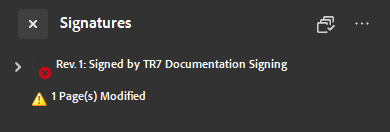 Adobe Acrobat Reader: the signature panel on a modified document
Such a document is not the state produced by TR7.
| What is shown in the panel | Meaning |
|---|---|
| At least one signature has problems · yellow triangle | The document is not broken; the reader only does not recognize the signer. This is the expected view. |
| At least one signature is invalid · red cross | The document has been modified. This PDF is not the state produced by TR7. |
| N Page(s) Modified | A new revision has been appended to the file after it was signed; the page content has been changed. |
| There is no signature field at all | The document has not been downloaded from the TR7 documentation or its signature has been stripped. |
The Signing Certificate
| Field | Value |
|---|---|
| Owner | TR7 Ltd. |
| Country | GB |
| Common name | TR7 Documentation Signing |
| Key | RSA 3072 bit |
| Validity | September 23, 2026 - September 20, 2036 |
SHA-256 fingerprint:
34:52:58:BF:EB:B6:38:A7:69:98:95:F6:62:14:79:E8:3A:AA:6D:F7:5D:30:C9:77:4D:A9:C1:55:D2:76:D4:5EAdobe Acrobat Reader does not show the SHA-256 value in the certificate window; the SHA-1 fingerprint is compared there:
E2:16:A8:AF:5B:89:D0:03:68:18:B0:07:60:21:D3:8A:49:EF:8F:D5The fingerprint is displayed from the signature panel with the following steps:
- The Signature Panel is opened and Show Signature Properties is selected by right-clicking the signature row.
- The Show Signer's Certificate button is clicked.
- In the Details tab the SHA-1 Digest row is selected; the value is displayed in the box below and is compared with the SHA-1 fingerprint above.
Two values that must not be confused
The SHA256 RSA (1.2.840.113549.1.1.11) row shown in the signature window is the algorithm of the signature, not the fingerprint of the certificate. The fingerprint is in the Digest rows in the Details tab of the certificate window; Adobe shows MD5 and SHA-1 there, and does not show SHA-256. Adobe writes this value without colons, in groups separated by spaces; this difference in format is ignored while the comparison is made.
Checking with the Command Line
For a detailed report pyHanko is used. The tool consists of two packages: the library and the command line interface. When only pyhanko is installed the pyhanko command is not created, pyhanko-cli must be installed as well.
Windows
powershell
pip install pyhanko pyhanko-cliIf the warning that pyhanko.exe is not on the PATH is given at the end of the installation, the command is run with the directory path written in the warning (e.g. C:\Users\<user>\AppData\Local\Python\pythoncore-3.14-64\Scripts\pyhanko.exe).
Linux
On Debian and Ubuntu a direct installation into the system is refused (externally-managed-environment); a virtual environment is used:
bash
python3 -m venv ~/pyhanko-ortam
~/pyhanko-ortam/bin/pip install pyhanko pyhanko-cli
Running the Check
bash
pyhanko sign validate --pretty-print belge.pdfThe output is exactly the same on Windows and Linux; on both platforms the two sections below are looked at.
| Section | Row | Meaning |
|---|---|---|
| Integrity | The signature is cryptographically sound. | The signed bytes have not changed. |
| Integrity | The signature is cryptographically unsound. | The document has been modified. |
| Modifications | The signature covers the entire file. | Nothing has been appended to the file afterwards. |
| Modifications | The signature does not cover the entire file. | A revision has been appended to the file afterwards. |
The INVALID row at the end describes the certificate, not the document
The The signature is judged INVALID row at the end of the report and the Error: Validation failed message are caused by the signing certificate and the timestamping authority not being in the trust list of the operating system. This row comes out the same in every document, in a document that has not been modified as well. The state of the document is read only from the Integrity and Modifications sections above.
The whole report is written to the standard error stream (stderr); the 2> redirection is used while transferring it to a file. The command also ends with an exit code other than zero.
When a Suspicious Document Arrives
If the is invalid warning or the N Page(s) Modified row is seen in the signature panel, if unsound or does not cover the entire file is written in the pyHanko report, or if there is no signature field at all, the document is not the state produced by TR7.
Such a document is sent to support@tr7.com together with the SHA-256 digest of the file and verification is requested. The digest is taken with the following commands:
bash
sha256sum belge.pdfpowershell
Get-FileHash belge.pdf -Algorithm SHA256