
Smarter by Design.Simpler for Business
Form
What Is Form?
Form shows the inspections applied to the requests that carry a form body. The tab consists of two layers: at the top the common rule applied to all the form fields, at the bottom the variable table in which the argument rules specific to certain fields are listed.
What Is a Form Body?
The Form inspections work in the requests that have a body and whose content type is application/x-www-form-urlencoded or multipart/form-data. The body is parsed into the text fields in the name=value form and, in the multipart bodies, additionally into the file (upload) fields. The field names are matched case sensitively and the measurements are made over the raw content. In the file fields the value of the field is the file name; the content of the file, on the other hand, is scanned separately with OWASP Check in Upload. Every one of the inspections in this tab targets a certain element of the body:
An example body (user=john&lang=en-US):
| Element | Its counterpart in the example | The related inspections |
|---|---|---|
| The field name (the key) | user, lang | Form Key Length, Allowed / Required Form Fields |
| The field value | john, en-US | Form Value Length, Form Value Pattern, OWASP Check |
| The number of fields | 2 | Form Key Count |
| The repetition of the same field | In the id=100&id=200 body id occurs 2 times | Form Value Count |
| The uploaded file | A multipart file field: its type is inspected with Allowed Upload Mime Types, its content with OWASP Check in Upload; the file name is processed as the value of the field | Allowed Upload Mime Types, OWASP Check in Upload |
Which inspection is applied to which content type?
The inspections in this tab are valid for both form content types; the two inspections specific to the file upload, on the other hand, are meaningful only in the multipart bodies:
| Inspection | application/x-www-form-urlencoded | multipart/form-data |
|---|---|---|
| Form Key Length / Form Key Count | ✓ | ✓ (including the names of the file fields) |
| Allowed / Required Form Fields | ✓ | ✓ |
| Block All Form Contents | ✓ | ✓ |
| Block Invalid Form Contents | ✓ (this format can in practice always be parsed) | ✓ (a broken multipart structure is the actual subject of this inspection) |
| Form Value Length / Pattern / Count | ✓ | ✓ (in a file field the value is the file name) |
| OWASP Check / Detailed Log | ✓ (the values are scanned in their raw state and in their state URL-decoded once) | ✓ (the values are scanned in their raw state) |
| Allowed Upload Mime Types | Not applied (it carries no file upload) | ✓ |
| OWASP Check in Upload | Not applied | ✓ |
The multipart bodies are additionally passed, as a safety net even if the parsing is successful, through the RAW signature scanning over the whole of the body; this scanning is done as long as OWASP Check is on in the RAW section.
Accessing the Screen
- The rule is clicked in the Page Types list; the detail panel of the rule opens on the right.
- The Form tab is clicked in the tab strip of the panel.
For the title elements of the panel and the behavior of the tab strip see Path. The value displays in the table also use the same form as in the Path tab: if there is no restriction No Restriction, the one-way restrictions ≤ n / ≥ n, the ranges [a - b], and the fields that are on/off are seen as ✓ / -.
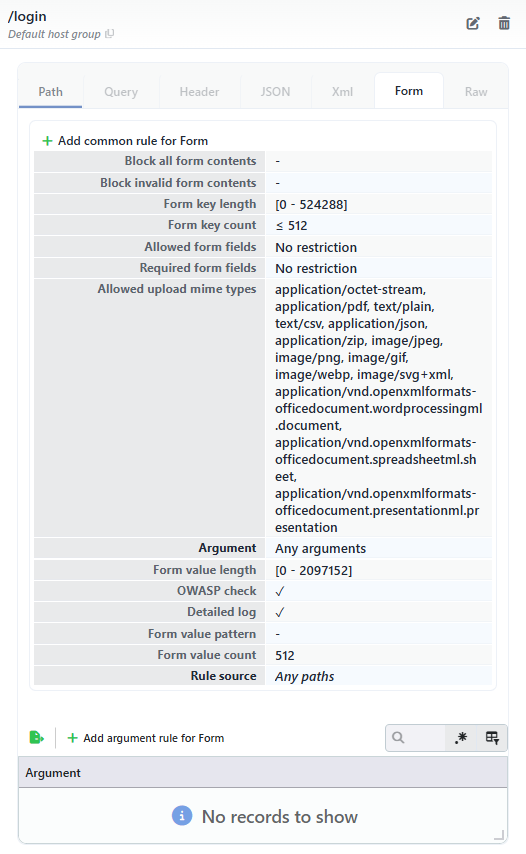 The Detail Panel - The Form Tab
The inheritance and Rule Source
If the rule has not defined its own Form inspection, the values are inherited from the glob rule that matches the path or from the Any Paths rule according to the rule matching priority; the Rule Source row at the end of the table shows the path of the rule the inspections come from (for example Any Paths). If the rule defines its own Form inspection, the Rule Source row is not present.
The Add Common Rule for Form Screen
When the green plus icon Add common rule for Form button above the table is clicked, the form that defines the rule's own Form common inspection opens; with the save, the inheritance ends for that rule. If the rule already has its own Form inspection, the same button is seen as the pencil icon Edit common rule for Form (it opens the form with the current values) and Delete common rule for Form (it removes the common rule without asking a confirmation question). The add form does not open empty; it comes pre-filled with the related inspection values of the Any Paths rule. In the Any Paths rule itself, on the other hand, there is no delete button: the common inspection of the catch-all rule cannot be removed.
This screen is at the same time the edit screen: whether the common inspection has been added manually or has been formed by the learning, the form that opens with the Edit common rule for Form button shows the same fields below with the current values of the rule.
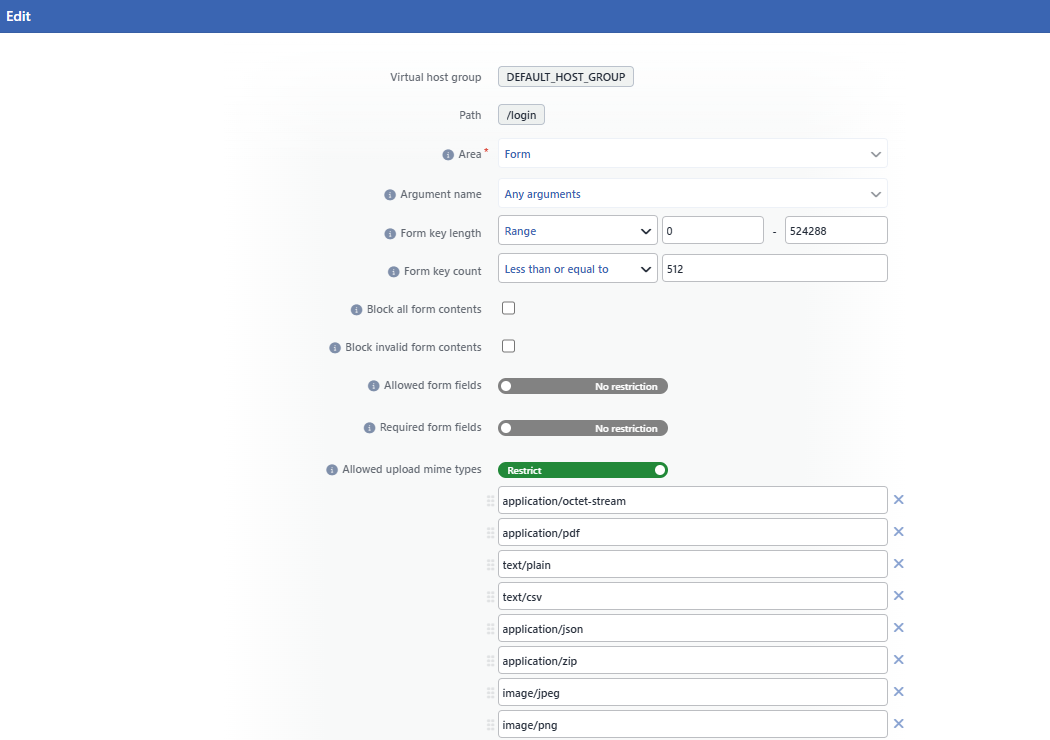 The Add Common Rule for Form Screen - 1
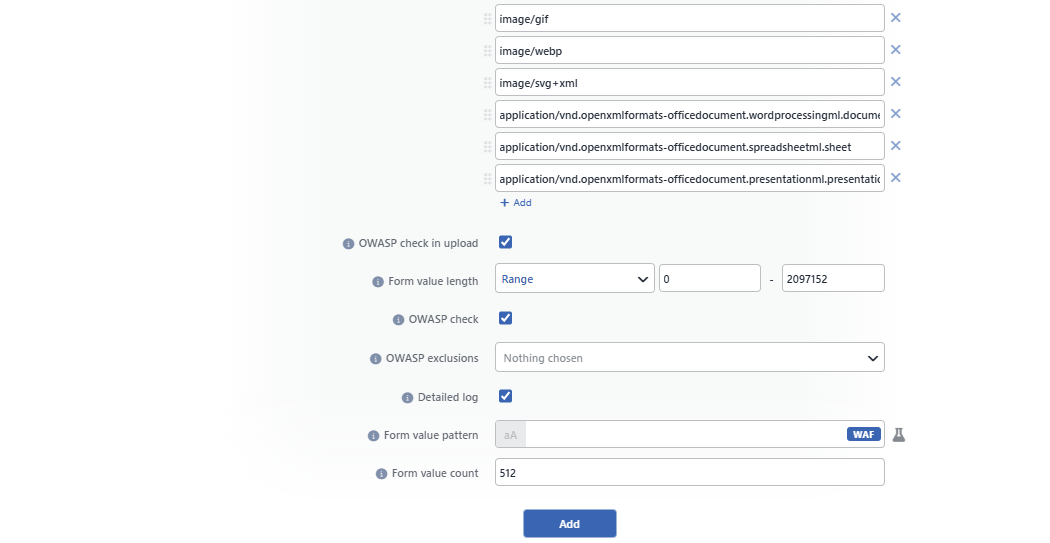 The Add Common Rule for Form Screen - 2
INFO
Virtual Host Group
The host group to which the inspection will be added is shown as read-only; it is determined according to which group's Page Types screen the panel is opened from and cannot be changed from the form.
INFO
Path
The path of the rule to which the inspection will be added is shown; the form is bound to the rule for which the detail panel has been opened.
INFO
Area
It shows to which section of the request the inspection is applied. The field is locked to the tab the form is opened from: when the form is opened from the Form tab, it comes as Form and cannot be changed.
INFO
Argument Name
It shows the scope of the inspection. In the common rule form this field is locked as Any Arguments and the fields are applied to all the form fields; a rule specific to a certain field, on the other hand, is defined from the Add Argument Rule for Form screen.
If a field has its own argument rule, the value inspections of that field (Form Value Length, Form Value Pattern, Form Value Count, OWASP Check, Detailed Log) are taken entirely from this rule; the value inspections of the common rule are no longer applied to that field. The section-wide inspections (Form Key Length, Form Key Count, Allowed / Required Form Fields, Allowed Upload Mime Types), on the other hand, continue to be applied. Defining a rule specific to a name does not add that name to the Allowed Form Fields list by itself.
INFO
Form Key Length
The length restriction of the name of a single form field is defined; every different name, including the names of the file fields, is measured in its raw state:
| Option | Meaning |
|---|---|
| No Restriction | No length restriction is applied. |
| Less Than or Equal To | The length must be equal to or below the entered value. |
| Equals To | The length must be equal to the entered value. |
| Greater Than or Equal To | The length must be equal to or above the entered value. |
| Range | The length must be between the two entered values (the limits included). |
Only a number can be entered in the value field. Every field name that does not comply with the restriction is scored as a Form Key Length violation in the Structure Limits category and falls into the attack record.
INFO
Form Key Count
The restriction of the number of form fields in the body is defined. The counting is done over the different field names; the repetitions of the same name count as one:
| Option | Meaning |
|---|---|
| No Restriction | No number restriction is applied. |
| Less Than or Equal To | The number of fields must be equal to or below the entered value. |
| Equals To | The number of fields must be equal to the entered value. |
| Greater Than or Equal To | The number of fields must be equal to or above the entered value. |
| Range | The number of fields must be between the two entered values (the limits included). |
Only a number can be entered in the value field. A request that does not comply with the restriction is scored as a Form Key Count violation in the Structure Limits category and falls into the attack record.
INFO
Block All Form Contents
When it is checked, every request whose content type is form and that carries a body is scored as a Block All Form Contents violation in the Structure Policies category without the body being parsed. It is used for the paths that do not accept a form body.
INFO
Block Invalid Form Contents
When it is checked, the bodies that cannot be parsed as a form (such as a broken multipart structure) are scored as a Block Invalid Form Contents violation in the Content Integrity category. While it is not checked, a body that cannot be parsed is not blocked; instead it is passed through the RAW signature scanning as raw content.
INFO
Allowed Form Fields
The list of the allowed field names is defined (a positive list). While the field is in the No Restriction position, all the field names are allowed; when the restriction is turned on, the names are added to the list one by one. The matching is done exactly with the raw state of the field name and case sensitively; every field name that is not in the list is scored as an Allowed Form Fields violation in the Structure Policies category and falls into the attack record. Defining an argument rule specific to a field does not add that name to this list by itself.
INFO
Required Form Fields
The list of the field names that are required to be present in the body is defined. While the field is in the No Restriction position, no requirement is applied; when the restriction is turned on, every one of the names in the list that is missing is scored separately as a Required Form Fields violation in the Structure Policies category. The inspection is evaluated only in the requests that carry a form body; it is enough that the field be present in the body, its value may be empty.
INFO
Allowed Upload Mime Types
The list of the allowed types of the files uploaded with the multipart bodies is defined. The type of the file is detected from the file content, not from the content type the client declares; in the plain text files from whose content a certain type cannot be derived, the detection is completed with the extension of the file name. The allow entries match with the detected type as a substring (for example the image entry covers all the image types) and must be written in lower-case letters. While the list is empty, no restriction is applied; while the restriction is on, every file that does not comply with the list is scored as an Allowed Upload Mime Types violation in the Structure Policies category and the detected type is seen in the attack record.
The default configuration of the Any Paths rule comes with a ready allow list consisting of the following 14 types:
application/octet-stream
application/pdf
text/plain
text/csv
application/json
application/zip
image/jpeg
image/png
image/gif
image/webp
image/svg+xml
application/vnd.openxmlformats-officedocument.wordprocessingml.document
application/vnd.openxmlformats-officedocument.spreadsheetml.sheet
application/vnd.openxmlformats-officedocument.presentationml.presentation
The last three types correspond to the Word, Excel and PowerPoint documents respectively.
INFO
OWASP Check in Upload Default: Checked
When it is checked, the content of the uploaded files is passed through the signature scanning with the OWASP configuration of the RAW section (including its exclusions and the Detailed Log setting); it is checked by default. If OWASP Check is off in the RAW section, the file contents are not scanned. The hits fall into the attack record within the RAW scope together with the name of the field the file has been uploaded to.
This setting is not displayed in the table in the detail panel; its value is seen only in this form.
INFO
Form Value Length
The length restriction of the field values is defined. The restriction is applied to every value separately, in its raw state; since in the file fields the value is the file name, the restriction is applied to the file name:
| Option | Meaning |
|---|---|
| No Restriction | No length restriction is applied. |
| Less Than or Equal To | The value length must be equal to or below the entered value. |
| Equals To | The value length must be equal to the entered value. |
| Greater Than or Equal To | The value length must be equal to or above the entered value. |
| Range | The value length must be between the two entered values (the limits included). |
Only a number can be entered in the value field. Every value that exceeds the restriction is scored as a Form Value Length violation in the Structure Limits category and falls into the attack record.
INFO
OWASP Check Default: Checked
When it is checked, the name and every value of every form field are subjected to the OWASP signature scanning separately; for Form it is checked by default. The values are scanned both in their raw state and in their state URL-decoded once in the urlencoded bodies, and in their raw state in the multipart bodies. The signature hits, differently from the structural violations, take part in the attack score by accumulating with their own scores. In the scanning, the signature set that is enabled on the OWASP Rules screen of the vService is used; for the listing of the signatures see Signature & Rule Library.
OWASP Exclusions
With this field that appears in the form when the box is checked, the OWASP rules to be excluded from the scanning are determined with a multiple selection; while the box is not checked, the field is not seen, and when no selection is made, Nothing chosen is written in the field. When an exclusion is defined, the number of the exclusions is shown next to the ✓ mark in the OWASP Check row in the detail panel.
INFO
Detailed Log Default: Checked
It manages the log detail of the signature (OWASP) hits; it is checked by default. While it is on, the matching content is shown together with its surrounding context in the Event Logs record; while it is off, the record still falls but instead of the content the phrase Detailed log disabled is seen. The summary information of the structural violations is always written independently of this setting.
INFO
Form Value Pattern
The regular expression (regex) pattern the field values must match is defined. The inspection is positive: when the value does not match the pattern, a Form Value Pattern violation is produced in the Structure Policies category and the value itself is seen in the attack record. The pattern is searched anywhere in the value; if it is wanted that the whole of the value match, the pattern should be bounded with ^ and $. With the aA button next to the field the matching can be made case insensitive; this option is seen in the detail panel as the (-i) suffix next to the pattern. If no pattern is defined, no pattern inspection is applied to the value content.
INFO
Form Value Count
It is defined how many times at most the same field name can be repeated in a body; only an integer can be entered in the field. When the limit is exceeded, a Form Value Count violation is produced in the Structure Limits category. If it is left empty, no repetition restriction is applied; if 0 is entered, even the presence of the field in the body counts as a violation.
INFO
Add
The common rule adding operation is completed by clicking the Add button; the button becomes enabled when no error remains in the form. There is no additional confirmation window or deployment (deploy) step; the WAF configuration is automatically produced again and applied and the values in the panel are updated instantly.
The mode behavior and the scoring
The structure inspections in this tab work only in the Blocking and Monitor modes; they are not run in the Learning mode, instead the restriction suggestions are learned from the observed traffic. The structural violations have a high score; at the default blocking threshold a single violation is enough for the request to be blocked in the Blocking mode (in the Monitor mode it is reported as an attack but the request is let through). The OWASP signature hits, on the other hand, reach the threshold by accumulating with their own scores.
The bodies that exceed the buffer
When the body is too big to fit into the inspection buffer, the Form inspections cannot be run; in this case the behavior is determined by the Block Unparsed Contents setting in the RAW tab.
The Add Argument Rule for Form Screen
The Argument table below the common rule lists the argument rules specific to certain form fields; with the search box of the table a filtering can be done over the name. The argument rules the rule defines itself are shown in bold, the inherited ones in italic. When the green plus icon Add argument rule for Form button above the table is clicked, the form that defines an inspection specific to a single form field opens.
When a row in the table is clicked, the detail of the argument rule opens below it; in the rule's own argument rule the pencil icon Edit (it opens the form with the current values) and trash can icon Delete (it removes the argument rule without asking a confirmation question) buttons are seen. In the inherited rows these buttons are not present; an inherited rule can be edited only from the rule that is its source.
In the rules specific to a path the add form does not open empty; the inspection fields come pre-filled with the common Form inspection values of the Any Paths rule. In the Any Paths rule itself, on the other hand, the form opens with the field defaults. This screen is at the same time the edit screen: the form that opens with the Edit button shows the same fields below with the current values of the rule; in the editing, differently from the add form, the Argument Name field is also locked; to which field the rule is bound cannot be changed afterwards. Since the upload inspections (Allowed Upload Mime Types, OWASP Check in Upload) are section-wide, they do not take place in this form.
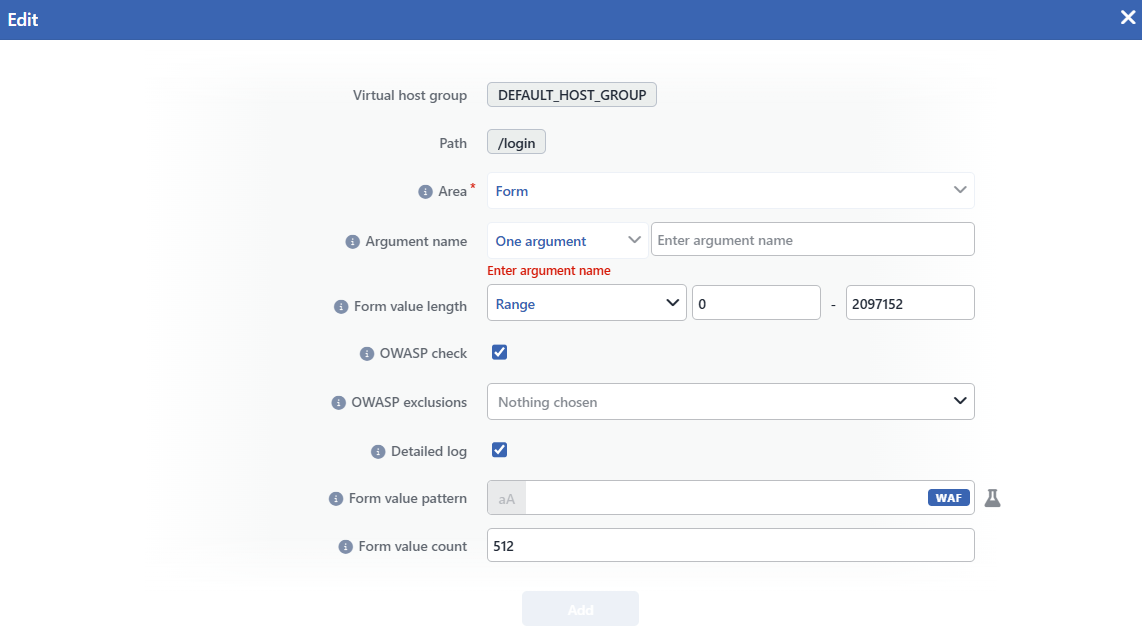 The Add Argument Rule for Form Screen
INFO
Virtual Host Group
The host group to which the inspection will be added is shown as read-only; it is determined according to which group's Page Types screen the panel is opened from and cannot be changed from the form.
INFO
Path
The path of the rule to which the inspection will be added is shown; the form is bound to the rule for which the detail panel has been opened.
INFO
Area
It shows to which section of the request the inspection is applied. The field is locked to the tab the form is opened from: when the form is opened from the Form tab, it comes as Form and cannot be changed.
INFO
Argument Name
The name of the form field to which the rule will be bound is defined. The scope selector is locked as One Argument in this form; the name is entered in the text box next to it and cannot be left empty (if it is left empty, the Enter argument name error is seen). The name is matched with the name of the field in the body exactly and case sensitively: in the urlencoded bodies the name is compared with its raw (URL-encoded) state in the submission and a name that contains a space must be entered in its encoded form; in the multipart bodies the name value of the field is taken as the basis.
A second argument rule with the same name cannot be added; on an attempt the part collision error is returned. In the edit form this field cannot be changed; if the rule is wanted to be moved to another field, it must be deleted and added again.
INFO
Form Value Length
The length restriction of the field values is defined. The restriction is applied to every value separately, in its raw state; since in the file fields the value is the file name, the restriction is applied to the file name:
| Option | Meaning |
|---|---|
| No Restriction | No length restriction is applied. |
| Less Than or Equal To | The value length must be equal to or below the entered value. |
| Equals To | The value length must be equal to the entered value. |
| Greater Than or Equal To | The value length must be equal to or above the entered value. |
| Range | The value length must be between the two entered values (the limits included). |
Only a number can be entered in the value field. Every value that exceeds the restriction is scored as a Form Value Length violation in the Structure Limits category and falls into the attack record.
INFO
OWASP Check Default: Checked
When it is checked, the name and every value of the field are subjected to the OWASP signature scanning separately; it is checked by default. The values are scanned both in their raw state and in their state URL-decoded once in the urlencoded bodies, and in their raw state in the multipart bodies. When the box is removed, the field goes out of the signature scanning entirely together with its name and its values (including the file name in the file fields); this is the way of exempting from the scanning a field that frequently produces false positives. The content of the uploaded files is independent of this setting: the content scanning is managed with the section-wide OWASP Check in Upload setting. In the scanning, the signature set that is enabled on the OWASP Rules screen of the vService is used; for the listing of the signatures see Signature & Rule Library.
OWASP Exclusions
With this field that appears in the form when the box is checked, the OWASP rules to be excluded from the scanning are determined with a multiple selection; while the box is not checked, the field is not seen, and when no selection is made, Nothing chosen is written in the field. The exclusions are applied only to the scanning of this field; the other fields continue to use the exclusion list of the common rule.
INFO
Detailed Log Default: Checked
It manages the log detail of the signature (OWASP) hits; it is checked by default. While it is on, the matching content is shown together with its surrounding context in the Event Logs record; while it is off, the record still falls but instead of the content the phrase Detailed log disabled is seen. The summary information of the structural violations is always written independently of this setting.
INFO
Form Value Pattern
The regular expression (regex) pattern the field values must match is defined. The inspection is positive: when the value does not match the pattern, a Form Value Pattern violation is produced in the Structure Policies category and the value itself is seen in the attack record. The pattern is searched anywhere in the value; if it is wanted that the whole of the value match, the pattern should be bounded with ^ and $. With the aA button next to the field the matching can be made case insensitive; this option is seen in the detail panel as the (-i) suffix next to the pattern. If no pattern is defined, no pattern inspection is applied to the value content.
INFO
Form Value Count
It is defined how many times at most the field name can be repeated in a body; only an integer can be entered in the field. The file and the normal values sent with the same name are evaluated together in a single counting. When the limit is exceeded, a Form Value Count violation is produced in the Structure Limits category. If it is left empty, no repetition restriction is applied; if 0 is entered, even the presence of the field in the body counts as a violation.
INFO
Add
The argument rule adding operation is completed by clicking the Add button; the button becomes enabled when no error remains in the form. There is no additional confirmation window or deployment (deploy) step; the WAF configuration is automatically produced again and applied and the values in the table are updated instantly.
An empty field does not mean inheriting from the common rule
When the argument rule is saved, the value inspections of the field are taken entirely from this rule; the value inspections of the common rule are no longer applied to that field. The pre-filling in the form is only a starting convenience: after the save the fields are independent of the common rule and a field left empty (for example Form Value Count) does not return to the value in the common rule, it means no restriction for that inspection. The section-wide inspections (Form Key Length, Form Key Count, Allowed / Required Form Fields, Allowed Upload Mime Types, OWASP Check in Upload), on the other hand, are not affected by the argument rule and continue to be applied.
The inheritance and the learning
The argument rules are also inherited according to the rule matching priority: if the rule has not defined its own argument rule for a field, the argument rule with the same name of the glob rule that matches the path or of the Any Paths rule becomes valid. The inherited rules are listed in italic in the table; in their detail the Rule Source row shows the path the rule comes from. When the rule defines its own argument rule for the same name, the inherited rule stays invalid for that rule.
Differently from Header, the Form inspections are learned per path. The learning (Conditional Learning, AI Learning, Teacher and teaching over Event Logs) writes the updates to the argument rule if there is one with the field on which the violation occurred; for example an exclusion is added to the OWASP Exclusions list or the length limit is widened. A Form Value Pattern that produces false positives, on the other hand, is not narrowed but cleared entirely. If the field has no argument rule, the change is written to the common rule; the learning does not create a new argument rule by itself.
