
Smarter by Design.Simpler for Business
Actions
What Are Actions?
Actions are reusable traffic manipulation components that perform specific operations on the HTTP and L7 TCP traffic passing through the TR7 Load Balancer.
Actions are one of the basic building blocks of modern Load Balancer and Application Delivery Controller (ADC) systems. They are the GUI-based and no-code/low-code equivalent in TR7 of the script-based traffic rules in traditional systems. Functionally, they define "what will be done when the condition is met" and come into play at specific points in the life cycle of the traffic.
Each Action is applied to live traffic by being activated on one or more vServices. By being combined with Conditions, Actions make it possible to create solutions specific to complex traffic scenarios.
What Can Be Done?
- Security Control: Blocking suspicious traffic, CAPTCHA verification, user authentication
- Traffic Routing: Geographic location based routing, routing according to error codes
- Content Manipulation: Adding/removing/editing HTTP headers, cookie encryption, content replacement, path/query manipulation
- Performance Optimization: Bandwidth limitation, TCP multiplexing, connection management
- Monitoring and Logging: Detailed traffic tracking, IPFIX integration, conditional log stopping
- Protocol Conversion: Redirection from HTTP to HTTPS, CORS policies, HTTP/1.0 compatibility
How Actions Work
TR7 Actions come into play and operate at specific points in the life cycle of the traffic passing through the vService. This operation point is determined by the Execution Level of the action.
On Request
- The actions are processed before the HTTP/TCP request coming from the client reaches the Backend Service.
- The operations that can be performed at this level: Block, redirect, header addition/editing, CAPTCHA verification, user authentication, path change, bandwidth limitation.
- Use case: Security filtering, bot protection, geographic restriction, A/B testing.
On Response
- The actions are processed before the HTTP/TCP response returning from the Backend Service reaches the client.
- The operations that can be performed at this level: Response header addition/editing, content manipulation, adding security headers, compression, cache header management.
- Use case: Injecting security headers (CSP, HSTS), adding advertisements, data masking, response rewriting.
The Relationship of Actions with Conditions
Actions can optionally be associated with one or more Conditions. The conditions determine in which situations the action will run:
- Unconditional Action: Always runs on all traffic. (Example: Add the
X-Frame-Optionsheader to all responses) - Conditional Action: Runs only when the specified conditions are met. (Example: Perform an IP check only on the requests coming to the
/adminpath)
More than one condition can be combined with the AND (all must be met) or OR (at least one must be met) operators.
Action Ordering and Priority
If more than one Action is defined on a vService, the actions are processed from top to bottom according to the order of addition. If the first action blocks or redirects the traffic, the subsequent actions become invalid for the related request.
Action Types and Categories
TR7 offers more than 36 action types for different use cases. These actions can be divided into the categories below according to their functions.
36+
Action Type
Ready-made action types that operate on traffic
9
Category
Security, header, routing, content, cookie and more
On Req / On Res
Execution Level
Operations can be performed on the request or the response
Conditions
Combination with Conditions
Unlimited traffic scenarios can be set up with conditions
1. Security and Access Control
- Block: Blocks the traffic matching specific conditions and responds with an HTTP status code (403, 404, etc.). It is used for blocking malicious IPs and for path-based restrictions.
- Advanced Captcha: Requires CAPTCHA verification for the bot/human distinction.
- User Authentication (On HTTP Request): Performs authentication with Basic Auth. It asks for a username/password before access to the protected resources.
- Quarantine: Quarantines suspicious users for the defined period.
2. HTTP Header Management
- Add HTTP Header: Adds a custom HTTP header to the request or the response. It is used for X-Forwarded-For, X-Real-IP and custom tracking headers.
- Delete HTTP Header: Removes specific HTTP headers from the request or the response. It is used for hiding the Server header and for cleaning security headers.
- Replace HTTP Header Content: Matches the existing header values with a regex and replaces them. It is used for Host header rewrite and URL normalization.
- Set HTTP Header: Recreates the header or completely changes its value. It is used for conditional header setting.
- Manage HTTP Security Headers: Automatically adds security headers such as HSTS, CSP, X-Frame-Options and X-Content-Type-Options. It increases the SSL Labs score.
- Keep Header Names: Preserves the case sensitivity in the header names. It is used for compatibility with legacy systems.
3. Traffic Routing
- Location Redirection: Performs an HTTP 301/302/307/308 redirect. It is used for changing the domain, for path normalization and for redirection with a query parameter.
- Redirect to HTTPS: Forcibly redirects HTTP traffic to HTTPS. It is used for the secure connection policy.
- Redirect for Backend Service Errors: Redirects the user to another URL according to the error codes (500, 502, 503, etc.) returning from the Backend Service.
- Redirect for Traffic Manager Errors: Performs redirection on errors at the TR7 Load Balancer level (all backend services down, timeout, etc.).
4. Content Manipulation
- Show Content: Shows custom HTML/text content. It is used for maintenance pages, warning messages and information pages.
- Show Content for Backend Service Errors: Shows a custom page for Backend Service error codes. It is used for user-friendly error messages.
- Show Content for Traffic Manager Errors: Shows a custom page for TR7 Load Balancer error codes.
- Modify Response Content: Makes changes with a regex in the HTML/JSON/XML response content. It is used for dynamic content rewriting and data masking.
- Set Path: Changes the HTTP request path. It is used for Backend Service path normalization and versioning.
- Set Path + Query: Changes the path and the query string together. It is used for complex URL manipulation.
- URL Normalization: Performs URL encoding/decoding and normalization. It is used for legacy system compatibility.
5. Cookie Management
- Cookie Encryption: Encrypts the cookie values. It is used for session hijacking protection.
- HTTP Cookie Security: Adds flags such as Secure, HttpOnly and SameSite to cookies. It is used for XSS and CSRF protection.
- Cookie Based Connection Persistency: Uses a cookie for session persistence.
6. Performance and Connection Management
- Bandwidth Limitation: Limits the bandwidth per client or in total. It is used for DDoS protection and for the fair usage policy.
- HTTP TCP Multiplexing: Performs client-side and server-side connection pooling.
- TCP Connection Management: Manages the TCP connection parameters.
7. Logging and Monitoring
- Advanced Traffic Inspection: Performs detailed traffic analysis. It logs information such as the client IP, path, header and query.
- IPFIX Log Sending: Sends logs in IPFIX format. It is used for SIEM and NetFlow collector integration.
- Conditional Silent Log: Stops logging under specific conditions. It is used for log storage optimization and sensitive data filtering.
- IP Log Masking: Masks the IP addresses in the logs.
- Provide Prometheus Service: Offers a Prometheus metrics endpoint. It is used for monitoring the vService statistics with Prometheus/Grafana.
- Traffic Mirroring: Sends a copy of the matching requests to a second Backend Service (the mirror target) without delaying the live traffic. It is used for new version testing (shadow testing), security analysis and capacity measurement.
8. Protocol and Compatibility
- CORS: Manages the Cross-Origin Resource Sharing headers. It applies the CORS policy for modern web applications.
- HTTP Header 1.0 Compatibility: Provides compatibility with the HTTP/1.0 protocol. It is used for legacy systems.
9. Other
- Create Traffic Variable: Defines named variables belonging to the processed traffic; either a fixed text or a dynamic value produced with smart variables is assigned to the variables.
- Manual Action
Advantages of Actions
TR7 Actions offer many operational and technical advantages compared to traditional script-based traffic management methods.
No Need to Write Code (No-Code/Low-Code)
- The actions are created entirely through a GUI-based interface.
- No knowledge of any programming language or script writing is required.
- They can be managed easily by non-developer personnel in the network and security teams.
- The risk of syntax errors, compilation errors or runtime crashes is eliminated.
Central, Single-Point Management
- An action created once can be reused on more than one vService.
- A change made in an action is automatically reflected in all the vServices that use that action.
- On which vServices an action is used is easily tracked with the "Used in" feature.
- Central management minimizes the risk of configuration drift.
High Reliability and Production-Safe
- The actions, which are validated at the TR7 engine level, eliminate the risk of unexpected behavior or a system crash.
- The actions can be tested and reviewed before being applied to the production environment.
- Incorrect configuration is prevented with form validation (invalid IP, faulty regex, incompatible values).
- The actions are recorded in the audit logs; who made which change and when is tracked.
Fast Deployment and Change Management
- A new security rule or traffic policy can be put into effect within minutes.
- There is no code review, test or deployment pipeline waiting time as there is in scripting.
- In emergencies (a DDoS attack, a zero-day exploit), action can be taken instantly.
Flexible and Powerful Combinations with Conditions
- When the actions are combined with Conditions, they can be applied to unlimited scenarios.
- Complex rules such as "If the source IP is X and the path is /admin and the time is between 18:00-09:00 → Block" are created with a simple GUI.
- Multi-layered condition chains can be set up with AND/OR logic.
Dynamic Content with Smart Variables
- Dynamic values can be produced by using Variables inside the actions.
- Example: the
X-Client-IP: [Client IP address]header automatically takes a different value for each client. - Smart Variables provide access to 50+ data points such as the client IP, host, path, query parameters, cookie and header values.
High Performance and Scalability
- The actions are optimized for high throughput and low latency.
- They work efficiently in large-scale deployments (high-traffic web sites, enterprise applications).
- They provide maximum processing capacity with minimal system resource consumption.
- They offer stable and consistent performance in production environments.
Operational Best Practices
The practices below are recommended for the efficient and secure use of TR7 Actions in production environments.
- Descriptive names are used. What the action does is clearly stated in its name; meaningless names such as
Action1andTestare avoided. - A naming standard is created. For consistency, a format such as
[Category]_[Purpose]_[Target]is determined and applied across the team. - Unconditional actions are used carefully. Since they affect all traffic, their performance cost can be high; they are preferred only for global operations.
- The actions are narrowed down with specific conditions. The action is applied only to the necessary traffic; instead of all traffic, it is limited to the related path/IP.
- The use of regex is minimized. The CPU cost of regex is high; Exact Match, Start and End are preferred where possible.
- The number of actions and the log volume are improved. Unused actions are deleted and similar ones are merged; unnecessary logs are filtered with "Conditional Silent Log".
- A meaningful status code is used in Block actions. By selecting 403/404/429/503 in accordance with the scenario, information disclosure is prevented and the correct signal is given.
- Sensitive information is not logged. "IP Log Masking" is used for IP addresses; data such as passwords, tokens and API keys is not written to the logs.
- It is first tried in a test environment and a "Used in" check is performed. Before a change, the vServices in which the action is used are checked and unexpected outages are prevented.
- A rollback plan and monitoring are set up. The previous configuration is noted; after the action, the error rate and the response time are monitored.
Naming Rules (with Examples)
Descriptive names are used: What the action does is clearly stated in its name.
- ✅ Good examples:
Security_Block_MaliciousIPs,Redirect_HTTP_to_HTTPS,AddHeader_XForwardedFor - ❌ Bad examples:
Action1,Test,New_Action
A naming standard is created: A format is determined for consistency.
- Format:
[Category]_[Purpose]_[Target] - Example:
Security_Block_AdminPath,Performance_Bandwidth_LimitAPI,Redirect_HTTPtoHTTPS_AllTraffic
Attention is paid to the use of upper/lower case: CamelCase or snake_case is selected and maintained consistently.
A date or a version is added if necessary: For temporary or test actions.
- Example:
Test_CAPTCHA_2024Q1,Temporary_Block_MaintenanceMode_v2
Condition Usage Strategies
Unconditional actions are used carefully: They affect all traffic, their performance cost can be high.
- Area of use: Global operations such as adding security headers and redirecting all traffic to HTTPS.
The actions are narrowed down with specific conditions: They are applied only to the necessary traffic.
- Example: The IP check is applied not to all traffic but only to the
/adminpath.
AND/OR combinations are set up carefully:
AND (◆): All conditions must be met → Stricter, less traffic matches.OR (◇): At least one condition must be met → More flexible, more traffic matches.
Attention is paid to the condition ordering: Frequently matching conditions are placed first (early exit optimization).
Performance Tips
The use of regex is minimized: The CPU cost of regex operations is high.
- Exact Match, Start and End are preferred where possible.
- Instead of a complex regex, more than one simple condition is preferred.
The number of actions is improved: Each action brings an additional processing load.
- Unnecessary or unused actions are deleted.
- Similar actions are merged into a single action.
The log volume is controlled: Writing a log for each request brings a disk I/O load.
- Unnecessary logs are filtered with the "Conditional Silent Log" action.
- Only the necessary information is logged.
The bandwidth limitation settings are configured correctly: Limits that are too aggressive spoil the user experience.
Security Recommendations
A meaningful status code is used in Block actions:
403 Forbidden: No authorization (IP blocking, authentication required)404 Not Found: It is shown as if the resource does not exist (information disclosure is prevented)429 Too Many Requests: Rate limiting503 Service Unavailable: Maintenance mode
Sensitive information is not logged:
- "IP Log Masking" is used for IP addresses.
- Information such as passwords, tokens and API keys is not written to the logs.
CAPTCHA and Rate Limiting are used together: For layered security.
Production Deployment
- It is first tried in a test environment: Before going to production, the action is tested in the staging environment.
- A "Used in" check is performed: Before the action is changed, the vServices in which it is used are checked; this prevents unexpected service outages.
- Change windows are used: An action change is not made during busy hours.
- A rollback plan is kept ready:
- The previous configuration is noted.
- Monitoring and alerting are set up: After the action, the traffic is monitored.
- Have the error rates increased?
- Has the response time changed?
Common Usage Scenarios
Below are the scenarios in which TR7 Actions are most frequently used in live environments.
Security Scenarios
WordPress Admin Panel Protection
Provide access to the /wp-admin and /wp-login.php paths only from the office IPs.
DDoS Protection (Layered)
Limit high traffic, block suspicious IPs, quarantine users who abuse.
- Action 1: Bandwidth Limitation → 10 Mbps per client
- Action 2: Block → IP Intelligence = "Malicious"
- Action 3: Quarantine → IPs that make 100+ requests in 1 minute
- Result: The system is kept stable even under load.
Bot Protection
Detect malicious bots and perform verification with CAPTCHA.
- Action: Advanced Captcha
- Conditions: Bot Type =
Malicious BotOR Source IP INBlacklist - Result: Suspicious traffic is blocked until the CAPTCHA verification is performed.
Traffic Routing and A/B Testing
Beta User Test
Offer a special version to beta users.
- Action: Set Path →
/beta/app - Condition: User Cookie Name =
beta_user - Result: The users who have the beta cookie are routed to a different Backend Service.
SSL/TLS and Security Headers
SSL Labs A+ Score: Security Headers
Increase the SSL Labs score by adding security headers such as HSTS, CSP and X-Frame-Options.
- Action: Manage HTTP Security Headers
- Headers: HSTS + CSP + X-Frame-Options + X-Content-Type-Options
- Result: The SSL Labs score becomes A+, and XSS/Clickjacking protection is provided.
Maintenance and Error Management
Planned Maintenance Mode
Show an information page to all users during planned maintenance.
- Action: Show Content → Maintenance page HTML
- Condition: All traffic (unconditional) or a specific time range
- Result: The users are informed about the maintenance, and the service outage is announced politely.
Team Access Only (During Maintenance)
Allow access only from the office IPs during maintenance.
- Action: Show Content → Maintenance page
- Condition: Source IP NOT IN
192.168.10.0/24 - Result: ✅ Team → Normal access | ❌ Others → Maintenance page
User-Friendly Page for Backend Service Errors
Show a custom error page to the user for 500/502/503 errors.
- Action: Show Content for Backend Service Errors
- Status Codes: 500, 502, 503
- Content: "We are currently experiencing a technical problem. Please try again in a few minutes."
- Result: A user-friendly message is shown instead of technical error messages.
Automatic Redirection
Route the traffic to a different point when the main Backend Service is down.
- Action: Redirect for Backend Service Errors
- Status Codes: 502, 503
- Redirection:
https://backup.example.com - Result: High availability is provided, and the service outage is minimized.
Performance and Monitoring
API Rate Limiting
Put a bandwidth limit on the API endpoints, prevent abuse.
- Action: Bandwidth Limitation → 8 Mbps per client
- Condition: Path STARTS_WITH
/api/ - Result: The users who put an excessive load on the API are limited, and fair usage is provided.
vService Monitoring with Prometheus
Monitor the vService metrics with Prometheus/Grafana.
- Action: Provide Prometheus Service →
/metricsendpoint - Condition: Source IP = Prometheus server IP
- Result: Real-time metrics are collected and visualized on dashboards.
How to Add?
A new Action can be added through the TR7 web management interface by following the steps below:
- The Configuration Menu is opened by clicking the TR7 logo at the bottom left.
- The Load Balancer → Actions → Add steps are followed.
- A unique and descriptive name is entered for the action.
- The action type is selected.
- The related values are configured according to the selected Action type.
- The Action is added by clicking the
Addbutton.
TIP
Reaching the page via quick search
Instead of navigating the menu step by step, the related page is reached directly by using the search bar in the bottom left corner of the screen. The search bar opens with the Alt + T shortcut on Windows and Opt + T on macOS; typing the name of the feature being searched for is then sufficient.
The created Action can be used on one or more vServices.
Actions Listing Screen
The list of all the Actions added on the TR7 device is reached by following the path Load Balancer → Actions. On this screen, operations such as adding, editing and deleting Actions are performed.
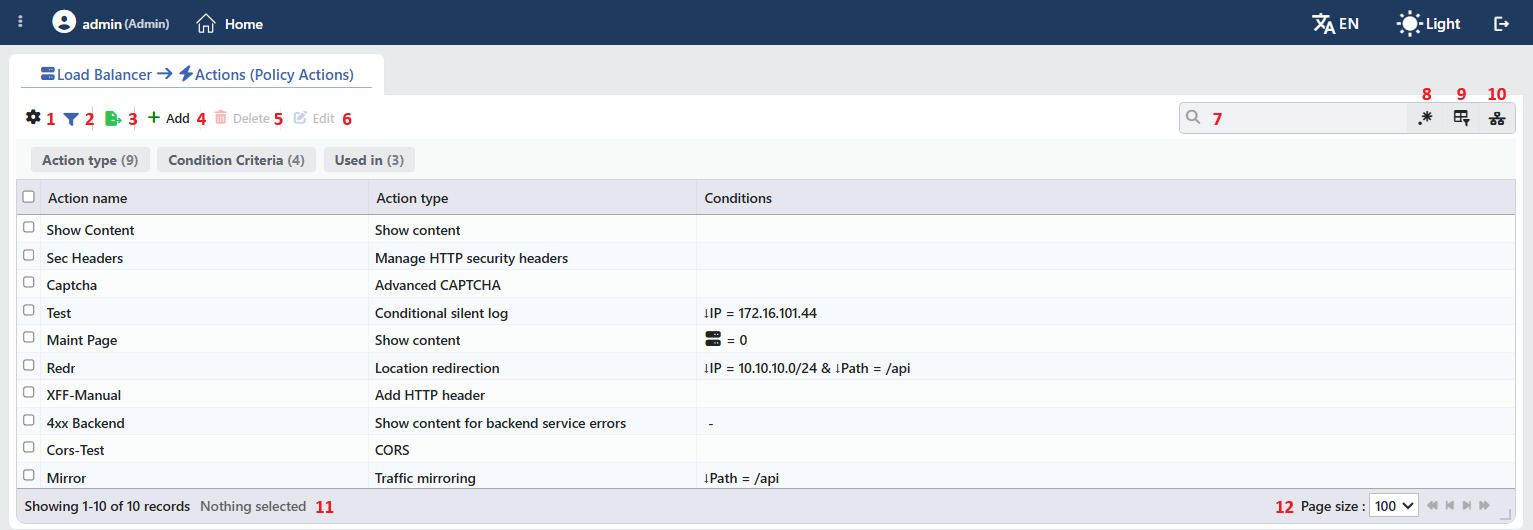 Action Listing Form
The table opens with the following columns by default:
| Column | Description |
|---|---|
| Action Name | The name given to the Action. |
| Action Type | The type of the Action (e.g. Show Content, Advanced CAPTCHA, Location Redirection). |
| Conditions | A short summary of the conditions to which the Action is bound (e.g. ↓IP = 10.10.10.0/24 & ↓Path = /api); in action types that do not take a condition, - is shown, and in actions that can take a condition but have no condition defined, the cell remains empty. |
There is no column hidden by default; these three columns are located in the column selector. The table is not sorted on opening; when a column header is clicked, descending sorting is applied first, then ascending; on the third click, the sorting is removed.
The items in the toolbar are arranged from left to right in the following order; the last two items (Page Information and Page Size) are located in the information strip below the table.
Columns
Which columns are shown in the table is selected; all three columns are on by default. In the same panel, columns are reordered by dragging and alignment is selected per column; the row height is fitted to the page with the Fit rows to the page button, and the column layout is reset to default with the Reset button. The layout is stored per user.
Filter
The Filter button is used to filter the Actions shown in the list according to specific criteria; the button shows the number of active filters with a badge. There are three cards in the strip: Action Type, Condition Criteria and Used in. The card header contains the filter name and the number of values; when a card is clicked, the values are listed below it with their row counts. The Condition Criteria card groups the Actions according to the criteria used in their conditions: an Action is located under each criterion in its conditions, the ones without a condition are collected under No Condition, and the ready-made conditions under Predefined Conditions. The Used in card lists the names of the vServices in which the Action is used; for Actions not used in any vService, there is the Unused Entries option. The selections are displayed as closable tags below the card strip, right above the table.
Export
The table is exported as Excel, CSV or PDF by clicking the Export button. In the window that opens, the Filename, Format and Data Source, together with the Columns to be exported, are determined; the remaining fields are displayed according to the format: CSV Separator for CSV, Excel Sheet Name for Excel, and Page Orientation and Page Size for PDF.
Add
By clicking the Add button, the form for creating a new Action opens in the Add tab.
Delete
When one or more Actions are selected and the Delete button is clicked, the related Actions are deleted. Before deletion, the confirmation "Are you sure that you want to delete action object?" is requested; if more than one Action is selected, the text becomes "Are you sure you want to delete N action objects?".
WARNING
The confirmation window does not show the usage locations of the Action. Before deletion, in which vServices the Action is used should be checked with the Used in tab in the preview panel.
Deleting an Action in use is not blocked; the Action is removed, without any warning, from the action lists of all the vServices to which it is bound.
Edit
By clicking the Edit button, the edit form of the selected Action opens in the Edit Action tab. The button becomes active only when a single Action is selected.
Search
Used to search all information in the table.
RegExp Search
Used to search all information in the table with a regular expression (RegExp). This button is hidden while column-based search or the usage filter is active.
Column Based Search
Used to perform a column-based search on the information in the table.
Usage Filter
Used to filter which vServices the Actions are bound to; the Actions used in the selected vService are listed, and for those not used in any vService, there is the Unused Entries option. While the filter is active, the selector takes the place of the search box; when the icon is clicked again, the search box returns.
Page Information
Contains information about the total number of defined Actions and the number of Actions displayed in the list: Showing N-M of T records and the number of selected Actions (N selected, or Nothing selected when there is no selection). If a selection has been made in the filter strip, the number of applied filters and the shown/total row information are added to the same line.
Page Size
The maximum number of Actions to be displayed on the page is selected. The default is 100; the options are 5, 10, 20, 50, 100, 200, 500 and All.
Right-Click Menu
When a row is right-clicked, a menu whose header contains the name of the Action opens. As long as the menu stays open, the right-clicked row is displayed highlighted; right-clicking does not change the selection in the list and does not open the preview panel. Both operations in the menu apply only to the right-clicked Action and are active on every row.
| Operation | What it does |
|---|---|
| Edit | Opens the edit form of the Action in the Edit Action tab; it is the same form as the one opened by the Edit button in the toolbar. If the edit tab of the Action is already open, a new tab is not opened and the open tab is switched to. |
| Delete | Deletes the right-clicked Action; before deletion, the confirmation "Are you sure that you want to delete action object?" is requested. Even if other Actions are selected in the list, only this Action is deleted. Deleting an Action in use is not blocked; the warning of the Delete item in the toolbar also applies here. |
Preview of the Selected Action
When a row in the list is clicked, the preview of the Action opens on the right side of the screen; when the selected row is clicked again, the panel closes. The header contains the action icon, the name of the Action and the Action subtitle, and at the top right there is a single operation.
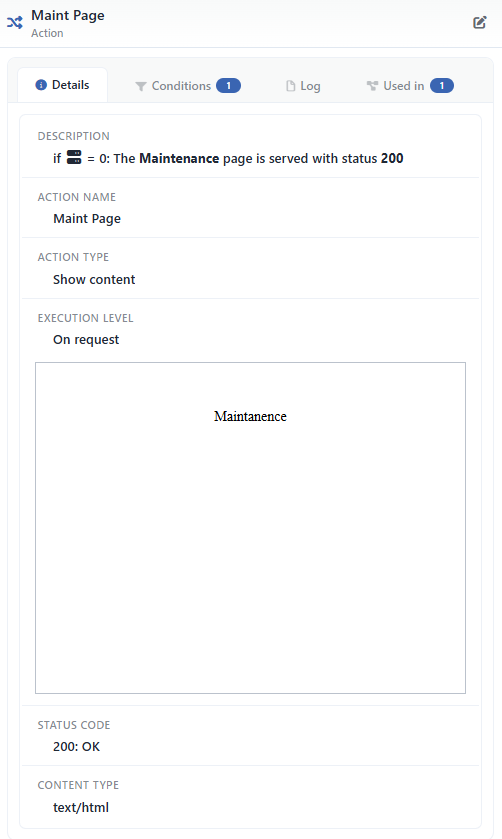 Preview of the Selected Action
| Operation | What it does |
|---|---|
| Edit | Opens the edit form of the Action in the Edit Action tab. |
There are four tabs in the panel; Conditions is displayed only if the Action has a condition, and Used in only if there is a vService that uses the Action:
Details
Lists the settings of the action row by row (table below).
Conditions
Shows the conditions to which the action is bound and the AND/OR combination logic. The badge next to the tab name shows the number of conditions (including the quarantine condition); if an action type that can take conditions has no condition at all, the tab is not displayed.
Log
Lists the user operations (add, edit, delete) on the action as a timeline.
Used in
Lists the vServices in which the action is used. The badge next to the tab name shows the usage count; if there is no vService that uses the Action, the tab is not displayed at all.
The rows in the Details tab are as follows, in order:
| Row | Description | Visibility condition |
|---|---|---|
| Description | The one-sentence summary of the Action; if it has a condition, it starts with the condition (e.g. if … = 0: The Maintenance page is served with status 200). | Always |
| Action Name | The name given to the Action. | Always |
| Action Type | The type of the Action. | Always |
| Execution Level | On Request or On Response. | In action types where the execution level can be selected |
| Type-specific rows | The fields of the action type (e.g. for Show Content, the content preview, Status Code and Content Type). | According to the action type |
The "Used in" tab must be checked
The Used in field shows on which vServices the related Action is actively used. This information enables a quick and accurate analysis of which services a change to be made on the Action will affect. Especially in live environments, it is critically important for evaluating possible service impacts before updates to the Action settings are made.
Common Issues and Solutions
Below are some common problems encountered while working with Actions and their solution recommendations.
WARNING
Problem 1: The Action Does Not Work
Symptom:
- The action has been created but no effect is seen in the traffic.
- The expected behavior does not occur. (redirect, block, the header is not added, etc.)
Checklist:
✅ Is the action added to the vService?
- After the actions are created, they must be assigned to a vService.
- Solution: vService → Details > Actions → Select/Add the Action | The "Used In" field should be checked.
✅ Are the conditions met?
- Solution: Debug Mode should be enabled → The HTTP/TCP logs should be examined → The condition criteria should be loosened and tested again.
✅ Is the Execution Level correct?
- On Request: Before the request goes to the Backend Service | On Response: On the response
- Solution: "On Response" should be selected in order to add a response header.
✅ Is the action ordering correct?
- The actions are processed from top to bottom; if the one above blocks, the ones below do not run.
- Solution: Block/Redirect at the bottom | Header addition at the top.
✅ Is the vService status active?
- Solution: vService → Status must be "Enabled".
WARNING
Problem 2: The Performance Dropped
Symptom:
- The response time increased after the action was added.
- The CPU/Memory usage rose.
- Backend Service timeouts started.
Checklist:
✅ Is the use of regex excessive?
- Solution: Exact match/starts_with should be used | A complex regex should be applied only on the necessary paths.
✅ Are there too many actions?
- Solution: Unused actions should be deleted | Similar actions should be merged | They should be narrowed down with conditions.
✅ Is the log volume too high?
- Solution: "Conditional Silent Log" should be used | Debug mode only when necessary | Log rotation should be set.
✅ Is the bandwidth limiting aggressive?
- Solution: The limit values should be reviewed | It should be verified with a test client.
WARNING
Problem 3: The Condition Does Not Match
Symptom:
- The condition seems correct but the action is not triggered.
- It works in some requests and does not work in others.
Checklist:
✅ Case sensitivity
- The conditions are case-sensitive by default →
/Admin≠/admin - Solution: The case-insensitive option should be enabled.
✅ The Smart Variable value is different from what is expected
- Solution: The value should be checked in the debug logs |
[Host]may contain the port:example.com:443
✅ The AND/OR operators are wrong
- AND: All must be met | OR: At least one must be met.
- Solution: The logic should be verified and test cases should be made.
WARNING
Problem 4: Unexpected Behavior
Symptom:
- The action works in a different way.
- The desired result cannot be obtained.
Checklist:
✅ Is the action type selected correctly?
- "Set Header" ≠ "Add Header" | "Redirect" ≠ "Rewrite Path"
- Solution: The action document should be read.
✅ Is the Smart Variable format correct?
- Solution: Square brackets should be used:
[Client IP address]| Uppercase/lowercase must match.
✅ Are multiple actions conflicting?
- Solution: The action ordering and logic should be reviewed.
TIP
Debug Tips: Step-by-Step Troubleshooting
1. Enabling Debug Mode
- vService → Details → Debug Mode = Enabled
- Detailed information is visible in the Debug Mode logs.
2. Reviewing the Logs
- Monitor Mode → Related vService → Logs & Tracking → HTTP/TCP Logs
3. Using Traffic Inspection
- The "Advanced Traffic Inspection" action should be added → The problem should be reproduced → The logs should be examined.
4. Controlled Test with a Test Client
- A specific request should be sent with curl/Postman → The header/cookie should be added manually → Expected vs Actual should be compared.
5. Incremental Testing
- All the conditions should be removed and only the action should be tested → The conditions should be added one by one → It should be found in which one the problem is.
6. "Used in" Check
- In which vServices the action is used should be checked → It may have been added to the wrong vService.
