
Smarter by Design.Simpler for Business
Configuration Menu
What Is Configuration Menu?
Configuration Menu is the menu that opens when the TR7 logo at the bottom left corner of the screen is clicked and provides access to the configuration screens of TR7 from a single point. On the left there are the module tabs, and on the right the introduction title and the cards of the selected tab; every card opens the related configuration screen or lists the sub-screens inside it.
This page summarizes the structure of the menu, the navigation behavior and the cards in the panel of every tab. The screens that the cards open are explained in their own sections.
8
Tabs
Load Balancer, WAF, Bot/DDoS, Certificates & PKI, AGS, GTM, Network and Settings
3
Card types
The full-width card, the half-width card and the group card that lists the sub-screens
Alt + M
Opens and closes the menu
It does the same job as the TR7 logo at the bottom left
Alt + T
Also reached with the search
The screens in the menu are also opened from the search bar
How Is It Opened and Closed?
- The menu is opened with the TR7 logo at the bottom left corner of the screen or with the Alt + M shortcut; the same logo and shortcut close the open menu.
- The Esc key returns one level up while inside a group card; while at the first level of the tab, it closes the menu.
- When anywhere outside the menu panel is clicked, the menu closes.
- When a screen card, the Dashboard link, the user block or the Logout button is clicked, the menu closes and the related operation is performed.
- The tab selected while the menu is open is remembered within the same session; when the page is refreshed, the menu opens with the first tab that the user can see.
The Configuration Menu Screen
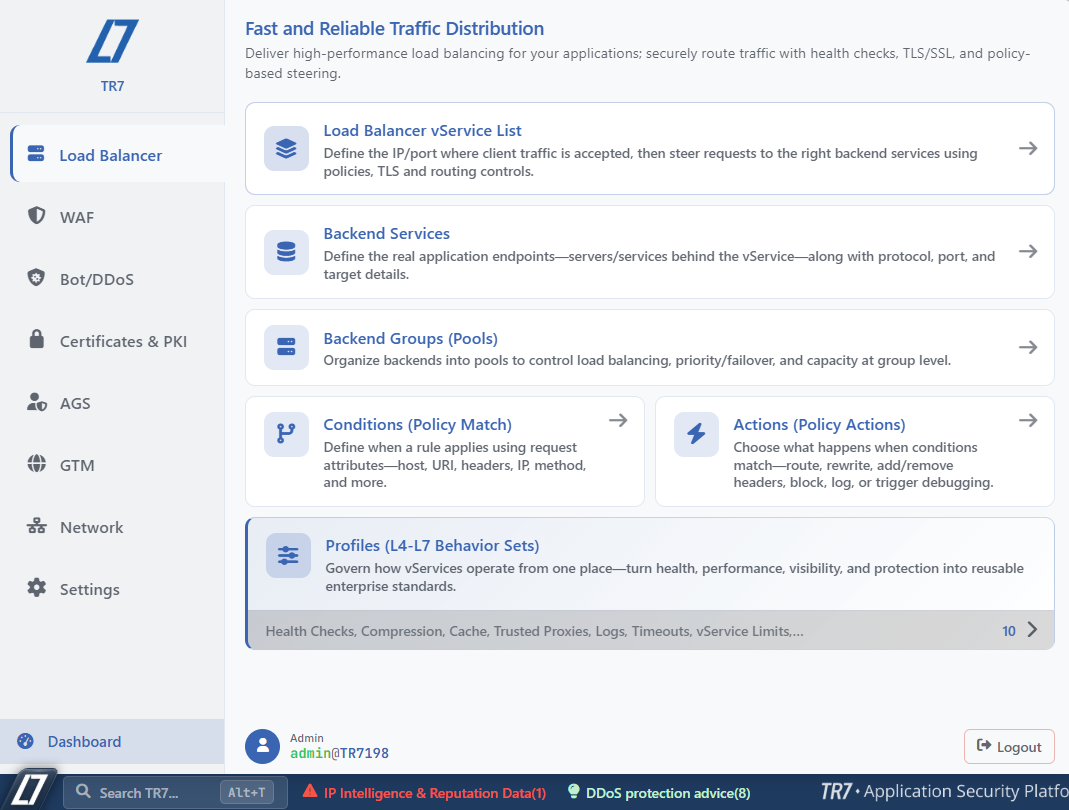 Configuration Menu
The screen consists of the following areas:
| Field | Description |
|---|---|
| The brand area | At the top of the left column, the logo and the Company Name on the Localization screen are shown. If no logo has been uploaded, the TR7 logo is displayed; if the company name is empty, the SMARTER BY DESIGN / SIMPLER FOR BUSINESS text is located in its place. |
| The tabs | In the left column, the module tabs are listed in a fixed order; the selected tab is highlighted with the colored line on its left. The tabs for which the user does not have permission are not listed. |
| The introduction title | At the top of the right panel, the title and the short description of the selected tab are located (e.g. Fast and Reliable Traffic Distribution). When a group card is entered, the location strip and the back button take its place. |
| The cards | The screens of the selected tab are arranged as cards; the card types are explained below. |
| Dashboard | The link at the bottom of the left column returns to the Home & Dashboard screen. |
| The user block | In the top row there is the user type (e.g. Admin), and in the bottom row the user name@device name information. When it is clicked, the account screen of the user opens; the personal preferences are on the My Preferences tab of this screen. |
| Logout | Closes the session. |
The Card Types
| Card | Appearance | When clicked |
|---|---|---|
| The full-width card | It covers the whole row; there are the icon, the name, the description and the symbol on the right. The main screen of the tab (e.g. Load Balancer vService List) is in this form. | Opens the related screen. |
| The half-width card | Two cards are arranged side by side; there are the icon, the name, the description and the symbol on the right. | Opens the related screen. |
| The group card | On its left there is a colored strip, below it the names of the screens it contains (abbreviated with "…" if they do not fit), and at its bottom right the number of screens it contains and the symbol. | Lists the sub-screens in the panel. |
When a group card is entered, the location strip (the tab name and the opened group) and the back button are displayed at the top of the panel, and next to the button the name and the description of the opened group. When the tab name on the strip is clicked, the first level of the tab is returned to, and when an intermediate level is clicked, that level; the back button and Esc move one level up.
The cards created according to the records on the device (GTM services, route tables) are shown with a purple highlight, and the Backup & Restore card with a green highlight. When their number is odd, the last one spreads over the whole row.
Access with the search
The screens in the menu are also reached with the Search Bar at the bottom left; it is opened with the Alt + T shortcut on Windows and the Opt + T shortcut on macOS, and it is enough to type and select the screen name. The search lists the screens in the tabs that the user can see; the group cards do not appear in the search, but the screens inside them do. The search bar also offers the most visited and the last opened screens as shortcuts.
Tabs
There are eight tabs in the menu, in a fixed order. The first seven are the traffic and security configuration areas; the last one, Settings, holds the system management of the device itself.
| Tab | Introduction title | Visibility condition |
|---|---|---|
| Load Balancer | Fast and Reliable Traffic Distribution | The Load Balancer permission |
| WAF | Web Application Firewall | The WAF permission |
| Bot/DDoS | Bot and L7 DDoS Protection | The Load Balancer permission |
| Certificates & PKI | Certificate and TLS Security | The certificate management permission |
| AGS | Centralized Authentication & Access Control | The Load Balancer permission |
| GTM | Global Traffic Management | GTM in the license and the GTM permission; on the devices in EAL mode the tab is not present |
| Network | Network Configuration and Policies | The Network permission |
| Settings | System Administration and Standardization | The Settings permission |
Load Balancer
The load balancing layer that meets the traffic and distributes it to the Backend Services: the vServices, Backend Services, Backend Groups, Conditions, Actions and the L4-L7 profiles.
→
WAF
The application layer firewall: the protected vService list, the signature library, the global event log and the global report.
→
Bot/DDoS
Bot and L7 DDoS protection: the protected vService list, the global event log and L4 DDoS Protection per route table.
→
Certificates & PKI
The certificates, the TLS profiles, the certificate authorities and the internal PKI, the client certificates, the private keys and the ACME DNS providers.
→
AGS
Centralized authentication and access control: the access flows, the authentication, the protection policies, the pages and the integrations.
→
GTM
Global traffic management at the DNS level: the DNS services, the remote devices, the health checks, the scenarios and the triggers.
→
Network
The interfaces, the firewall rules and the route tables.
→
Settings
The general settings, the device management, the user management, the system logs and the backup.
→
Permission-based visibility
The tabs and some cards change according to the permissions of the user who logs in; the sections for which there is no permission are not displayed in the menu at all. On the users limited to certain vServices, the Global WAF Event Log, Global WAF Report and Global Event Log cards are not present.
The Tab Panels
The cards in the panel of every tab are listed below in the order on the screen. The cards marked as Group list the screens they contain.
Load Balancer
Load Balancer vService List
The IP and the port on which the client traffic is accepted are defined; the requests are directed to the correct Backend Services with the policy, TLS and routing rules.
→
Backend Services
The real application endpoints behind the vService are defined with the protocol, port and target information.
→
Backend Groups (Pools)
The Backend Services are organized in groups for load balancing, priority, failover and capacity control.
→
Conditions (Policy Match)
When a rule will be applied is defined according to the request attributes such as the host, the URI, the header, the IP and the method.
→
Actions (Policy Actions)
What will happen when the conditions match is determined: redirection, rewriting, adding or removing a header, blocking, logging or debugging.
→
Profiles (L4-L7 Behavior Sets)
Group · 10 screens. The reusable profiles that manage the working form of the vServices from a single place: Health Checks, Compression, Cache, Trusted Proxies, Logs, Timeouts, vService Limits, Notifications, Reports, Content Pages.
→
WAF
WAF-Protected vService List
WAF protection is assigned to or removed from the vServices; the protection levels and the working modes are managed from a single screen.
→
Signature & Rule Library
More than 10,000 signatures covering OWASP, CWE, CAPEC and MITRE ATT&CK are examined; the attack categories are scanned and custom rules are created.
→
Global WAF Event Log
The security events of all the WAF-protected vServices are searched in a single table by UID, IP, country or signature.
→
Global WAF Report
A single report that combines the attack, signature, country and client information for all the WAF-protected vServices with a vService breakdown is produced.
→
Bot/DDoS
Bot/DDoS Protected vService List
Advanced threat protection is applied to the vServices; abuse is limited while availability is preserved.
→
Global Event Log
The Bot/DDoS events of all the protected vServices are searched in a single table by decision, IP, country or rule.
→
L4 DDoS Protection
Group. The network layer DoS/DDoS protection is configured per route table; in the group there is a
<table name> route table card for every route table on the device. The card opens the L4 DDoS management tab of the related route table. If there is no route table, the group is not displayed. →
Certificates & PKI
SSL/TLS Certificates
The certificates are imported, renewed and provided automatically with ACME; the life cycle of the encrypted communication is managed without interruption.
→
TLS Security Profiles
The TLS versions, the cipher suites, mTLS and SNI verification are configured on a profile basis.
→
Certificate Authorities (CA)
Trusted CA certificates are added or an internal PKI is set up: a root and a signing CA are produced, an enrollment is made under an external CA and the trust chain is managed from a single place.
→
Certificate Profiles
For the certificates produced by the internal PKI, the area of use, the validity period, the key algorithm and the extended key usage templates are defined.
→
Client Certificates
The certificates that prove the identity of the connecting person or device are produced with the internal CA or imported from a corporate CA.
→
Private Key Library
Reusable private keys are stored; by having the certificate re-signed with the same key, the public key is preserved after the renewal as well.
→
ACME DNS Providers
The DNS provider credentials for ACME DNS-01 verification are defined; the wildcard certificates and the certificates used only in the internal network are obtained by proving the domain name ownership over DNS.
→
AGS
AGS-Enabled vService List
The access flows are designed visually; by connecting the form, MFA, authentication and decision steps, the corporate applications are published behind a single sign-on portal.
→
Authentication
Group · 4 screens. The methods of proving the identity of the user: Authentication Providers, Authentication Servers, Local Databases, Multi-Factor Authentication (MFA).
→
Protection Policies
Group · 4 screens. The policies that provide layered protection to the access gateways: Session Protection Policies, Account Lockout Policies, Bot Protection Policies, CAPTCHA Providers.
→
Pages & Language
Group · 3 screens. The pages that the user sees and their languages: Login Forms, Page Templates, Dictionaries (Multilingual).
→
Integrations
Group · 3 screens. The connections of AGS with the external systems: Backend SSO Configurations, Notification Profiles, Log Forwarding.
→
GTM
GTM Services
Group. The DNS services are managed; the traffic is directed to the most suitable target with DNS-based load balancing. The first card of the group is Service Management; then a card with its name comes for every DNS service defined on the device. The number on the group card is one more than the number of DNS services.
→
Remote Devices (Data Centers)
The remote TR7 devices are connected; the WAN and LAN access, the internet status, the CPU, the memory and the bandwidth are monitored centrally.
→
Health Checks
Automatic and custom health checks are defined; the traffic decisions are made according to the CPU, the bandwidth, the service status and the reachability.
→
Trigger Actions
The remote service status is queried with methods such as HTTP and Oracle; it is verified with the status code, the content match and the command result.
→
Health Scenarios
The health checks are combined with AND and OR logic; the activation and the deactivation are set automatically or bound to a trigger.
→
Express Profiles (DNS Integration)
An integration with the existing DNS servers is established; the zone transfer is configured with the master addresses and the record patterns.
→
DNS Forwarder Profiles
The DNS queries are forwarded to the target servers with domain name based forwarding rules.
→
Network
Interfaces
The VLAN, Bond, LACP, Bridge and V-ETH interfaces are created; the IP addresses, the routes and the route tables are set on an interface basis.
→
Firewall
The Allow, Deny, SNAT, DNAT and Forward rules are defined; the rules produced automatically for the vServices are displayed.
→
Route Tables
The static and policy-based route tables are configured; the traffic is enabled to reach the correct target.
→
L4 DDoS Protection
Network-layer DDoS protection is configured per route table.
→
Settings
General Settings
Group · 10 screens. The parameters across the device: My Preferences, License Management, Localization, Device DNS, IP Intelligence & Reputation, NTP Time Sync, System Update, Notification Management, Log Forwarding, File Forwarding.
→
Device Management
Group · 5 screens. The device services, the access settings and the working modes: Hardware Management, Management Access, HA Clustering & Sync, Local Services, Disk Management.
→
User Management
Group · 4 screens. The device users and the external authentication integrations: Device Users, LDAP Settings, RADIUS Settings, TACACS Settings. The card is not displayed on the users that do not have the user management permission.
→
System Logs
Group. Notification Logs, User Logs and GTM Logs. The GTM Logs card is not present on the users that do not have the GTM permission; in this case the group contains two screens.
→
Backup & Restore
The system configuration is backed up, scheduled and restored; it is kept ready for disaster recovery.
→
