
Smarter by Design.Simpler for Business
SSL/TLS Certificates
What Is an SSL/TLS Certificate?
SSL/TLS Certificate is the digital document that proves the identity of the server and provides the encryption of the traffic in the HTTPS and TLS connections TR7 offers to the clients. A certificate record on TR7 consists of three parts: the certificate (the document that carries the public key and the domain names), the private key and the chain that binds the certificate to a trusted root (the intermediate and root CA certificates). The record is assigned to the encrypted frontends on the HTTP (L7) vService and L7 TCP vService screens; while the connection is being established, TR7 offers this record to the client and terminates the traffic on itself.
Once a certificate has been added, its life cycle is monitored from this screen: the certificates of the ACME.SH type are renewed by themselves at the selected threshold, the certificates produced with the internal CA are signed again according to the period defined in the profile, the period of the certificates added by hand is monitored in color in the list and a period notification is produced for the certificates bound to a vService.
The screen consists of three tabs: the certificate list (the first tab, seen in the top strip as the menu path), CSR (External CA) for the requests to be signed by an external certificate authority and Issued Certificates (Internal PKI), which is the record of the certificates the internal CA produces.
4
Adding methods
Automatic obtaining with ACME.SH, Manual (PEM), a PFX file and production with the internal CA (Internal CA)
Automatic
Renewal
The ACME.SH and internal CA certificates are checked at 07:00 and 22:00 every day; the ones that fall below the threshold are renewed
Chain
Chain validation
The Chain tab in the preview validates the chain up to the root CA; it suggests completion for a missing intermediate certificate
30 days
Period health
The certificates that have 30 days or less to expiry are colored as Expiring Soon and the ones that have expired as Expired
CSR
The external CA flow
The key is produced on the device, the CSR is downloaded, the signed certificate is uploaded; the same CSR can be signed again
PFX
Exporting
The records on which Allow Download is on are downloaded together with their chain as a password-protected PFX
How does it work?
- The certificate record is added from this screen: in the ACME.SH type TR7 obtains the certificate from the selected ACME server itself; in the Manual and PFX types the certificate and the key are imported; in the Internal CA type the certificate is produced by an internal CA on the Certificate Authorities (CA) screen.
- The record is selected from the Certificate field that is seen when at least one encrypted frontend is defined in the vService form; the selection is valid for all the encrypted frontends of that vService. At every configuration application TR7 combines the certificate, the intermediate and root certificates and the key in a single file; if a CA profile is selected for the chain, the content of the profile is used.
- The Valid until column in the list shows the remaining period in color; the Expiry Health filter separates the certificates that have expired and that are about to expire with a single click.
- The ACME.SH certificates are renewed by themselves according to the Acme.sh Automatic Renewal threshold and the internal CA certificates according to the renewal period in the certificate profile; the renewal does not change the identity of the record and the vService assignments are preserved.
Certificate Types
The types are selected in the Type field in the adding form and cannot be changed after the record is created.
| Type | Where the certificate comes from | Key | Renewal |
|---|---|---|---|
| ACME.SH | It is obtained automatically from the selected ACME server (Let's Encrypt, ZeroSSL, SSL.com, Google) with domain name validation. | TR7 produces it. | Automatic according to the threshold; it is also triggered by hand from the ACME.SH tab in the preview. |
| Manual | The certificate and key content in PEM format is pasted or a file is dragged. | It is imported. | By hand: a new certificate is uploaded with Upload a re-signed certificate in the right-click menu. |
| PFX | A PKCS#12 (.pfx) file is uploaded; the certificate, the key and, if any, the chain are taken from the file. | It is taken from the file. | By hand: with Upload a re-signed certificate. |
| Internal CA | An internal CA and a certificate profile are selected; TR7 produces and signs the certificate. | TR7 produces it. | Automatic according to the period in the profile; by hand with Renew now (internal CA) in the right-click menu. |
| CSR (external CA) | It is seen only in the editing form of the records of the CSR type that were created in the certificate list in the previous versions; new requests are opened from the CSR (External CA) tab. | TR7 produces it. | The certificate the external CA signs is uploaded. |
A record produced with an Internal CA behaves in the list according to the Manual type rule and shows in the preview with the Issued by (internal CA) row which CA has signed it; the Type card in the filter strip counts these records separately as Internal CA.
The Certificate Chain
In order for the clients to be able to trust the certificate, the intermediate CA that signs the certificate and the root CA certificates at the end of the chain must be offered as well. In TR7 the chain is defined in two ways:
- Inside the record (Without Profile): the intermediate and root certificate content is pasted into the Intermediate Cert. Content and Root Cert. Content fields in the adding form.
- With a CA profile (Use Profiles): one or more CA records defined on the Certificate Authorities (CA) screen are selected. When a profile is selected, the content inside the record is not used; it provides updating from a single point in a large number of certificates that use the same intermediate certificate.
In the ACME.SH and Internal CA types the chain is managed by TR7; in these types the chain fields are not present in the adding form. When a record produced with an internal CA is opened for editing, the chain fields are seen filled in the Use Profiles mode with the profiles of the signing CAs. Whether the chain has been set up correctly is seen in the Chain tab in the preview panel.
Operational Best Practices
- Preferring ACME.SH. For the domain names open to the internet the ACME.SH type leaves the obtaining and the renewal to TR7; unless the Acme.sh Automatic Renewal threshold is made Disabled, the certificate is renewed before its period expires.
- The CAA record. According to the selected ACME server the CAA record of the domain name must permit the related authority; when the server is selected, the form shows the expected CAA value.
- DNS-01 for a wildcard domain name. The domain names that start with
*.are obtained only with DNS-01 validation; for this a profile must be defined on the ACME DNS Providers screen. - Validating the chain. After a certificate is added in the Manual and PFX types, the expression Trust chain is complete must be seen in the Chain tab in the preview; for a missing intermediate certificate Suggest Completion must be used.
- Taking the key into the library. In the certificates that require being signed again with the same key (key pinning), the key must be moved to the Private Key Library screen with Take the key into the library in the right-click menu.
- Checking the usage before deleting. The delete confirmation does not show where the certificate is used. The Used in tab in the preview and the Used in card in the filter strip list only the vService usages; whether the certificate is selected as the HTTPS Certificate on the Management Access screen or as the Client Certificate presented to backend (mTLS) in a Backend Service must be checked separately. These two usages do not enter the Used in list; in this case the certificate is counted as Unused Entries as well.
- The notification threshold. The period notification is produced only for the certificates bound to a vService; the threshold is determined by the Certificate Expiry Notify Days field in the Notifications profile assigned to the vService (30 days in the default profile, empty in the newly created profiles). A profile whose field is left empty does not produce a certificate notification.
How to Add?
A new Certificate is added over the TR7 web management interface with the following steps:
- The Configuration Menu is opened by clicking the TR7 logo at the bottom left.
- The Certificates & PKI → SSL/TLS Certificates → Add steps are followed; the form opens as a closable Add tab inside the list screen.
- A name is entered for the certificate; Type is selected and the fields seen according to the type are configured (for the details of the fields see the Adding Form section).
- The certificate is added by clicking the
Addbutton. In the ACME.SH type the certificate obtaining operation starts the moment the record is created; the result of the operation is monitored from the ACME.SH tab in the preview.
TIP
Reaching the page via quick search
Instead of navigating the menu step by step, the related page is reached directly by using the search bar in the bottom left corner of the screen. The search bar opens with the Alt + T shortcut on Windows and Opt + T on macOS; typing the name of the feature being searched for is then sufficient.
The SSL/TLS Certificates Listing Screen
The list of all the certificates added on the TR7 device is reached by following the Certificates & PKI → SSL/TLS Certificates path. The operations of adding, editing and deleting a certificate, downloading it as a PFX and the chain and ACME operations are done from this screen.
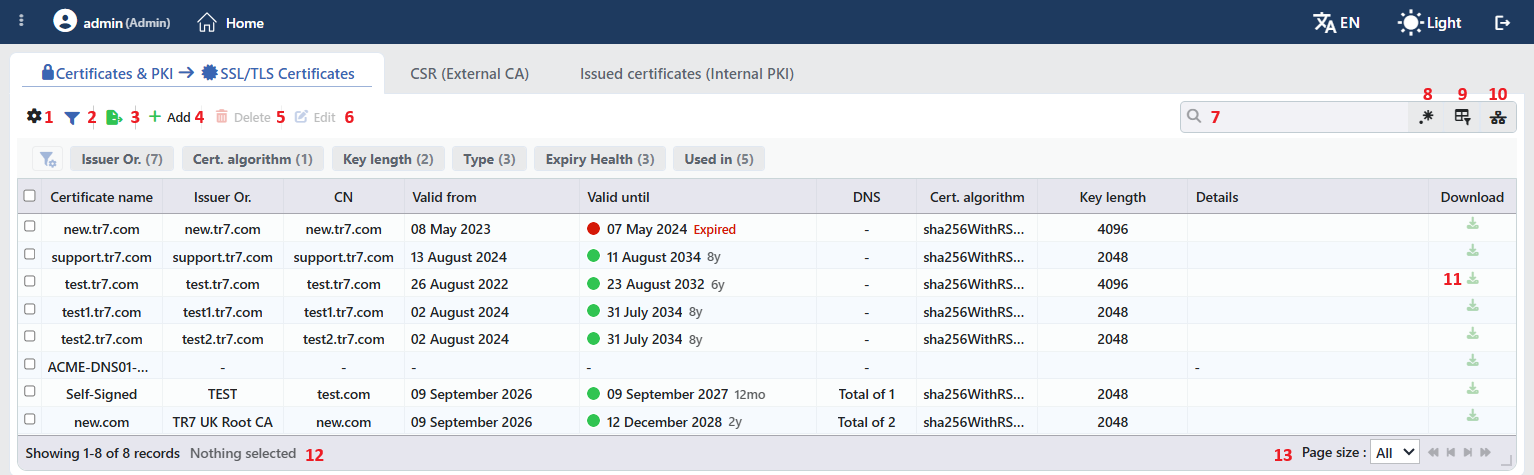 The SSL/TLS Certificates Listing Form
The table opens with the following columns by default:
| Column | Description |
|---|---|
| Certificate Name | The name of the certificate record. |
| Issuer Or. | The name of the authority that signs the certificate: the CN value in the Issuer field of the certificate, or the O value if there is no CN. The full value is seen when it is hovered over; if there is no value, -. |
| CN | The Common Name field of the certificate. |
| Valid from | The beginning of the validity (DD Month YYYY). |
| Valid until | The end of the validity; at the beginning a colored circle that shows the period status and that gives the status text when it is hovered over (green Valid, orange Expiring Soon, red Expired), and at the end the abbreviation of the remaining period (12d, 8mo, 3y; Expired in the ones that have expired). In the records that have not expired, the number of days remaining is seen when the abbreviation is hovered over. |
| DNS | The number of domain names (SAN) in the certificate in the form Total of N; when it is hovered over, the domain names are listed. If there is no domain name, -. |
| Cert. Algorithm | The signature algorithm of the certificate (such as sha256WithRSAEncryption, ecdsa-with-SHA256). |
| Key Length | The key length (bits). |
| Details | The additional key details read from the certificate (ASN1 OID, NIST CURVE, Signature Algorithm), separated by commas; if there are none, -. |
| Download | The green download icon; it downloads the certificate together with its chain and key as a password-protected PFX file (see Downloading as a PFX). In the records on which Allow Download is off and in the records whose certificate has not been obtained yet, the icon is passive. |
The period status is determined according to the number of days remaining to the expiry: more than 30 days Valid, 0–30 days Expiring Soon, and if it has expired, Expired. In the records in which there is no certificate content yet (for example the ACME.SH records whose certificate has not been obtained) the status becomes No Certificate; in these records neither the colored circle nor the remaining period is shown in the column, the value is listed only in the Expiry Health filter card.
There is no column hidden by default; these ten columns take place in the column selector. While the preview panel is open, the Valid from, DNS, Cert. Algorithm, Key Length and Details columns are hidden temporarily in order to make room for the table. The certificate and key content is not shown in any column. The table is not sorted when it is opened; when a column header is clicked, first a descending and then an ascending sorting is applied, and at the third click the sorting is removed.
In the top strip of the screen there are three fixed tabs:
- The certificate list: the first tab; in its header the menu path (Certificates & PKI → SSL/TLS Certificates) is displayed instead of the tab name.
- CSR (External CA): the certificate signing requests to be signed by an external certificate authority (The CSR (External CA) Tab).
- Issued Certificates (Internal PKI): the record of the certificates the internal CA produces (The Issued Certificates (Internal PKI) Tab).
The adding and editing forms open in this strip as closable tabs; more than one editing tab can be open at the same time and when the tabs are passed between, the filter and scroll state of the tables is preserved.
The items in the toolbar of the certificate list are arranged from left to right in the following order. The Download in between is the operation not of the toolbar but of every row itself; the last two items (Page Information and Page Size), on the other hand, are in the information strip below the table.
Columns
Which columns will be shown in the table is selected; all ten columns are on by default. In the same panel the columns are reordered by dragging and the alignment is selected per column; with the Fit rows to the page button the row height is fitted to the page and with the Reset button the column layout is returned to the default. The layout is stored per user.
Filter
The Filter button is used in order to filter the certificates shown in the list according to certain criteria; the button shows the number of active filters with a badge. In the strip there are six cards: Issuer Or., Cert. Algorithm, Key Length, Type, Expiry Health and Used in. In the card header there are the filter name and the number of values; when the card is clicked, the values are listed below it with their row counts and more than one value can be selected together. The selections are displayed below the card strip, immediately above the table, as closable labels.
- The Type card counts the certificates according to the adding method: ACME.SH, Manual, PFX, Internal CA, CSR (external CA).
- The Expiry Health card shows the period status with colored counters: Expired (red), Expiring Soon (orange), Valid (green); for the records in which there is no certificate content the No Certificate value is listed as well. The three main values are seen even if there is no row in the list.
- The Used in card lists the names of the vServices in which the certificate is used; for the certificates that are not used in any vService the Unused Entries option is always present. The card counts only the vService usage; the management interface HTTPS certificate and Backend Service client certificate usages are not reflected to this card.
When the editing mode is passed to with the settings icon on the left of the strip, the cards are reordered by dragging; the layout is stored per user.
Export
The table is exported as Excel, CSV or PDF by clicking the Export button. In the window that opens, the Filename, Format and Data Source, together with the Columns to be exported, are determined; the remaining fields are displayed according to the format: CSV Separator for CSV, Excel Sheet Name for Excel, and Page Orientation and Page Size for PDF.
There is no certificate and key content in the exported table.
Add
By clicking the Add button, a new certificate creation form is opened in the Add tab.
Delete
When one or more certificates are selected and the Delete button is clicked, the related certificates are deleted. Before the deletion the "Are you sure that you want to delete certificate object?" (in a multiple selection "Are you sure you want to delete N certificate objects?") confirmation is asked.
WARNING
A certificate that is in use can also be deleted and the confirmation window does not show the usage locations; before the deletion the Used in tab in the preview panel must be checked and another certificate must be selected in the related vServices. This tab covers only the vService usages: the HTTPS certificate of the management interface and the client certificate offered in the Backend Service connections are not seen in the list.
The certificate record is removed from the device together with its key; if the key has been moved to the library, the library record stays. The vServices and the other objects that refer to the certificate are not updated by themselves. The production record of a certificate produced with an internal CA becomes Superseded at the next renewal scan (every day at 07:00 and 22:00); the request of a certificate produced from the CSR tab stays Signed but Re-issue can no longer be done. The deletion operation is written to the user operation record.
Edit
By clicking the Edit button, the editing form of the selected certificate is opened in the Edit tab. The button becomes active only when a single certificate is selected.
The editing form is the same as the adding form; the name of the tab and of the button of the form becomes Edit and the Type field is locked.
- In the Manual, PFX and Internal CA records there is the Keep existing certificate and key switch in the form (on by default); below it the summary of the certificate stored (the CN, the key length, the algorithm, the end date) is shown in a single row. While the switch is on, the certificate, key, PFX file and password fields are hidden; only the name, the chain fields and Allow Download are changed. When the switch is turned off, the content fields are seen and a new certificate and key (or a new PFX file) are uploaded.
- In the ACME.SH records the certificate content is not edited; the ACME settings (the server, the domain names, the key length, the validation, the renewal threshold, the network source) are changed. When the server, the key length, the domain name list or the validation method changes, a new certificate obtaining operation starts as soon as the record is saved.
- The chain can be updated without touching the certificate: changing the content or the profile in the Root Cert. Content and Intermediate Cert. Content fields and saving is sufficient.
The change is saved without confirmation being asked and the configuration is applied again.
Search
Used to search all information in the table.
RegExp Search
Used to search all information in the table with a regular expression (RegExp).
Column Based Search
It is used in order to search the information in the table based on the column; next to every box there are the Negate switch that inverts the result and its own RegExp option.
Usage Filter
It is used in order to filter which vServices the certificates are bound to; the certificates used in the selected vService are listed and for the ones that are not used anywhere there is the Unused Entries option. While the filter is active, the selector takes the place of the search box; when the icon is clicked again, the search box comes back.
Download
The green download icon at the end of every row downloads the certificate together with its chain and key as a password-protected PFX file (see Downloading as a PFX). In the records on which Allow Download is off and in the records whose certificate has not been obtained yet, the icon is passive.
Page Information
Information about the total number of defined certificates and the number of certificates displayed in the list takes place: Showing N-M of T records and the number of selected certificates (N selected, Nothing selected while there is no selection). If a selection has been made in the filter strip, the number of filters applied and the shown/total row information are added to the same row.
Page Size
The maximum number of certificates to be displayed on the page is selected. On this screen the default is All; the options are 5, 10, 20, 50, 100, 200, 500 and All.
Right-Click Menu
When a row is right-clicked, a menu whose header is the name of the certificate opens. The operations in the menu are seen according to the type and the state of the record:
| Operation | Visibility condition | Description |
|---|---|---|
| Edit | Always | Opens the editing tab. |
| Upload a re-signed certificate | The records other than ACME.SH that have a key | It opens the window for pasting the certificate the authority has signed again for the same key (see Uploading a re-signed certificate). |
| Renew now (internal CA) | The records produced with an internal CA | After the "The certificate will be re-signed by its internal CA with a new key. Continue?" confirmation the certificate is produced again by the signing internal CA with a new key and a new serial number; the identity of the record and the vService assignments do not change. |
| Download CSR | The records of the CSR (external CA) type left from the previous versions | It downloads the CSR file of the record; it can be downloaded whether the record is waiting for a signature or has been signed. |
| Take the key into the library | The records whose key is kept inside the record (that are not bound to the library) | After the confirmation the private key is moved to the Private Key Library screen with the name <certificate name> — key and the certificate record refers to the key from there; the certificate offered does not change. If the same name is in use, (2), (3) … is added to the name. |
| Delete | Always | It deletes only the certificate that is right-clicked with the same confirmation flow. |
Uploading a Re-signed Certificate
The Upload a re-signed certificate window accepts the new certificate the authority has produced for the key in the record. In the window there is a single required field: Signed Certificate (PEM) (pasting or dragging a file of at most 64 KB). The certificate uploaded is matched with the private key in the record; if it does not match, the operation is rejected. If it matches, the certificate content is replaced with the new one and the identity and the key of the record are preserved; the vServices and profiles that refer to this certificate continue to work unchanged. A successful operation is notified with the "The certificate of "<name>" was replaced. Everything pointing at it keeps pointing at it, and the private key is unchanged." message. When an external certificate is uploaded to a record produced with an internal CA in this way, the internal CA bond is removed.
Downloading as a PFX
When the icon in the Download column is clicked, the Enter New Pfx Password window opens; the password that will protect the file is entered in the New PFX Password field and the <certificate name>.pfx file is downloaded with Accept. The file contains the certificate, the intermediate and root certificates used in the configuration and the private key. If the password is left empty, the file is protected with the certificate name as the password. The download can be done only on the records on which Allow Download is on.
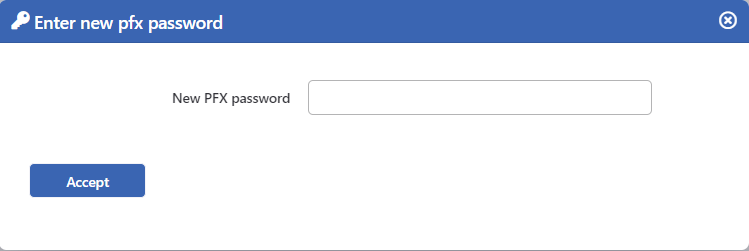 Assigning a New Password for the Certificate Download
The Preview of the Selected Certificate
When a row is clicked in the list, the preview of the certificate opens on the right of the screen; when the selected row is clicked again, the panel closes. In the header there are the certificate icon, the name of the certificate and the Certificate subtitle, and at the top right the operations that change according to the type of the record.
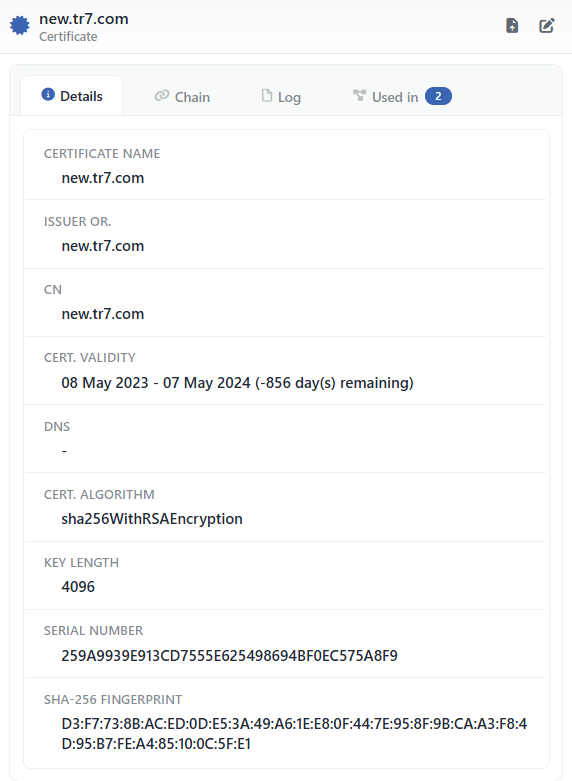 The Preview of the Selected Certificate
| Operation | What it does | When it is present |
|---|---|---|
| Upload a re-signed certificate | It opens the window for pasting the certificate the authority has signed again for the same key; it is the same as the operation in the right-click menu. | Only in the records other than ACME.SH that have a key |
| Edit | It opens the editing form of the certificate in the Edit tab. | Always |
In the panel there are at most five tabs; the tabs are seen according to the type and the state of the record:
Details
It lists the identity, validity and chain information of the certificate (the table below). It is always seen.
Chain
It validates the trust chain up to the root CA and suggests completion for the missing links. It is seen in the records that have certificate content.
ACME.SH
It starts the certificate obtaining and renewal operations and shows the run records. It is seen only in the ACME.SH type; the tab icon turns while an operation continues and carries a `!` badge if the certificate has not been obtained.
Log
It lists the user operations and the ACME events on the record as a timeline. It is always seen.
Used in
It lists the vServices the certificate is assigned to; the badge shows the number of usages. It covers only the vService usages and is seen if the certificate is used in at least one vService.
The records in the Log tab are also monitored on the User Logs screen across the device.
Details Tab
The rows are as follows in order; the rows that have no value are not shown.
| Row | Description | Visibility condition |
|---|---|---|
| Warning | The warning text that states that the record or a sub-profile bound to the record has been deprecated. | Only in the deprecated records |
| Certificate Name | The name of the record. | Always |
| ACME.SH | The summary of the last ACME operation: if it is running, Get New Certificate / Renew Certificate with a turning icon, if the certificate has never been obtained, Certificate not issued yet, otherwise the date and the reason of the last completed run (if the reason has not been recorded, the last readable output line), with the green or red icon that shows the result at the beginning. When the row is clicked, the ACME.SH tab opens. | The ACME.SH type |
| Issuer Or. | The name of the signing authority: the CN in the Issuer field, or the O value if there is none. | If there is certificate content |
| CN | The Common Name. | If there is certificate content |
| Cert. Validity | <beginning> - <end> (<N> day(s) remaining). | If there is certificate content |
| DNS | The domain names in the certificate; - in an empty list. | If there is certificate content |
| Cert. Algorithm / Key Length | The signature algorithm and the key length. | If there is certificate content |
| Details | The additional key details read from the certificate (ASN1 OID, NIST CURVE, Signature Algorithm), separated by commas. | If there are any |
| Serial Number | The serial number of the certificate. | If there is certificate content |
| SHA-256 Fingerprint | The SHA-256 fingerprint of the certificate. | If there is certificate content |
| Extended Key Usage (EKU) | The extended key usage values (serverAuth, etc.). | If it is defined in the certificate |
| Issued by (internal CA) / Issued Serial | The internal CA that produces the certificate (a link) and the production serial number. | In the records produced with an internal CA |
| Root Cert. Content / Intermediate Cert. Content | The green check icon that shows that there is chain content inside the record; if there are both content and a CA profile in the record, the profile names are listed as links. If the chain is set up only with a CA profile, the row is not seen. | If there is chain content inside the record |
Chain Tab
The Chain tab takes the certificate and the intermediate/root certificates to be used in the configuration (the content inside the record or the selected CA profiles) and sets up the chain by validating whether every link really signs the next one. At the top the status of the chain is shown:
- Trust chain is complete (green): the chain has been validated up to the root CA.
- Missing intermediate certificate — required issuer:
<signer>(orange): the intermediate certificate that signs the certificate could not be found; the name of the required signer is written. - No certificate content yet: the certificate content in the record could not be read (in the records that have no certificate content at all the tab is not seen anyway).
Below it the chain links are listed with the root at the very top; on every card there are the role (Root CA, Intermediate CA, Certificate), the CN, Issuer, Validity and the SHA-256 fingerprint. The links that have expired get the Expired badge and the links whose signature cannot be validated the Signature Invalid badge. The certificates that are present in the record but do not enter the chain are listed separately under the Provided but not part of the chain heading.
If the chain is missing and the required signer is known, the Suggest Completion button is seen. The button looks for the missing link, in order, in the chain content of the other certificate records, in the CA profiles and, optionally, at the signer address the certificate itself carries (the Also try downloading from the issuer's address (AIA) option); only the candidates that pass the signature validation are suggested. In the suggestion the source of every candidate is written: from another certificate, from a CA profile, downloaded (AIA). The suggestion is applied with Add to this certificate's chain; after the confirmation the certificates found are added to the chain content in the record, the existing content is preserved and the configuration is applied again. The suggestion can be applied only to the Manual and PFX records that keep their chain inside the record. If a CA profile is selected in the field that corresponds to the type of the suggested link (intermediate or root), the suggestion is shown but cannot be applied; that profile must be extended.
ACME.SH Tab
At the top of the tab there are three buttons:
- Get New Certificate: it obtains the certificate from the ACME server again (a new order). It is passive while an operation continues.
- Renew Certificate: it renews the existing certificate. It is passive if the certificate has never been obtained and while an operation continues.
- Stop: it is seen only while an operation continues; it stops the operation.
Every button asks for the "Are you sure?" confirmation. Below the buttons the ACME settings of the record are summarized: Acme.sh Server, Acme.sh E-mail Register Address (only if an address has been entered), Acme.sh Key Length, Acme.sh Domain List (domain name → vService) and Acme.sh Automatic Renewal.
After that a console section is listed for every run (the newest at the top). In the section header there are the name of the device that does the operation (and, if a non-host vDevice or a non-default route table has been used, these as well), the result badge (Succeeded green, Failed red, a blinking green dot if it is continuing) and the run time; in the failed runs the recorded reason is written below the header. The console body shows the output of the ACME client with the row colors (an error red, a warning orange, a success green). In a cluster every device records its own run; if there is no run record on this device, the text No run record on this device, and if the certificate has never been obtained, Certificate not issued yet is seen.
The tab icon turns while an operation continues; if the certificate has never been obtained, an exclamation icon and the ! badge are seen on the tab.
Used in Tab
It lists hierarchically the vServices in which the certificate is selected in the Certificate field; when the link in a row is clicked, the vServices list is gone to and the related vService is opened selected.
The Certificate Adding Form
A new certificate is added on the TR7 device by following the Certificates & PKI → SSL/TLS Certificates → Add steps.
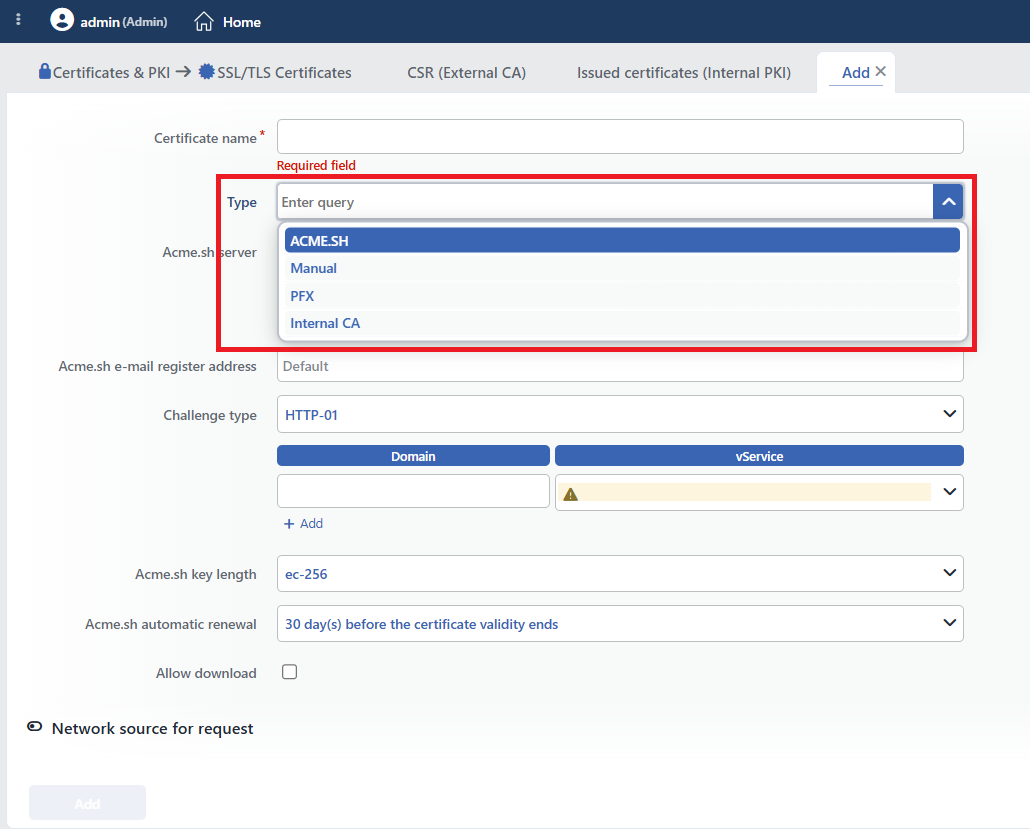 The SSL/TLS Certificates Certificate Adding Form
Certificate Name and Type are the first two fields in every type; Allow Download, on the other hand, takes place after the type-specific fields, as the last common field of the form. In the ACME.SH type there is the Network Source for Request section that opens and closes below this field. The fields in between change according to the selected type (see The Type-Specific Fields).
INFO
Certificate Name Required
The name of the certificate record is entered. The name identifies the record in the list, in the certificate selection in the vService forms and in the logs and must be unique on the device; a second record with the same name is rejected by the server. In downloading as a PFX this name is used as the file name and instead of the password that is left empty.
INFO
Type Default: ACME.SH
How the certificate will be obtained is selected: ACME.SH, Manual, PFX or Internal CA (see Certificate Types). The type cannot be changed after the record is created; the field is locked in the editing form. When the type is changed, a PFX file that has been selected is cleared. Internal CA is only a creation mode: since the record is stored in the Manual type, the Type field is seen as Manual in the editing form, and the internal CA bond is monitored from the Issued by (internal CA) row in the preview.
INFO
Allow Download Default: off
While it is on, the certificate can be downloaded as a PFX together with its key and chain with the Download icon in the list. Since it contains the key, it must be turned on in the records for which the key will be permitted to leave the device. The key is bound to the user who creates the record: after the record is added, only the user who creates the record can change this key; an attempt by another user to change the key is rejected with this reason, and the edits that do not touch the key are saved for everyone in the usual way. In the old records whose owner is not recorded, the key cannot be changed by anyone.
INFO
Add
The certificate adding operation is completed by clicking the Add button. As long as there is a field whose format has not been validated, the button stays passive; leaving the required fields empty, on the other hand, is rejected by the server. In the ACME.SH type the first certificate obtaining operation starts the moment the record is created.
The Type-Specific Fields
ACME.SH
The certificate is obtained automatically from the selected ACME server with domain name validation. The domain name must resolve in DNS to the related vService address of TR7 and the requirements of the validation method must be met.
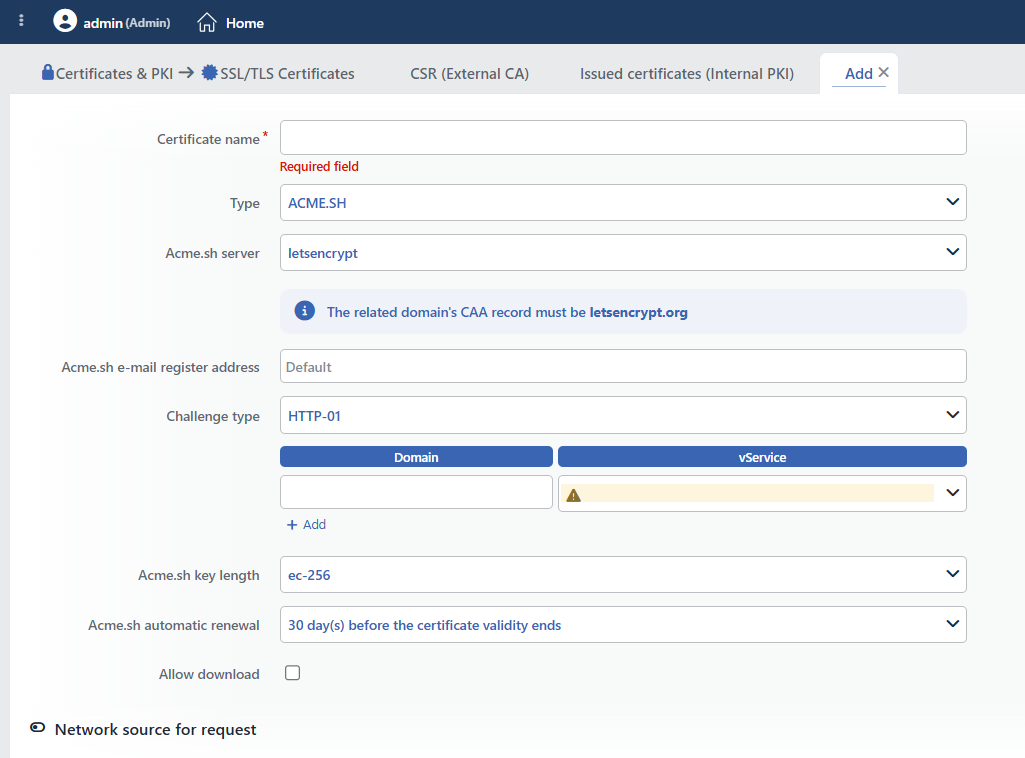 The Type > ACME.SH Adding Form
INFO
Acme.sh Server Default: letsencrypt
The ACME server from which the certificate will be obtained: letsencrypt, zerossl, sslcom, google. According to the selection an information box below the field shows the authority that must be present in the CAA record of the domain name: letsencrypt.org for Let's Encrypt, sectigo.com for ZeroSSL, ssl.com for SSL.com, pki.goog for Google; for SSL.com and Google a link is given to the guide from which the EAB credentials will be obtained.
The buypass option offered in the previous versions is seen only in the old records that still point to this server; the information box states that the provider has closed its certificate service and that the certificate cannot be renewed. In these records another server must be selected and the record must be saved again.
INFO
Acme.sh E-mail Register Address Placeholder: Default
The e-mail address at which the ACME account will be registered. The authority sends the period notifications to this address. When it is left empty, the default account address of TR7 is used and the notifications of the authority do not reach the organization; entering an address of the organization is recommended. A separate ACME account is kept for every server and address pair. When the field is left empty, the text Default is seen in the box and the default address on the server is used; the value entered must be a valid e-mail address.
INFO
EAB ID / EAB HMAC
They are seen only on the zerossl, sslcom and google servers. The identity and the HMAC key these authorities give for account binding (External Account Binding) are entered; when the two fields are filled in together, they are added to the ACME request.
INFO
Challenge Type Default: HTTP-01
How the ownership of the domain name will be proved is selected:
- HTTP-01: the authority sends a
/.well-known/acme-challenge/request to port 80 of the domain name; TR7 answers the request over the vService the domain name is mapped to. The domain name must resolve in DNS to the address of this vService and must be accessible from port 80. - DNS-01: TR7 writes a temporary TXT record to the domain name with the API of the selected DNS provider. The wildcard (
*.) domain names are obtained only with this method; when a wildcard domain name is entered with HTTP-01, the form gives the Wildcard domains require the DNS-01 challenge error.
INFO
DNS Provider Required (DNS-01)
It is seen only while DNS-01 is selected. One of the profiles defined on the ACME DNS Providers screen is selected; with the adding icon next to the field a new profile can be defined without leaving the page.
INFO
The Domain / vService list
This field has no label of its own; the domain names that will enter the certificate are entered row by row in a two-column table whose column headers are Domain and vService. In every row there are the domain name and the vService on which the validation request will be answered. With the + Add control below the list a new row is added; while there is more than one row, at the end of every row the × icon for deleting and at its beginning the handle for ordering by dragging are seen, and when a single row remains, these two controls are not displayed. The same domain name cannot be entered twice in the list. In the first row the vService is empty and must be selected; the rows added afterwards are prefilled with the first vService in the list. The certificate contains all the domain names in the list as SANs.
 The Domain and vService Selection
INFO
Acme.sh Key Length Default: ec-256
The type and the length of the key to be produced: ec-256, ec-384, ec-521 (elliptic curve) or 2048, 3072, 4096 (RSA, bits).
INFO
Acme.sh Automatic Renewal Default: 30 day(s) before the certificate validity ends
How many days before the certificate expiry the automatic renewal will start: 7, 14, 30, 45, 89 or 179 day(s) before the certificate validity ends; when Disabled is selected, the certificate is not renewed by itself. The daily check starts the renewal when the remaining period falls below this threshold (see The Working Mechanism).
INFO
Network Source for Request
The Network Source for Request heading at the bottom of the form opens and closes the three fields that determine over which network the ACME request will be made; the heading is closed by default.
 The Network Source For Request Configuration Screen
Device Default: device number 1
Which device will make the request in a cluster is selected; the certificate obtaining and renewal run only on this device and the result is transferred to the other device. By default cluster device number 1 is selected; on a single device there is only the device itself in the list.
vDevice Default: Host device
The virtual device on which the request will be made. It is seen only on the devices on which a vDevice is defined.
Route Table Default: DEFAULT
The route table from which the request will go out on the selected vDevice.
Manual
The certificate and key content in PEM format is entered directly. Content can be uploaded by dragging a file into the Certificate Content and Key Content fields (at most 32 KB); content is pasted into the chain fields.
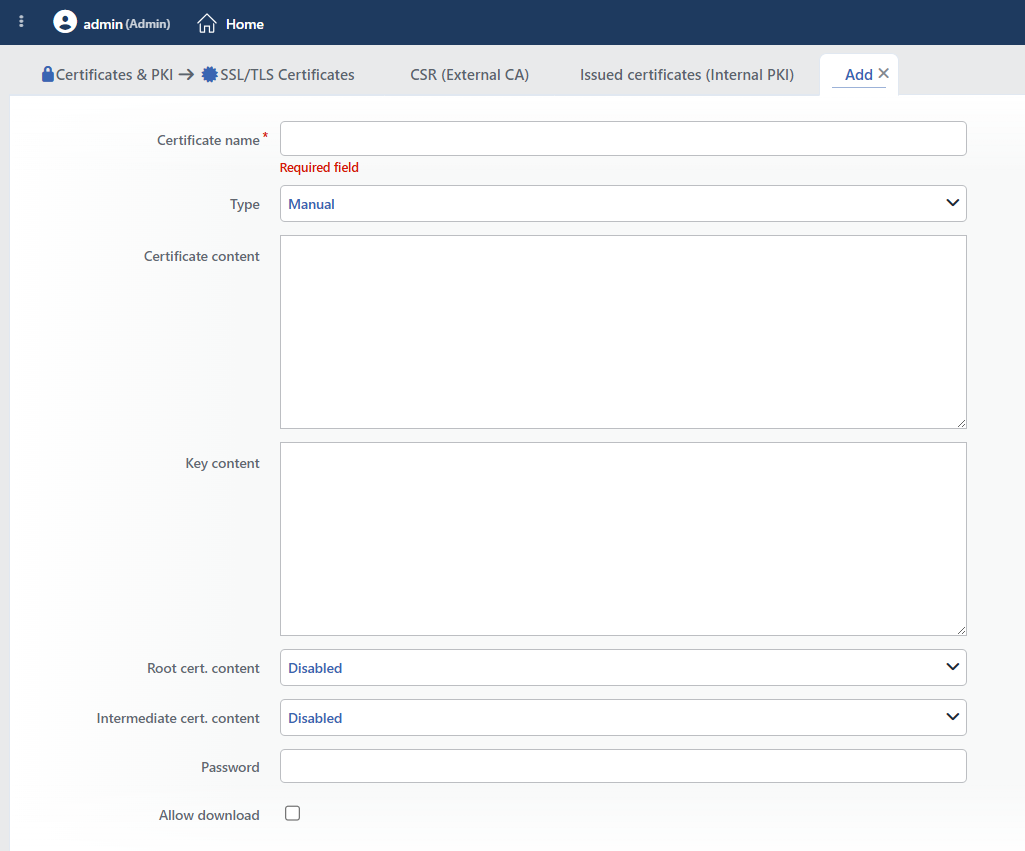 The Type > Manual Adding Form
INFO
Certificate Content Required
The PEM content of the certificate (it starts with -----BEGIN CERTIFICATE-----). If there is more than one certificate block in the content (the certificate + the chain), the additional blocks are evaluated as the chain. The formats other than PEM are accepted as well: a PKCS#7/P7B block and DER-encoded (.cer) content are converted to PEM while they are being taken, and unrecognized content is rejected.
INFO
Key Content Required
The PEM content of the private key of the certificate. The key must match the certificate; the match is not checked during the adding, a pair that does not match is saved and the error comes out while the configuration is being applied. In the keys with a password the password is entered in the Password field.
INFO
Root Cert. Content Default: Disabled
The root certificate of the chain. The field opens as a list with three options:
- Disabled: no root certificate is given.
- Without Profile: the PEM content of the root certificate is pasted into the text field that opens below it.
- Use Profiles: one or more of the records on the Certificate Authorities (CA) screen are selected; with the adding icon next to it a new CA record is opened without leaving the page. When a profile is selected, the content in the text field is cleared.
The field takes place in the form above the Intermediate Cert. Content field.
INFO
Intermediate Cert. Content Default: Disabled
The intermediate certificates in the chain. The field offers the same three options as Root Cert. Content: Disabled, Without Profile and Use Profiles.
In the configuration the chain is set up in the order certificate → intermediate → root.
INFO
Password
If the private key is protected with a password, its password is entered; in the keys without a password it is left empty.
PFX
The certificate, the key and, if any, the chain are taken from a single PKCS#12 file.
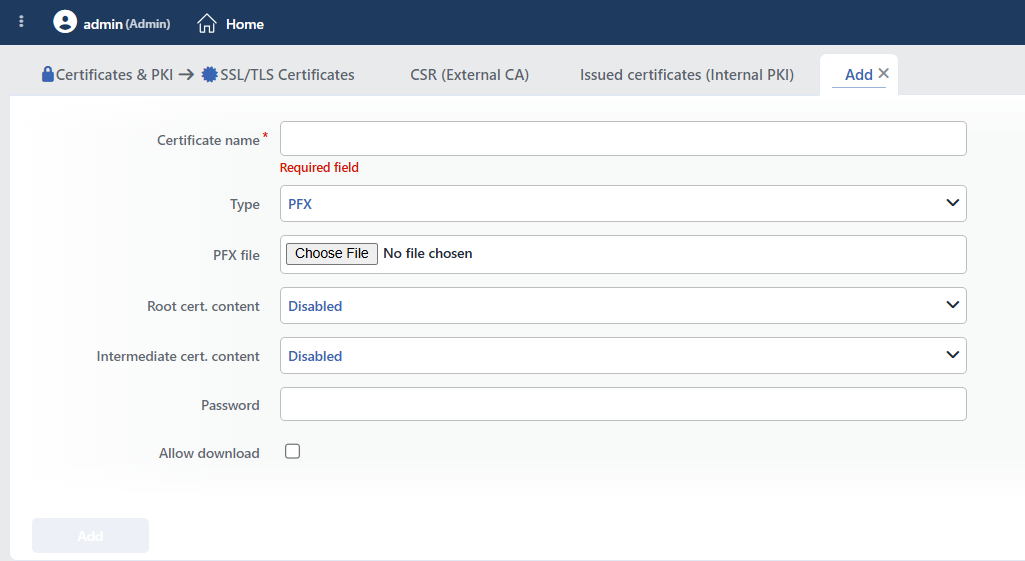 The Type > PFX Adding Form
INFO
PFX File Required
A file with the .pfx extension is selected. The certificate and the key in the file are taken into the record; of the CA certificates present in the file the self-signed ones are written to the chain as root and the others as intermediate certificates. A file that has no chain does not change the chain fields entered in the form.
INFO
Root Cert. Content Default: Disabled
It is the same as the field in the Manual type; if there is no root certificate in the PFX file, it is given here.
INFO
Intermediate Cert. Content Default: Disabled
It is the same as the field in the Manual type; if there is no intermediate certificate in the PFX file, it is given here. If there is a chain in the file, the chain in the file is written to the record; if a CA profile is selected, the profile has priority in the configuration.
INFO
Password
The password of the PFX file is entered in the masked field. Even though the field is not marked as required formally, it cannot be left empty: without the password being given the file cannot be decrypted and the record is rejected with an error message.
Internal CA
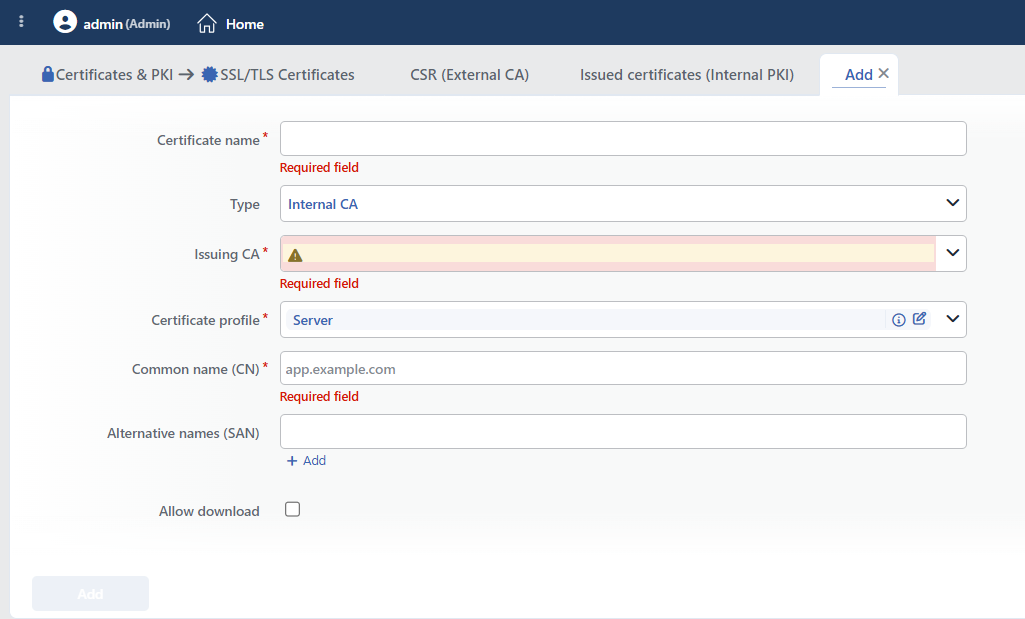 The Type > Internal CA Adding Form
The certificate is produced and signed by an internal CA on TR7; the key is produced on the device and the chain comes from the CA record. When the record is created, a production record is also written to the Issued Certificates (Internal PKI) tab.
INFO
Issuing CA Required
The issuing internal CAs that are defined on the Certificate Authorities (CA) screen, whose area of use is Server Certificates and that have a key and a certificate are listed; the root CAs, the CAs with a client usage and the trust records that have no key are not present in the list. With the adding icon next to it a new CA can be defined.
INFO
Certificate Profile Required
The profiles defined for the server usage on the Certificate Profiles screen are listed. The profile determines the validity period, the key algorithm, the extended key usage (EKU) values, the SAN template and the automatic renewal period.
INFO
Common Name (CN) Required
The Common Name value of the certificate (app.example.com). The CN is always added to the SAN list as well.
INFO
Alternative Names (SAN)
The additional domain names that will enter the certificate are entered row by row. When it is left empty, the SAN template in the profile is applied (with the {cn} placeholder replaced by the CN).
CSR (External CA) Tab
This tab manages the certificate signing requests (CSR) to be signed by an external certificate authority (a corporate CA, a commercial CA). The key is produced on TR7 and does not leave the device; the CSR is downloaded and given to the authority, and when the signed certificate the authority returns is uploaded, a certificate record is created from the request and the key. The request record is not deleted; the same CSR can later be signed again and the certificate can be renewed with the same key. The requests are not offered in the certificate selections in the vService and backend forms.
The CSR (External CA) Listing Screen
The list of all the certificate signing requests added on the TR7 device is reached by passing to the SSL/TLS Certificates → CSR (External CA) tab. The operations of adding, editing and deleting a request, downloading the CSR and uploading the signed certificate are done from this screen.
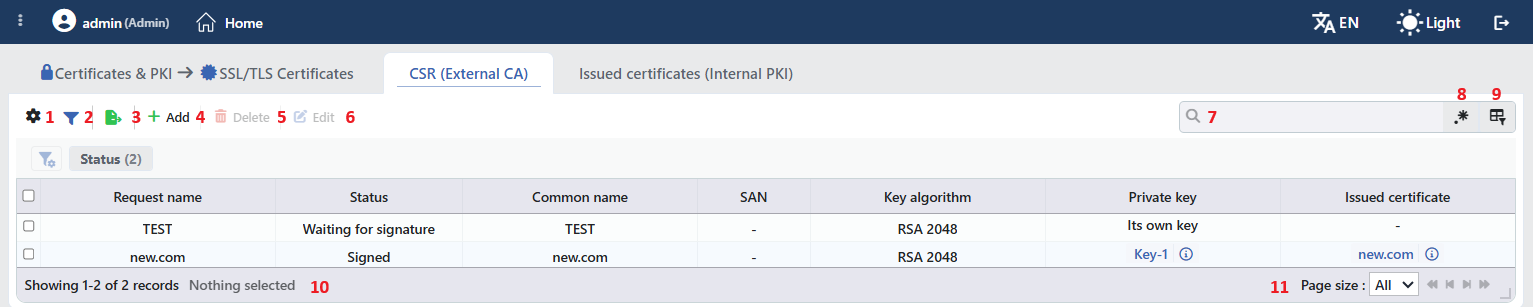 The CSR (External CA) Listing Form
The table opens with the following columns by default:
| Column | Description |
|---|---|
| Request Name | The name of the request. |
| Status | Waiting for Signature (the signed certificate has not been uploaded yet) or Signed. |
| Common Name | The CN in the request. |
| SAN | The number of additional domain names Total of N; when it is hovered over, the list is seen. |
| Key Algorithm | The key algorithm: RSA 2048, RSA 3072, RSA 4096, ECDSA P-256, ECDSA P-384. |
| Private Key | If the key has been selected from the Private Key Library screen, a link to the library record; if it has been produced for the request, Its Own Key. After the signed certificate is uploaded, the key is moved to the certificate record and the cell stays as Its Own Key again. |
| Issued Certificate | A link to the certificate record created after the signed certificate is uploaded. |
There is no column hidden by default; while the preview panel is open, the SAN and Key Algorithm columns are hidden temporarily in order to make room for the table.
The items in the toolbar are arranged from left to right in the following order; the last two items (Page Information and Page Size) are in the information strip below the table. The Usage Filter in the certificate list does not take place in this tab.
Columns
Which columns will be shown in the table is selected; all seven columns are on by default. In the same panel the columns are reordered by dragging and the alignment is selected per column; with Fit rows to the page the row height is fitted to the page and with Reset the layout is returned to the default.
Filter
The Filter button is used in order to filter the requests shown in the list. In the strip there is a single card: Status (Waiting for Signature in the warning color, Signed green); both values are seen even if there is no row in the list.
Export
By clicking the Export button, the table is exported as Excel, CSV or PDF. In the window that opens, Filename, Format and Data Source and the Columns to be exported are determined; the remaining fields are displayed according to the format.
Add
By clicking the Add button, a new request creation form is opened in the Add tab.
Delete
When one or more requests are selected and the Delete button is clicked, the related requests are deleted after the confirmation question. The certificate record produced from the deleted request stays in the list.
Edit
By clicking the Edit button, the editing form of the selected request is opened in the Edit tab; in the form only Request Name can be changed. The button becomes active only when a single request is selected.
Search
Used to search all information in the table.
RegExp Search
Used to search all information in the table with a regular expression (RegExp).
Column Based Search
Used to perform a column-based search on the information in the table.
Page Information
Information about the total number of defined requests and the number of requests displayed in the list takes place: Showing N-M of T records and the number of selected requests (N selected, Nothing selected while there is no selection).
Page Size
The maximum number of requests to be displayed on the page is selected. In this tab the default is All; the options are 5, 10, 20, 50, 100, 200, 500 and All.
The CSR (External CA) Right-Click Menu
When a row is right-clicked, the menu whose header is the name of the request opens. The operations that depend on the state take place first in the menu:
| Operation | Visibility condition | Description |
|---|---|---|
| Upload the signed certificate | Waiting for Signature | It opens the window into which the certificate returned from the authority will be uploaded. In the window there are the Signed Certificate (PEM) (required; pasting or dragging a file of at most 64 KB) and Name for the new certificate (prefilled with the name of the request, at most 128 characters) fields. The certificate is matched with the key produced for the request; if it matches, a new Manual certificate record is created, the request becomes Signed and the Issued Certificate column is linked to this record. In the requests that use a library key the certificate record refers to the same library key as well. |
| Re-issue: upload a newly signed certificate | Signed | When the same CSR is signed by the authority again, it replaces the content of the certificate record the request has produced with the certificate returned; the identity and the key of the record are preserved. If the bound certificate record has been deleted, the operation states that the key has been deleted as well and that a new request must be opened. |
| Go to the certificate | Signed and the bound certificate record exists | It passes to the certificate list. |
| Download the CSR | Always | It downloads the request as the <request name>.csr file. Since a CSR does not contain a private key, no additional permission is required for the download. |
| Edit | Always | It opens the editing tab (only the name is changed). |
| Delete | Always | It deletes the request with a confirmation question. |
The certificate record produced is edited, assigned to vServices and deleted like the other Manual records in the certificate list; even if the request record is deleted, the certificate record stays. The Delete button in this tab and Delete in the right-click menu delete only the request record.
The Preview of the Selected CSR (External CA)
When a row is clicked in the list, the preview of the request opens on the right of the screen. In the header there are the request icon, the name of the request and the Certificate signing request subtitle, and at the top right the operations that change according to the state of the request.
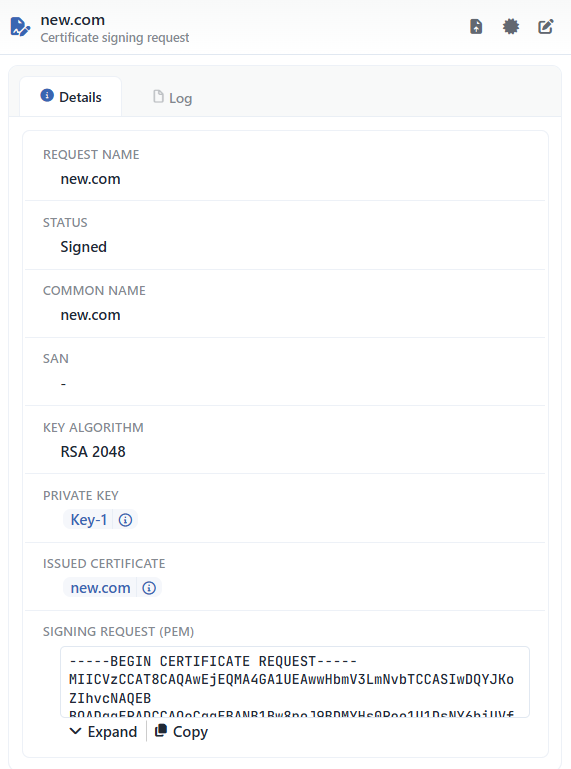 The Preview of the Selected CSR (External CA)
| Operation | What it does | When it is present |
|---|---|---|
| Upload the signed certificate | It opens the window into which the certificate returned from the authority will be uploaded. | In the requests in the Waiting for Signature state |
| Re-issue: upload a newly signed certificate | It replaces the content of the certificate record the request has produced with the certificate that has been signed again. | In the requests in the Signed state |
| Go to the certificate | It passes to the certificate record produced from the request. | If it is Signed and the bound certificate record still exists |
| Edit | It opens the editing form of the request in the Edit tab. | Always |
In the panel there are the Details and Log tabs. The rows in the Details tab are as follows in order:
| Row | Description |
|---|---|
| Request Name | The name of the request. |
| Status | Waiting for Signature / Signed. |
| Common Name / SAN / Key Algorithm | The request parameters. |
| Private Key | A link to the library key (only if a library key is used). |
| Issued Certificate | A link to the certificate record created (only if it has been signed). |
| Signing Request (PEM) | The CSR content; it is opened and closed with Expand / Collapse and is copied to the clipboard with Copy (Signing request copied). |
The CSR (External CA) Adding Form
A new certificate signing request is added on the TR7 device by following the SSL/TLS Certificates → CSR (External CA) → Add steps.
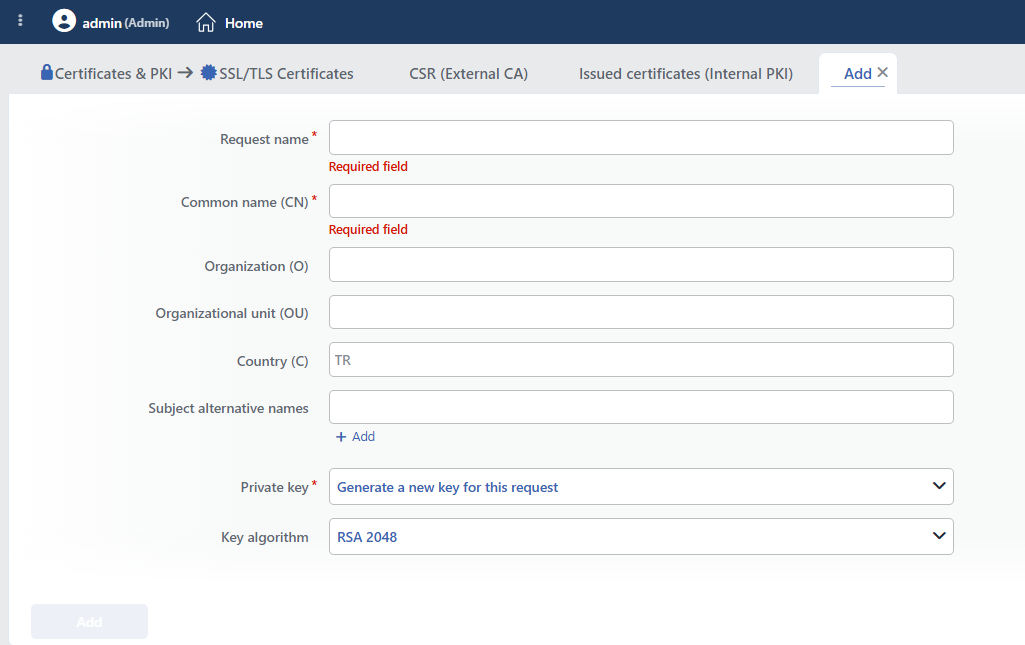 The CSR (External CA) Adding Form
INFO
Request Name Required
The name of the request; it must be unique on the device. It is used by default for the name of the new certificate record while the certificate is being uploaded.
INFO
Subject Alternative Names
The additional domain names that will enter the certificate are entered. The values are entered row by row; a new row is added with the Add link below the field. It is optional.
INFO
Private Key Required Default: Generate a new key for this request
Where the key will come from is selected:
- Generate a new key for this request: the key is produced for the request; the Key Algorithm field is seen below it.
- Use a key from the library: a key on the Private Key Library screen is selected from the Private Key list that opens below it and the key's own algorithm is used. It is preferred in the cases that require being signed again with the same key (key pinning).
INFO
Key Algorithm Default: RSA 2048
The algorithm of the key to be produced is selected. The options in the list, in order:
- RSA 2048
- RSA 3072
- RSA 4096
- ECDSA P-256
- ECDSA P-384
The field is seen only while Generate a new key for this request is selected.
The subject fields are shown together at the bottom of the form, inside a frame without a header.
INFO
Common Name (CN) Required
The subject name of the request; at most 128 characters. It takes place in the certificate as the CN. Only letters, digits, spaces and the . - _ ( ) ' characters are accepted; when another character is entered, the form gives the Contains characters that are not allowed in a certificate subject warning.
INFO
Organization (O)
The organization name in the subject; at most 128 characters, the same character rule as Common Name (CN) applies. It is optional.
INFO
Organizational Unit (OU)
The unit name in the subject; at most 128 characters, the same character rule as Common Name (CN) applies. It is optional.
INFO
Country (C)
The two-letter country code in the subject; the placeholder of the field shows the TR value. When a value other than two letters is entered, the form gives the Country must be a 2-letter code (e.g. TR) warning. It is optional.
INFO
Add
The request adding operation is completed by clicking the Add button: the key and the CSR are produced and the request is added to the list in the Waiting for Signature state. As long as there is a field in the form that has not been validated, the button stays passive.
The editing form contains only the Request Name field and, according to the state of the request, an information box; the CN, the SAN and the key selection cannot be changed after it is created (for a change the request is deleted and opened again).
The External CA Flow
1
Step 1 The request is opened
With CSR (External CA) → Add the CN, the SAN and the key selection are entered; the key and the CSR are produced on the device.
2
Step 2 The CSR is given to the authority
The .csr file downloaded with Download the CSR in the right-click menu (or the Signing Request (PEM) content in the preview) is transmitted to the certificate authority.
3
Step 3 The signed certificate is uploaded
The certificate returned from the authority is pasted into the Upload the signed certificate window. The certificate record is created and the "The signed certificate was verified against this request's private key and "<name>" was created from the pair…" message is shown.
4
Step 4 The certificate is assigned
The record formed is seen in the certificate list; its chain is validated from the Chain tab and it is assigned to a vService. When the renewal time comes, the same CSR is signed again and is uploaded with Re-issue.
Issued Certificates (Internal PKI) Tab
This tab lists the production record kept for every certificate the internal CAs produce. The records are written by the system in the production and renewal operations; the records that have left their place to a new one (Superseded) are deleted, again by the system, 30 days after the end of the validity.
 The Issued Certificates (Internal PKI) Listing Form
The table opens with the following columns by default:
| Column | Description |
|---|---|
| Name | The name of the production record (it is produced from the CN and a part of the serial number). |
| Issuing CA | The internal CA that produces the certificate (a link). |
| Certificate Profile | The certificate profile used in the production (a link). |
| Status | Active (the certificate offered), Superseded (it has left its place to a new one with a renewal or a content change), Revoked (it is defined but since there is no operation that revokes a production record in this version, the records do not pass to this state). |
| Valid from / Valid until | The validity range. |
| Certificate Record | A link to the record in the certificate list. |
| Issued by Node | The device that produces the certificate in a cluster. |
Since the records are managed by the system, the toolbar is limited: Filter, Add, Delete and Edit do not take place, the right-click menu of the rows does not open and no editing is done. The remaining items are arranged from left to right in the following order; the last two items are in the information strip below the table.
Columns
Which columns will be shown in the table is selected; all eight columns are on by default. In the same panel the columns are reordered by dragging and the alignment is selected per column; with Fit rows to the page the row height is fitted to the page and with Reset the layout is returned to the default.
Export
By clicking the Export button, the table is exported as Excel, CSV or PDF. In the window that opens, Filename, Format and Data Source and the Columns to be exported are determined; the remaining fields are displayed according to the format.
Search
Used to search all information in the table.
RegExp Search
Used to search all information in the table with a regular expression (RegExp).
Column Based Search
Used to perform a column-based search on the information in the table.
Page Information
Information about the total number of defined production records and the number of records displayed in the list takes place: Showing N-M of T records and the number of selected records (N selected, Nothing selected while there is no selection).
Page Size
The maximum number of records to be displayed on the page is selected. In this tab the default is All; the options are 5, 10, 20, 50, 100, 200, 500 and All.
The Preview of the Selected Production Record
When a row is clicked in the list, the preview of the production record opens on the right of the screen. In the header there are the record icon, the name of the record and the Issued certificate (internal PKI) subtitle; since the records are managed by the system, there is no operation icon in the header.
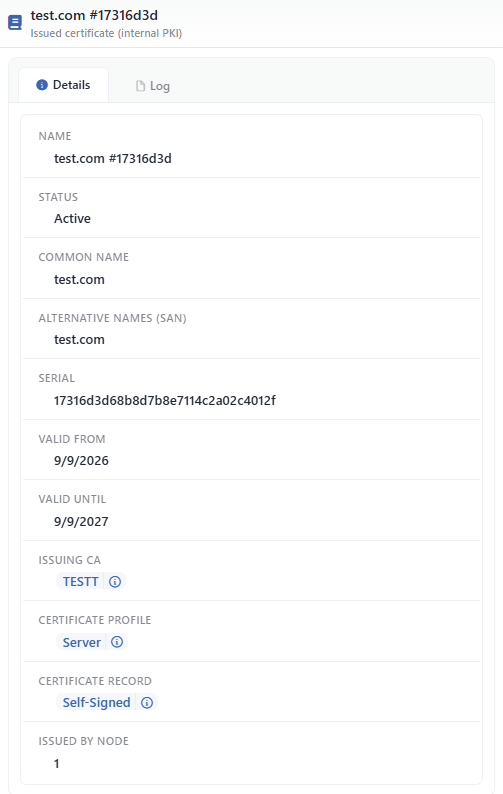 The Preview of the Selected Production Record
In the panel there are the Details and Log tabs. The rows in the Details tab are as follows in order:
| Row | Description | Visibility condition |
|---|---|---|
| Name | The name of the production record. | Always |
| Status | Active / Superseded / Revoked. | Always |
| Common Name | The CN value of the certificate. | Always |
| Alternative Names (SAN) | The additional domain names in the certificate. | Always |
| Serial | The serial number of the certificate. | Always |
| Valid from | The beginning of the validity. | Always |
| Valid until | The end of the validity. | Always |
| Issuing CA | A link to the internal CA record that produces the certificate. | If there is a value |
| Certificate Profile | A link to the profile used in the production. | If there is a value |
| Certificate Record | A link to the record in the certificate list. | If there is a value |
| Revocation Reason | The reason for the revocation. | In the revoked records |
| Revoked at | The time of the revocation. | In the revoked records |
| Issued by Node | The device that produces the certificate in a cluster. | If there is a value |
The Log tab shows the operations on the record as a timeline.
After a renewal the old record becomes Superseded and is removed from the list 30 days after its end date. The production records whose bound certificate record is deleted or whose content is replaced with an external certificate also pass to the Superseded state at the next daily check.
Operating Mechanism
INFO
- ACME obtaining and renewal. When an ACME.SH record is created or Get New Certificate is clicked, TR7 runs the ACME client on the selected device (Device) and network source; the HTTP-01 validation is answered over the vService the domain name is mapped to, and in the DNS-01 validation the provider credentials are given only to the run environment. A run takes at most 10 minutes; in case the ACME client ends with an error or of a timeout, at most 3 attempts are made at 20-second intervals. A validation error, stopping by hand and process starting errors are not tried again. When the certificate is obtained, the record is updated and the configuration is applied.
- The daily check. Every day at 07:00 and 22:00 all the ACME.SH records are scanned: if the remaining period is below the Acme.sh Automatic Renewal threshold, the renewal is done; the obtaining operations that have failed before are tried again. The records on which Disabled is selected are not renewed; however, for the records whose certificate has never been obtained or whose settings have changed, the obtaining operation is tried again in this check. The renewal runs as a renewal if the server/key length/domain name/validation settings have not changed since the last obtaining, and as a new obtaining if they have.
- The internal CA renewal. In the same daily check and 5 minutes after the device is started, of the certificates produced with an internal CA the ones whose remaining period falls below the renewal threshold in the profile (30 days if it is not stated in the profile) are produced again with the current profile settings, with a new key and a new serial number; the certificate record is updated in place and the old production record becomes Superseded. In a cluster only the device that produces the record does the renewal.
- Being applied to the configuration. At every application the certificate, the intermediate certificates, the root certificates and the private key are combined in a single file and are bound to the encrypted frontend of the vService. If a CA profile is selected for the chain, the content of the profile has priority over the content inside the record.
- The period notification. The certificates bound to a vService are checked every 3 hours and at every configuration application; when the remaining period comes down to or falls below the Certificate Expiry Notify Days threshold in the Notifications profile assigned to the vService, the The certificate
<name>on "<vService>" is expiring in N days notification, and when it has expired, the The validity period of certificate<name>on "<vService>" has expired! notification is produced; when the certificate is renewed and the remaining period goes above the threshold, the … is valid for N more days notification is sent. No notification is produced for the profiles whose threshold is left empty and for the certificates that are not bound to any vService; these are monitored only in color in the list. - The cluster. The certificate records are synchronized between the devices together with their keys. The ACME account information and the run records are specific to the device; the console in the ACME.SH tab is listed separately for every device.
- The logs. The adding, editing, deleting, content changing, CSR/internal CA production and the starts/results of the ACME obtaining and renewal are monitored on the User Logs screen.
Scope and Limits
INFO
- Authorization. The screen is bound to the certificate authorization area; the Certificates & PKI tab is seen in the users who have the display authorization in this area, and in a user who has no authorization the You don't have access to this page card is displayed instead of the page. The certificate manager (certificateManager) and superAdmin roles have full authorization in this area. In the traffic manager (trafficManager) and full LB manager (fullLbManager) roles the access depends on the Certificate management switch in the user record; since this switch is not offered in the read-only (readOnly) role, the screen cannot be accessed.
- The name is unique. A second certificate record that carries the same name is rejected.
- The type cannot be changed. The type is selected only while adding.
- A wildcard domain name is obtained only with DNS-01. A record that contains a wildcard domain name with HTTP-01 is not saved; for DNS-01 selecting a DNS provider is required.
- The download is conditional. The PFX download is done only while Allow Download is on; the key cannot be taken out of the device in any other way. The CSR download is not bound to this condition.
- The deletion does not clean up the dependencies. The vServices that refer to the deleted certificate must be updated by hand; the confirmation window does not show the usage locations.
- The period notification is limited to the certificates bound to a vService. No notification is produced for the certificates that are not used.
- The records that are waiting cannot be offered. Even if an ACME.SH record whose certificate has not been obtained yet is assigned to a vService, there is no content to be offered until the certificate is obtained; it is seen in the list as No Certificate.
- In a cluster ACME runs on a single device. The operation is done on the device in the Device field of the record; the other device receives the result.
Usage Locations
SSL Termination in the vServices
1
Step 1 The vService form is opened
On the Load Balancer → Load Balancer vService List screen the related vService is right-clicked and Edit is selected, or the row is clicked and the Edit icon in the preview panel is used (see HTTP (L7) vService).
2
Step 2 The encrypted protocol is selected
An option in the Encrypted (HTTPS) group (HTTP/1.1, HTTP/2 or their variants with the HTTP/3 badge) is selected from the Protocol field in the frontend list.
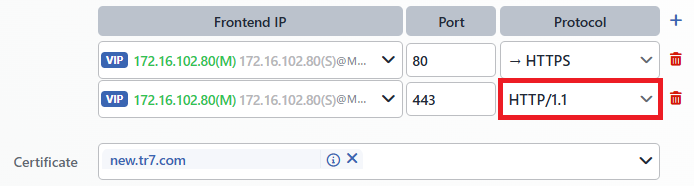 The vService SSL/Protocol Selection
3
Step 3 The certificate is selected
One or more of the certificates defined on this screen are selected from the Certificate field that is seen.
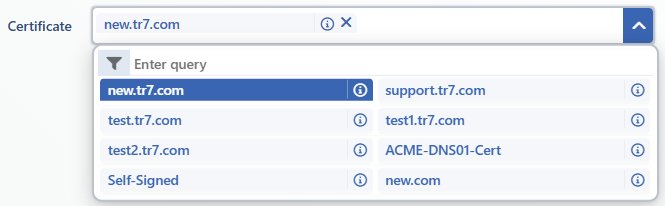 The Certificate Selection Drop-down Menu on the vService Editing Screen
 The Multiple Certificate Selection on the vService Editing Screen
INFO
More than one certificate can be selected in the same vService. During the connection TR7 offers the certificate that matches the domain name requested according to the SNI (Server Name Indication) information the client transmits; in this way more than one domain name is offered over a single IP and port. The TLS versions and cipher suites permitted are determined with the profile on the TLS Security Profiles screen.
4
Step 4 The change is saved
The change is saved by clicking the Save button; when the configuration is applied, the vService is offered with the new certificate.
The TR7 Web Interface HTTPS Access
The certificate to be offered in the HTTPS connection of the TR7 management interface is selected from the HTTPS Certificate field on the Management Access screen; the default value is Built-in Certificate (the embedded certificate of the device) and one of the certificates defined on this screen can be selected.
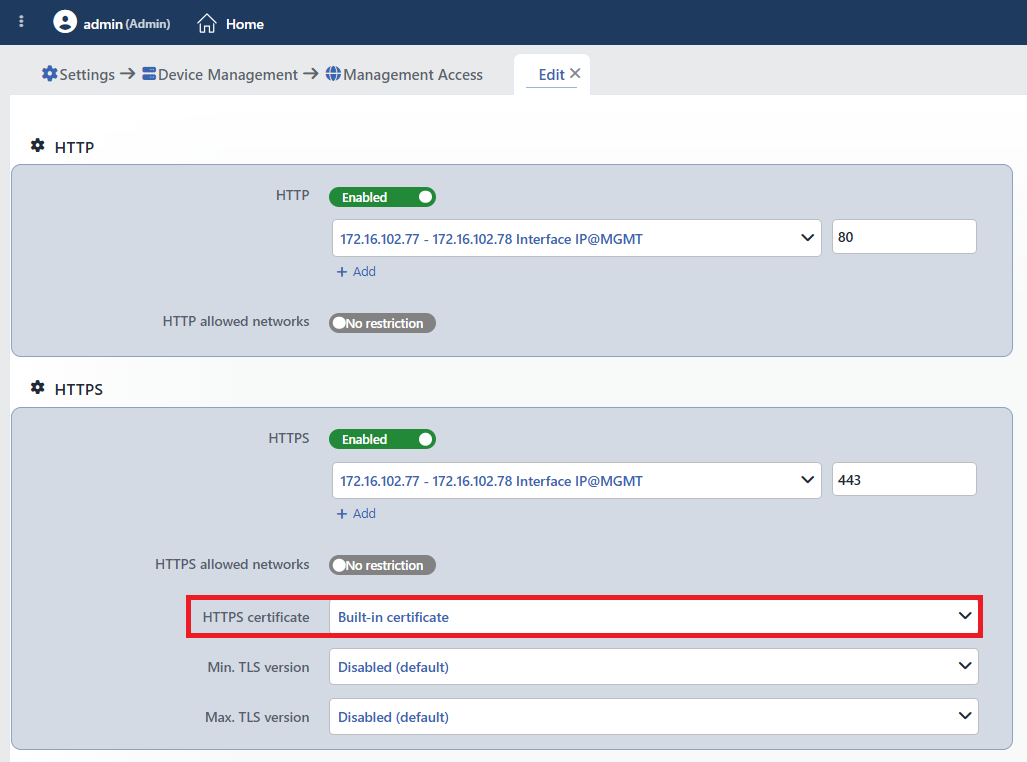 The Certificate Selection Location on the Access Screen
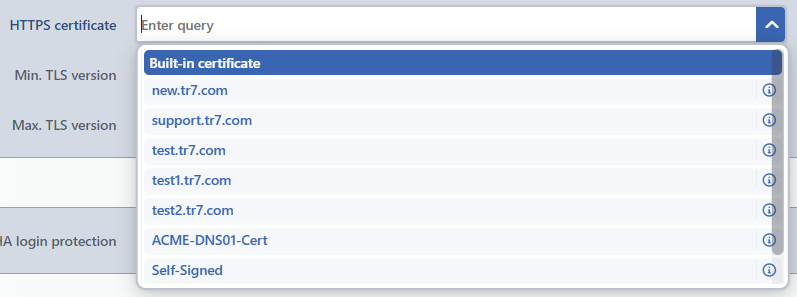 The Certificate Selection Drop-down Menu on the Access Screen
TIP
For an HTTPS connection without a browser warning, the access must be made over the domain name (FQDN) defined in the certificate; in the accesses made with an IP address the browser shows a trust warning since the domain name validation cannot be provided. For this reason defining a DNS record for the management interface and making the access over this name is recommended.
In an erroneous certificate the embedded certificate is returned to
If the management interface does not come up with the selected certificate, the selection is cleared silently, the embedded certificate of the device continues to be used and the Built-in certificate will be used due to error in user certificate warning is displayed in the interface. The HTTPS Certificate field is active only while at least one HTTPS access port is defined.
The Client Certificate in the Backend Connections
The client certificate TR7 will offer in the TLS connection to the backend service is selected in the Client Certificate presented to backend (mTLS) field on the Backend Services screen. In the list first the records on the Client Certificates screen and then the certificates on this screen are offered.
