
Smarter by Design.Simpler for Business
How to Enable Bot/DDoS Protection?
What Does Enabling the Bot/DDoS Protection Mean?
In TR7 the Bot/DDoS protection is not a single switch that is turned on and off across the device: it is enabled separately for each vService. At the moment the protection is switched on on a vService, the requests coming to that service start to pass through the inspection of three protections: L7 DDoS Protection, which applies the volume and rate limits, Bot Protection, which scores whether the client is an automaton, and IP Reputation Protection, which looks for the address in the reputation lists. The traffic of the vServices that are off does not enter any of these inspections.
When the protection is switched on, the vService does not start with an empty configuration. The product creates a full Bot/DDoS configuration for that vService by itself with its default values: the limit blocks, the bot scoring settings, the reputation categories and the action rules of all three come into place. The starting mode of the three protections, on the other hand, is not the same; this is the point of the page that requires the most attention.
vService
Unit of Enabling
The protection is switched on separately for each vService, not across the device
HTTP · L7 TCP
Supported Types
The protection is not present on Network (Layer 4) vServices
2 Monitor + 1 Enforcement
Starting Modes
L7 DDoS starts in monitoring, IP Reputation is born directly in enforcement; Bot monitors on HTTP and comes off on L7 TCP
Instant
Creation of the Configuration
The settings record is written with its defaults at the moment the protection is switched on
Uninterrupted
Traffic Effect
The configuration is reloaded without interruption; the open connections are not dropped
The protection is enabled only on HTTP and L7 TCP vServices
The Bot/DDoS protection can be switched on on the vServices of the HTTP and L7 TCP types. Since this box is not present at all in the edit form of the vServices of the Network (Layer 4) type, there is no protection option either; since these services pass through a separate data plane, they cannot enter the application layer inspection.
There are differences between the two types as well: on L7 TCP vServices the capabilities that depend on HTTP, such as the blocks that measure requests and errors and the challenge and blocking actions, are not present. The detail is on the Bot/DDoS Protected vServices page.
Two Ways
The protection is switched on from two separate places. Both of them produce the same result; which one will be used depends on how many vServices will be taken into the scope at the same time.
| Way | From where | When is it preferred |
|---|---|---|
| Bot/DDoS Protected vService List | Configuration Menu → Bot/DDoS | If one or more existing vServices will be taken into the scope in bulk |
| The vService form | The vService creation or edit screen, the Details list | While a new vService is being set up or while a single service is being edited |
Way 1: Through the Bot/DDoS Protected vService List
One or more existing vServices are taken under protection in bulk by following the steps below.
1
Step 1 Go to the Bot/DDoS Protected vService List screen
The Configuration Menu is opened by clicking the TR7 logo at the bottom left and the Bot/DDoS → Bot/DDoS Protected vService List path is followed. The whole screen is described on the Bot/DDoS Protected vService List page.
2
Step 2 Open the adding tab
The Enable button at the top of the list is clicked; a new tab titled Add opens next to the list.
3
Step 3 Select the vServices to be taken under protection
The vServices to be taken under protection are selected from the vServices to protect with Bot/DDoS field. When no selection is made, the field says Nothing chosen.
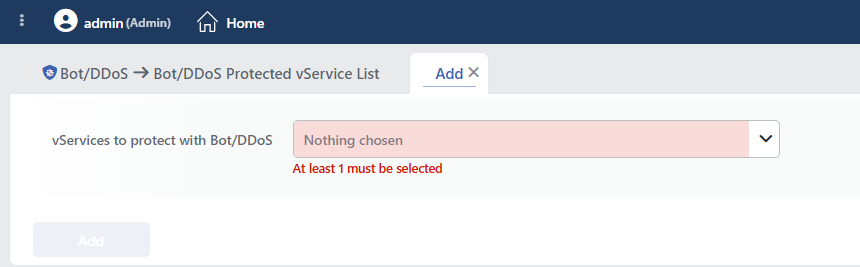 Enabling the Bot/DDoS Protection
There is no upper limit for the number of vServices that can be selected; dozens of services can be taken into the scope in a single operation.
4
Step 4 Confirm
The selection is confirmed by clicking the Add button. The selected vServices are taken under protection and start to appear in the list.
As long as no vService is selected, the At least 1 must be selected warning is displayed under the field and the Add button stays passive; the warning appears as soon as the tab is opened. When the operation is completed, the tab closes by itself and the list view is returned to; the tab can also be closed with the close icon in its title.
Only the ones whose protection is off are offered in the list
The vServices to protect with Bot/DDoS field lists not all the vServices on the device but only the ones on which the Bot/DDoS protection has not been switched on yet. A vService that is already protected does not appear in this list; that service is located in the list itself. The vService does not need to be in a running state: a stopped vService is also offered in the list and its protection can be switched on.
The list is not filtered according to the vService type
The field offers all the vServices whose protection is off, whatever their type is; the Network (Layer 4) vServices also appear selectable. However, the protection does not work on this type and there is no corresponding box in the edit form of that service either. While the selection is being made, the type must be verified not from the list itself but from the known type of the vService.
The same filter is applied in the WAF and AGS adding forms; it is not applied only in the Bot/DDoS form.
Way 2: Through the vService Form
The Bot/DDoS protection is added to a vService by following the steps below.
1
Step 1 Go to the vServices screen
The Load Balancer → Load Balancer vService List path is followed in the TR7 web interface.
2
Step 2 Open the editing screen of the vService
The vService to which the protection will be added is right-clicked and Edit is selected; or the vService is clicked and the Edit icon is clicked in the window that opens on the right.
The protection can also be added while a new vService is being set up; in this case the same form opens in the vService creation flow.
3
Step 3 Open the Details section
The Details button to the right of the general field column is clicked; the advanced configuration list opens on the right of the form. While an existing vService is being edited, this list comes open by itself.
4
Step 4 Enable the L7 DDoS & Threat Protection feature
In the Details list that opens on the right, the protection is put into effect by checking the L7 DDoS & Threat Protection box right below the WAF row.
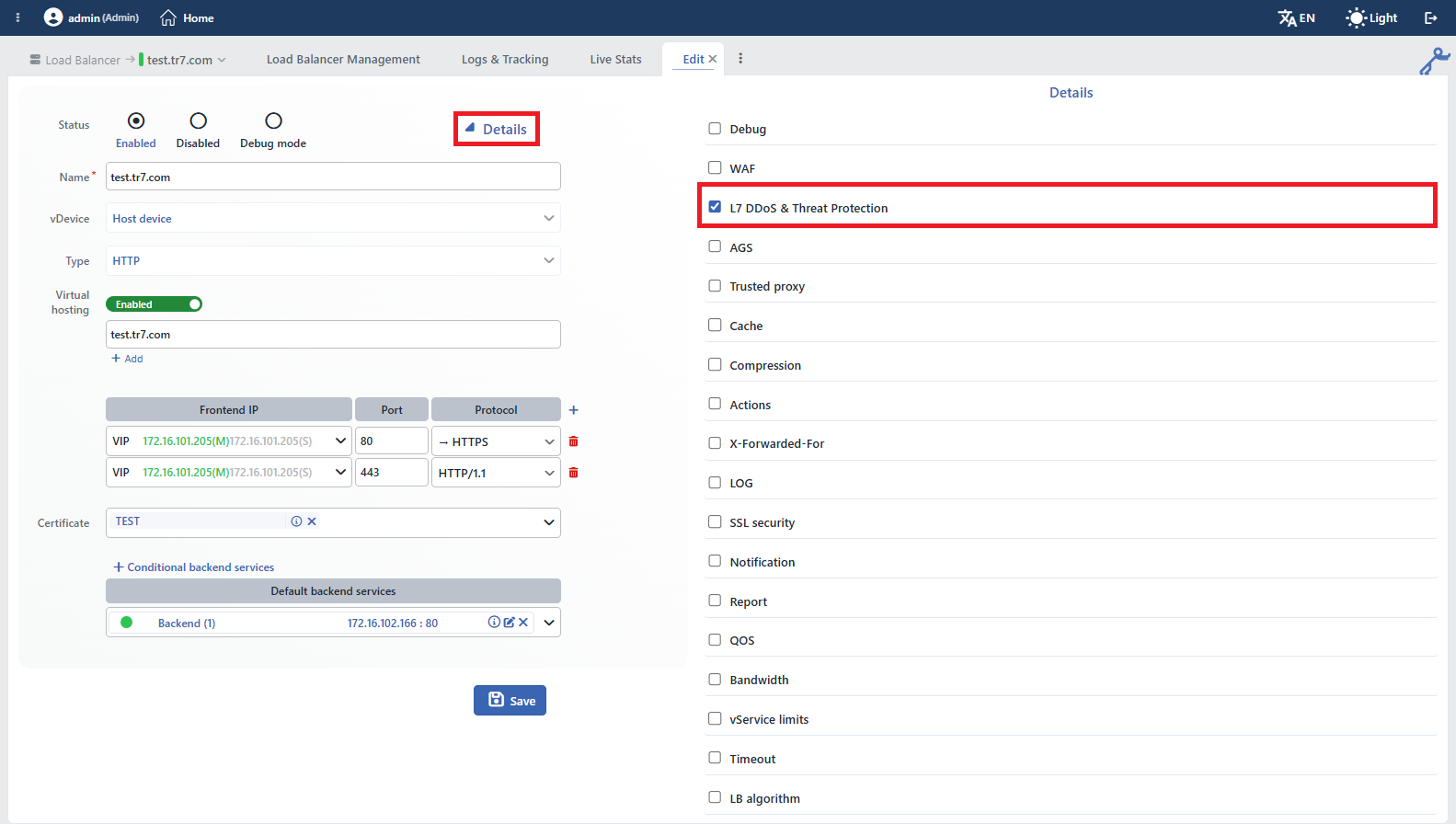 The Bot/DDoS Selection on the vService Edit Screen
The name of the box within the form is different from the Bot/DDoS heading in the left menu: the same protection is called L7 DDoS & Threat Protection at this point of the interface.
The option is present in the vService forms of the HTTP and L7 TCP types. In the HTTP form the box is located between WAF and AGS; in the L7 TCP form, on the other hand, since WAF, AGS, Trusted Proxy, Cache and Compression are not present, it is the first module of the Details list. In the Network (Layer 4) type only the Report and Algorithm sections are present in this list; the L7 DDoS & Threat Protection box is not located there.
5
Step 5 Save
The changes are saved by clicking the Save button; while the configuration is being applied to the vService, the text Editing LB vService is displayed in the notification area.
The box does not open a separate settings section
Unlike some modules such as Compression or Cache, when L7 DDoS & Threat Protection is checked, no expanding profile selection or settings section is displayed in the list. The protection is only enabled; all the Bot/DDoS settings are configured from the Bot/DDoS Management screen after the vService is saved.
The box does not become passive according to the permission
Unlike the WAF box, this box is not put into a passive state by looking at the permission of the user. A user without permission can check the box; the rejection returns from the server only after Save is tried. The check is not specific to Bot/DDoS: saving the form requires change permission in the Load Balancer area.
The HTTP (L7) vService and L7 TCP vService pages can be looked at for the whole vService form.
What Is Created After It Is Enabled?
When the protection is switched on, not only a flag changes; the configuration of the vService is regenerated and applied and the settings record belonging to Bot/DDoS is created.
01The settings record is writtenThe Bot/DDoS settings record for the vService is created with all its fields filled with their default values. The record does not wait for the first edit; it is written permanently at the moment the protection is switched on.
02The defaults are set up according to the vService typeThe action rules and the starting mode of Bot Protection are written differently according to whether the vService is HTTP or L7 TCP. On L7 TCP, silent drop and quarantine are used instead of blocking and challenge.
03The traffic engine is reloadedThe change is applied with a hitless reload; the open connections are not dropped. In a cluster installation the configuration is also spread to the peer device; the counter tables, on the other hand, are specific to the device and are not synchronized between the two devices.
04The inspection startsOn an HTTP vService all three protections start to work, but their modes are not the same: two of them monitor and one applies enforcement directly. On L7 TCP, since Bot Protection comes off, two protections work. The event log and the live statistics screens start to fill at the same time.
The Starting Modes of the Three Protections
| Protection | HTTP vService | L7 TCP vService |
|---|---|---|
| L7 DDoS Protection | Monitor | Monitor |
| Bot Protection | Monitor | Off |
| IP Reputation Protection | Active | Active |
The IP Reputation protection applies enforcement from the first moment on
Unlike the other two protections, IP Reputation Protection is born in the Active mode at the moment the protection is switched on. Since it is based on a list-based and high-confidence data source, the default rule list applies enforcement from the first day on: eight attack categories together with the list entered manually by the operator are taken to the penalty box, and the remaining categories except vpnIp are blocked with 403. On L7 TCP the equivalent of the blocking step is silent drop.
The practical result of this is the following: a part of the traffic can start to be blocked at the moment the protection is switched on. If this is the expected behavior, there is no need to do anything; if it is not, the protection must be taken to the Monitor mode from the IP Reputation Protection screen and enforcement must be returned to after the category rules are reviewed.
L7 DDoS Protection and Bot Protection, on the other hand, start in the monitor mode: all the limits are measured, all the scores are calculated, the decisions are written to the event log with the Would… stamp, but no request is stopped.
Bot Protection comes off on an L7 TCP vService
On L7 TCP vServices Bot Protection is in the Off mode by default. The reason for this is that on a connection with no application layer information the bot score largely turns into an echo of the reputation data; the protection is consciously left off on this type. If it needs to be switched on, the mode is changed manually.
This is the only Off value written by default among the modes of the three protections. The learning assistant considers this a conscious decision of the operator and never recommends switching on Bot Protection on L7 TCP.
The Defaults That Are Created
| Setting | Default value | Meaning |
|---|---|---|
| Event Log Score Floor | 40 | The requests that reach this score are written to the event log even if no rule is triggered. The value is the beginning of the Suspicious band. |
| Bot Detection Factors | All | The factor selection is left empty; an empty selection means "all the factors" and the factors added later also enter the scope by themselves. |
| Trust Verified Bots (Bot) | On | The verified search engine robots are kept exempt from the bot rules; the indexing of the site is not broken. |
| Trust Verified Bots (IP Reputation) | On | Verified crawlers are exempted from the IP reputation rules even if they are on a blacklist. |
| Trust Verified Bots (L7 DDoS) | Off | The same robots are not exempt from the volume limits: a verified scanner can also tire the service. |
| Source IP Request Protection | 1000 / 10 sec → challenge | The soft limit for the request rate of a single address. |
| Source IP Connection Protection | 100 → silent drop | The soft limit for the connection rate of a single address. |
| Total Request Protection | 10000 → challenge | The request rate limit across the vService. |
| Total Connection Protection | 5000 → silent drop | The connection rate limit across the vService. |
| Hard ceilings | Undefined | In all the blocks that have a hard ceiling, the ceiling comes empty; only the soft limits work. In the Source IP Error Protection and Active Source-IP Protection blocks the hard ceiling field is not present anyway. |
| Bot rule list | 90 → block, 75 → challenge | Two rule rows bound to the score bands on HTTP. On L7 TCP their equivalents are quarantine and silent drop. |
| IP reputation rule list | 9 categories → quarantine, the rest → block | Eight attack categories together with the operator's own list are bound to the penalty box, and the others except vpnIp directly to blocking. |
| Learning Mode | Smart Advisor | It produces learning recommendations and does not apply them by itself. |
The settings that stand out are listed in the table; the configuration created is not limited to these. All the values can be changed from the Bot/DDoS Management screen.
A mode left empty and a mode switched off are not the same thing
The mode of the three protections has three states: Active, Monitor and Off. In L7 DDoS Protection and Bot Protection, if a mode has not been written at all, the protection is considered Monitor; in IP Reputation Protection an unwritten mode is resolved as Active. The Off value, on the other hand, is always a conscious decision of the operator and the learning assistant does not break this decision with its recommendations. The only exception is Bot Protection on L7 TCP described above.
A protection whose rule list has not been configured at all does not stay toothless when it is taken to enforcement: the default rule list becomes valid.
What Should Be Done After This?
Switching on the protection is the beginning of the process. The recommended order:
- The IP Reputation decision is made. Since the protection is born Active, this is the first place to be examined: on the Event Logs screen the Blocked and Blocked by quarantine rows are reviewed, and if there is unexpected blocking, the protection is temporarily taken to the Monitor mode.
- The decisions in the monitor mode are read. The Would… rows on the Event Logs screen show which traffic will be stopped when L7 DDoS and Bot Protection pass to enforcement, without any request being blocked.
- The limits are adjusted according to the real traffic. From the Live Stats and Dashboard screens, where the normal load runs is read; the default limits are narrowed or widened according to the site.
- The recommendations of the learning are applied. The Learning strip produces limit and mode recommendations according to the observed traffic; the recommendations are examined and applied.
- Enforcement is passed to. The protections in the monitor mode are taken to the Active mode and the monitoring is continued through the Dashboard panels.
The detail of this cycle is on the Bot/DDoS Protection Mode page.
The Removal of the Protection
The protection is removed from two separate places, as in the enabling.
Through the List (Bulk)
One or more vServices are selected from the Bot/DDoS Protected vService List screen and the Disable button is clicked. The button is passive when no selection is made in the list. The protection of a single row is also removed with the Remove Bot/DDoS Protection option in the right-click menu of the row.
The removal operation does not show a confirmation window
At the moment Disable is clicked, the protection of all the selected vServices is lifted and the traffic starts not to pass through the Bot/DDoS inspection. The removal in the right-click menu does not ask for confirmation either. For this reason, the selection must be verified before the button is clicked.
The removal does not only stop the inspection, it also destroys the live state: the records in the penalty box are released, the challenge failure counters are reset, and the queue in the waiting room and the sessions inside are deleted. When the protection is switched on again, the configuration comes back, this state does not.
Through the vService Form (Single Service)
The protection of a single vService is also removed from the edit form: the Details button is clicked, the L7 DDoS & Threat Protection box in the module list in the detail field that opens is unchecked and it is saved with Save.
This way is safer than making a selection in the list for a single service and using the bulk Disable; it does not carry the risk of other vServices staying selected by mistake. After the removal, the vService drops from the list on the Bot/DDoS Protected vService List screen.
The configuration is not deleted
When the protection is removed, the Bot/DDoS configuration of the vService (the limits, the action rules, the exemption lists and the learning settings) is not deleted; when the protection is switched on again, the same configuration becomes valid. The configuration is removed only when the vService itself is deleted.
Scope and Limits
INFO
- Enabling requires change permission. The operation made both through the list and through the vService form requires change permission in the Load Balancer area; there is no separate permission area for Bot/DDoS. A user with read-only permission sees both screens but cannot change the protection state.
- The Enable and Disable buttons on the list screen are not hidden according to the permission. A user with read-only permission sees the buttons active and learns of the rejection only after trying the operation.
- The enabling and removal made through the list do not fall to the audit log. When the same flag is changed from the vService edit form, on the other hand, it is written to the user action log; there is a difference between the two ways in terms of the audit trail.
- In the users whose scope is limited to certain vServices, the list and the selection field narrow by themselves, because the user can read only the vServices in their own scope.
- The enabling operation is recorded as a job. The progress of the operation is monitored on the Jobs screen with the name Enable Threat Protection; in the case of success no additional notification is displayed on the screen.
- In a cluster installation the change is also spread to the peer device. The spreading is done while the peer device is reachable; if the peer device is offline at that moment, the change is carried over in the next synchronization. In both cases no additional warning is displayed on the screen.
- After the protection is switched on, the Event Logs tab appears on the management screen of the vService. The tab requires, besides the protection being on, monitoring permission in the Load Balancer area; when the protection is removed, the tab is also lifted.
