
Smarter by Design.Simpler for Business
Firewall
What Is Firewall?
Firewall is an L4 stateful firewall that comes embedded on the TR7 device and is developed for high performance. It works as a high-performance packet filtering layer embedded in the network infrastructure of the device; by evaluating the packets at the L2–L4 level (MAC, IP/protocol, port) without carrying them up to the L7 (application) layer, it blocks the resource-consuming attacks early and at a low cost.
The TR7 Firewall basically combines three approaches:
Packet Filtering Packet-Based
It examines every packet one by one according to its header information (source/destination IP, port, protocol, MAC) and passes or drops it according to the rule.
Rule Based Rule-Based
The rules are evaluated in order from top to bottom; the operation of the first rule that matches a packet is applied and the evaluation stops.
Stateful With State Information
It monitors the state of the connections (connection tracking); for the return packets that belong to an established connection the flow is continued without a separate rule being required.
At the IP, network and MAC level the ALLOW, DENY, FORWARD, FORWARD DENY, SOURCE NAT and DESTINATION NAT operations can be done for the TCP, UDP, ICMP, UDP-Lite, AH, OSPF protocols. The predefined policy is closed for the incoming (INPUT) and transit (FORWARD) traffic (default deny); the outgoing traffic the device produces itself is free. The return packets of the established connections, the loopback, the management local interface, the cluster synchronization interface and (by default) the ICMP echo are always accepted independently of the user rules. As new vServices are defined and the management access settings change, the necessary permission rules are produced automatically in the firewall.
L4 Stateful
Embedded firewall
It blocks at the L2–L4 level without going up to L7
All + 6
Protocol options
The default is All; TCP, UDP, ICMP, UDP-Lite, AH, OSPF
Default Deny
Incoming and transit traffic
All the ports are closed; the permissions depend on a rule
Automatic Rule
With the vService and the access
The permissions for the vService and the management access are automatic
SNAT · DNAT
NAT & routing
Source/destination NAT and port forwarding
Route Table
A rule set per table
The independent rule set of every route table
Why Is Firewall Important?
The firewall is the first line of defense of the traffic that reaches TR7. A correct configuration is of critical importance in terms of preventing unauthorized access, narrowing the attack surface and controlling service accessibility.
- Early Layer Protection: Since the traffic is evaluated at the L4 level without being carried to L7, the resource-consuming attacks are blocked early and at a low cost. In this way the expensive L7 processing is reserved for the legitimate traffic only.
- Ordered Evaluation: The rules are processed in order from top to bottom; the first matching rule is applied and the evaluation stops. For this reason the rule order directly determines the behavior.
- Stateful Efficiency: Thanks to connection tracking, only the new connections pass through the rule set; no additional rule is required for the return traffic of the existing connections. This increases both the security and the performance.
- The Route Table Scope: The rules are defined per route table; the security policies of every table work isolated. In this way the policies do not mix with one another in multi-tenant and segmented networks.
- NAT and Access Publishing: With SNAT the source address of the outgoing traffic is masked; with DNAT (port forwarding) the external requests are routed to the internal servers safely. This makes it possible to manage the address/port translations from a single point.
- Geographical Defense: Thanks to a country being selectable as the source or the destination, the known malicious regions are filtered before they reach the service; the attack surface is narrowed geographically.
- Consistency with the Automatic Rules: As vServices are created and the access settings change, the necessary permission rules are produced automatically; in this way the service and the firewall policy stay consistent and a manual synchronization error is prevented.
Best Practices
- Plan the rule order carefully. The rules are processed from top to bottom; place the more specific rules at the top and the general rules at the bottom. Do not put a wide DENY rule above the ALLOW rules that must come after it.
- Do not lock the management access. The management traffic (HTTP/HTTPS/SSH/SNMP) is routed to 127.0.0.1 and to the internal port (DNAT) before it reaches the incoming rules; for this reason a DENY rule whose source is kept wide (e.g. Source = All, Protocol = All) drops the management traffic as well and the system does not warn. In wide DENY rules narrow the source; user DNAT/SNAT rules that target the management address/port may also break the access. While applying critical rules, keep a second session open.
- Apply the principle of least privilege. Give permission only for the necessary source, destination, protocol and port; keep the default closed (default deny) structure and do not leave "temporary" wide permissions.
- Specify the port as the protocol is narrowed. In the TCP/UDP rules limit the permission to the related service only by entering a Destination Port; do not leave all the ports open.
- Verify the NAT rules. In the SNAT/DNAT rules check the SNAT IP / DNAT IP target and the port forwarding carefully; a wrong target may lead to the traffic leaking or becoming unreachable.
- Check the entries before saving. The form does not validate the IP/port entries; an erroneous rule is saved but cannot be applied and is reported in the errors / warnings summary above the list. Check the summary after saving.
- Be sure before deleting. The rule deletion operation does not ask for confirmation and is applied instantly.
- Do not imitate the auto-generated rules by hand. The rules created automatically for the vService and the access settings are only displayed; if a change is required, make it from the related vService/access setting.
- Select the correct route table. Pay attention to the route table in which the rule is defined; the rule set of every table is independent and a wrong table causes the rule not to be applied to the expected traffic.
- Enter a description for the rules. Add a description that documents its purpose for every rule; it makes troubleshooting and auditing easier.
How to Add?
A new firewall rule is added over the TR7 web management interface with the following steps:
- The Configuration Menu is opened by clicking the TR7 logo at the bottom left.
- The Network → Firewall → Add steps are followed.
- The Route Table, Interface and Protocol on which the rule will be applied are selected.
- The Source, Destination IP and Rule fields are configured; depending on the selection, the Destination Port, SNAT IP or DNAT IP field is filled in.
- The rule is added by clicking the
Addbutton.
TIP
Reaching the page via quick search
Instead of navigating the menu step by step, the related page is reached directly by using the search bar in the bottom left corner of the screen. The search bar opens with the Alt + T shortcut on Windows and Opt + T on macOS; typing the name of the feature being searched for is then sufficient.
The rule added is placed at the very bottom of the list, is saved without confirmation being asked and is applied immediately.
The Firewall Listing Screen
The list of all the firewall rules defined on the TR7 device is reached by following the Network → Firewall path. The operations of adding, editing, deleting and ordering a rule are done from this screen.
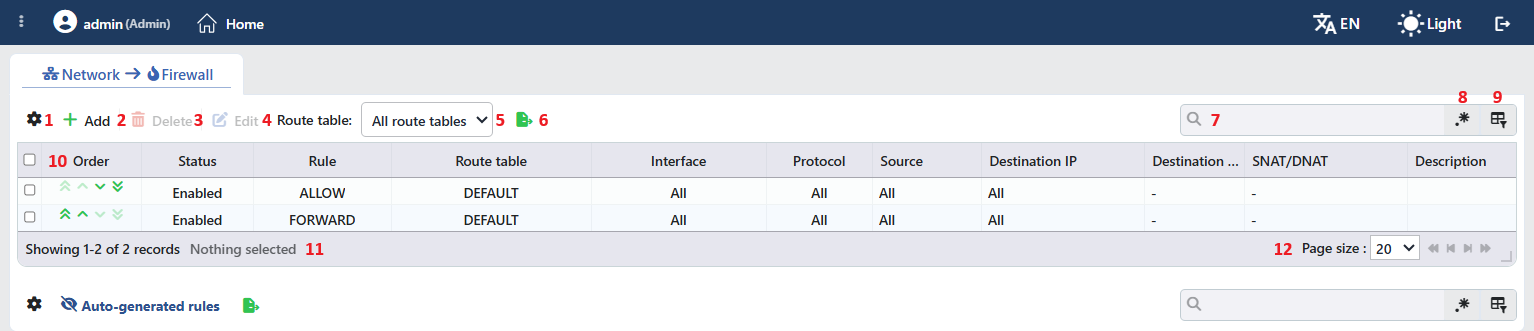 The Firewall Listing Screen
The table opens with the following columns by default:
| Column | Description |
|---|---|
| Order | The four buttons that move the rule in the list (see the Order item). |
| Status | Enabled or Disabled. A disabled rule is not highlighted visually in addition; it is only not applied. |
| Rule | The operation: ALLOW, DENY, FORWARD, FORWARD DENY, SOURCE NAT (NAT), DESTINATION NAT (PORT REDIRECTION). |
| Route Table | The route table the rule belongs to. |
| Interface | The interface on which the rule is applied; All for all the interfaces. |
| Protocol | The protocol; All for all the protocols. |
| Source | The source: All, an IP or a network, address(MAC), a country name or, with inversion, Unless ... (it is seen only in the Manual mode). |
| Destination IP | The destination: All, a device IP (ip (interface); in a cluster setup ip - peer ip Interface IP@interface or ip VIP@interface), a country, an IP or a network, or Unless ... (only Manual). |
| Destination Port | The destination port or ports; - if no port is defined. |
| SNAT/DNAT | SNAT: ... or DNAT: ... in the NAT rules, - in the others. |
| Description | The description of the rule. |
There is no column hidden by default; these eleven columns take place in the column selector. When a row is clicked, no preview panel opens. Below the user rules table there is the auto-generated rules table, which is collapsed by default.
The items in the toolbar are arranged from left to right in the following order; the Order buttons are in the first column of the table and the last two items (Page Information and Page Size) are in the information strip below the table.
Columns
Which columns will be shown in the table is selected; all eleven columns are on by default. In the same panel the columns are reordered by dragging and the alignment is selected per column; with the Fit rows to the page button the row height is fitted to the page and with the Reset button the column layout is returned to the default. The layout is stored per user and is common with the auto-generated rules table.
Add
By clicking the Add button, a new rule creation form is opened in the Add Rule tab.
Delete
When one or more rules are selected and the Delete button is clicked, the related rules are deleted; while there is no selection, the button is passive.
WARNING
The deletion operation does not open a confirmation window; the selected rules are deleted instantly and the new rule set is applied immediately.
Edit
By clicking the Edit button, the editing form of the selected rule is opened in the Edit Form (...) tab. The button becomes active only when a single rule is selected; when Edit is selected again for the same rule, the open tab comes to the front. The button of the form becomes Edit; the rule edited keeps its place in the list.
Route Table
The Route Table filter narrows the rules listed according to the selected route table; the first option is All Route Tables and the selection is saved to the user account. The filter is always seen but is effective only while more than one route table is defined in the system; while there is a single table, the selection has no effect and all the rules (DEFAULT) are listed. While there is more than one table, the table selected in the filter comes ready in the Route Table field in the new rule form. For the details see the Route Tables page.
Export
The table is exported as Excel, CSV or PDF by clicking the Export button. In the window that opens, the Filename, Format and Data Source, together with the Columns to be exported, are determined; the remaining fields are displayed according to the format: CSV Separator for CSV, Excel Sheet Name for Excel, and Page Orientation and Page Size for PDF.
Search
Used to search all information in the table.
RegExp Search
Used to search all information in the table with a regular expression (RegExp).
Column Based Search
Used to perform a column-based search on the information in the table.
Order
The evaluation order of the rules is changed with the four buttons in the Order column (there is no drag and drop):
| Button | Function |
|---|---|
| Rule to the Top | Moves the rule to the very top of the list |
| Rule One Up | Moves the rule one row up |
| Rule One Down | Moves the rule one row down |
| Rule to the Bottom | Moves the rule to the very bottom of the list |
In the topmost rule the up buttons and in the bottommost rule the down buttons are passive; while a move continues, all the buttons become passive. The move is applied with a short delay and the row moved is highlighted for a short time. The ordering is done over the whole list independently of the Route Table filter. A newly added rule comes to the very bottom of the list.
Page Information
Information about the total number of defined rules and the number of rules displayed in the list takes place: Showing N-M of T records and the number of selected rules (N selected, Nothing selected while there is no selection).
Page Size
The maximum number of rules to be displayed on the page is selected. The default is 20; the options are 5, 10, 20, 50, 100, 200, 500 and All.
The Errors and Warnings Summary
When there is a problem about the rule set being applied to the system, the red errors and the orange warnings counters are displayed next to the Route Table filter; when they are hovered over, the details are listed:
- "Firewall (IPv4/IPv6) not applied: ... (route table@device)": the rule set could not be applied to the related route table.
- "Rule omitted (IPv4/IPv6): ... (route table@device)": an erroneous rule was skipped so that the rest of the rule set could be applied.
The summary is filtered according to the selected route table and in a cluster setup contains the records of both devices.
Right-Click Menu
When a row is right-clicked in the user rules table, a menu with two operations opens; the menu has no header. Both operations are applied only to the rule that is right-clicked; the selection made in the list does not affect the menu. In the auto-generated rules table there is no right-click menu.
| Operation | What it does |
|---|---|
| Edit | Opens the editing form of the rule in the Edit Form (...) tab; it is the same as the form opened by the Edit button in the toolbar. |
| Delete | Deletes the rule that is right-clicked; as in the deletion in the toolbar, no confirmation window opens. |
The Rule Evaluation Order
The rules are applied as separate rule sets per route table; every table has an independent rule set in its own isolated network zone and the IPv4 and IPv6 rules are produced separately (the rules with a MAC match are written only to the IPv4 set). The order in the list is the order of being written to the rule set; however, the rules are evaluated in three separate groups according to the operation type and at a different position in every group. The order is meaningful only inside the same group: a DENY rule being above a FORWARD DENY rule in the list does not affect the order of the two relative to each other. In every group the first matching rule is applied.
The incoming traffic (INPUT): the ALLOW and DENY rules
- The return packets of the established connections (stateful) are accepted.
- The DDoS quarantine and the IP reputation blacklist drops are applied.
- The management local interface and the cluster synchronization interface are accepted; the DDoS connection limits are applied to the management ports (SSH/HTTP/HTTPS).
- The loopback, the cloud HA tunnel and the DDoS measures (zero-byte UDP, TCP reset and the connection limits per source) and the ICMP echo permissions (on by default) are applied.
- The user ALLOW / DENY rules: in the order of the list.
- The auto-generated permissions: FTP, the vService listening ports, GTM DNS.
- The packets destined for
127.0.0.1are accepted (IPv4). - The default policy for the packets that do not match: closed (DROP).
The transit traffic (FORWARD): the FORWARD and FORWARD DENY rules
- The return packets of the established connections and ICMP are accepted.
- The Layer 4 vService routings (IPVS) and the automatic ANY-forward rules are accepted.
- The user FORWARD / FORWARD DENY rules: in the order of the list; a FORWARD DENY rule cannot block the Layer 4 vService traffic.
- The default policy: closed (DROP).
The address translation (NAT): the SOURCE NAT and DESTINATION NAT rules
- The user SNAT / DNAT rules: in the order of the list.
- The automatic management access DNATs (HTTP/HTTPS/SSH/SNMP →
127.0.0.1and the internal port), the Layer 4 ANY-DNAT, the inline mode DNAT and the management/internal network DNATs.
The destination translation in NAT is done before the incoming traffic rules are evaluated: the management traffic comes to the user ALLOW/DENY rules with its destination translated to 127.0.0.1 and to the internal port (e.g. 8443, 8080, 22, 161).
The management access can be locked
Two types of user rule can cut off the management access (the web interface, SSH) and the system does not warn about this:
- A wide DENY that matches by source (e.g. Source = All or a network that covers the administrator network, Protocol = All): the management packets come to this rule with the
127.0.0.1destination and are dropped; since the acceptance of127.0.0.1comes after the user rules, it cannot save them. A DENY that targets the management IP or the external port (443/80), on the other hand, does not match since the destination is already translated; narrowing the destination port does not provide protection, narrow the source. - A user DNAT/SNAT rule that covers the management address/port: since the user NAT rules come before the automatic management DNATs, the traffic is routed elsewhere.
While applying rule changes, keep a second management session open.
The rules are applied to the system as soon as they are saved. If the rule set cannot be applied, the erroneous rows are skipped and the remaining rules are applied, and the situation is reported in the errors / warnings summary above the list. The rules that belong to vDevices are saved but not applied while the vDevice is offline.
The Auto-Generated Rules
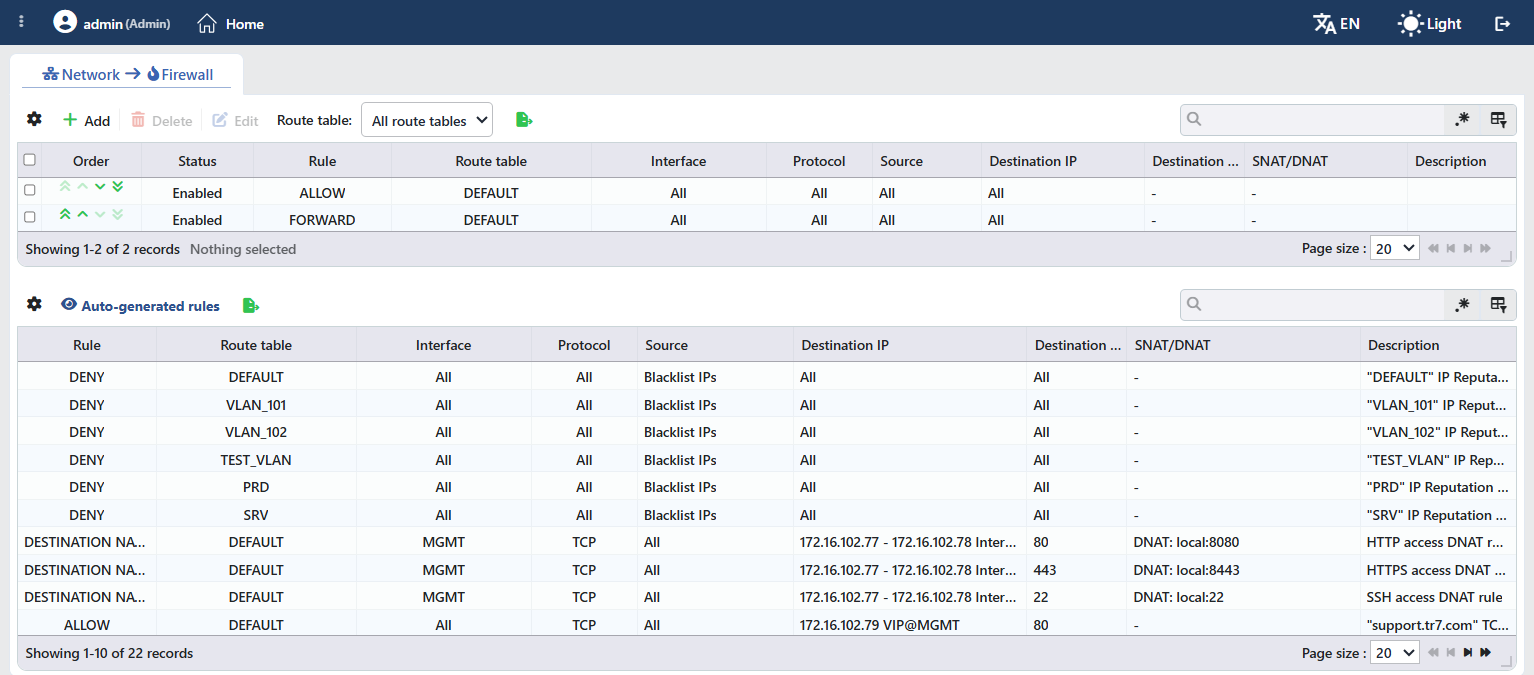 The Auto-generated Rules Table While It Is Open
When the Auto-generated Rules strip below the user rules table is clicked, the rules the system produces are listed in a second table; in normal use the table is collapsed by default and the eye icon on the left of the strip comes struck through. These rules can be displayed but cannot be selected, edited or deleted; in the table there are no Order and Status columns and no row selection check box, and there is no right-click menu. The table has its own column selector, search box and export icon; the column visibility preferences are common with the user rules table.
The automatic rules are produced from the following sources and the source is stated in the Description column:
| Source | Example description |
|---|---|
| The management access (HTTP, HTTPS, SSH, SNMP); one DNAT rule per permitted network | "HTTP access DNAT rule" |
| The FTP access and the passive port range | "FTP allow rule", "FTP passive port range rule" |
| The vService listening addresses (TCP / UDP / QUIC) | ""vService name" TCP rule" |
| The Layer 4 vService SNAT / FORWARD / DNAT rules | "ANY-SNAT rule for "vService name"", "ANY-forward rule for "vService name"", "ANY-DNAT rule for "vService name"", ""vService name" SNAT rule" |
| The inline mode Backend Services (with the backend name), the backend marking | "backend service name inline mode", "Backend mark" |
| The GTM DNS listeners | ""name" GTM DNS DNAT(UDP)", ""name" GTM DNS v6 ALLOW(UDP)", "GTM DNAT rule" |
| The cloud HA synchronization tunnel and the peer device synchronization address | "Cloud HA sync tunnel — UDP ... from peer node ...", "Cloud HA sync traffic from peer sync address ..." |
| The IP Intelligence blacklist (DDoS mitigation; for display purposes only) | ""route table" IP Reputation blacklist drop (DDoS mitigation)", in monitor mode "... blacklist (DDoS mitigation – monitor mode, counting only)" |
These rules are updated automatically when the related vService, Management Access or GTM setting is changed.
The Rule Adding Form
A new firewall rule is added on the TR7 device by following the Network → Firewall → Add steps.
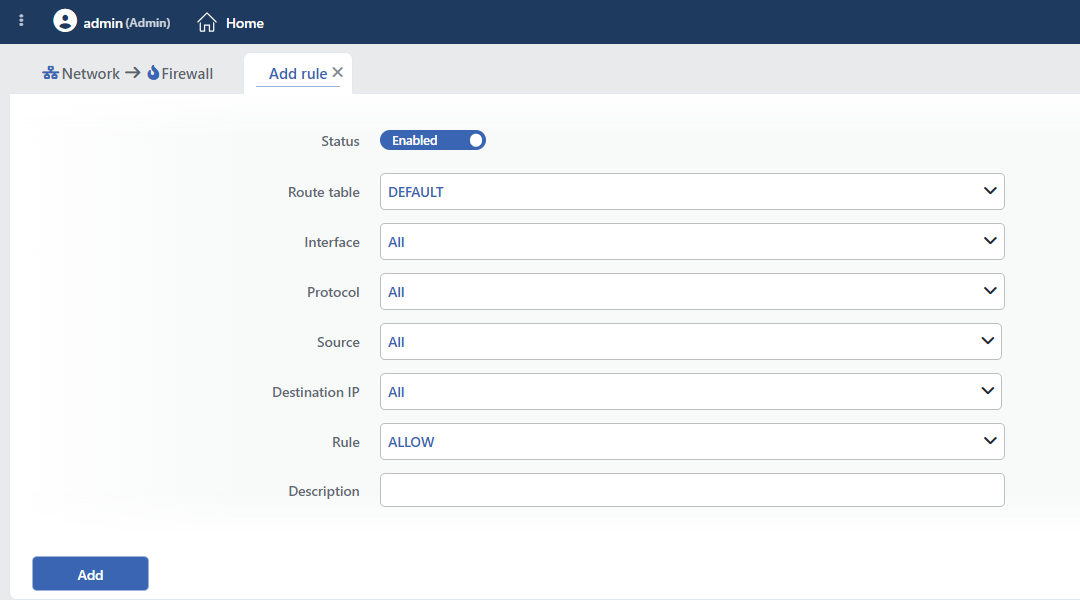 The Add Rule Tab
INFO
Status Default: Enabled
The switch that determines whether the rule will be active; the default is on (Enabled). A rule that is off is seen in the list as Disabled and is not written to the rule set.
INFO
Route Table Default: DEFAULT
The route table on which the rule will be added is selected; the default is DEFAULT, and if a table is selected in the filter on the list screen, that table comes ready. There is no "all tables" option; every rule belongs to a single table. For the details see the Route Tables page. When Route Table is changed, the Interface, Destination IP and SNAT IP fields are reset.
INFO
Interface Default: All
The interface on which the rule will be applied is selected. The first option All (the default) applies the rule to all the interfaces in the table; in the list there are only the interfaces in the selected route table. In the SOURCE NAT rules the interface is evaluated as the interface the packet goes out of. When Interface is changed, the Destination IP and SNAT IP fields are reset.
INFO
Protocol Default: All
The protocol on which the rule will work is selected. By default All is selected; in this case the rule covers all the protocols. The options:
| Protocol | Description |
|---|---|
| All | It covers all the traffic independently of the protocol. (Default) |
| TCP | Transmission Control Protocol: connection-oriented, ordered and reliable transmission. It is the basis of most application services such as HTTP/HTTPS, SSH, databases and e-mail. |
| UDP | User Datagram Protocol: connectionless, low-latency transmission. It is used in the services that are sensitive to speed, such as DNS, VoIP, video streaming and syslog. |
| ICMP | Internet Control Message Protocol: network diagnostic and control messages (ping, traceroute, unreachability notifications). It is applied automatically as ICMPv6 in the IPv6 rule set. |
| UDP-Lite | Lightweight UDP: the derivative of UDP that offers a partial checksum; it is preferred in error-tolerant audio/video codecs. |
| AH | Authentication Header: the authentication and data integrity header of IPsec (IP protocol 51). |
| OSPF | Open Shortest Path First: the link-state dynamic routing protocol (IP protocol 89); it is used for permitting/restricting the neighboring router traffic. |
Destination Port
It is seen when TCP or UDP is selected in the Protocol field. The destination port on which the rule will be applied is entered; more than one port is written with a comma and a range in the form start-end (e.g. 80,443,8000-8100). The match is inverted with the Is True or Is False switch. If no port is entered, the rule covers all the ports of the protocol.
INFO
Source Default: All
For which source the rule will be applied is entered according to the mode selected from the drop-down list (the default is All):
All
The rule comes into play for all the sources.
MAC Address
The rule comes into play according to the source MAC address entered; it is seen in the list in the form address(MAC). The rules with a MAC match are written only to the IPv4 rule set.
Country
The rule comes into play when the geographical location of the source IP matches the selected country; the country is selected from a searchable list. At the beginning of the list there are two special entries: Blacklist IPs (the addresses in the IP Intelligence & Reputation blacklist) and Local Networks (the private/local network ranges). When the Country mode is selected, the field comes filled with Local Networks; the desired country must be selected in addition.
Manual
A single IP address or CIDR network is entered by hand (e.g. 10.10.10.0/24); according to the version of the address the rule is written to the IPv4 or the IPv6 set. For more than one source, separate rules must be defined.
Inverting the match
In the MAC Address, Country and Manual modes the switch next to the field inverts the match: Is True (green, the default) applies the rule for the source entered and Is False (red) for all the sources other than the source entered. An inverted rule is seen in the list as Unless ... only in the Manual mode; in the MAC and Country modes the inversion is not stated in the list, it is seen only in the editing form.
WARNING
The form does not validate the validity of the address or the MAC entered; with an erroneous entry the rule is saved but cannot be applied and is reported in the errors / warnings summary.
INFO
Destination IP Default: All
The destination address on which the rule will be applied is selected (the default is All). In the list there are, in order, All, Country (with the same special entries), the device IP addresses of the selected interface (of the route table if Interface = All) (in the form ip (interface); in a cluster setup ip - peer ip Interface IP@interface and for the VIPs ip VIP@interface) and Manual. In the Country and Manual modes the match can be inverted with the Is True or Is False switch.
INFO
Rule Default: ALLOW
The operation to be applied to the matching packet is selected:
- ALLOW: It permits the matching traffic incoming to the device to pass. It is used in order to open the legitimate service accesses aimed at the device itself.
- DENY: It silently drops the matching traffic incoming to the device. The packet is discarded; no response or rejection notification is returned to the source, so port scanning becomes harder for the attacker.
- FORWARD: It permits the routing of the traffic that passes through (transit) the device. It is used for the packets TR7 routes from one network segment to another.
- FORWARD DENY: It blocks the routing of the transit traffic. It is used in order to close the unwanted direct accesses between the segments.
- SOURCE NAT (NAT): It changes the source IP address in the outgoing packet. It makes it possible to mask the addresses in the internal network behind a single external address; in this rule the Interface field states the interface the packet goes out of.
- DESTINATION NAT (PORT REDIRECTION): It changes the destination IP and port information in the incoming packet; it routes a request coming to an external address or port to an internal server. It is the classic port forwarding scenario.
SNAT IP
It is seen when SOURCE NAT (NAT) is selected in the Rule field. The IP to which the source address of the packet will be translated is selected: in the list there are the device IP addresses of the selected interface (of the route table if Interface = All) and Manual in order to enter an address by hand; there is no All option and no inversion switch.
DNAT IP Required
It is seen when DESTINATION NAT (PORT REDIRECTION) is selected in the Rule field and it is required; when it is left empty, the "Required field" warning is given. The destination address to which the traffic will be routed is entered as text; for port forwarding it is written in the form IP:port.
INFO
Description
An optional description can be entered for the rule; the description is seen in the Description column in the list.
