
Smarter by Design.Simpler for Business
Operating System
What Is the Operating System Condition?
Operating System is a condition type that detects the client's operating system by analyzing the User-Agent header of the HTTP request, and is used to make traffic routing and manipulation decisions according to this information.
User-Agent
Mozilla/5.0 (Windows NT 10.0; Win64; x64) AppleWebKit/537.36 (KHTML, like Gecko) Chrome/120.0.0.0 Safari/537.36
Detected operating system: Windows
TR7 determines the client's platform by comparing the User-Agent header with known operating system signatures (pattern matching).
Operating System vs Mobile Platform vs Browser:
| Condition | What It Detects | Example |
|---|---|---|
| Operating System | All operating systems | Windows, iOS, KaiOS |
| Mobile Platform | Mobile platform | Android, iOS |
| Browser | Browser application | Chrome, Firefox, Safari |
WARNING
Security Note
The User-Agent header can easily be changed by the client. Operating system detection should not be relied on alone for critical security decisions.
The Importance of the Operating System Condition
Operating system detection is a basic tool for platform-specific content and compatibility management.
With the Operating System condition:
- Clients can be redirected to download/application pages suitable for their operating systems,
- Content or warnings specific to certain platforms can be offered,
- Old/unsupported platforms can be detected,
- Operating system-based usage statistics can be collected.
Supported vService Types
HTTP
L7 TCP
Network
The condition can be used at both the request (At Request) and response (At Response) stages; the operating system information is detected at the time of the request.
How to Add?
A new Operating System Condition can be added through the TR7 web management interface by following the steps below:
- The Configuration Menu is opened by clicking the TR7 logo at the bottom left.
- The Load Balancer → Conditions → Add steps are followed.
- Operating System is selected as Criteria.
- The related configurations of the condition are made.
- The condition is added by clicking the
Addbutton.
Operating System Condition Add Form
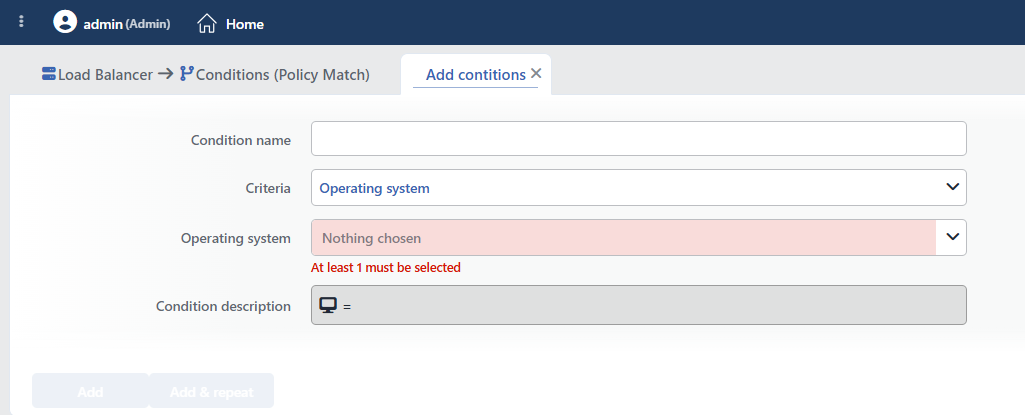 Operating System Condition Add Form
INFO
Condition Name
An optional name can be entered for the condition to be created.
This field is especially important in the following scenarios:
- When many conditions are defined under the same vService,
- When conditions with similar criteria need to be distinguished,
- When it is necessary to quickly understand which business rule the condition represents.
When this field is left empty, TR7 analyzes the content of the related condition and creates an automatic, descriptive name in the Condition Description field. This generated description is used as the name in condition lists.
INFO
Criteria Required
The field that determines the type of the condition; Operating System is selected from the searchable dropdown list. This selection determines the fields displayed in the form. The criterion cannot be changed after the condition is saved: if a different criterion is needed, a new condition is defined. For all criteria in the list and their scopes, the criteria catalog on the Conditions page can be referred to.
INFO
Operating System Required
The operating systems to be detected are selected from the searchable list; selecting at least one operating system is required (the form opens empty).
More than one operating system can be selected. It works with OR logic, and if any of the selected ones matches, the condition is met.
The match is an exact match: the selected name is compared one-to-one with the detected operating system name. For example, Windows and Windows Phone, as well as iOS and KaiOS, are separate values; selecting Windows does not cover Windows Phone traffic: if both are targeted, both are selected.
TIP
If only a check of "whether the client's operating system could be recognized" is wanted without distinguishing between operating systems, the If the client operating system is recognized condition, which is offered ready-made in the condition selection lists, can be used; its negation (If the client operating system is NOT recognized) is used to distinguish unrecognized clients.
TIP
The detected operating system name is not offered as a separate smart variable; in actions, the browser identity of the client can be used with the User-agent smart variable (e.g. as the value of an HTTP header or a log field).
INFO
Condition Description
It is created automatically by TR7 in line with the entered criteria and values.
This description:
- which value the condition applies to,
- which criterion it works on,
- the quick understanding of the condition on listing screens
is produced dynamically by the system so as to provide these.
INFO
Form Buttons
Add
The condition adding process is completed by clicking the Add button.
Add & Repeat
With the Add & Repeat button, the condition adding process is completed, and another new condition can be added with different configurations without leaving the related window.
 Condition Added
Operational Usage Recommendations
- Exact Matching Should Be Taken into Account. Platforms with similar names are separate values (Windows ≠ Windows Phone); all targeted platforms should be selected from the list one by one.
- The Right Criterion Should Be Selected for Mobile Distinction. If only mobile platforms are targeted, the Mobile Platform condition is more accurate.
- User-Agent Spoofing Should Be Watched For. Operating system information is based on the client's declaration; it should not be used alone in security decisions.
- Unrecognized Ones Should Be Distinguished. The ready-made If the client operating system is NOT recognized condition is a practical way to distinguish traffic whose operating system is unknown (often automation).
Common Usage Scenarios in Live Environments
The examples below show how the related condition is applied in the most frequently encountered use cases in real systems. These scenarios are based on practices that are widely preferred in live environments and rest on experience gained in the field.
Scenario 1: Download Redirection by Operating System
Purpose: To redirect clients coming to the application download page to the store/package page suitable for their operating system.
Configuration: Operating system → iOS
Action Recommendations:
- ✅ Set Path → The download request is redirected to the
/download/iospath; separate rules with similar conditions are defined for other platforms. - ✅ Advanced Traffic Inspection → The platform-based download distribution is reported.
Scenario 2: Compatibility Warning for Old Platforms
Purpose: To show a compatibility warning to users coming from platforms that are no longer supported.
Configuration: Operating system → Windows Phone, KaiOS
Action Recommendations:
- ✅ Show Content → The information page "Your platform is no longer supported" is shown.
- ✅ Add HTTP Header → The
X-Legacy-Platform: trueheader is added, and the Backend Service serves simplified content.
Scenario 3: Forwarding Platform Information to the Backend Service
Purpose: To forward the client identity that contains the operating system information with a standard header to the Backend Service that determines behavior by platform on the application side.
Configuration: Operating system → (all targeted platforms selected)
Action Recommendations:
- ✅ Add HTTP Header → The
X-Client-UAheader, whose value is bound via fx to the User-agent smart variable, is added; the Backend Service distinguishes the operating system from this value and performs platform-based processing. - ✅ Advanced Traffic Inspection → The operating system distribution and platform-based error rates are reported.
