
Smarter by Design.Simpler for Business
Captcha
What Is Captcha?
Captcha is the challenge surface that the three protections use in common. When a protection wants to test a request instead of blocking it, Show Captcha is selected as the action; the source that makes the request is directed to a verification page before it reaches the backend. A source that passes the verification passes without being tested again for the defined period.
A single challenge is defined per vService. All three protections use the same configuration: a visitor that solves it once passes through the gate of all three, whichever protection has directed it. The settings on this page determine the type and the appearance of the challenge, for how long it will be considered valid and what will be done to the visitor that continuously fails.
Single
Challenge Per vService
The three protections share the same definition; a visitor that solves it once passes through the gate of all three
3
Challenge Types
Text, Math and Invisible; the invisible type verifies the browser without asking the visitor a question
5
Difficulty Steps
From Very Easy to Very Hard; the balance between security and user experience is adjusted from a single field
24 Hours
Default Validity
A successful verification is not asked again for a period that can be defined between 5 minutes and 30 days
Built-in
No External Service Required
The challenge is produced and served on the device; no third-party captcha service is connected to
Full Match
Appearance Customization
The theme, the size, the background and the text color and the tab title are adjusted according to the corporate identity
Automatic
Page Language
The language comes from the default language of the device; if necessary it is fixed on a vService basis
Thresholded
Failure Trigger
A visitor that exceeds the threshold within the defined window is taken into quarantine: 1–100 attempts, 10 seconds – 24 hours
Live
Tracking Table
The sources counting towards the threshold are monitored instantly together with the last event and the time of dropping from the table
There are three challenge types:
| Type | What the visitor sees |
|---|---|
| Text | The characters produced visually are asked to be read and typed. The verification is case insensitive and characters that are confused with each other are not used in the questions produced. |
| Math | The result of a simple operation produced visually is asked for. |
| Invisible | The visitor is not asked a question; only browser verification is done. A part of the visual settings loses its meaning in this type and is hidden in the form. |
Scope
Captcha is present only on the vServices of the HTTP type. Since a challenge page cannot be served on L7 TCP vServices, the card is not created at all and the settings are dropped from the form. The settings are kept even while no protection directs to the challenge: the card can be edited independently of the protection configuration and works with the values that have been written when a protection starts to direct to it.
The challenge is produced only in the Active mode
The verification page and the service behind it are created when at least one of the protections that direct to the challenge is in the Active mode. Show Captcha being written in the rule list of a protection that is only in the Monitoring mode is not enough for the page to be produced: the monitor mode only observes, the challenge is not shown to the visitor and the tracking tables are not set up either.
The appearance settings also shape the silent browser check
The language, the tab title, the theme, the size and the color settings are not used only on the challenge page. The silent browser check page served while Bot Protection is collecting client proof also reads the same settings; in this way the two surfaces do not look different. Since the silent check also works in the monitor mode, the effect of these settings can be seen even if the challenge is never shown. The body of the silent page is always in an invisible form; the Captcha Type setting affects only the challenge page.
The Captcha Card on Bot/DDoS Management
The Captcha card in the body of the Bot/DDoS Protection Mode strip summarizes the definition of the challenge that is in force with three pieces of information:
- The Captcha Type row shows the selected challenge type (Text, Math or Invisible).
- The Captcha Valid for row shows for how long a successful verification will be considered valid.
- The Failure → Quarantine row shows whether the failed solvers are taken into quarantine. While it is off, the row appears with a faded Disabled value; while it is on, the place of the row is taken by a single sentence that summarizes the threshold: it is written that after a certain number of failed attempts within a certain period, the visitor will be taken into quarantine.
The Used by row below the card lists which protections direct to the challenge with their short names: L7 DDoS, IP Reputation and Bot. The row reads the configuration: a protection in the Monitoring mode also appears here, but for the verification page to be produced, at least one of the ones listed must be in the Active mode. If no protection directs to it, the card fades and a sentence indicating that the settings are waiting ready is written in place of the row. The Table → link at the bottom right opens the live tracking table of the challenge as a closable tab on the same screen.
When the pencil icon at the top right of the card is clicked, the edit screen opens.
 Bot/DDoS Protection Mode - The Captcha Card
The Captcha Edit Screen
- The Bot/DDoS Management tab is opened.
- The pencil icon at the top right of the Captcha card in the body of the strip is clicked; the edit window titled Edit - Captcha opens.
- The following fields are edited and confirmed with the
Editbutton.
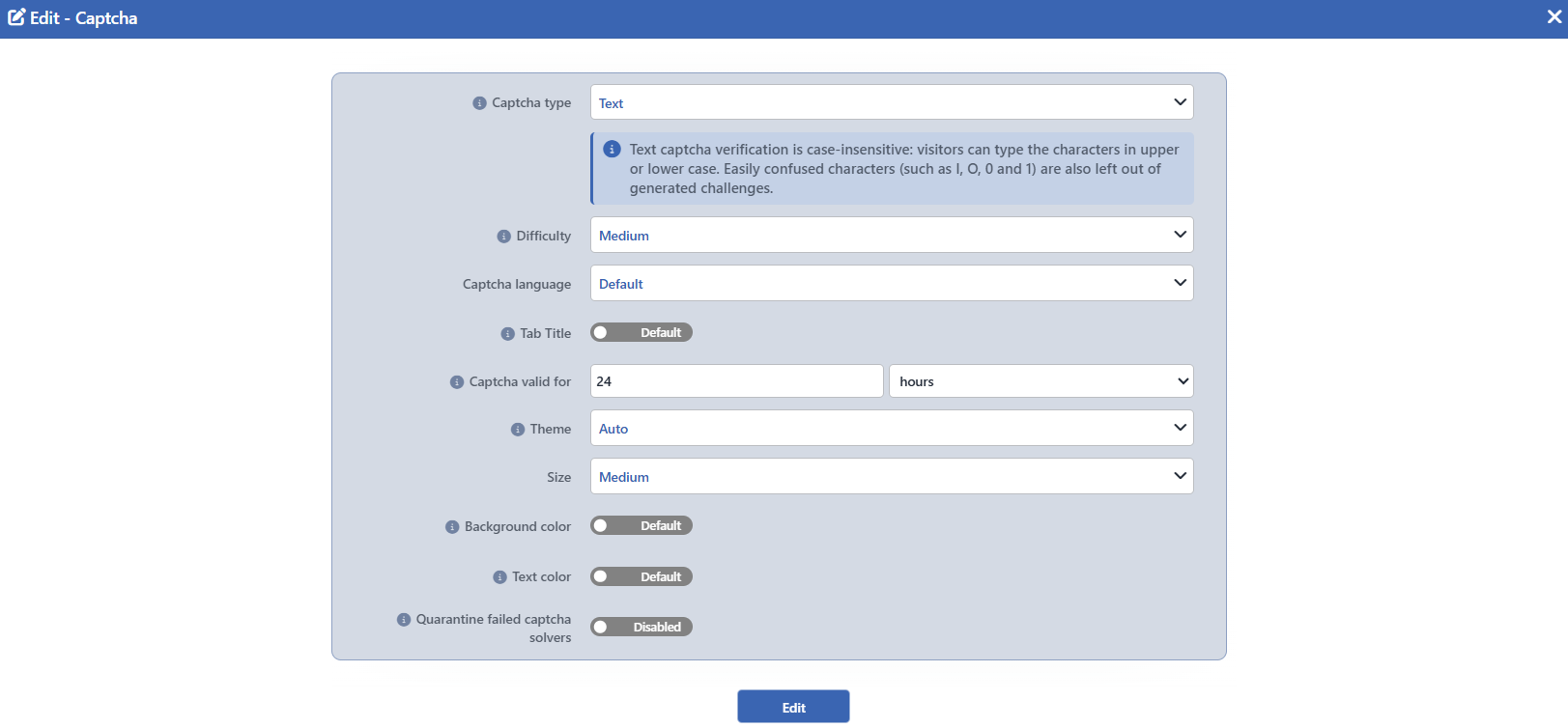 The Captcha Edit Screen
INFO
Captcha Type Default: Text
The type of the challenge is selected: Text, Math or Invisible; its default value is Text. The description of the field states that the text and math types require visual verification and that the invisible type only performs browser verification (Text and math require visual verification. Invisible only performs browser verification.).
While Text is selected, an information box appears below the field: Text captcha verification is case-insensitive: visitors can type the characters in upper or lower case. Easily confused characters (such as I, O, 0 and 1) are also left out of generated challenges. This box is hidden in the Math and Invisible types.
INFO
Difficulty Default: Medium
The difficulty of the challenge produced is selected from five steps: Very Easy, Easy, Medium, Hard and Very Hard; its default value is Medium. The step raises not a single setting but four things at once: the computation cost asked from the browser, the noise in the image, the number of characters in the question and the shortest solving time that the server accepts. The description of the field states that a higher difficulty is more secure but harder for the users (Higher difficulty is more secure but harder for users.).
INFO
Captcha Language Default: Default
The language of the challenge page is selected. The default option is Default: in this case the default language in the Localization setting of the device is used. Since the device dictionaries are limited to Turkish and English, these two languages are located in the list.
INFO
Tab Title
The title that appears on the browser tab is defined. The field opens with a two-state switch: in the Default position the built-in title is used, and when it is taken to the Choose position, text can be entered and the field opens with the value Security Verification. At most 100 characters can be entered.
INFO
Captcha Valid for Default: 24 hours
The period during which a successful verification will stay valid without the visitor being asked to solve a challenge again is defined. The value is entered with a number and unit pair; minutes, hours or days can be selected as the unit. Its default value is 24 hours; at least 5 minutes and at most 30 days can be defined.
INFO
Theme Default: Auto
The theme of the challenge page is selected: Auto, Light or Dark; its default value is Auto. The description of the field states that the automatic option selects the theme according to the system preference of the user (Auto selects theme based on user system preference.).
INFO
Size Default: Medium
The size of the challenge component is selected: Small, Medium or Large; its default value is Medium. The field is hidden in the form while Invisible is selected as the Captcha Type.
INFO
Background Color
The background color of the challenge page is defined. The field opens with a two-state switch: in the Default position the theme color is used, and when it is taken to the Choose position, the color picker appears and it opens with the value #F5F5F5. The field is hidden in the form while Invisible is selected as the Captcha Type.
INFO
Text Color
The text color of the challenge page is defined. It works in the same way as Background Color; when it is taken to the Choose position, it opens with the value #333333 and it is hidden in the form in the Invisible type.
INFO
Quarantine Failed Captcha Solvers Default: Off
When it is checked, the visitors that continuously cannot pass the challenge are taken into quarantine; it is off by default. The description of the field states that the penalty itself is not defined on this card: The penalty — duration, action and tracking — comes from the quarantine profile. The period, the action to be applied and the tracking key come from the Quarantine card; this card defines only the trigger.
When the switch is turned on, the two fields below appear in the form; when it is turned off, both of them are hidden and the values that have been written are preserved.
Quarantine Failure Threshold Default: 3
How many failed attempts will be allowed before being taken into quarantine is defined. Only an integer, at least 1 and at most 100, can be entered in the field; its default value is 3.
Quarantine Tracking Window Default: 5 minutes
The period during which the failed attempts are counted is defined. The value is entered with a number and unit pair; seconds, minutes or hours can be selected as the unit. Its default value is 5 minutes; at least 10 seconds and at most 24 hours can be defined.
INFO
Edit
The changes in the form are saved by clicking the Edit button. There is no additional confirmation window or deployment (deploy) step; the Load Balancer configuration is automatically regenerated and applied.
The Captcha Table
The Table → link below the card opens the live tracking table of the challenge as a closable tab named Captcha on the upper strip of the screen. The table is not a saved history but the current content of the tracking table: it shows the sources that have failed the challenge and the number of failed attempts of each one within the tracking window.
This table is created only when two conditions are met together: Quarantine Failed Captcha Solvers must be on and at least one of the protections that direct to the challenge must be working in the Active mode. If the conditions are not met, the tab opens but there is no source to be listed. The source on the tab is referred to together with the name of the challenge and the tracking window, in the form Captcha (TRACKING, <tracking window>).
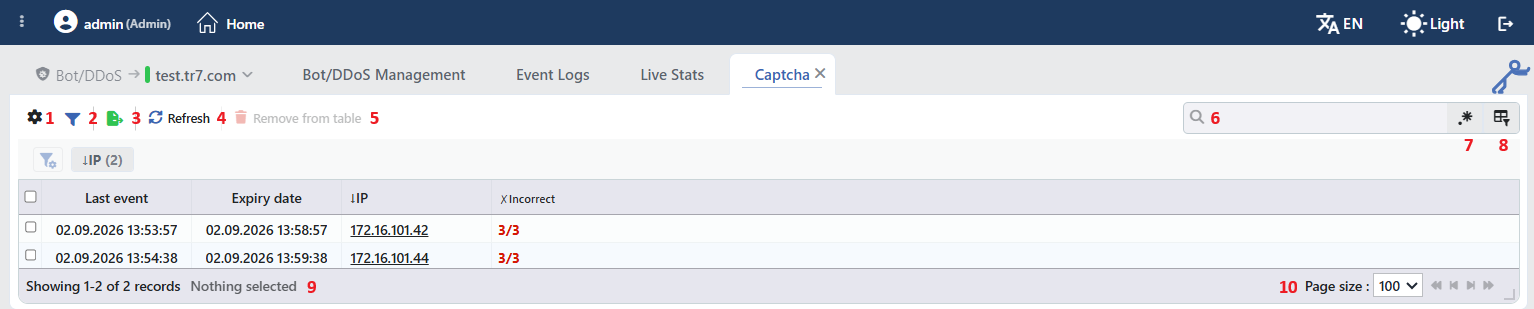 The Captcha Table
The table opens with the following columns by default:
| Column | Description |
|---|---|
| Last Event | The time of the last activity (last event) for this record. |
| Expiry Date | The time at which the record will be deleted from the tracking table. |
| Source (Client) IP Address (key) | The address of the source monitored. The tracking key comes from the Tracking Type setting on the Quarantine card; the default key is the IP and it appears in the list with the ↓IP heading. If the key consists of more than one component (e.g. IP + User-agent), every component is listed as a separate column. |
| Incorrect Answers | The number of failed verifications of the source within the tracking window; it is shown together with the threshold in the form attempts/threshold (e.g. 3/3). Values greater than zero are emphasized. It appears in the list with the ✗Incorrect heading. |
The following column is hidden by default and is added from the column selector:
| Column | Description |
|---|---|
| Source | The name of the TR7 device that holds the record (in cluster setups). It is always present in the preview panel. |
INFO
In the tracking table there are no request, data or connection counters; only the Incorrect column that shows the number of failed verifications is located there. The records drop from the table when a period as long as the tracking window has passed since the last failed attempt; every new failed attempt starts the period over. The Last Event and Expiry Date information is kept separately for every record; the Expiry Date column shows the moment at which the record will drop.
The items in the toolbar are arranged from left to right in the following order; the last two items (Page Information and Page Size) are located in the information strip below the table.
Columns
Which columns are shown in the table is selected. In the same panel, columns are reordered by dragging and alignment is selected per column; the row height is fitted to the page with the Fit rows to the page button, and the column layout is reset to default with the Reset button. The layout is stored per user.
Filter
The Filter button is used to filter the list. The filtering criterion is the tracking key selected on the quarantine card (e.g. ↓IP in this configuration); the criterion strip comes expanded when the table is opened and the number of active filters is written next to the criterion.
Export
The table is exported as Excel, CSV or PDF by clicking the Export button. In the window that opens, the Filename, Format and Data Source, together with the Columns to be exported, are determined; the remaining fields are displayed according to the format: CSV Separator for CSV, Excel Sheet Name for Excel, and Page Orientation and Page Size for PDF.
Refresh
The current content of the tracking table is brought again by clicking the Refresh button. Since there is a single source on the tab, no source picker is shown in addition.
Remove from Table
When one or more rows are selected and the Remove from Table button is clicked, the tracking records accumulated by the related sources are removed from the table. The operation is verified with the Are you sure? confirmation and cannot be undone. The button is passive while no row is selected. The same operation is also present in the right-click menu.
Search
Used to search all information in the table.
RegExp Search
Used to search all information in the table with a regular expression (RegExp).
Column Based Search
Used to perform a column-based search on the information in the table.
Page Information
Contains information about the total number of fetched records and the range of records displayed in the list: Showing N-M of T records and the number of selected rows (N selected, or Nothing selected when there is no selection).
Page Size
The maximum number of records to be displayed on the page is selected. The default is 100; the options are 50, 100, 250 and All. The selection is not stored, and at the next opening it starts with 100 again.
Right-Click Menu
When a row is right-clicked, a menu with a single operation opens. The operation applies only to the right-clicked record; a selection made in the list does not affect the menu.
| Operation | What it does |
|---|---|
| Remove from Table | Removes the right-clicked record from the tracking table; like Remove from Table in the toolbar, it asks for Are you sure? confirmation. It is not displayed in the menu while the operation is going on. |
Preview of the Selected Record
When any row in the list is clicked, the preview panel belonging to that record opens on the right side of the screen. In the header of the panel the name of the source and the tracking window (Captcha (TRACKING, 5m)), and below it the name of the protected vService are located.
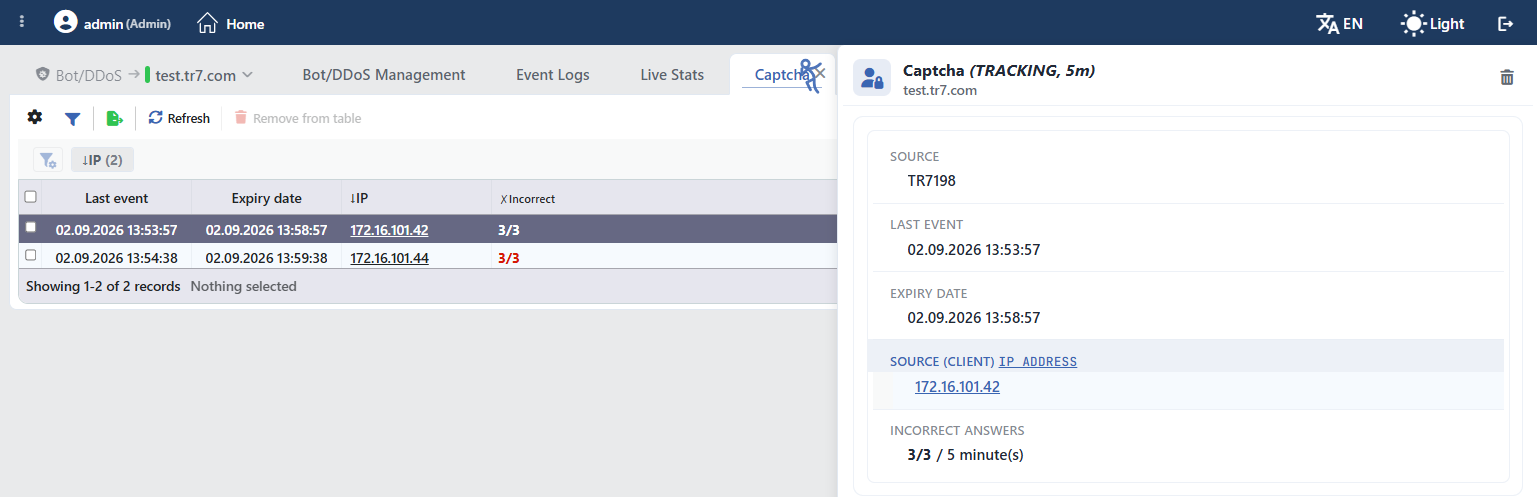 The Preview of the Selected Record
Operations are performed on the record with the icon at the top right of the header:
| Operation | What it does |
|---|---|
| Remove from Table | Removes the record from the tracking table; the failed attempt counter accumulated by the source is reset. While the operation is going on, the icon turns into a spinning symbol. Unlike the toolbar and right-click paths, it deletes without asking for confirmation. All three paths delete only the counter record; if the source is in quarantine, it does not take it out of quarantine. |
The panel shows the source monitored and the number of failed verifications one below the other; the Incorrect Answers value is given together with the tracking window (e.g. 3/3 / 5 minute(s)).
| Information | Description |
|---|---|
| Source | The name of the TR7 device that holds the record (in cluster setups). |
| Last Event | The time of the last activity for this record. |
| Expiry Date | The time at which the record will be deleted from the tracking table. |
| Source (Client) IP Address | The address of the source monitored. |
| Incorrect Answers | The number of failed verifications within the tracking window; it is shown together with the threshold and the tracking window. |
Scope and Limits
INFO
- It is present only on HTTP vServices. On L7 TCP vServices the card is not created and the settings are dropped from the form; on this type the challenge action cannot be selected in a rule list.
- A single challenge is defined per vService. All three protections share the same configuration; a visitor that solves it once passes through the gate of all three.
- The settings are kept independently of the protections. The card can be edited even while no protection directs to the challenge; the record is not lost, only the card appears faded.
- The verification page is produced only in the Active mode. The challenge being written in the rule list of a protection in the monitor mode is not enough for the page to be created.
- The quarantine penalty is not defined on this card. This card carries only the trigger (the threshold and the window); the period, the action and the tracking key come from the Quarantine card.
- The quarantine does not delete the tracking record. The source that reaches the threshold is added to the shared penalty box and appears in the table of the Quarantine card; its row in the tracking table, on the other hand, continues to stay in the list with the value
3/3until the tracking window expires. The deletion of a row from this table does not lift the quarantine either. - The pencil icon depends on the permission. The card and the table are displayed with read-only permission; the pencil icon that opens the edit window is displayed only on the users that have edit permission.
