
Smarter by Design.Simpler for Business
TLS Security Profiles
What Is a TLS Security Profile?
TLS Security Profile is the reusable set of settings that determines which protocol versions, encryption suites (cipher) and key exchange curves will be accepted in the TLS connections TR7 establishes, whether the client certificate will be validated and whether the application layer protections such as HSTS and the SNI/Host validation will be applied. The certificate itself is defined on the SSL/TLS Certificates screen; the profile manages how the TLS session established with that certificate will be set up.
The profile is used in three places. In the encrypted frontend of the vService all the settings of the profile are applied; in the TLS connection established to the Backend Service (backend) only the version range, the cipher list and the curves are used; and the health checks of the Backend Service inherit the lowest version and cipher values of the Backend Service profile if they do not have a TLS setting of their own. A change in a profile is reflected when the configuration is applied again to all the services that use the profile.
SSLv3–TLSv1.3
Version range
The accepted protocol range is limited with Min. and Max. SSL Version
8 + Manual
Cipher sets
Eight ready-made sets or a list selected manually from 159 suites; importing/exporting
mTLS
Client validation
Client certificate validation with the selected CAs; Optional / Required
421
SNI/Host validation
The HTTP requests whose Host header does not match the SNI are rejected with 421 Misdirected Request
Hybrid
Post-quantum
The X25519MLKEM768 key exchange is added in front of the classic curves
HSTS
Browser enforcement
The Strict-Transport-Security header; max-age, includeSubDomains and preload
How does it work?
- The profile is selected in the SSL Security module in the Details panel of the vService form. While the module is off, no profile is applied to the vService; when the module is turned on, Default Profile comes selected and a profile defined on this screen can be selected in its place.
- In the TLS handshake the version, cipher and curve options the client offers are intersected with the range of the profile; if there is no intersection, the connection is rejected at the handshake stage. If Client Certificate Authentication (mTLS) is on, a certificate is requested from the client and it is validated with the selected CAs.
- After the connection is established, the application layer protections in the profile come into play: SNI/Host Validation rejects the HTTP requests that do not match, and HSTS adds the Strict-Transport-Security header to the responses.
- On the Backend Service side only the settings in the TLS Settings (Frontend & Backend) section are applied; Frontend-only Settings and the mTLS section do not affect the Backend Service connection.
The Default Profile
On TR7 there is a Default Profile defined by the system. This profile is not seen in the list, it cannot be edited and it cannot be deleted; it is offered as the Default Profile option in the profile selector in the vService form and it provides the starting values of the new profile adding form. In the Backend SSL Security Profile field in the Backend Service form there is no Default Profile option; the field takes None or a profile defined on this screen.
| Setting | Default Profile value |
|---|---|
| Min. SSL Version | TLSv1.1 |
| Max. SSL Version | Off (no upper limit) |
| Cipher Algorithms | Only Secure Ones (HIGH:!aNULL:!MD5) |
| Curve/ECDHE | Off (the default curves of the engine) |
| Restart Undefined TLS Requests | On |
| All the other switches | Off |
If the SSL Security module has never been turned on in a vService, these values are not applied either; the version range, the cipher list and the session ticket behavior are left entirely to the defaults of the engine. When the module is turned on and Default Profile is left, the above values are applied.
Where the Settings Are Applied
| Setting group | vService (frontend) | Backend Service (backend) | Health check |
|---|---|---|---|
| Min. / Max. SSL Version | Applied | Applied | Only Min. SSL Version is inherited (the upper limit is not inherited) |
| Cipher Algorithms / Algorithm List | Applied | Applied | Inherited |
| Curve/ECDHE | Applied | Applied (in the engine versions that support it) | Not inherited |
| Post-Quantum Key Exchange, Restart Undefined TLS Requests, SSL Hardware Acceleration, SNI/Host Validation, OCSP Stapling, HSTS | Applied | Not applied | Not applied |
| Client Certificate Verification (mTLS) | Applied | Not applied | Not applied |
The health check inherits the Backend SSL Security Profile setting in the Backend Service only if it does not have a TLS selection of its own; the explicit TLS selections in the check definition take precedence over the inherited values.
Operational Best Practices
- The lowest version should be TLSv1.2. SSLv3, TLSv1.0 and TLSv1.1 must be left on only if there is an old client requirement, and temporarily; the TLSv1.1 value of the Default Profile must be raised for the services that are open to the internet.
- Selecting from the ready-made sets. General or Strict Secure are suitable for the services that are open to the internet, and TLS v1.3 Compatible for the services to which only new clients connect; because the Old Client Supported and Hardware Supported sets contain weak suites, they must be used only when they are necessary.
- The Manual list must be stored by being exported. The file taken with Export Ciphers makes it possible to carry the same list to other profiles with Import Ciphers and to track the changes.
- SNI/Host Validation in the HTTP services. It must be turned on against domain name spoofing in the HTTPS vServices that offer more than one domain name.
- Required + Deny All Errors for mTLS. In the services in which only the clients that have a certificate will be accepted the validation type must be Required and the error strategy Deny All Errors; Ignore All Errors must be used only for a temporary test purpose.
- Checking before the HSTS preload. Browser Preload List Flag (preload) is saved only while max-age is at least 1 year and Include Subdomains is on; preload must not be turned on without it being verified that all of the subdomains offer HTTPS.
- Used in before a change. A profile change is reflected when the configuration is applied again to all the vServices that use the profile; the Used in tab in the preview and the Used in card in the filter strip must be checked before editing and deleting. The usage in the Backend Service does not enter this count; a profile that is used only in a Backend Service is listed under Unused Entries.
Supported vService Types
HTTP
L7 TCP
Network
The SSL Security module is listed in the form while a protocol from the Encrypted (HTTPS) group is selected in at least one frontend row in the HTTP vService, and TCP + TLS in at least one row in the L7 TCP vService. SNI/Host Validation and HSTS are effective only in the HTTP vService.
TIP
Backend Services
For the profile usage in the Backend Service connection see the Backend SSL Security Profile field on the Backend Services screen; in this connection only the version range, the cipher list and the curves are applied.
How to Add?
A new SSL Security Profile is added over the TR7 web management interface with the following steps:
- The Configuration Menu is opened by clicking the TR7 logo at the bottom left.
- The Certificates & PKI → TLS Security Profiles → Add steps are followed; the form opens as a closable Add tab inside the list screen.
- A name is entered for the profile; the fields in the TLS Settings (Frontend & Backend), Frontend-only Settings and Client Certificate Verification (mTLS) — Frontend sections are configured (for the details of the fields see the Add Form section).
- The profile is added by clicking the
Addbutton.
TIP
Reaching the page via quick search
Instead of navigating the menu step by step, the related page is reached directly by using the search bar in the bottom left corner of the screen. The search bar opens with the Alt + T shortcut on Windows and Opt + T on macOS; typing the name of the feature being searched for is then sufficient.
The profile can also be added without leaving the page with the adding icon next to the Backend SSL Security Profile selector on the Backend Services screen; the SSL Security selector in the vService form lists only the defined profiles, a new profile is not added from there (see Usage Locations).
The TLS Security Profiles Listing Screen
The list of all the TLS security profiles that are added on the TR7 device is reached by following the Certificates & PKI → TLS Security Profiles path. The profile adding, editing and deleting operations are done through this screen.
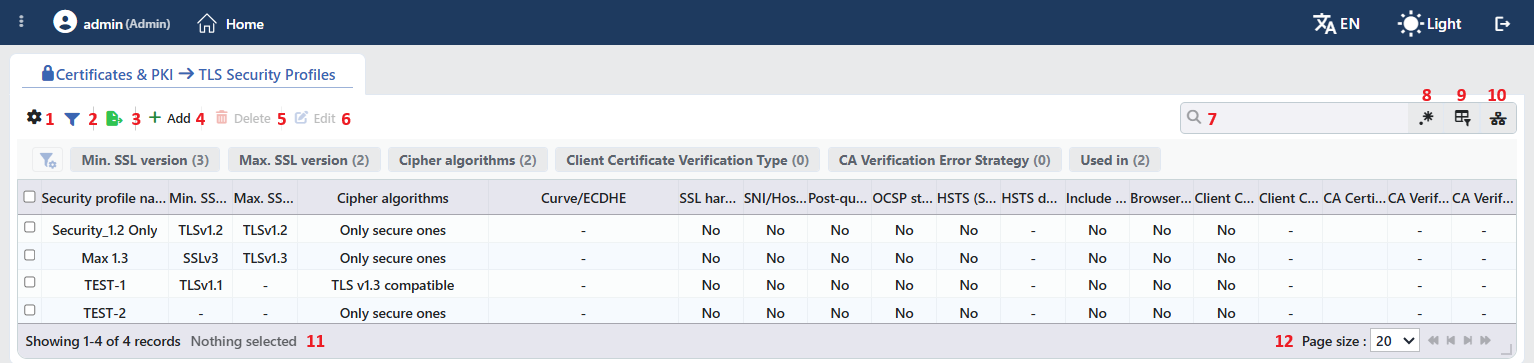 The TLS Security Profiles Listing Form
The table opens with the following columns by default:
| Column | Description |
|---|---|
| Security Profile Name | The name of the profile. |
| Min. SSL Version | The lowest accepted protocol version; if the setting is off, -. |
| Max. SSL Version | The highest accepted protocol version; if the setting is off, -. |
| Cipher Algorithms | The name of the selected ready-made set (Only Secure Ones, General …); if Manual is selected, the manually selected suites are listed with commas, and if the list is empty, -. |
| Curve/ECDHE | The selected curves with commas; if the setting is off, -. |
| SSL Hardware Acceleration | The status of the switch: Yes / No. |
| SNI/Host Validation | The status of the switch: Yes / No. |
| Post-Quantum Key Exchange | The status of the switch: Yes / No. |
| OCSP Stapling | The status of the switch: Yes / No. |
| HSTS (Strict-Transport-Security header) | The status of the switch: Yes / No. |
| HSTS Duration (max-age) | The HSTS duration (in the 180 day(s) form); if it is undefined, -. |
| Include Subdomains (includeSubDomains) | The status of the switch: Yes / No. |
| Browser Preload List Flag (preload) | The status of the switch: Yes / No. |
| Client Certificate Authentication (mTLS) | The status of the switch: Yes / No. |
| Client Certificate Verification Type | Optional / Required; if mTLS is off, -. |
| CA Certificate Files | The identities of the selected CA records are listed with commas; while mTLS is off, the cell is left empty. |
| CA Verification Error Strategy | Deny All Errors / Ignore All Errors / Manual Ignore List; if mTLS is off, -. |
| CA Verification Errors to Ignore | The numeric codes of the ignored validation errors with commas; if there are none, -. |
The columns are seen even if the related feature is off in the profile; in this case the value becomes No or -. CA Certificate Files is the exception to this rule: while mTLS is off, the cell is seen empty. The HSTS sub-columns are an exception: even if HSTS is off, the duration and the sub-switch values entered in the form are seen in the columns as they are.
There is no column hidden by default; these eighteen columns take place in the column selector. There is no Restart Undefined TLS Requests column in the table, this value is shown only in the preview. The full value of the cells other than the name is seen when it is hovered over. The table is not sorted when it is opened; when a column header is clicked, first a descending and then an ascending sorting is applied, and at the third click the sorting is removed.
The items in the toolbar are arranged from left to right in the following order; the last two items (Page Information and Page Size) are located in the information strip below the table.
Columns
Which columns will be shown in the table is selected; all eighteen columns are on by default. In the same panel the columns are reordered by dragging and the alignment is selected per column; with the Fit rows to the page button the row height is fitted to the page and with the Reset button the column layout is returned to the default. The layout is stored per user.
Filter
The Filter button is used in order to filter the profiles shown in the list according to certain criteria; the button shows the number of active filters with a badge. In the strip there are six cards: Min. SSL Version, Max. SSL Version, Cipher Algorithms, Client Certificate Verification Type, CA Verification Error Strategy and Used in. In the card header there are the filter name and the number of values; when the card is clicked, the values are listed below it with their row counts and more than one value can be selected together. The selections are displayed below the card strip, immediately above the table, as closable labels. The Used in card lists the names of the vServices in which the profile is used; for the profiles that are not used in any vService the Unused Entries option is always present. The card editing mode is opened by clicking the editing icon on the left of the strip; in this mode the cards are reordered by dragging, renamed or removed from the strip. The layout is stored per user and can be returned to the default in the same mode. There is no filter card for the on/off type settings (HSTS, mTLS etc.).
Export
The table is exported as Excel, CSV or PDF by clicking the Export button. In the window that opens, the Filename, Format and Data Source, together with the Columns to be exported, are determined; the remaining fields are displayed according to the format: CSV Separator for CSV, Excel Sheet Name for Excel, and Page Orientation and Page Size for PDF.
Add
By clicking the Add button, the form for creating a new profile opens in the Add tab.
Delete
When one or more profiles are selected and the Delete button is clicked, the related profiles are deleted. Before the deletion the "Are you sure that you want to delete ssl security object?" (in a multiple selection "Are you sure you want to delete N ssl security objects?") confirmation is asked.
WARNING
A profile that is in use can also be deleted and the confirmation window does not show the usage locations; before the deletion the Used in tab in the preview panel must be checked.
In the vServices that use the profile the SSL Security selection is removed at the next configuration validation; these vServices are left without a profile and the version range, the cipher list, mTLS and the other protections are not applied, and another profile must be selected in the related vServices. In the Backend Services that use the profile, on the other hand, the selection is not cleared by itself; another profile must be selected by editing the related Backend Service. The deletion operation is written to the user operation record.
Edit
By clicking the Edit button, the edit form of the selected profile opens in the Edit tab. The button becomes enabled only when a single profile is selected.
The editing form is the same as the adding form; the name of the tab and of the button of the form becomes Edit and all the fields including the name can be changed. The change is saved without confirmation being asked and the configuration is applied again to all the vService and Backend Service connections that use the profile. In a profile that is saved with the mTLS switch off the mTLS sub-settings, and in a profile in which a ready-made cipher set is selected the Manual list, are deleted; when they are turned on again, they come with their default values.
Search
Used to search all information in the table.
RegExp Search
Used to search all information in the table with a regular expression (RegExp). This button is hidden while column-based search or the usage filter is active.
Column Based Search
It is used in order to search the information in the table based on the column; next to every box there are the Negate switch that inverts the result and its own RegExp option.
Usage Filter
Used to filter which vServices the profiles are bound to; the profiles used on the selected vService are listed, and there is an Unused Entries option for those not used on any vService. While the filter is active, the selector takes the place of the search box; when the icon is clicked again, the search box returns.
Page Information
Contains information about the total number of defined profiles and the number of profiles displayed in the list: Showing N-M of T records and the number of selected profiles (N selected, or Nothing selected when there is no selection). If a selection has been made in the filter strip, the number of applied filters and the shown/total row information are added to the same line.
Page Size
The maximum number of profiles to be displayed on the page is selected. The default is 20; the options are 5, 10, 20, 50, 100, 200, 500 and All.
Right-Click Menu
When a row is right-clicked, a menu with the profile's name in its title opens. Both operations in the menu apply only to the right-clicked profile; a selection made in the list does not affect the menu.
| Operation | What it does |
|---|---|
| Edit | Opens the editing form of the profile in the Edit tab; it is the same as the form opened by the Edit button in the toolbar. |
| Delete | Deletes the right-clicked profile; the same confirmation question as the deletion in the toolbar is displayed. |
Preview of the Selected Profile
When a row in the list is clicked, the preview of the profile opens on the right of the screen; when the selected row is clicked again, the panel closes. In the header there are the lock icon, the name of the profile and the SSL security profile subheading, and at the top right there is a single operation.
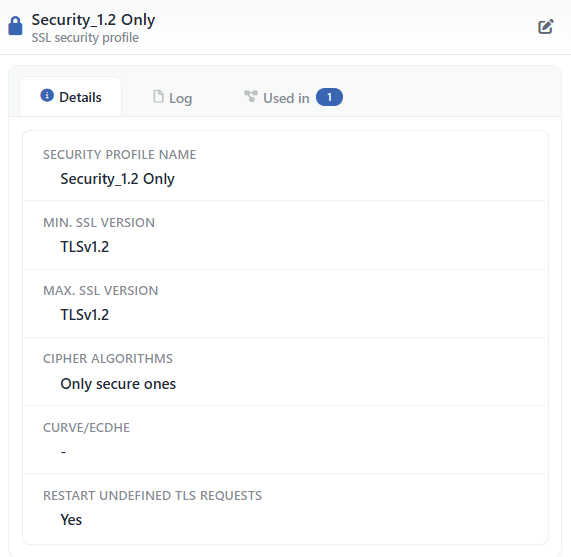 Preview of the Selected Profile
| Operation | What it does |
|---|---|
| Edit | Opens the editing form of the profile in the Edit tab. This icon is not present in the Default Profile preview that is opened from a vService preview. |
In the panel there are at most three tabs; the last one is displayed only if there is a vService that uses the profile:
Details
Lists the settings of the profile line by line (the table below).
Log
Lists the user operations on the profile (adding, editing, deleting) as a timeline; the same records are also tracked device-wide from the User Logs screen.
Used in
Lists the vServices in which the profile is selected. The badge next to the tab name shows the number of usages; if there is no vService that uses the profile, the tab is not displayed at all.
In the Details tab only the rows of the features that are on are listed:
| Row | Display condition |
|---|---|
| Security Profile Name, Min. SSL Version, Max. SSL Version, Cipher Algorithms, Curve/ECDHE, Restart Undefined TLS Requests | Always (the settings that are off - or No) |
| SSL Hardware Acceleration, SNI/Host Validation, Post-Quantum Key Exchange, OCSP Stapling, HSTS (Strict-Transport-Security header) | Only while the related switch is on (Yes) |
| HSTS Duration (max-age), Include Subdomains (includeSubDomains), Browser Preload List Flag (preload) | Only while HSTS is on; the sub-switches only if they are on |
| Client Certificate Authentication (mTLS) | Only while it is on |
| Client Certificate Verification Type, CA Verification Error Strategy | Only while mTLS is on |
| CA Certificate Files (the selected CA records, next to each of them with a link that goes to the Certificate Authorities (CA) screen) | Only while mTLS is on and if the CA list is full |
| CA Verification Errors to Ignore | Only if the strategy is Manual Ignore List and the list is full |
Profile Add Form
A new TLS security profile is added onto the TR7 device by following the Certificates & PKI → TLS Security Profiles → Add steps.
At the very top of the form there is the name field, and below it three sections with headings take place one under the other: TLS Settings (Frontend & Backend), Frontend-only Settings and Client Certificate Verification (mTLS) — Frontend. The new profile opens prefilled with the Default Profile values.
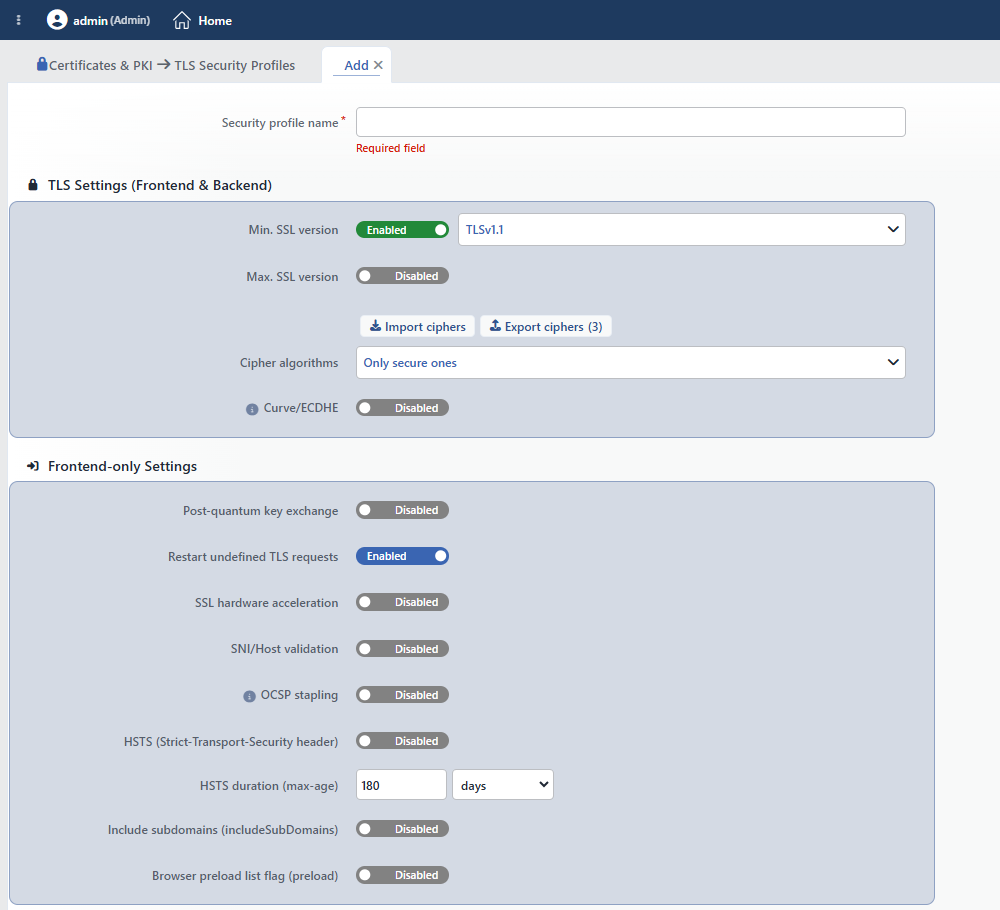 The TLS Security Profiles Profile Add Form
INFO
Security Profile Name Required
The name of the profile is entered. The name identifies the profile in the list, in the profile selection in the vService and Backend Service forms and in the logs, and it must be unique on the device; when the same name is entered, the form gives the Name is used warning.
TLS Settings (Frontend & Backend)
The settings in this section are applied both in the vService frontend and in the Backend Service connection.
INFO
Min. SSL Version Default: Enabled, TLSv1.1
The lowest protocol version that will be accepted. When the Enabled / Disabled switch on the left of the field is turned off, the lower limit is not applied. The options: SSLv3, TLSv1.0, TLSv1.1, TLSv1.2, TLSv1.3.
INFO
Max. SSL Version Default: Disabled
The highest protocol version that will be accepted. When the switch is turned on, TLSv1.3 comes selected; the same option list is used. If the upper limit is selected below the lower limit, the form gives the Max SSL version cannot be lower than min SSL version error and does not save.
INFO
Import Ciphers / Export Ciphers
The two buttons above the Cipher Algorithms field take and give the cipher list as a file:
- Import Ciphers: a text file of at most 16 KB is selected; the suite names that are separated with a space in the file are taken into the list (the
*wildcard character can be used). After the importing, Cipher Algorithms becomes Manual by itself and Algorithm List is replaced with the suites in the file. The names that are not recognized are listed with the CIPHERS NOT ADDED warning. If there is not even a single recognized name in the file, nothing is imported, only the Invalid input warning is displayed and the field does not pass to Manual. - Export Ciphers (N): downloads the list that is active at that moment (the suites of the selected ready-made set or the Manual list) in the
ciphers_onlySecure_1435_10092026pattern as a.txtfile with one suite on every line; in the file name there are the internal value of the set (hardware,onlySecure,tls13,old,general,strictSecure,strictOld,strictHardware,manual), the time and the date; the number in the parenthesis is the number of suites and the list is seen when the button is hovered over.
INFO
Cipher Algorithms Default: Only Secure Ones
The encryption suites that will be accepted in the TLS handshake. Eight ready-made sets or Manual is selected:
| Option | Scope | Suite list |
|---|---|---|
| Hardware Supported | The old suites based on AES128 and RC4; for the old systems with hardware acceleration | AES128-SHA:AES128-SHA256:AES128:RC4:!ADH:!aNULL:!DH:!EDH:!eNULL:!LOW:!SSLv2:!EXP:!NULL |
| Only Secure Ones | The high security suites; the anonymous and MD5 suites excluded | HIGH:!aNULL:!MD5 |
| TLS v1.3 Compatible | Only the TLS 1.3 suites | TLS_AES_128_GCM_SHA256:TLS_AES_256_GCM_SHA384:TLS_CHACHA20_POLY1305_SHA256 |
| Old Client Supported | The suites that start from the ECDHE/DHE GCM and CHACHA20 suites and go up to CBC-SHA and DES-CBC3-SHA, 26 suites in total; for the old clients | ECDHE-ECDSA-AES128-GCM-SHA256:ECDHE-RSA-AES128-GCM-SHA256:ECDHE-ECDSA-AES256-GCM-SHA384:ECDHE-RSA-AES256-GCM-SHA384:ECDHE-ECDSA-CHACHA20-POLY1305:ECDHE-RSA-CHACHA20-POLY1305:DHE-RSA-AES128-GCM-SHA256:DHE-RSA-AES256-GCM-SHA384:DHE-RSA-CHACHA20-POLY1305:ECDHE-ECDSA-AES128-SHA256:ECDHE-RSA-AES128-SHA256:ECDHE-ECDSA-AES128-SHA:ECDHE-RSA-AES128-SHA:ECDHE-ECDSA-AES256-SHA384:ECDHE-RSA-AES256-SHA384:ECDHE-ECDSA-AES256-SHA:ECDHE-RSA-AES256-SHA:DHE-RSA-AES128-SHA256:DHE-RSA-AES256-SHA256:AES128-GCM-SHA256:AES256-GCM-SHA384:AES128-SHA256:AES256-SHA256:AES128-SHA:AES256-SHA:DES-CBC3-SHA |
| General | Eight GCM and CHACHA20 suites that provide forward secrecy (ECDHE/DHE) | ECDHE-ECDSA-AES128-GCM-SHA256:ECDHE-RSA-AES128-GCM-SHA256:ECDHE-ECDSA-AES256-GCM-SHA384:ECDHE-RSA-AES256-GCM-SHA384:ECDHE-ECDSA-CHACHA20-POLY1305:ECDHE-RSA-CHACHA20-POLY1305:DHE-RSA-AES128-GCM-SHA256:DHE-RSA-AES256-GCM-SHA384 |
| Strict Secure | Only forward secrecy + AEAD; static RSA, SHA1, 3DES/RC4, CAMELLIA/ARIA excluded | ECDHE+AESGCM:ECDHE+CHACHA20:DHE+AESGCM:DHE+CHACHA20:!aNULL:!eNULL:!MD5:!SHA1:!DSS:!kRSA:!3DES:!DES:!RC4:!EXP:!LOW:!NULL:!PSK:!SRP:!CAMELLIA:!ARIA |
| Strict Legacy Compatible | Forward secrecy is compulsory; the AES-CBC (SHA256+) fallback for the old clients | ECDHE+AESGCM:ECDHE+CHACHA20:DHE+AESGCM:ECDHE+AES:DHE+AES:!aNULL:!eNULL:!MD5:!SHA1:!DSS:!kRSA:!3DES:!DES:!RC4:!EXP:!LOW:!NULL:!PSK:!SRP |
| Strict Hardware Accelerated | Only forward secrecy + AES-GCM (AES-NI accelerated) | ECDHE+AESGCM:DHE+AESGCM:!aNULL:!eNULL:!MD5:!SHA1:!DSS:!kRSA:!3DES:!DES:!RC4:!EXP:!LOW:!NULL:!PSK:!SRP |
| Manual | The suites that are selected in the Algorithm List field | The selected ones are joined with : |
When a ready-made set is selected, the Manual list that is stored in the profile is deleted.
INFO
Algorithm List Default: no selection
It is seen only while Manual is selected in the Cipher Algorithms field and the list opens empty. In the multi-selection list there are 159 OpenSSL cipher list items (besides the suite names, the family aliases such as ALL, HIGH, AESGCM, ECDHE+AESGCM and the @SECLEVEL and @STRENGTH directives) and the excluding form of each of them that starts with ! (318 options in total); the selected ones are stored in the selection order and the cipher string is created in this order. When the list is left empty, no cipher line is written to the configuration and the engine's own default list becomes valid.
INFO
Curve/ECDHE Default: Disabled
The curves that will be used in the ECDHE key exchange. While the switch is off, the default curves of the engine are used; when it is turned on, an empty list comes and one or more of the following options is selected: X25519 (TLS v1.3 only), X448 (TLS v1.3 only), brainpoolP512r1, brainpoolP384r1, brainpoolP256r1, secp521r1, secp384r1, secp256r1, secp256k1, secp224r1, secp224k1, secp192r1. The selection order is the preference order. The curves that the engine version does not support (secp256k1, secp224r1, secp224k1, secp192r1) are not written to the configuration. The information icon next to the label shows the description of the field.
Frontend-only Settings
The settings in this section are applied only in the vService frontend; they do not affect the Backend Service connection.
INFO
Post-Quantum Key Exchange Default: Disabled
While it is on, a post-quantum hybrid key exchange is offered in the TLS 1.3 handshake. The group that is used is X25519MLKEM768: the classic X25519 and the NIST FIPS 203-defined ML-KEM-768 are combined and the session key is derived from the two components together; thus protection is provided against the risk of the traffic that is recorded today being decrypted in the future with quantum computers (harvest now, decrypt later). The feature affects only the key exchange; the certificate and the authentication do not change.
- X25519MLKEM768 is added to the beginning of the curve list as the group the server prefers; if Curve/ECDHE is selected, the selected curves, and if it is not selected, X25519 and P-256 stay as the classic fallback. The clients that do not have post-quantum support continue to connect with the classic group; PQC-only is not forced.
- The setting depends on the ML-KEM support of the core engine on which the vService runs. If there is no support, the setting is not applied and the The selected core engine does not support: Post-quantum key exchange record falls into the vService status notifications.
INFO
Restart Undefined TLS Requests Default: Enabled (in a new profile)
While it is on, TLS session tickets are not used; the clients cannot continue the previous session with a ticket, and the session continuation is done only with the session record that is kept on the server side. Because it is on in the Default Profile, it comes on in a new profile.
INFO
SSL Hardware Acceleration Default: Disabled
Selects the TLS operations being handed over to the hardware accelerator on the device. When the switch is turned on, on the virtual machines and on the devices that have QAT support an information box that shows the support status is seen below it: SSL hardware accelerator is supported by your device or SSL hardware accelerator is not supported by your device; on the physical devices on which there is no QAT the box is not seen.
INFO
SNI/Host Validation Default: Disabled
In the HTTP requests that are carried over HTTPS, it makes it compulsory for the SNI value that is sent in the TLS handshake and the HTTP Host header to show the same domain name; it blocks the domain name spoofing attempts that connect to one domain name at the TLS layer and target another domain name at the HTTP layer.
- The comparison is done by the port in the Host header being removed and case-insensitively.
- If the client has not sent an SNI, no validation is done.
- In a mismatch the HTTP/2 request is rejected with the 421 status code; to the HTTP/1.x request the 421 Misdirected Request body and the Connection: close header that closes the connection are returned.
- It is effective only in the HTTP vServices.
INFO
OCSP Stapling Default: Disabled
Adds the current validity proof of the certificate (the OCSP response) to the TLS handshake. The proof is taken periodically from the OCSP service of the CA that issues the certificate; when it cannot be taken, the service continues uninterrupted without a proof. The information icon next to the label shows the description of the field.
INFO
HSTS (Strict-Transport-Security header) Default: Disabled
While it is on, the Strict-Transport-Security header is added to the responses in the TLS connections of the HTTP vService; the browser connects to the domain name only with HTTPS during the stated period. The three fields below are seen in the form while this switch is off as well, but they are applied only while the switch is on. If there is a securityHeaders rule in the vService that adds the header, the value of the rule takes precedence over the value of the profile.
HSTS Duration (max-age) Default: 180 days
The max-age period in the header; it is entered as a number and a unit (hours, days, weeks, months, years), and it is written by being converted to seconds. At least 1 hour.
Include Subdomains (includeSubDomains) Default: Disabled
Adds the includeSubDomains directive to the header; the rule covers the subdomains as well.
Browser Preload List Flag (preload) Default: Disabled
Adds the preload directive to the header. It is saved only while Include Subdomains is on and the period is at least 1 year; otherwise the form gives the preload requires a max-age of at least 1 year and includeSubDomains error. Because a month is counted as 30 days in the period calculation, 12 months cannot pass this threshold; 1 years must be selected.
Client Certificate Verification (mTLS) — Frontend
This section configures a certificate being requested from the clients that connect to the vService and being validated (mutual TLS). The client certificate TR7 will offer in the Backend Service connection is selected not in this profile but on the Backend Services screen.
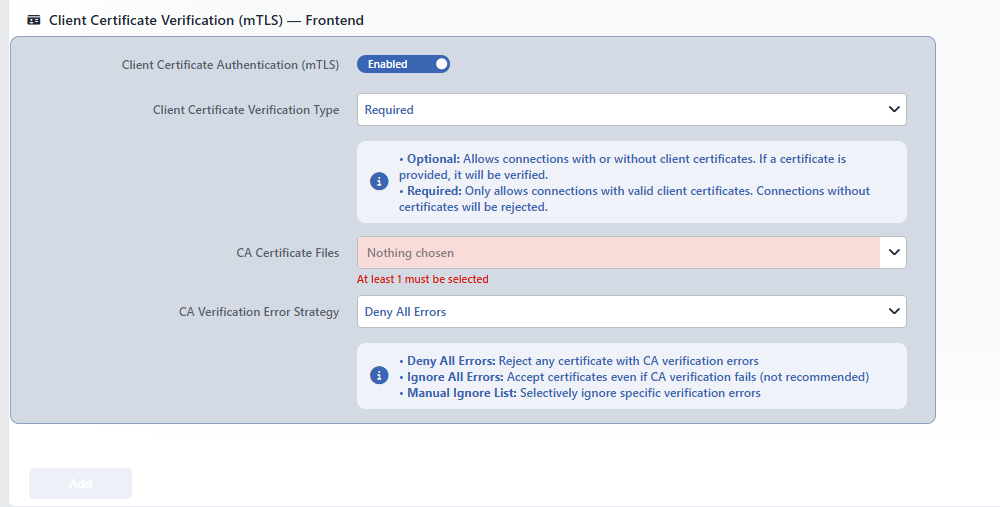 The Client Certificate Verification (mTLS) Section
INFO
Client Certificate Authentication (mTLS) Default: Disabled
When the switch is turned on, the fields below are seen; while it is off, the fields are hidden and the mTLS settings are not kept in the saved profile.
INFO
Client Certificate Verification Type Default: Required
- Optional: whether the client offers a certificate or not, the connection is established; if a certificate has been offered, it is validated.
- Required: only the connections that offer a valid client certificate are accepted; the connections without a certificate are rejected.
The information box below the field summarizes the two options.
INFO
CA Certificate Files Required (at least 1)
The CA records against which the client certificates will be validated are selected from the records on the Certificate Authorities (CA) screen; at least one record must be selected (At least 1 must be selected). The certificates of the selected CAs are bound to the vService as a single trust bundle; if the certificate of the client does not chain to one of these CAs, the validation fails. When the CA list is changed, the vService is restarted.
INFO
CA Verification Error Strategy Default: Deny All Errors
- Deny All Errors: in any validation error the connection is rejected.
- Ignore All Errors: even if the validation fails, the certificate is accepted; it is not recommended.
- Manual Ignore List: only the errors that are selected in the CA Verification Errors to Ignore field are ignored, the other errors cause the connection to be rejected.
INFO
CA Verification Errors to Ignore
It is seen only while the strategy is Manual Ignore List. In the multi-selection list 41 X.509 validation errors are listed with their code names; there is a select/clear all switch above the list. The numeric codes of the errors are stored in the profile.
The list of the X.509 error codes
| Code | Name | Meaning |
|---|---|---|
| 2 | X509_V_ERR_UNABLE_TO_GET_ISSUER_CERT | The issuing certificate could not be found |
| 3 | X509_V_ERR_UNABLE_TO_GET_CRL | The certificate revocation list (CRL) could not be obtained |
| 7 | X509_V_ERR_CERT_SIGNATURE_FAILURE | The certificate signature could not be verified |
| 8 | X509_V_ERR_CRL_SIGNATURE_FAILURE | The CRL signature could not be verified |
| 11 | X509_V_ERR_CRL_NOT_YET_VALID | The CRL is not yet valid |
| 12 | X509_V_ERR_CRL_HAS_EXPIRED | The CRL has expired |
| 19 | X509_V_ERR_SELF_SIGNED_CERT_IN_CHAIN | A self-signed certificate in the chain |
| 20 | X509_V_ERR_UNABLE_TO_GET_ISSUER_CERT_LOCALLY | The issuing certificate is not in the local store |
| 22 | X509_V_ERR_CERT_CHAIN_TOO_LONG | The certificate chain is too long |
| 24 | X509_V_ERR_INVALID_CA | An invalid CA certificate |
| 25 | X509_V_ERR_PATH_LENGTH_EXCEEDED | The path length constraint has been exceeded |
| 29 | X509_V_ERR_SUBJECT_ISSUER_MISMATCH | The subject and the issuer do not match |
| 30 | X509_V_ERR_AKID_SKID_MISMATCH | The authority and subject key identifiers do not match |
| 31 | X509_V_ERR_AKID_ISSUER_SERIAL_MISMATCH | The authority and the issuer serial number do not match |
| 32 | X509_V_ERR_KEYUSAGE_NO_CERTSIGN | The key usage does not include certificate signing |
| 33 | X509_V_ERR_UNABLE_TO_GET_CRL_ISSUER | The CRL issuer could not be found |
| 34 | X509_V_ERR_UNHANDLED_CRITICAL_EXTENSION | An unhandled critical extension |
| 35 | X509_V_ERR_KEYUSAGE_NO_CRL_SIGN | The key usage does not include CRL signing |
| 36 | X509_V_ERR_UNHANDLED_CRITICAL_CRL_EXTENSION | An unhandled critical CRL extension |
| 37 | X509_V_ERR_INVALID_NON_CA | CA markers in a certificate that is not a CA |
| 38 | X509_V_ERR_PROXY_PATH_LENGTH_EXCEEDED | The proxy certificate path length has been exceeded |
| 40 | X509_V_ERR_PROXY_CERTIFICATES_NOT_ALLOWED | Proxy certificates are not allowed |
| 41 | X509_V_ERR_INVALID_EXTENSION | An invalid or inconsistent extension |
| 42 | X509_V_ERR_INVALID_POLICY_EXTENSION | An invalid or inconsistent policy extension |
| 43 | X509_V_ERR_NO_EXPLICIT_POLICY | There is no explicit policy |
| 44 | X509_V_ERR_DIFFERENT_CRL_SCOPE | A different CRL scope |
| 45 | X509_V_ERR_UNSUPPORTED_EXTENSION_FEATURE | An unsupported extension feature |
| 46 | X509_V_ERR_UNNESTED_RESOURCE | The RFC 3779 resource is not a subset of the parent certificate |
| 47 | X509_V_ERR_PERMITTED_VIOLATION | A permitted name tree violation |
| 48 | X509_V_ERR_EXCLUDED_VIOLATION | An excluded name tree violation |
| 49 | X509_V_ERR_SUBTREE_MINMAX | The name constraint minimum/maximum values are not supported |
| 51 | X509_V_ERR_UNSUPPORTED_CONSTRAINT_TYPE | An unsupported name constraint type |
| 52 | X509_V_ERR_UNSUPPORTED_CONSTRAINT_SYNTAX | An unsupported name constraint syntax |
| 53 | X509_V_ERR_UNSUPPORTED_NAME_SYNTAX | An unsupported name syntax |
| 54 | X509_V_ERR_CRL_PATH_VALIDATION_ERROR | A CRL path validation error |
| 55 | X509_V_ERR_PATH_LOOP | A loop in the chain |
| 67 | X509_V_ERR_CA_KEY_TOO_SMALL | The CA key is too weak |
| 68 | X509_V_ERR_CA_MD_TOO_WEAK | The CA signature digest algorithm is too weak |
| 69 | X509_V_ERR_INVALID_CALL | An invalid validation context |
| 70 | X509_V_ERR_STORE_LOOKUP | An issuing certificate lookup error |
| 72 | X509_V_ERR_PROXY_SUBJECT_NAME_VIOLATION | A proxy certificate subject name violation |
INFO
Add
The profile adding operation is completed by clicking the Add button. As long as there is a field that has not been validated in the form, the button stays passive.
Operating Mechanism
INFO
- The version and the cipher. The lowest/highest version and the cipher list of the profile are applied to every encrypted frontend row of the vService, and in the Backend Service profile to every server connection. The limits that are left off are not written.
- The curves. The selected curves are applied in the preference order; the curves that the engine version does not support are skipped. In the Backend Service connection the curve selection is applied only in the engine versions that support it; in an engine that does not support it the setting is skipped and the The selected core engine does not support: Backend TLS curves record falls into the vService notifications.
- The post-quantum key exchange. If the engine supports ML-KEM, X25519MLKEM768 is added to the beginning of the curve list; if it does not support it, the setting is skipped and a notification is produced.
- The SNI/Host validation. In the HTTP requests in which there is an SNI the Host header (with the port removed, converted to lowercase) is compared with the SNI; in a mismatch 421 is returned for HTTP/2, and 421 Misdirected Request + Connection: close for HTTP/1.x.
- HSTS. The
Strict-Transport-Security: max-age=<seconds>[; includeSubDomains][; preload]header is added to the responses in the TLS connections of the HTTP vService; if a securityHeaders rule in the vService takes on the same header, the value of the rule becomes valid. - mTLS. The certificates of the selected CA records are combined in a single trust bundle; the client certificate is validated with this bundle with the Optional or the Required rule. Deny All Errors rejects every validation error, Ignore All Errors ignores all the errors, and Manual Ignore List ignores only the selected codes.
- The Backend Service and the health check. Only the version range, the cipher list and the curves are applied to the Backend Service connection. The health check inherits the lowest version and the cipher list of the Backend Service profile if it does not have a TLS selection of its own; the upper limit and curve settings that could narrow the working checks are not inherited.
- The cluster. The profiles are synchronized between the devices together with the LB configuration; an additional setting is not needed.
- The logs. The adding, the editing and the deleting of the profile are tracked as the SSL Security Profile object on the User Logs screen; the editing and deleting records are also seen in the event records of the vServices that use the profile.
Scope and Limits
INFO
- The permission. The screen is bound to the certificate permission area; in a user who does not have the permission the You don't have access to this page card is displayed instead of the page.
- The name is unique. A second profile that carries the same name is not saved.
- The Default Profile cannot be managed. The system profile is not seen in the list, it cannot be edited and it cannot be deleted; its values are given in the table above.
- The usage count is limited to the vService. The Used in tab in the preview and the Used in / Unused Entries in the filter strip count only the vService assignments; the Backend SSL Security Profile usage in the Backend Service is not seen here.
- Deleting does not show the dependencies. The confirmation window does not list the usage locations; the Backend Services that use the deleted profile must be updated manually.
- The protections specific to HTTP. SNI/Host Validation and HSTS are applied only in the HTTP vServices; in the L7 TCP vService these settings have no effect.
- The engine dependency. The post-quantum key exchange and the Backend Service curve selection depend on the support of the core engine version of the vService; a setting that is not supported is reported with a notification.
Usage Locations
The Profile Selection in the vService
1
Step 1 The vService form is opened
On the Load Balancer → Load Balancer vService List screen the related vService is right-clicked and Edit is selected, or the row is clicked and the Edit icon in the preview panel is used (see HTTP (L7) vService).
2
Step 2 The encrypted protocol is selected
In at least one row in the frontend list a protocol from the Encrypted (HTTPS) group (in the L7 TCP vService TCP + TLS in the Encrypted (TLS) group) must be selected; otherwise the SSL Security module is not listed in the Details panel.
3
Step 3 The SSL Security module is opened
In the Details panel on the right of the form the SSL Security checkbox is ticked; in the selector that opens below it Default Profile comes selected.
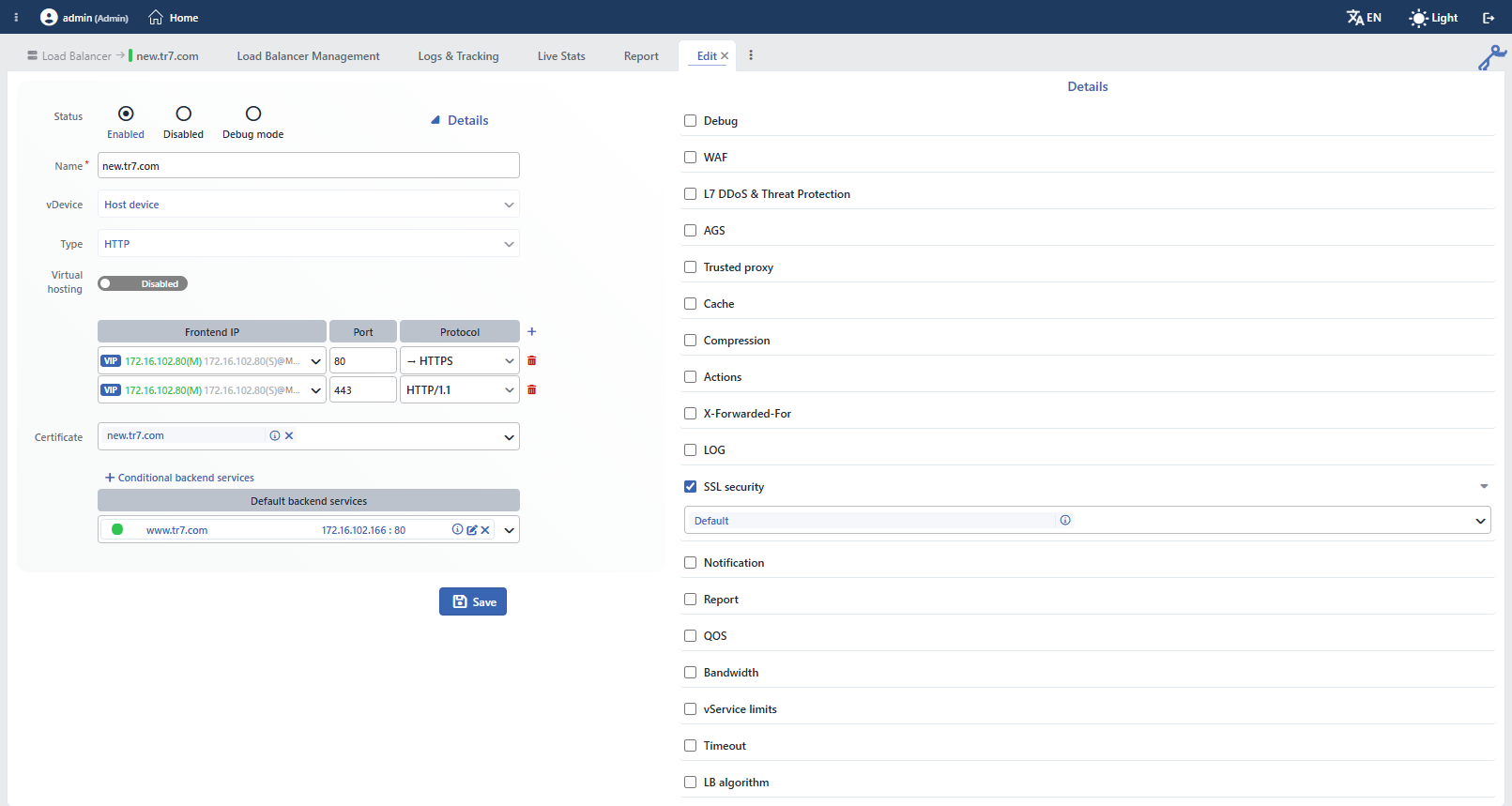 The SSL Security Selection on the vService Editing Screen
4
Step 4 A profile is selected or added
A profile that is defined on this screen is selected from the selector; a new profile cannot be added from this selector. When the information (i) icon next to the selected profile is clicked, the quick preview of the profile opens; the pencil icon opens the profile in the editing window.
5
Step 5 The change is saved
The change is saved by clicking the Save button; when the configuration is applied, the TLS behavior of the vService is set up according to the profile.
The Profile in the Backend Service Connection
When a profile is selected from the Backend SSL Security Profile field on the Backend Services screen, the version range, the cipher list and the curves of the profile are applied in the TLS connection TR7 establishes to the Backend Service; the Frontend-only and mTLS sections are ineffective in this connection. The health checks of the Backend Service also inherit the lowest version and cipher values of this profile if they do not have a TLS selection of their own.
