
Smarter by Design.Simpler for Business
How to Enable WAF?
What Does Enabling WAF Mean?
On TR7, WAF is not a single switch that is turned on and off across the device: it is enabled separately for each vService. The moment the protection is turned on on a vService, the requests coming to that service start to pass through the signature scanning, the structural inspections and the defined rules; the traffic of the vServices that are off does not enter any of these inspections.
When the protection is turned on, the vService does not start with an empty configuration. The product creates a WAF configuration, a default host group and the built-in rule set for that vService by itself; the service starts to work in the Learning mode. That is, the traffic is not blocked from the first day, it is learned.
vService
The enabling unit
The protection is turned on separately for each vService, not across the device
HTTP
Supported type
It can be enabled only on the vServices of the HTTP type
Learning
Starting mode
When the protection is turned on, no request is blocked; the traffic is learned first
Uninterrupted
Effect on the traffic
The configuration is reloaded without interruption; the open connections are not dropped
WAF is enabled only on the HTTP vServices
The protection can be turned on only on the vServices of the HTTP type. On the vServices of the L7 TCP and Network (Layer 4) types, the WAF option is displayed neither in the list nor in the vService form; since the traffic of these services is not parsed at the application layer, it cannot enter the WAF inspection.
On the L7 TCP vServices, the Bot/DDoS Protection layer is used instead of the application layer protection.
Two Ways
The protection is turned on from two separate places. Both produce the same result; which one will be used depends on how many vServices will be taken into the scope at the same time.
| Way | From where | When it is preferred |
|---|---|---|
| WAF-Protected vService List | Configuration Menu → WAF | If one or more existing vServices will be taken into the scope collectively |
| The vService form | The vService creation or editing screen, the Details list | While a new vService is being set up or while a single service is being edited |
Way 1: Over the WAF-Protected vService List
One or more existing vServices are taken under protection collectively by following the steps below.
1
Step 1 Go to the WAF-Protected vService List screen
The Configuration Menu is opened by clicking the TR7 logo at the bottom left and the WAF → WAF-Protected vService List path is followed. The whole of the screen is explained on the WAF-Protected vService List page.
2
Step 2 Open the add tab
The Enable button at the top of the list is clicked; a new tab titled Add opens next to the list.
3
Step 3 Select the vServices to be taken under protection
The vServices to be taken under protection are selected from the HTTP vServices to WAF field. When no selection is made, the field says Nothing chosen.
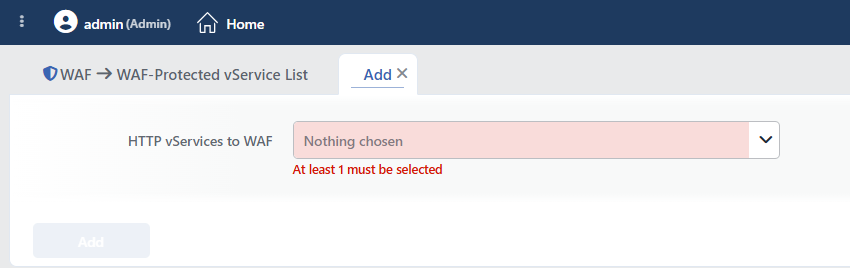 Enabling the WAF Protection
There is no upper limit for the number of vServices that can be selected; dozens of services can be taken into the scope in a single operation.
4
Step 4 Confirm
The selection is confirmed by clicking the Add button. The selected vServices are taken under protection and start to appear in the list.
As long as no vService is selected, the warning At least 1 must be selected is displayed below the field and the Add button stays passive; the warning appears as soon as the tab is opened. When the operation is completed, the tab closes by itself and the list view is returned to; the tab can also be closed with the close icon in its title.
Only the ones whose protection is off are offered in the list
The HTTP vServices to WAF field lists not all the vServices on the device but only the ones that are of the HTTP type and whose WAF protection has not been turned on yet. A vService that is already protected does not appear in this list; that service is located in the list itself. The vService does not have to be in a running state: a stopped vService is also offered in the list and its protection can be turned on.
Way 2: Over the vService Form
The WAF protection is added to a vService by following the steps below.
1
Step 1 Go to the vServices screen
The Load Balancer → Load Balancer vService List path is followed in the TR7 web interface.
2
Step 2 Open the editing screen of the vService
The vService to which the protection will be added is right-clicked and Edit is selected; or the vService is clicked and the Edit icon is clicked in the window that opens on the right.
The protection can also be added while a new vService is being set up; in this case the same form opens in the vService creation flow.
3
Step 3 Open the Details section
The Details button in the top right corner of the form is clicked; the advanced configuration list opens on the right of the screen.
4
Step 4 Enable the WAF feature
In the Details list that opens on the right, the protection is put into effect by checking the WAF box right below the Debug row.
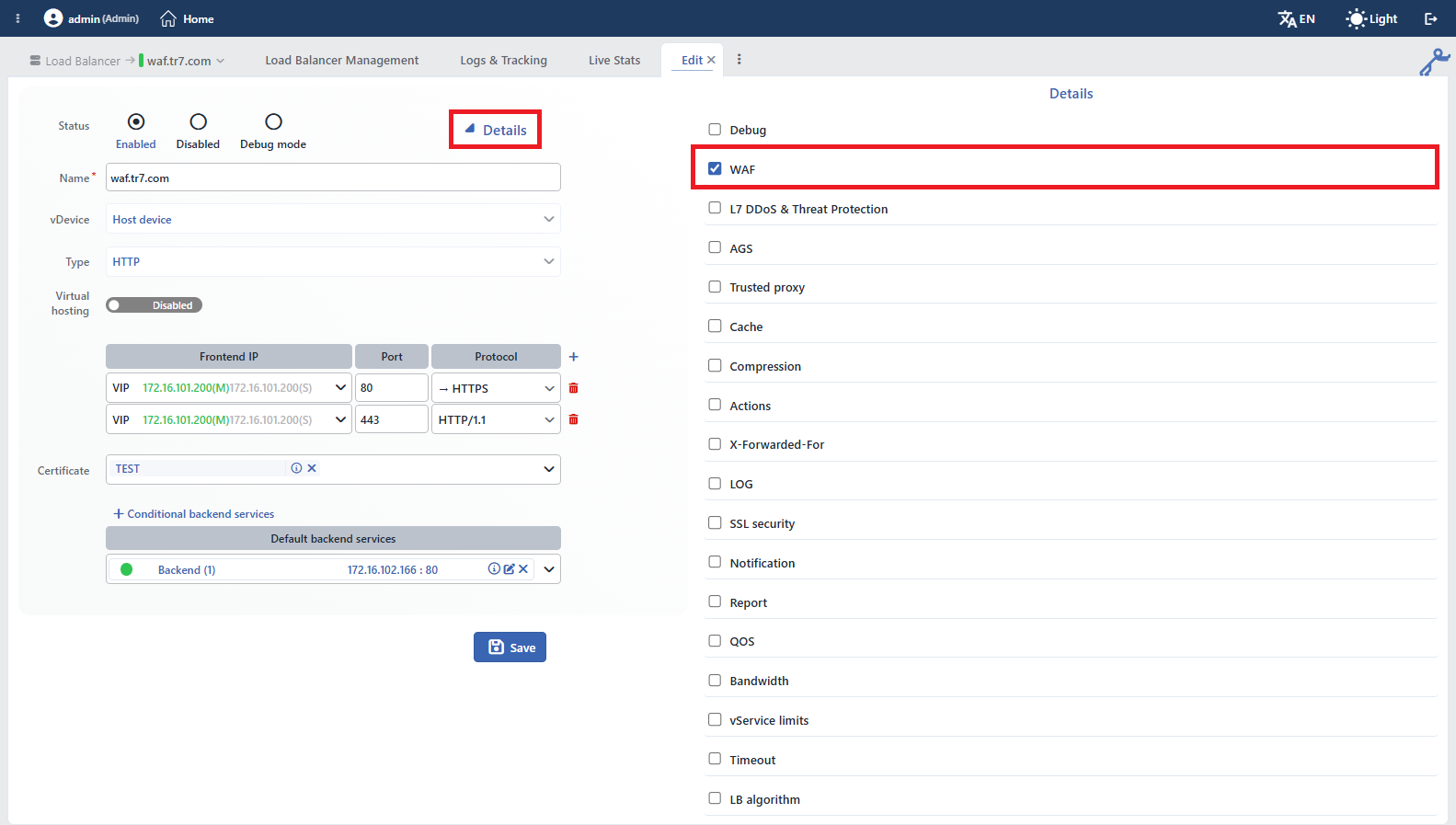 The WAF Selection on the vService Editing Screen
The option is located only in the form of the vService of the HTTP type. WAF and AGS are not included in the list of the L7 TCP form; in the Network (Layer 4) type, on the other hand, only Report and LB Algorithm are located in the list.
5
Step 5 Save
The changes are saved by clicking the Save button; while the configuration is being applied to the vService, the "vService is being edited" notification is displayed.
The WAF box does not open a separate settings section
Unlike some modules such as Compression or Cache, when WAF is checked, a profile selection or a settings section that expands in the list is not displayed. The protection is only enabled; all the WAF settings are configured from the WAF Management screen after the vService is saved.
Why can the box be passive?
The WAF box is displayed passive if the user does not have the change authorization in the WAF area.
The HTTP (L7) vService page can be looked at for the whole of the vService form.
What Is Created After It Is Enabled?
When the protection is turned on, not only a mark changes; the configuration of the vService is produced again and applied and the records belonging to WAF are created.
01The configuration is createdThe WAF settings, the rule set and the signature layer records for the vService are created with their default values.
02The default host group is openedThe default host group that meets all the requests that do not comply with any pattern is created. This group does not carry a pattern, it is always located at the very end of the list and, since its mode is not defined, it inherits the mode of the vService.
03The traffic engine is reloadedUnder normal conditions the change is applied with an uninterrupted (hitless) reload; the open connections are not dropped. In a cluster setup it is also propagated to the peer device.
04The learning startsThe traffic is inspected but no blocking is done; the requests that enter the inspection are written to the learning journal. The derivation of the page types does not start by itself, it is produced when the analysis is run.
The defaults created:
| Setting | Default value | Meaning |
|---|---|---|
| WAF Mode | Learning | The rules are evaluated but no blocking is done; the traffic is learned. |
| OWASP Protection Level | Very Tight | The attack score threshold required for blocking. As the value gets bigger, the threshold rises and the protection gets looser (Aggressive is the tightest, Elementary the loosest). |
| Structure Checks | On | The structural inspections are active. |
| Argument Checks | On | The parameter inspections are active. |
| Do Not WAF Static Contents | On | The static file requests do not enter the inspection at all. For a request to be considered static, its extension has to be static, the method has to be GET and there has to be no query and no body in the request. |
| Blocking Status Code | 418 | The status code to be returned to the blocked request. |
| Rule Creation Policy | Data based | The form of the rules that the learning will produce. |
The settings that stand out are listed in the table; the configuration created is not limited to these. All the values can be changed from the WAF Management screen.
The Learning mode does not provide protection
The moment the protection is turned on, the vService is in the Learning mode: no request, including the requests that contain an attack, is blocked. This is a deliberate start; the rule set is first adapted to the site, then blocking is moved to.
The only exception is the scan timeout. If the WAF scan of a request is cut off before it fits into the allocated time, the request is blocked by staying on the safe side, whatever the mode is, and is recorded with the Timeout result. If an unexpected blocking is seen on a vService in the Learning mode, this is the first place to look at.
If blocking is not seen although the protection is expected, the first place to look at is the WAF Mode screen.
What Should Be Done After This?
Turning the protection on is the beginning of the process. The recommended order:
- The maturing of the learning is waited for. The progress of the coverage is monitored from the Learning panels on the Dashboard screen. That all the sections of the site have been visited is important for the learning to be complete.
- The analysis is run and the rule suggestions are applied. The Analysis & Learning screen processes the learning journal and produces the page types and the rule suggestions.
- The Monitor mode is moved to. The rules are tried on real traffic without blocking; the false positives are sorted out over Event Logs and the related requests are taught to WAF.
- The Blocking mode is moved to. If the rehearsal is clean, the protection is turned on and the monitoring is continued over the Dashboard panels and the WAF Report.
The detail of this cycle is on the WAF Mode page.
Removing the Protection
The protection is removed from two separate places, as in the enabling.
Over the List (Bulk)
One or more vServices are selected from the WAF-Protected vService List screen and the Disable button is clicked. The button is passive when no selection is made in the list.
The removal operation does not show a confirmation window
The moment Disable is clicked, the protection of all the selected vServices is removed and the traffic starts not to pass through the WAF inspection. For this reason, the selection must be verified before the button is clicked.
Over the vService Form (A Single Service)
The protection of a single vService is also removed from the editing form: the Details button is clicked, the WAF box is unchecked in the list that opens on the right and it is saved with Save.
This way is safer than making a selection in the list for a single service and using the bulk Disable; it does not carry the risk of other vServices staying selected by mistake. After the removal, the vService drops from the list on the WAF-Protected vService List screen.
The configuration is not deleted
When the protection is removed, the WAF configuration of the vService (the rules, the host groups, the signature layer and the settings) is not deleted; when the protection is turned on again, the same configuration becomes valid. The configuration is removed only when the vService itself is deleted.
Scope and Limits
INFO
- Enabling requires the change authorization. The operation made over the list requires the change authorization in the WAF area, and the operation made over the vService form in the Load Balancer area. A user who has only the read authorization sees both screens but cannot change the protection state.
- The Enable and Disable buttons on the list screen are not hidden according to the authorization. A user with only the read authorization sees the buttons as active and learns of the rejection only after trying the operation.
- Enabling and removal do not fall to the audit record. Who turned the protection of a vService on and off and when is not displayed in the Log tab on the preview panel.
- In a cluster setup the change is also propagated to the peer device. The propagation is made while the peer device is reachable; if the peer device is offline at that moment, the change is carried in the next synchronization. In both cases no additional warning is displayed on the screen.
- Right after the protection is turned on, the WAF Mode cell in the list row can be displayed empty for a short time and the OWASP Protection Level cell as
Undefined; when the configuration record is created, the values fall into place.
