
Smarter by Design.Simpler for Business
Number of Active Servers
What Is the Number of Active Servers Condition?
Number of Active Servers is a condition type used to make traffic routing and manipulation decisions by evaluating the result of the health check statuses of the Backend Services defined under a vService.
With this condition, dynamic decisions can be made according to the status of the Backend Services.
The Importance of the Number of Active Servers Condition
In high availability scenarios, monitoring the number of Backend Services is critically important.
With the Number of Active Servers condition:
- A warning page can be shown when the number of Backend Services drops below the critical level,
- A maintenance page can be shown when all Backend Services are down,
- Automatic backup site activation can be performed for disaster recovery scenarios,
- Rate limiting can be applied according to the number of Backend Services.
Common Usage Scenarios:
| Scenario | Operator | Value | Action |
|---|---|---|---|
| All servers down | = | 0 | Show maintenance page |
| Critical level | < | 2 | Show warning |
| Low capacity | < | 3 | Redirect to backup service |
| Sufficient capacity | > | 2 | Normal operation |
Supported vService Types
HTTP
L7 TCP
Network
The condition can be used at both the request (At Request) and response (At Response) stages; the number is read at the beginning of the request and is evaluated over the same value at the response stage as well. The servers considered "healthy" are those whose health check is successful and that are not in maintenance mode: a server without an assigned health check is always considered healthy (for this reason, health checks should be assigned to the Backend Services for the condition to work meaningfully).
How to Add?
A new Number of Active Servers Condition can be added through the TR7 web management interface by following the steps below:
- The Configuration Menu is opened by clicking the TR7 logo at the bottom left.
- The Load Balancer → Conditions → Add steps are followed.
- Number of active servers is selected as Criteria.
- The related configurations of the condition are made.
- The condition is added by clicking the
Addbutton.
Number of Active Servers Condition Add Form
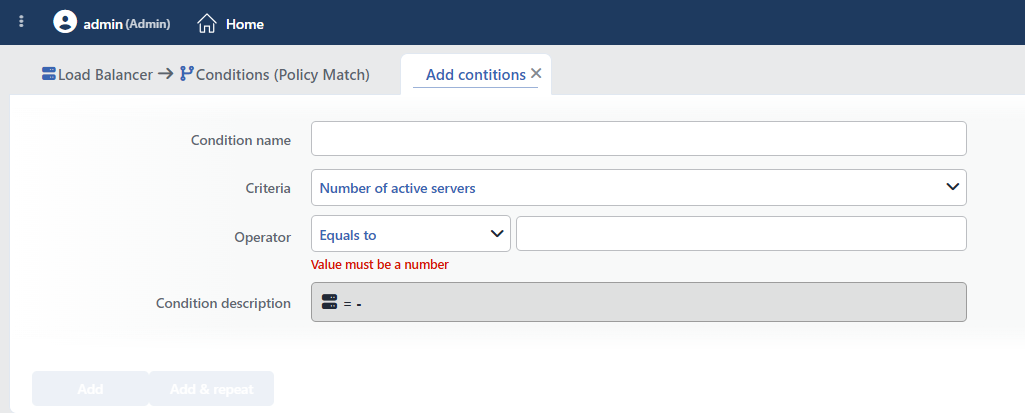 Number of Active Servers Condition Add Form
INFO
Condition Name
An optional name can be entered for the condition to be created.
This field is especially important in the following scenarios:
- When many conditions are defined under the same vService,
- When conditions with similar criteria need to be distinguished,
- When it is necessary to quickly understand which business rule the condition represents.
When this field is left empty, TR7 analyzes the content of the related condition and creates an automatic, descriptive name in the Condition Description field. This generated description is used as the name in condition lists.
INFO
Criteria Required
The field that determines the type of the condition; Number of active servers is selected from the searchable dropdown list. This selection determines the fields displayed in the form. The criterion cannot be changed after the condition is saved: if a different criterion is needed, a new condition is defined. For all criteria in the list and their scopes, the criteria catalog on the Conditions page can be referred to.
INFO
Operator
The numeric comparison operator and value are entered. The form opens with the operator Equals to (=) selected and the value empty; the entered value must be an integer. When Range (-) is selected, a second value field opens; both boundaries are included in the range.
| Operator | Symbol | Description |
|---|---|---|
| Less than | < | The value must be less |
| Equals to | = | The value must match exactly |
| Greater than | > | The value must be greater |
| Range | - | The value must be between two values |
TIP
This condition is evaluated for the default Backend Services of the vService; Backend Services assigned to conditional groups (Conditional Backend Services) are not included in this count. The count target is fixed and cannot be selected by the user.
INFO
Condition Description
It is created automatically by TR7 in line with the entered criteria and values.
This description:
- which value the condition applies to,
- which criterion it works on,
- the quick understanding of the condition on listing screens
is produced dynamically by the system so as to provide these.
INFO
Form Buttons
Add
The condition adding process is completed by clicking the Add button.
Add & Repeat
With the Add & Repeat button, the condition adding process is completed, and another new condition can be added with different configurations without leaving the related window.
 Condition Added
Operational Usage Recommendations
- Maintenance Page Configuration. With the Number of Active Servers = 0 condition, a user-friendly maintenance page should be shown when all servers are down.
- Graduated Warning System. Different actions should be defined for different Backend Service count thresholds (e.g. = 0 maintenance, < 2 warning, < 3 redirect to backup service).
- It Should Be Used Together with Health Check. For this condition to work correctly, a health check must be defined on the Backend Service.
Common Usage Scenarios in Live Environments
The examples below show how the related condition is applied in the most frequently encountered use cases in real systems. These scenarios are based on practices that are widely preferred in live environments and rest on experience gained in the field.
Scenario 1: All Backend Services Down · Maintenance Page
Purpose: To show users an informative maintenance page and return a 503 Service Unavailable response when all Backend Services are down according to the health checks.
Configuration: Operator → Equals to (=) 0
Action Recommendations:
- ✅ Show Content → The maintenance page "Service temporarily unavailable. Please try again later." is shown with the 503 status code.
- ✅ Add HTTP Header → The
X-Maintenance-Mode: trueandRetry-After: 600headers are added, and clients are advised to try again after 10 minutes.
Scenario 2: Critical Capacity · Low Performance Warning
Purpose: To show users a performance degradation warning and operate in degraded mode when the number of healthy Backend Services drops below the critical level (fewer than 2).
Configuration: Operator → Less than (<) 2
Action Recommendations:
- ✅ Show Content → The banner "Service is running in degraded mode. You may experience slower response times." is shown.
- ✅ Add HTTP Header → The
X-Service-Status: degradedandX-Available-Servers: 1headers are added, and the Backend Service can perform performance optimization.
Scenario 3: Low Capacity · Bandwidth Protection
Purpose: To apply bandwidth limitation so that the server does not crash under excessive load when only 1 Backend Service remains healthy.
Configuration: Operator → Equals to (=) 1
Action Recommendations:
- ✅ Bandwidth Limitation → To protect the last healthy server, a bandwidth limit of 10 Mbps per IP (Dynamic mode + Client IP address key) is applied.
- ✅ Add HTTP Header → The
X-Rate-Limited: capacity-protectionheader is added, and it is marked that rate limiting is active.
Scenario 4: Load Reduction · Blocking Non-Critical Services
Purpose: To focus on the remaining servers by blocking non-critical endpoints (analytics, reporting) when the number of healthy Backend Services is less than 3.
Configuration: Operator → Less than (<) 3
Action Recommendations:
- ✅ Block → Access to non-critical paths such as
/analyticsand/reportsis blocked with 503 (it is used together with the Path condition). - ✅ Show Content → The informational page "This service is temporarily unavailable due to high load" is shown.
