
Smarter by Design.Simpler for Business
Logs
What Is the Logs Profile?
Logs is a configuration profile that determines in which format and to where the access (all traffic) logs of the vServices running on TR7 will be sent.
In the TR7 architecture, log management is designed on a profile basis. Thanks to this structure, the log format, the target servers and the sampling rates can be defined centrally and applied by being assigned to the related vServices.
Log profiles work at the vService level and are valid for both HTTP and L7 TCP vService traffic. Different log formats and contents are supported for every protocol type.
The benefits it provides
- The access logs can be produced in the standard formats (Apache, CEF, JSON) or in custom formats.
- The logs can be sent to more than one syslog server in parallel.
- In high-traffic environments, the log volume can be kept under control with sampling.
- The WAF events and the security information can be integrated into the logs.
The Importance of the Logs Profile
In application delivery architectures, log management is not only a record-keeping function; it is a critical component in terms of security monitoring, performance analysis, troubleshooting and compliance requirements.
The access logs record by whom, when, to which resource and with which result every request was made. This information is indispensable for the detection of security events, the analysis of performance bottlenecks and the solution of operational problems.
The fact that log profiles can be defined on a vService basis on TR7 makes it possible for different applications to be managed according to their different logging needs. While the services that are critical in terms of security are logged in the detailed JSON format, the high-traffic services can be optimized with sampling.
Visibility
Security monitoring
Attack attempts and security events are detected
Analysis
Performance & diagnostics
The response times and the bottlenecks are examined
SIEM
Integration
Central log management with CEF/JSON
Compliance
Audit record
The audit and compliance requirements are met
For this reason, Logs Profiles are one of the basic building blocks that provide the visibility and the manageability of the services running on TR7.
The Default Logs Profile Behavior
When a Logs profile is not assigned to a vService on TR7 (while the LOG option is off), no access log is produced at all for that vService; in addition to the external sending, the internal traffic logs on the device are also disabled.
When the built-in Stream Log profile is put into effect on a vService, no log sending is performed to any server; only the internal traffic logs on the device are put into effect for the related vService. When security requirements, SIEM integration or a high traffic volume are in question, configuring and sending the log profiles specifically for the application is recommended.
The Supported Log Formats
TR7 supports various log formats for different use scenarios. Every format is optimized for certain protocol types and purposes of use.
The formats supported for the HTTP vService type:
| Format | Description | WAF Support |
|---|---|---|
| Standard | The basic format compatible with Apache CLF | – |
| Apache Combined | Standard + Referer + User-Agent | – |
| Apache VHost | VHost + Combined format | – |
| CEF | Common Event Format (SIEM integration) | Yes |
| TR7 JSON | The detailed JSON format (all the fields) | Yes |
| TR7 WAF | Only the WAF event information | Yes |
| Manual | Customizable JSON/CEF/Line format | Yes |
The formats supported for the L7 TCP vService type:
| Format | Description |
|---|---|
| Standard | The TCP connection information and the timing metrics |
| CEF | Common Event Format (SIEM integration) |
| TR7 JSON | The detailed JSON format (all the TCP fields) |
Detailed information about every format, sample log lines and field descriptions are on the related format page.
The format list is not filtered according to the vService type
The Line Format list in the profile form is the same in every profile; the behavior of the format is determined by the type of the vService to which the profile is assigned. When Apache Combined and Apache VHost are assigned to an L7 TCP vService, they silently produce the TCP Standard line. The TR7 WAF format does not produce any log on a vService that does not have a WAF profile (including L7 TCP); no sending is made to the target servers either.
The Log Sending Standards
TR7 can send the logs in different syslog standards. The suitable standard must be selected according to the format expected by the target log server. By default, local is generally used.
| Standard | Description |
|---|---|
| local | Without a syslog header, only the log content is sent |
| rfc3164 | The BSD Syslog format, compatible with old systems |
| rfc5424 | The modern Syslog format, with structured data support |
| priority | Sending with only the priority header |
| raw | The raw log line, without any header |
The Recommended Use Scenarios
While the log profiles are being configured, the application type, the security requirements and the traffic volume must be evaluated together.
TIP
SIEM Integration
When the central monitoring of the security events is needed:
- The CEF or TR7 JSON format is recommended.
- On the vServices that have a WAF profile, the WAF fields are added to the logs automatically.
TIP
Performance Analysis
When the monitoring of the response times and the Backend Service performance is needed:
- The TR7 JSON format contains all the timing metrics.
TIP
High-Traffic Environments
When the log volume needs to be kept under control:
- The number of logs can be reduced by configuring the Sampling value.
- For example, when the sampling value is set as 10, one of every 10 requests is logged.
- The Standard format produces less data.
TIP
Compliance Requirements
When a detailed record is needed for auditing and compliance:
- The TR7 JSON format contains all the request and response details.
- Sampling must not be used, all the requests must be logged.
- The log retention period and integrity must be managed in external systems.
Operational Best Practices
- Profile-based management is used. Separate profiles are defined for the services that have different security and logging requirements; the detailed JSON can be used on the critical applications and the sampled standard format on the high-traffic services.
- CEF or JSON is preferred in SIEM integration. These formats provide structured data and make automatic parsing easier.
- Consider keeping the WAF logs separate. When the separate analysis of the security events is needed, a separate log profile (the TR7 WAF format) can be created for the vServices that have a WAF profile.
- Sampling is used in high traffic. On the vServices that receive thousands of requests per second, logging all the requests creates an unnecessary load; the log volume is kept under control with sampling.
- Configure more than one log target. On the critical systems, sending the logs to more than one server reduces the single point of failure risk.
- The Log Standard is selected according to the target system.
rfc5424is preferred on modern systems andrfc3164on old systems. - No change is made without the "Used in" information being checked. A profile must not be updated without knowing on which vServices it is used in the live environment; the change instantly affects all the connected services.
Supported vService Types
HTTP
L7 TCP
Network
How to Add?
A new Logs profile is added through the TR7 web management interface with the steps below:
- The Configuration Menu is opened by clicking the TR7 logo at the bottom left.
- The Load Balancer → Profiles → Logs → Add steps are followed.
- A unique and descriptive name is entered for the profile.
- The values suitable for the application and service requirements are configured.
- The profile is added by clicking the
Addbutton.
TIP
Reaching the page via quick search
Instead of navigating the menu step by step, the related page is reached directly by using the search bar in the bottom left corner of the screen. The search bar opens with the Alt + T shortcut on Windows and Opt + T on macOS; typing the name of the feature being searched for is then sufficient.
The created profile can be used on one or more vServices.
Profiles Listing Screen
By following the Load Balancer → Profiles → Logs path, the list of all the Logs Profiles added on the TR7 device is reached. The built-in Stream Log profile is not in this list; it is offered only in the vService profile selector. Profile adding, editing and deleting operations are performed through this screen.
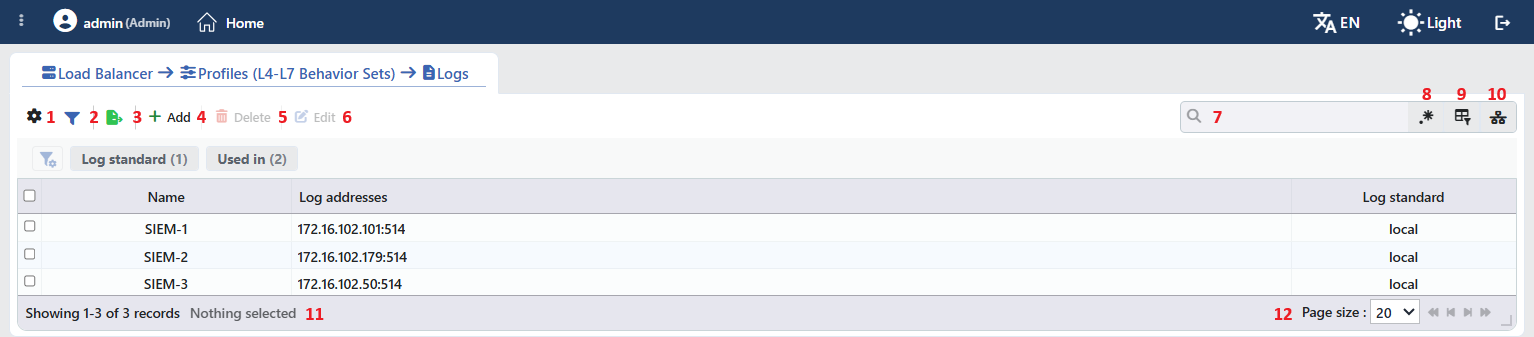 Log Profiles Listing Form
The table opens with the following columns by default:
| Column | Description |
|---|---|
| Name | The name of the profile. |
| Log Addresses | The log server addresses in the IP:port form, comma separated; if sampling is defined, there is a "(Sampling: N)" suffix next to the address. The full list also appears when the cell is hovered over. |
| Log Standard | The raw value of the selected log standard (local, rfc3164, rfc5424, priority, raw); if undefined, -. |
The selected line format is displayed not in the columns but in the profile preview. There is no column hidden by default; these three columns are in the column selector. The table is not sorted when it opens; when a column header is clicked, descending sorting is applied first, then ascending, and on the third click the sorting is removed.
The items in the toolbar are arranged from left to right in the following order; the last two items (Page Information and Page Size) are located in the information strip below the table.
Columns
Which columns are shown in the table is selected; all three columns are on by default. In the same panel, columns are reordered by dragging and alignment is selected per column; the row height is fitted to the page with the Fit rows to the page button, and the column layout is reset to default with the Reset button. The layout is stored per user.
Filter
The Filter button is used to filter the profiles shown in the list according to certain criteria; the button shows the number of active filters with a badge. There are two cards in the strip: Log Standard and Used in. In the card title there are the filter name and the number of values; when the card is clicked, the values are listed under it with their row counts. The Used in card lists the names of the vServices on which the profile is used; for the profiles that are not used on any vService, the Unused Entries option is available. The selections are displayed as closable labels under the card strip, right above the table.
Export
The table is exported as Excel, CSV or PDF by clicking the Export button. In the window that opens, the Filename, Format and Data Source, together with the Columns to be exported, are determined; the remaining fields are displayed according to the format: CSV Separator for CSV, Excel Sheet Name for Excel, and Page Orientation and Page Size for PDF.
Add
By clicking the Add button, the form for creating a new profile opens in the Add tab.
Delete
When one or more profiles are selected and the Delete button is clicked, the related profiles are deleted.
WARNING
A profile that is in use can also be deleted and the confirmation window does not show the usage places. On the vServices that use the deleted profile, logging stops completely: together with the external sending, the internal traffic log on the device is also turned off and there is no return to the built-in profile. Before deleting, the Used in tab on the preview panel must be checked.
Edit
By clicking the Edit button, the edit form of the selected profile opens in the Edit tab. The button becomes enabled only when a single profile is selected.
Search
Used to search all information in the table.
RegExp Search
Used to search all information in the table with a regular expression (RegExp). This button is hidden while column-based search or the usage filter is active.
Column Based Search
Used to perform a column-based search on the information in the table.
Usage Filter
Used to filter which vServices the profiles are bound to; the profiles used on the selected vService are listed, and there is an Unused Entries option for those not used on any vService. While the filter is active, the selector takes the place of the search box; when the icon is clicked again, the search box returns.
Page Information
Contains information about the total number of defined profiles and the number of profiles displayed in the list: Showing N-M of T records and the number of selected profiles (N selected, or Nothing selected when there is no selection). If a selection has been made in the filter strip, the number of applied filters and the shown/total row information are added to the same line.
Page Size
The maximum number of profiles to be displayed on the page is selected. The default is 20; the options are 5, 10, 20, 50, 100, 200, 500 and All.
Right-Click Menu
When a row is right-clicked, a menu with the profile's name in its title opens. Both operations in the menu apply only to the right-clicked profile; a selection made in the list does not affect the menu.
| Operation | What it does |
|---|---|
| Edit | Opens the editing form of the profile in the Edit tab; it is the same as the form opened by the Edit button in the toolbar. |
| Delete | Deletes the right-clicked profile; the same confirmation question as the deletion in the toolbar is displayed. |
Preview of the Selected Profile
When a row in the list is clicked, the preview of the profile opens on the right of the screen; when the selected row is clicked again, the panel closes. In the title there are the profile icon, the name of the profile and the Log profile subtitle, and at the top right there is a single operation.
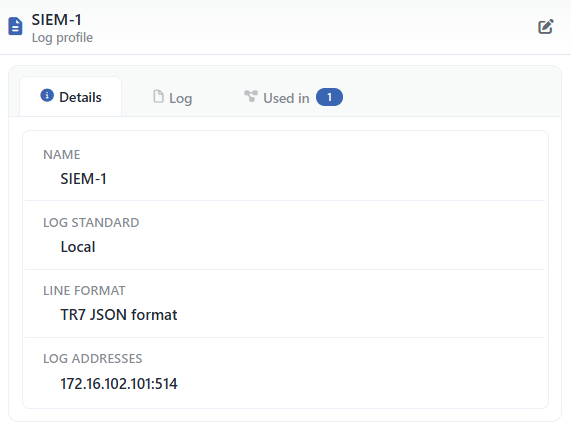 Preview of the Selected Profile
| Operation | What it does |
|---|---|
| Edit | Opens the editing form of the profile in the Edit tab. |
The panel has three tabs; the last one is displayed only if there is a vService that uses the profile:
Details
Lists the settings of the profile line by line (the table below).
Log
Lists the user operations on the profile (adding, editing, deleting) as a timeline.
Used in
Lists the vServices on which the profile is used. The badge next to the tab name shows the number of usages; if there is no vService that uses the profile, the tab is not displayed at all.
The rows in the Details tab are as follows, in order:
| Row | Description | Visibility condition |
|---|---|---|
| Name | The name of the profile. | Always |
| Log Standard | Local, RFC 3164, RFC 5424, Priority or Raw. | Always |
| Line Format | The name of the selected line format (e.g. TR7 JSON Format). | If the line format is other than standard |
| Manual Log Line Format | The manually defined line format; the smart variables are shown with their labels. | If the line format is Manual |
| Manual Log Entries | Every entry on a separate line in the key: value form. | If the line format is manual CEF or manual JSON and there is at least one entry |
| Log Addresses | The log server addresses in the IP:port form. | Always |
The "Used in" tab must be checked
The Used in tab shows on which vServices the profile is active. Since updates to the profile settings in a live environment will immediately affect all bound services, evaluating the possible service impacts before a change is critically important.
Profile Add Form
A new Logs profile is added on the TR7 device by following the Load Balancer → Profiles → Logs → Add steps.
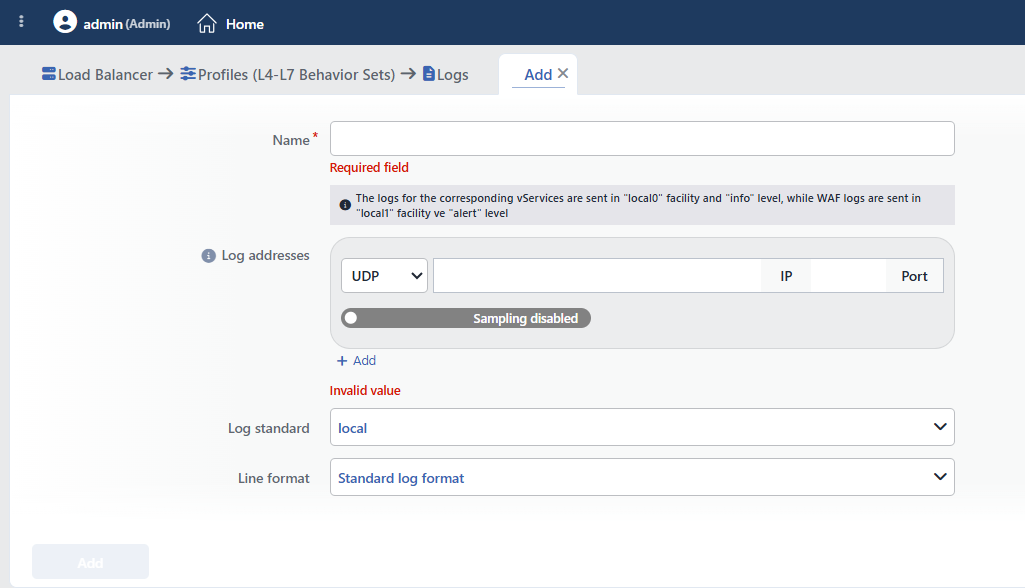 Log Profile Add Form
INFO
Name Required
A unique name is entered for the profile to be created. When a name that is in use is entered, the form gives a Name is used warning and the record is not completed.
INFO
Log Addresses
The connection information of the external log (syslog) or SIEM servers to which the logs will be sent is defined. At least one address is required; by clicking the (+) button next to the field label, more than one server can be defined within a single profile. In every address row there are the following controls:
- Protocol: the protocol to be used for the log transmission is selected: UDP (default) or TCP. In the versions in which the engine does not support TCP log transmission, even if TCP is selected, the sending falls back to UDP and this situation is reported with a notification.
- IP: the IP address of the external log/SIEM server to which the logs will be sent is entered; a domain name is also accepted.
- Port: the port information on which the target log server listens is entered Default: 514.
- Sampling: it is off by default. When it is turned on and a value is entered, the logs going to that address are thinned out: only one of every 10 logs (the one in the entered order) is sent.
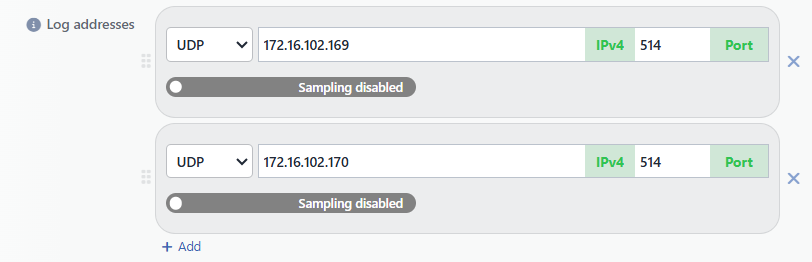 Adding More Than One Log Address
 The Sampling Setting
WARNING
A value greater than 10 must not be entered in the Sampling field; even if the form accepts it, the values above 10 do not produce a valid sampling.
The label of the switch does not change
When the Sampling switch is turned on, the label remains as Sampling disabled; that the switch is on is understood from the position of the indicator and from the value field that appears next to it.
INFO
Log Standard Default: local
TR7 can send the logs in different syslog standards. The suitable standard must be selected according to the format expected by the target log server. The options are displayed in the list with this spelling:
| Standard | Description |
|---|---|
| local | Without a syslog header, only the log content is sent |
| rfc3164 | The BSD Syslog format, compatible with old systems |
| rfc5424 | The modern Syslog format, with structured data support |
| priority | Sending with only the priority header |
| raw | The raw log line, without any header |
INFO
Line Format Default: Standard log format
The line format of the logs to be sent to the log server is selected. The options in the list, in order: Standard Log Format, Apache Combined Log Format ( Standard + Referrer + User Agent ), Apache VHost Log Format ( Vhost + Standard + Referrer + User Agent ), CEF Format, TR7 JSON Format, TR7 WAF Log, Manual JSON Format, Manual CEF Format, Manual Log Line Format.
When Manual Log Line Format is selected, the Manual Log Line Format editor is added to the form, and when Manual JSON Format or Manual CEF Format is selected, the Manual Log Entries table is added.
The contents of the formats, the WAF support and the details are in the The Supported Log Formats section above.
How to Add to a vService?
A Logs profile is assigned to a vService by following the steps below.
1
Step 1 Go to the vServices screen
The Load Balancer → Load Balancer vService List path is followed in the TR7 web interface.
2
Step 2 Open the editing screen of the vService
The vService to which the profile will be added is right-clicked and Edit is selected; or the vService is clicked and the Edit icon is clicked in the window that opens on the right.
3
Step 3 Enable the LOG feature
On the Details panel on the right of the editing screen of the vService, the feature is put into effect by marking the LOG option. When it is marked, the first saved Logs profile is selected, or, if no profile is defined, the built-in Stream Log. Stream Log does not send to any server; it only enables the internal traffic logs on the device for the related vService.
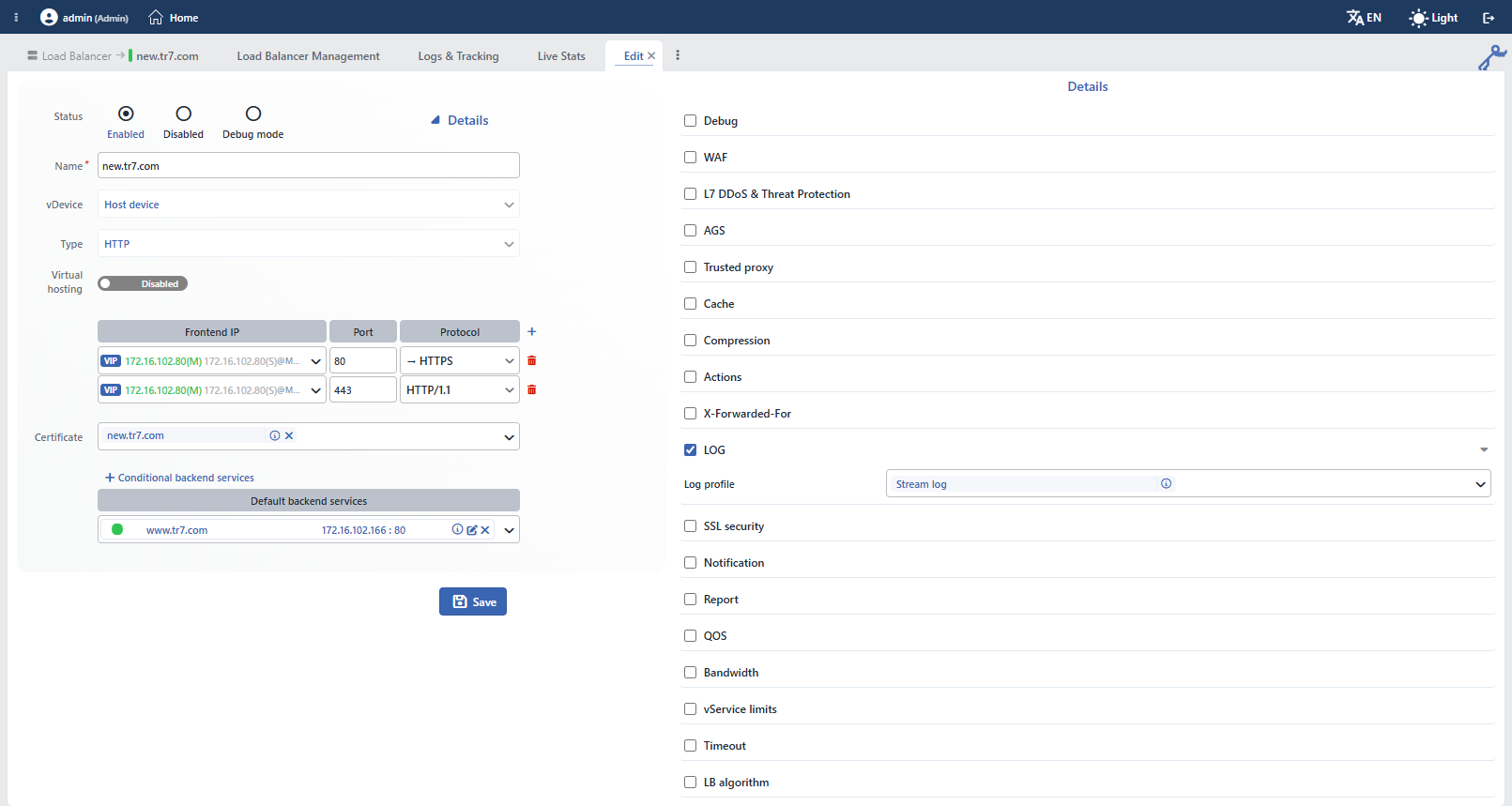 The LOG Selection on the vService Editing Screen
4
Step 4 Select a profile or add a new one
In order to use a different profile, the arrow sign next to the row is clicked and a selection is made from the Log profile list in the expanding section; Stream Log is in the first place in the list.
If desired, a new profile can also be added through the vService editing screen by clicking the Add button.
5
Step 5 Save
The changes are saved by clicking the Save button; while the configuration is being applied to the vService, the "vService is being edited" notification is displayed.
