
Smarter by Design.Simpler for Business
Portal
What Is Portal?
Portal is the Authentication Providers type that, instead of verifying the identity of the user directly, takes it from another vService with AGS enabled that runs in portal mode. The user logs in on the portal once; the applications bound to the portal (the vServices in Portal Application mode) inherit the identity from the portal with this provider and the user is not asked to log in again. It is used for organization-wide single sign-on (SSO) scenarios; for the details the Portal and Portal Application pages are consulted.
How does it work?
- A vService with AGS enabled is configured in portal mode; the users log in on this portal.
- Portal is selected as the Provider Type on this screen and the portal vService is selected.
- The application vService is configured in Portal Application mode and this portal is added to the Trusted Portals list; the list cannot be left empty.
- The profile is added to the access flow of the application vService as an Authentication Provider step.
- If the user has a session on the portal, the identity is taken from the portal and the flow continues from the success transition; if there is no session, the fail transition is taken.
Operational Best Practices
- The portal first. The portal vService must be configured in portal mode beforehand; only the vServices in portal mode are saved.
- Trust on the application side. For the identity to be inherited, the application vService must be in Portal Application mode and must carry this portal in its Trusted Portals list. When this step is skipped, the identity is not inherited even though the profile is saved.
- The attributes are mapped manually. There is no automatic attribute mapping in this type; the No automatic mapping for this provider - every attribute has to be mapped below information is displayed in the User Attribute Mapping section in the form. The required attributes must be mapped with Custom User Attribute Mapping.
How to Add?
A new Portal provider is added through the TR7 web management interface with the following steps:
- The Configuration Menu is opened by clicking the TR7 logo at the bottom left.
- The AGS → Authentication → Authentication Providers → Add steps are followed.
- A unique and descriptive name is entered for the profile; Portal is selected as the Provider Type.
- The Portal Gateway is selected.
- The profile is added by clicking the
Addbutton.
Profile Add Form
When the AGS → Authentication → Authentication Providers → Add steps are followed and Portal is selected in the Provider Type field, the form opens with the following fields.
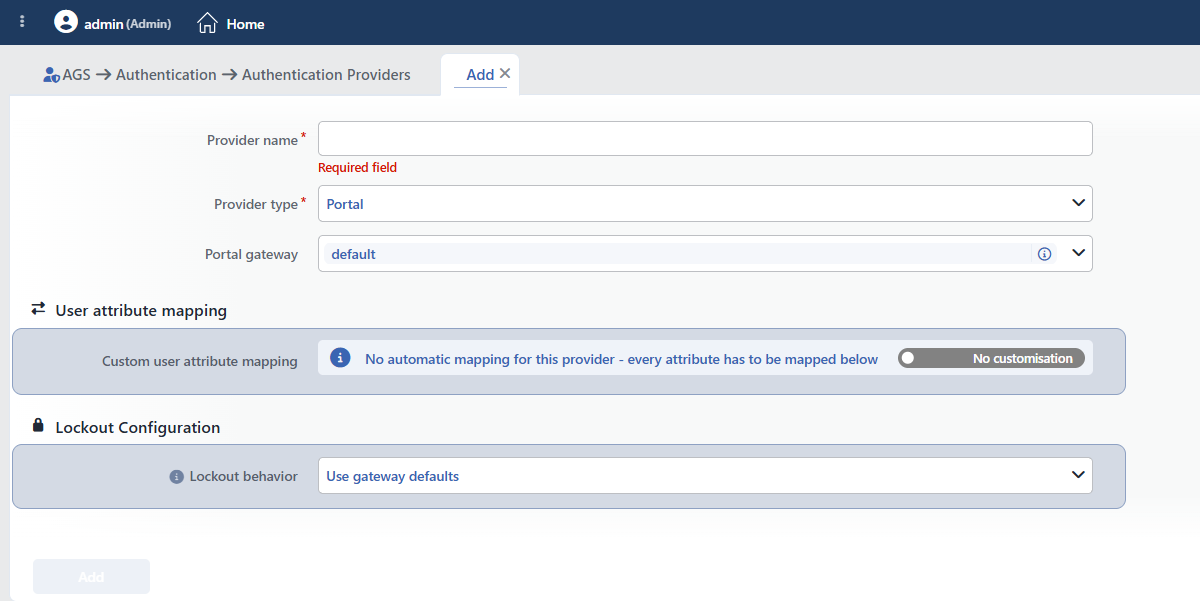 The Form While Portal Is Selected
INFO
Provider Name Required
The name of the profile; it identifies the profile in the list, in the step selection in the flowchart, in the session list and in the logs. The name must be unique on the device; a second profile with the same name is not saved and the Name is used warning is displayed. When it is left empty, the Required field warning is displayed.
INFO
Provider Type Required
The provider type; Portal is selected on this page. When the type is changed, only the fields of the new type are displayed and saved; the type is changed in the edit form as well.
INFO
Portal Gateway
The vService with AGS enabled in portal mode from which the identity is taken is selected; the field comes with the first vService in the list selected and the summary of the selected vService is opened with the information icon next to it. The field is required in the schema, but the required mark and the Required field warning are not displayed in the form. All the vServices with AGS enabled appear in the list; when a vService that is not in portal mode is selected, the record is rejected with an invalid option error when the Add button is clicked. Since the first option comes selected automatically, a vService that is not in portal mode can stay selected when the field is not touched at all.
User Attribute Mapping
INFO
Custom User Attribute Mapping Default: No customisation
How the fields in the provider response are mapped to the session attributes is managed. There is no automatic mapping in this type; No automatic mapping for this provider - every attribute has to be mapped below is written on the information bar to the left of the field and every required attribute is mapped manually in this field.
When the switch on the right is moved to the Customised position, the AGS Attribute and Source Attribute table is displayed: the session attribute (with a suggestion list) is entered in the left column and the JSONata expression that is evaluated on the provider response in the right column. When the switch is turned on, the + Add link that adds a row appears on the right of the bar. When a name outside the standard attributes of AGS is entered, this attribute is defined as a custom user field on the vService; names that start with _ are considered hidden fields and do not produce a custom user field.
Lockout Configuration
INFO
Lockout Behavior Default: Use gateway defaults
With which lockout policies the failed attempts on this provider are counted is selected:
| Option | Meaning |
|---|---|
| Use Gateway Defaults | The policies in the Default Lockout Policies list of the vService are used. |
| Replace Defaults | Only the policies selected in the Lockout Policies field are used. |
| Add to Defaults | In addition to the default policies of the vService, the ones selected in the Lockout Policies field are used as well. |
| No Lockout | Failed attempts are not counted on this provider, no lockout is performed. |
Lockout Policies
Displayed while Replace Defaults or Add to Defaults is selected; the built-in and defined policies on the Account Lockout Policies screen are selected.
INFO
Add
The profile is added by clicking the Add button; the tab closes and the profile is displayed in the list.
