
Smarter by Design.Simpler for Business
Blacklist
What Is Blacklist?
Blacklist determines what will be done to the sources that are in the IP reputation blacklist on the L4 DDoS Protection Mode card, and it does this with a single rule.
This rule differs from the other L4 DDoS rules at one point. The others look at the behavior of the traffic (the number of packets per second, the number of concurrent connections, the flag pattern of the packet); this rule, on the other hand, looks at the identity of the traffic. Even if a source has not forced any threshold yet, if it is in the blacklist in the reputation database of the device, this rule takes effect.
The blacklist itself does not belong to the route table: it is kept device-wide and is managed from the IP Intelligence & Reputation settings. This box determines only how that list will be applied in this route table.
Monitor
Default Mode
The catalog default is monitoring; it is born in monitoring in a route table that has not been touched as well
3
Mode Options
Disabled · Monitor · Block; the quarantine cannot be selected in this rule
Device-Wide
List Scope
The blacklist is common in all the route tables, the rule is adjusted separately in every table
25
Reputation Categories
The category distinction is not made at L4; the list is applied as a single set
Identity
Measurement Basis
Not a threshold but the identity of the source; the decision is given on the first packet
Suspicious Packets
Telemetry Tab
The matching packets are monitored on the dashboard with their own panel
This rule does not carry a threshold
In most of the other L4 DDoS rules there is an adjustable limit. Here there is no limit: the decision depends on whether the source is in the list or not. For this reason no value field is displayed in the editing window either, only the mode is selected.
The Blacklist Box in L4 DDoS Management
The box is the first box in the body of the status card. In its header there are its name and the number of rules it carries in parentheses, and in its body a single sentence that tells the current state of the rule.
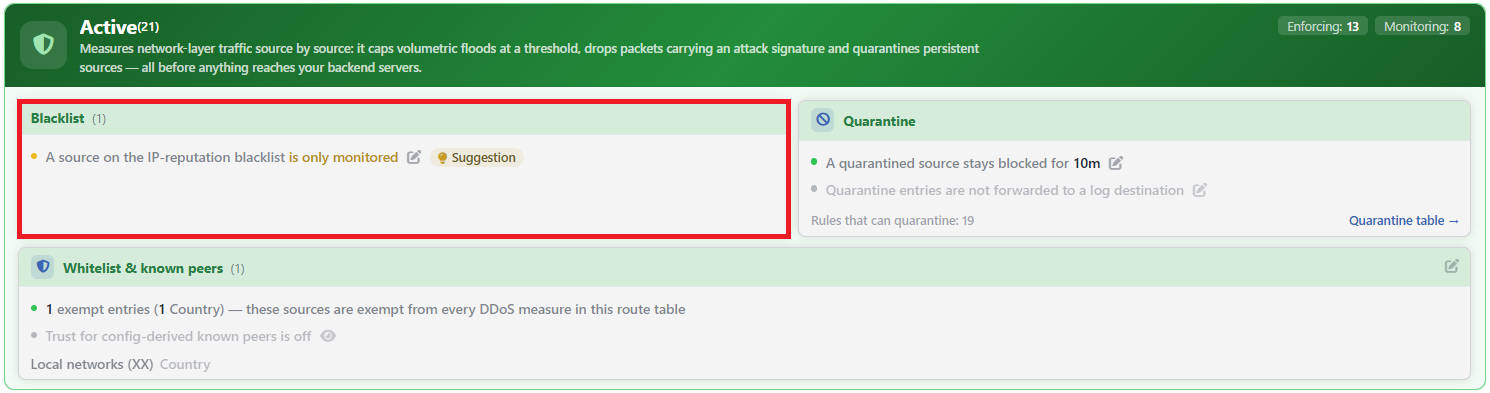 L4 DDoS Protection Mode - Blacklist Box
The sentence changes according to the mode. The status dot at the beginning of the sentence and the mode expression in the sentence (e.g. is only monitored) take their color from the mode; the rest of the sentence stays gray, and in the disabled mode the whole row becomes pale:
| Mode | Sentence | Status dot |
|---|---|---|
| Block | A source on the IP-reputation blacklist is blocked | Green |
| Monitor | A source on the IP-reputation blacklist is only monitored | Amber |
| Disabled | The IP-reputation blacklist is not monitored | Dim |
When the row is hovered over, the catalog name of the rule is displayed as a tooltip. The pencil icon on the right of the sentence opens the editing window.
The learning badges
In the row a badge is sometimes displayed on the right of the pencil icon; the padlock icon on the left of the pencil, on the other hand, is not a badge but the learning lock of the rule. The badge is not a part of the rule; it carries the last evaluation of the learning engine about this rule:
| Badge | Meaning |
|---|---|
| Suggestion | There is a recommendation ready to be applied. In this rule the recommendation is always a mode change, because the rule has no adjustable limit. |
| Verified | The rule has been evaluated, nothing to be changed has been found. |
| Locked | There is a change the engine wants to apply, but a setting does not allow it: either the Learning Lock switch of the rule is on or the Mode Promotion permission is off. |
In this rule the Learning badge is never displayed: since the rule has no adjustable limit, no state in which the engine waits for data occurs.
When the badge is clicked, the current state of the rule and, if there is a recommendation, how the sentence would read if it were applied are displayed; since this rule has no adjustable limit, the reasoning and calculation step sections are not displayed in the window. If the learning engine has never run, no badge appears. For details, the Learning page is consulted.
The Rule Settings · IP Blacklist Screen
- The L4 DDoS Management tab is opened.
- The pencil icon on the right of the sentence in the Blacklist box is clicked; the Rule Settings · IP Blacklist window that carries the short name of the rule in its header opens.
- The fields below are edited and confirmed with the
Savebutton.
At the very top of the window the catalog definition of the rule is displayed as an information band.
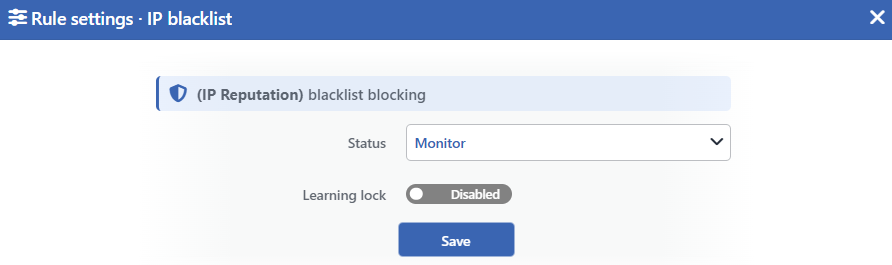 The Rule Settings · IP Blacklist Screen
INFO
Status Default: Monitor
Selects the working mode of the rule. Three options are offered:
| Option | Behavior |
|---|---|
| Disabled | The rule is not applied at all. No measurement is made either: since no record of the rule is kept, its panel on the dashboard also disappears. |
| Monitor | The sources in the blacklist are counted, but the traffic is let through. It is the default value. |
| Block | The packets coming from the sources in the blacklist are dropped. |
The Quarantine option present in the other L4 DDoS rules is not offered here. The reason for this is repetition: since a source in the blacklist is already in a permanent list, there is no point in additionally taking it into a timed quarantine.
INFO
Learning Lock Default: Off
Closes the rule to the learning engine. When the switch is turned on, the learning engine and the recommendation mechanism cannot change the mode of this rule; the rule is changed only manually from this window.
It is off by default (Disabled). While the lock is on, a padlock icon without text is displayed in the row, on the left of the pencil.
The lock does not prevent the returning to the default operation: when all the L4 DDoS settings are returned to the default from the Learning strip, the locked rule also returns to the catalog definition.
INFO
Save
Saves the change made. Only the fields that are changed are updated; the settings not touched in the window are preserved with their current values.
The save takes effect immediately; a rule change does not drop a separate record into the user log. The L4 DDoS operations written to the log are the application of a learning recommendation, the returning of the settings to the default and, in L4 DDoS Live View, the removal of a source from quarantine or the emptying of a quarantine list.
The Source of the Blacklist
The rule reads two address sets for every IP version: one set for single addresses and a separate set for network blocks. These sets are filled by the IP reputation process.
| Subject | Value |
|---|---|
| Number of external sources | At most 10 sources can be defined. |
| Records per source | 50,000 by default, 200,000 records at most. |
| User list file | At most 4 MB. |
| Update period | Daily, weekly or monthly; each of them runs at a fixed hour. It is off by default: the external sources are not refreshed by themselves until a period is selected. |
| Number of categories | 25 reputation categories are defined. |
| Set ceiling | 1,000,000 records in the single address set and 100,000 in the network block set. |
When the list is refreshed, the address sets are replaced without interruption: the new content is prepared and put into effect in a single step, and during this the protection stays on.
The category selection is not valid at L4
The IP reputation settings screen only shows the categories; the category-based preferences are defined not there but in the vService and WAF settings (Blacklist IP Category) and work at the L7 layer.
The L4 DDoS rule reads the blacklist as a single set and makes no category distinction. Taking this rule into Block mode drops all the sources in the list regardless of their category. The only way to keep a source in the list and let it through at L4 is to take it into the user whitelist in the IP reputation settings; this releases the source both on the L4 and on the L7 side.
Its Relation to the Exemption List
The exemption in the Whitelist & Known Peers box is partly valid in this rule. While the whole exemption list is valid in all the other L4 DDoS rules, the blacklist rule recognizes only two forms of exemption:
| Form of exemption | Is it valid in the blacklist? |
|---|---|
| A manually added IP entry | Yes |
| A manually added network entry | Yes |
| One's own servers derived from the configuration (while the trust is on) | Yes |
| A manually added country entry | No |
This narrowing is deliberate: keeping a country exempt from all the L4 DDoS measurements and letting through a source in that country that has entered the blacklist are different decisions.
The counter is above the exemption
The measurement counter of this rule runs before the exemption check. That is, if an address in the exemption list is also in the blacklist, its traffic is let through but it is written to the counter on the dashboard. In all the other L4 DDoS counters the situation is the opposite: exempt sources are not counted at all.
For this reason it is possible that the panel of this rule shows a value different from zero while no packet has been dropped.
Telemetry
The rule produces its own measurement and opens a panel on the Suspicious Packets tab of the dashboard. The panel shows the number of matching packets per second and the fill color of the series carries the mode of the rule: the warning color in monitoring mode and red in enforcement mode.
While the rule is in Block mode, the dropped packets also enter the distribution tables on the Dropped Traffic tab. In Monitor mode the row of the rule continues to stand in those tables but produces no data: its value looks empty or zero.
For details, the Dashboard page is consulted.
Scope and Limits
INFO
- The rule is per route table, the list is not. The content of the blacklist is common device-wide; every route table applies this list with its own mode.
- The default mode is Monitor and it is valid in tables that have not been touched as well. Since the catalog default is written to the configuration while the route table is being created and at device startup, the rule runs in monitoring mode and produces measurements from day one.
- The established sessions are also cut. Unlike many other enforcements, in the drop path of this rule there is no exemption for the established connections: when a source enters the blacklist, its existing flows also stop.
- There is no quarantine option. The mode list has three options.
- There is no adjustable threshold. The decision depends on whether the source is in the list or not.
- The country exemption does not apply in this rule. Only the address and network entries together with the derived own servers are exempt.
- The measurement counter counts the exempt sources as well. The value seen on the panel is not the number of dropped packets.
- Editing requires change authorization in the Network area. With monitoring-only authorization the box is displayed and the pencil icon is not displayed. While the network configuration is locked during synchronization, the pencil icon is not displayed either.
