
Smarter by Design.Simpler for Business
Dynamic Condition
What Is Dynamic Condition?
Dynamic Condition is a powerful condition type that enables dynamic and flexible conditions to be created by comparing two Smart Variables (fx).
Query keyx-user-role request header
Text equality
Key to compareadmin
If the header value equals "admin" → the condition returns TRUE
With this condition, flexible traffic management can be performed by comparing any two dynamic values.
TIP
Protocol and Level Flexibility
This condition can be used in both the HTTP and TCP protocols, in the request and response phases.
The Importance of Dynamic Condition
Dynamic Condition is one of the most powerful and flexible condition types of TR7. The left side of the comparison always supports Smart Variables (fx); the right side accepts a smart variable in the Text equality and Integer operators, and a fixed value in the other operators.
With Dynamic Condition:
- Header values can be compared dynamically,
- Numeric values can be compared (equality, greater than, less than, range),
- Boolean values can be checked,
- IP addresses can be matched with CIDR ranges,
- Text matching can be performed with regex.
Supported Operators:
| Operator | Description |
|---|---|
| Text equality | Checks the exact match of the text value |
| Text inclusion | Checks whether the text contains the specified value |
| Text start | Checks whether the text starts with the specified expression |
| Text end | Checks whether the text ends with the specified expression |
| Text regex | Checks whether the text matches the defined regular expression |
| Integer equality | Checks whether the numeric value is equal to the specified number |
| Integer greater than | Checks whether the numeric value is greater than the specified value |
| Integer less than | Checks whether the numeric value is less than the specified value |
| Integer range | Checks whether the numeric value is within a defined range |
| Boolean | Checks the state of the logical (true/false) value |
| IP/cidr match | Checks whether the IP address or network (CIDR) matches the specified IP/CIDR block |
Supported vService Types
HTTP
L7 TCP
Network
How to Add?
A new Dynamic Condition can be added through the TR7 web management interface by following the steps below:
- The Configuration Menu is opened by clicking the TR7 logo at the bottom left.
- The Load Balancer → Conditions → Add steps are followed.
- Dynamic condition is selected as Criteria.
- The related configurations of the condition are made.
- The condition is added by clicking the
Addbutton.
Dynamic Condition Add Form
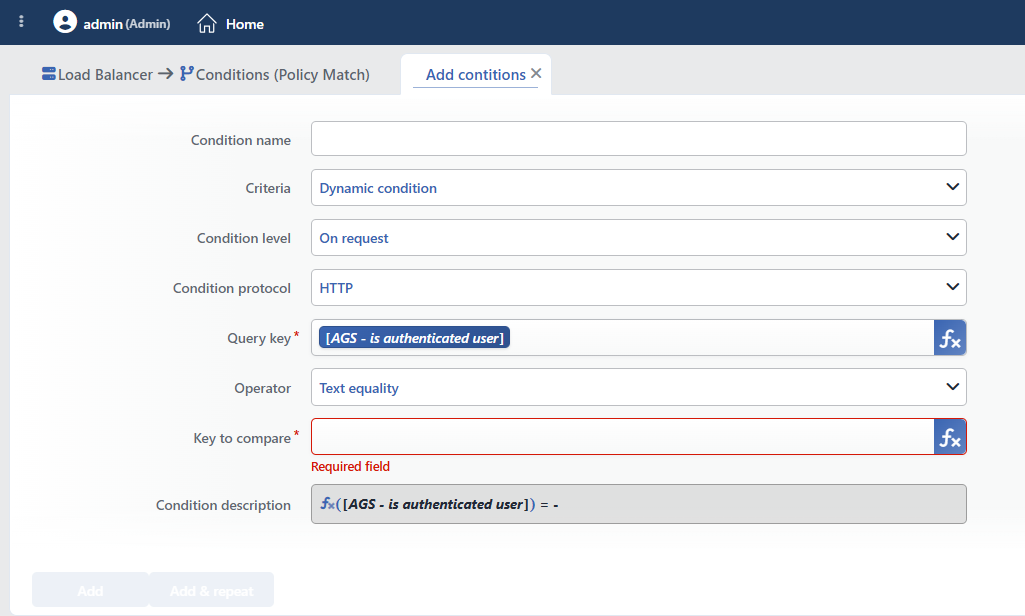 Dynamic Condition Add Form
INFO
Condition Name
An optional name can be entered for the condition to be created.
This field is especially important in the following scenarios:
- When many conditions are defined under the same vService,
- When conditions with similar criteria need to be distinguished,
- When it is necessary to quickly understand which business rule the condition represents.
When this field is left empty, TR7 analyzes the content of the related condition and creates an automatic, descriptive name in the Condition Description field. This generated description is used as the name in condition lists.
INFO
Criteria Required
The field that determines the type of the condition; Dynamic condition is selected from the searchable dropdown list. This selection determines the fields displayed in the form. The criterion cannot be changed after the condition is saved: if a different criterion is needed, a new condition is defined. For all criteria in the list and their scopes, the criteria catalog on the Conditions page can be referred to.
INFO
Condition Level
Determines in which phase the condition is evaluated; it cannot be changed after saving.
- On request: Evaluated when the request is received.
- On response: Evaluated when the response is received.
INFO
Condition Protocol
Determines in which protocol the condition works; it cannot be changed after saving.
- HTTP: Used in HTTP vServices.
- TCP: Used in L7 TCP vServices. Since there are no variables belonging to the response stage in TCP, the variable list is offered from the request set even if On Response is selected.
INFO
Query Key Required
The smart variable that produces the value on the left side of the comparison is entered in this field; fixed text and variables can be combined in the same field.
TIP
This field supports Smart Variables. Existing variables can be accessed with the fx button, and dynamic content can be created. For detailed information, the Variables document can be referred to.
The variable list changes according to the selected Condition Protocol and Condition Level values:
| Variable | Description | Availability |
|---|---|---|
| Client IP address | Client IP address | In every protocol and stage |
| Path/page of the request [URI] | Request path | HTTP only |
| Request HTTP header content | Request header value | HTTP only |
| Request cookie content | Request cookie value | HTTP only |
| Response HTTP header content | Response header value | HTTP + On Response only |
| Status | Returned HTTP status code | HTTP + On Response only |
INFO
Operator Required
The comparison method is selected; the selected operator determines the value field that opens below.
| Operator | Description |
|---|---|
| Text equality | Checks the exact match of the text value |
| Text inclusion | Checks whether the text contains the specified value |
| Text start | Checks whether the text starts with the specified expression |
| Text end | Checks whether the text ends with the specified expression |
| Text regex | Checks whether the text matches the defined regular expression |
| Integer equality | Checks whether the numeric value is equal to the specified number |
| Integer greater than | Checks whether the numeric value is greater than the specified value |
| Integer less than | Checks whether the numeric value is less than the specified value |
| Integer range | Checks whether the numeric value is within a defined range |
| Boolean | Checks the state of the logical (true/false) value |
| IP/cidr match | Checks whether the IP address or network (CIDR) matches the specified IP/CIDR block |
INFO
Comparison Value Field Varies by operator
The value on the right side of the comparison is entered in a field whose label and behavior change according to the selected operator:
| Operator | Field Opened | Behavior |
|---|---|---|
| Text equality | Key to compare | Text with smart variable support; there is an fx button |
| Text inclusion / Text start / Text end | Text to compare | Plain text (no fx) |
| Text regex | Regex to compare | Regular expression; it can be tried with the test tool next to it |
| Integer equality / greater than / less than | Integer to compare | Numeric value with smart variable support; there is an fx button |
| Integer range | Range start + Range end | Two separate fields for the range; both support smart variables |
| Boolean | - | No value field opens; the true/false state of the variable is evaluated |
| IP/cidr match | IP/cidr to compare | Separate IP and CIDR inputs (default CIDR: /24); both are validated |
All the opened fields are required. In Integer range, both boundary values are included in the range; all text operators are case-sensitive.
TIP
Fields with the fx button support Smart Variables; dynamic content can be created by accessing the existing variables. For detailed information, the Variables document can be referred to.
INFO
Condition Description
It is created automatically by TR7 in line with the entered criteria and values.
This description:
- which value the condition applies to,
- which criterion it works on,
- the quick understanding of the condition on listing screens
is produced dynamically by the system so as to provide these.
INFO
Form Buttons
Add
The condition adding process is completed by clicking the Add button.
Add & Repeat
With the Add & Repeat button, the condition adding process is completed, and another new condition can be added with different configurations without leaving the related window.
 Condition Added
Operational Usage Recommendations
- Header Value Check. Traffic management should be performed according to the application logic by checking custom headers.
- Dynamic Comparison. Dynamic conditions should be created by comparing two smart variables.
- Numeric Thresholds. Values such as response time and status code should be checked with numeric operators.
- IP Range Check. Dynamic IP checks should be performed with IP/cidr matching.
