
Smarter by Design.Simpler for Business
Show Content
What Is the Show Content Action?
The Show Content action makes it possible to serve predefined custom content pages to the requests coming to the vServices running on TR7 or to the responses returning from them. This action can be put into effect at the request (request) or the response (response) stage.
The content page shown is returned to the client together with the specified HTTP status code. The default status code comes as HTTP 200 (OK); however, different status codes can also be selected.
The Show Content action is widely used for the purposes of custom error pages, maintenance notifications, information messages, redirection screens and dynamic content delivery.
The Importance of the Show Content Action
In modern web applications, the user experience is shaped not only by successful responses but also by the custom content served in certain scenarios. The Show Content action makes it possible to serve this content dynamically depending on conditions.
The Show Content action;
- makes it possible to serve custom content for certain paths or conditions,
- makes it possible to show maintenance pages and information messages,
- makes it possible to serve custom warning pages on unauthorized access attempts,
- makes it possible to intervene in the content before or after reaching the Backend Services,
- preserves brand consistency by serving professional content suitable for the corporate identity.
This action is one of the basic building blocks of content management within the scope of Traffic Manipulation.
Content Pages
The Show Content action works together with the Content Pages profiles. Detailed information about how the content pages are created and managed is on the Content Pages page.
Supported vService Types
HTTP
L7 TCP
Network
Execution Timing
On Request
On Response
How to Add?
A new Show Content Action can be added through the TR7 web management interface by following the steps below:
- The Configuration Menu is opened by clicking the TR7 logo at the bottom left.
- The Load Balancer → Actions → Add steps are followed.
- A unique and descriptive name is entered for the action.
- Show Content is selected as Action Type.
- The related configurations of the action are made.
- In the Conditions tab, the condition/conditions under which the action takes effect are determined.
- The action is added by clicking the
Addbutton.
Show Content Action Add Form
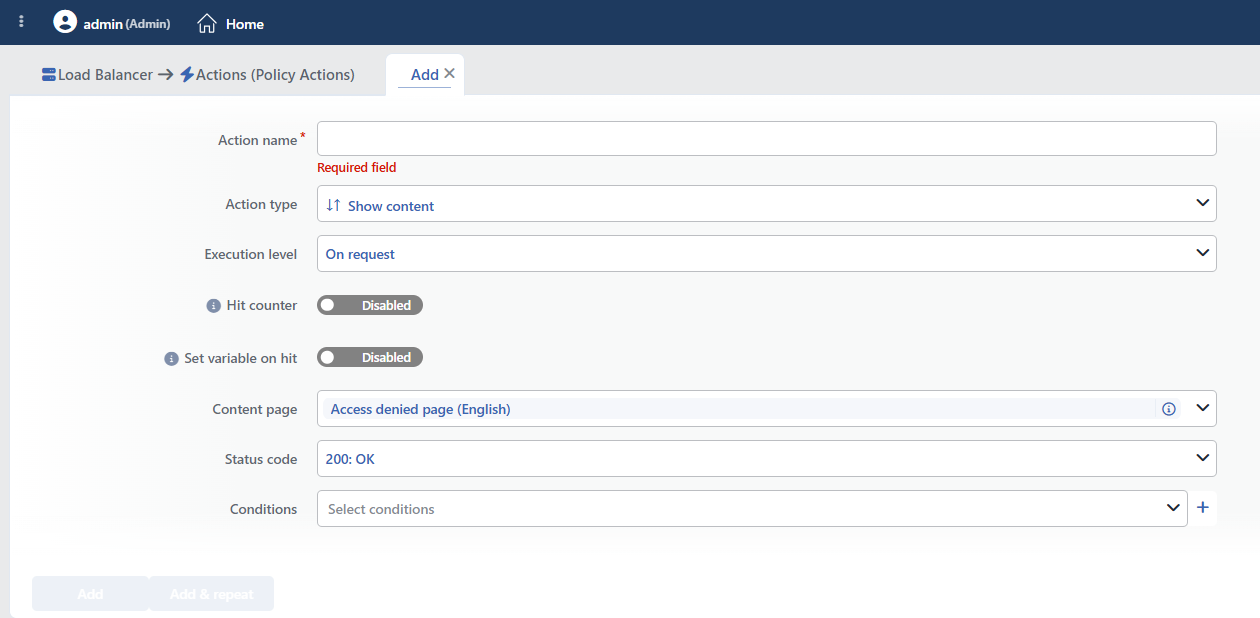 Show Content Action Add Form
INFO
Action Name
A unique and descriptive name is entered for the Show Content action to be created.
INFO
Execution Level
Determines at which stage the action is run.
- On Request: The action is applied before the request is forwarded to the related Backend Service. This level is used in cases where changes need to be made to the request or additional information needs to be passed to the Backend Service.
- On Response: The action is applied before the response is forwarded to the client. This level is used in cases where edits or additions need to be made to the response sent to the client.
INFO
Hit Counter Default: Off
Hit Counter counts every run of the action (it is evaluated together with the action's own condition; the count is not lost even in terminating actions such as Deny). Action-based rates and totals are displayed in the Action Hits tab of the vService dashboard and on the live statistics screen; they do not appear as a separate column in the lists. The counter is cumulative; there is no interface for resetting it manually: it starts from zero when the set of counted actions changes or when the vService is reloaded, while the history is preserved on the dashboard as a rate (hit/s).
INFO
Set Variable on Hit
A variable name whose value is assigned each time the action runs can be entered (optional; empty by default). The name can consist of letters, digits and underscores (at most 32 characters). When the action is triggered, the variable is set to 1, and chained behaviors can be built by reading it with the %TR7VAR(name) smart variable in other conditions and actions on the same vService.
INFO
Content Page Default: Access denied page (English)
The Content Pages to be shown to the client is selected in this field.
A selection can be made from the previously created content pages, or a new content page can also be created during the action adding step by clicking the Add button.
The content pages are managed centrally in the Load Balancer → Profiles → Content Pages section. Detailed information is on the Content Pages page.
Creating a Content Page
If there is no content page, the Default content page profile can be used, or a new page is created quickly by clicking the Add button in the dropdown list. The content pages can contain HTML, CSS and JavaScript.
INFO
Status Code Default: 200
The HTTP status code to be used while the content page is returned to the client is selected in this field.
HTTP 200 (OK) comes selected by default. Different status codes can be preferred according to the scenario requirements.
Common Usage Scenarios:
- 200 – OK → A successful response. It is suitable for information pages and custom content delivery.
- 403 – Forbidden → When access is blocked. It is used for the pages that contain an unauthorized access warning.
- 404 – Not Found → When the resource is not found. It is preferred for custom 404 error pages.
- 503 – Service Unavailable → When the service is temporarily unavailable. It is ideal for maintenance pages.
- 429 – Too Many Requests → When the request limit is exceeded. It can be used for a rate limit notification.
Selecting the correct HTTP status code directly affects both the user experience and the client/browser behavior.
The Status Codes on Which Content Cannot Be Shown
According to the HTTP standard, some status codes cannot contain a response body. For this reason, the codes below cannot be used in the Show Content action:
- 100, 101, 102, 103 (Informational)
- 204 (No Content)
- 304 (Not Modified)
INFO
Conditions
In this field, it is defined under which condition or conditions the related configuration takes effect.
By adding one or more conditions, the behavior can be applied in a targeted and controlled way with the and/or structure. The conditions can be created according to many different criteria such as the client IP address, the path, the header, the HTTP method and the User-Agent.
Detailed information about conditions is on the Conditions page.
WARNING
If no condition is defined in this field, the related action runs unconditionally (Always). In this case, the action is applied to all traffic coming to the related vService.
In live environments, using an action without defining a condition can lead to unexpected situations (service outages). For this reason, it is recommended that at least one condition always be defined when an action is created.
INFO
Form Buttons
Add
The action adding process is completed by clicking the Add button.
Add & Repeat
With the Add & Repeat button, the action adding process is completed, and another new action can be added with different configurations without leaving the related window.
 Action Added
"Default profile" must not be selected
There is no content page corresponding to the Default profile option in the content page list. If this option is marked, the action is not put into effect at all and no warning is given in the interface either; the request continues its normal flow.
The same situation also occurs when the content page bound to the action is deleted. For this reason, a real content page must always be selected.
The action terminates the request
When On Request is selected, the response is produced directly by TR7; the request is not forwarded to the Backend Service and the actions that come after this action in the action list do not run.
The Content-Type information of the response comes not from the action but from the setting of the selected content page itself. If a page with empty content is selected, only the status code is returned, no body is sent.
The headers added by the Manage HTTP Security Headers action are not applied to this response.
TIP
Smart variables can be used in the content page text; for example, the client IP address, the timestamp or the request ID can be printed on the page and given to the support team as a reference.
Operational and Safe Usage Recommendations
The Show Content action is a critical component that directly affects the user experience. The recommendations below provide safe and effective use in live environments.
- Make the Execution Level Selection According to the Scenario. On Request should be preferred for the situations in which content needs to be shown before reaching the Backend Service, and On Response for the situations in which the content needs to be changed after the response is received.
- Make the Status Code Selection Suitable for the Content. 200 should be used for information pages and the appropriate error codes (403, 404, 503, etc.) for error notifications. A wrong status code selection can negatively affect the browser behavior and SEO.
- Define the Conditions Clearly and in a Targeted Way. Conditions that are broader than necessary can lead to unexpected content being shown. The conditions should be defined as specifically as possible.
- The content pages are managed centrally. If the same content will be used in more than one action, a single Content Page profile is created and this profile is referenced in the actions; in this way the updates are made from a single point.
- The "Used In" information is checked before a change in the live environment. Before a change is made on a Content Page, it is checked in which actions and vServices the page is used.
- Prepare Content Suitable for the Corporate Identity. The error pages and the information content should be designed in accordance with the corporate identity and should contain guiding information for the users.
Common Usage Scenarios in Live Environments
The examples below show how the related action is applied in the most frequently encountered use cases in real systems. These scenarios are based on practices that are widely preferred in live environments and rest on experience gained in the field.
Scenario 1: Showing a Planned Maintenance Page
Problem: All the Backend Services will be shut down during a system update or planned maintenance. When the users try to access the site, they get a connection timeout or a generic browser error. This affects the user experience badly and causes unnecessary tickets to be opened for the support team.
Solution: A professional maintenance page is shown during the planned maintenance periods; the users are informed and the estimated end time of the maintenance is announced.
Configuration:
- Execution Level: On Request
- Content Page:
Maintenance - Scheduled Downtime - Status Code: 503 Service Unavailable
- Conditions:
- Unconditional (it is applied to all the traffic for the planned maintenance)
Result:
- ✅ Professional appearance → A maintenance page suitable for the corporate identity is shown.
- ✅ User information → The maintenance duration, the estimated end time and the contact information are presented.
- ✅ The 503 status code → The search engines understand that it is a temporary error, no SEO penalty is applied.
- ✅ The support load decreases → When the users understand the situation, the ticket opening rate drops.
Content Page Example:
html
<h1>Planned Maintenance</h1>
<p>Our systems are currently being updated.</p>
<p>Estimated end: 02:00 AM (GMT+3)</p>
Scenario 2: An Automatic Maintenance Page When All the Backend Services Are Down
Problem: Because of an unexpected infrastructure problem, all the Backend Services go down at the same time. TR7 gets a fail in the health checks, but the users are still trying to access the site and get a 502 Bad Gateway error. In this situation, the users think that the site has completely crashed.
Solution: When the number of healthy Backend Services is zero, a maintenance page is shown automatically and it is stated that the technical team is aware of the situation.
Configuration:
- Execution Level: On Request
- Content Page:
Emergency Maintenance - Status Code: 503 Service Unavailable
- Conditions:
Result:
- ✅ Automatic failover → When the Backend Services go down, manual intervention is not needed.
- ✅ Graceful degradation → The user sees a meaningful message instead of a generic error.
- ✅ 502 prevention → A controlled 503 is returned instead of a Bad Gateway error.
- ✅ Business continuity → The users understand that the situation is temporary, they do not leave the site.
The Working Logic:
- TR7 monitors all the Backend Services with health checks
- When the number of healthy Backend Services = 0, the condition is triggered
- The Show Content action takes effect
- The user sees the emergency maintenance page
Scenario 3: Static Content Delivery (Terms, Privacy, Robots.txt)
Problem: For static pages such as the Terms of Service, the Privacy Policy and robots.txt, a request is sent to the Backend Service every time. Although there is no change at all on these pages, the Backend Service resources are consumed. In addition, when the Backend Service goes down, these critical pages also become inaccessible.
Solution: The static content is served directly over TR7; the response is produced without going to the Backend Service at all and high availability is provided.
Configuration:
- Execution Level: On Request
- Content Page:
Static Legal Pages - Status Code: 200 OK
- Conditions:
Result:
- ✅ The Backend Service load decreases → The static content is served from TR7, the Backend Service resources are freed.
- ✅ High availability → Even if the Backend Service goes down, the static pages are accessible.
- ✅ Low latency → A direct response from TR7, no Backend Service round trip.
- ✅ SEO friendly → robots.txt is always accessible, the search engine crawling is uninterrupted.
Usage Example:
- Request:
GET /terms→ TR7 returns the content page directly - Request:
GET /privacy→ TR7 returns the content page directly - Request:
GET /robots.txt→ TR7 returns the robots.txt content
Scenario 4: Custom Error Pages on Backend Service Errors
Problem: When the Backend Service returns a 502, 503 or 504 error, the users see the default error page of the browser. There is no corporate identity or helpful information at all on these pages. The user does not know what to do and thinks that the site is not professional.
Solution: The Backend Service error codes are caught and user-friendly custom error pages suitable for the corporate identity are shown.
Configuration:
- Execution Level: On Response
- Content Page:
Custom Server Error Page - Status Code: 503 Service Unavailable
- Conditions:
- Status Code equals 502
ORStatus Code equals 503ORStatus Code equals 504
Result:
- ✅ Professional appearance → A branded error page instead of a generic browser error.
- ✅ User guidance → Alternative actions are offered (return to the home page, reach support).
- ✅ Error masking → The internal server errors do not leak outside.
- ✅ The brand image is preserved → A professional appearance even in error situations.
Sample Flow:
- The Backend Service returns a 502 Bad Gateway
- TR7 catches the response and the condition matches
- The Backend Service response is replaced with the custom error page
- The user sees the branded error page
Scenario 5: Protecting the Admin Panel with an IP Whitelist
Problem: The admin panel (/admin) is publicly accessible. It should be accessed only from the office IPs, but there is no application-level IP control. Brute force attacks and unauthorized access attempts are filling the logs.
Solution: When access to the admin panel path is attempted from IPs outside the whitelist, a custom 403 Forbidden page is shown and access is blocked.
Configuration:
- Execution Level: On Request
- Content Page:
Access Denied - Admin Area - Status Code: 403 Forbidden
- Conditions:
Result:
- ✅ Perimeter security → IP-based access control without reaching the Backend Service.
- ✅ Brute force prevention → The IPs outside the whitelist never reach the admin panel.
- ✅ Log cleanliness → The Backend Service logs are not filled with requests from outside the whitelist.
- ✅ A custom message → The message "This area can only be accessed from authorized IPs" on the 403 page.
The Security Flow:
- An office IP (whitelist):
/admin→ It is forwarded to the Backend Service → The normal login flow - An external IP:
/admin→ The Show Content action takes effect → A 403 Forbidden page - The Backend Service never sees the admin requests coming from external IPs
