
Smarter by Design.Simpler for Business
Backend Services
What Is Backend Services?
Backend Services is the screen that defines the target servers reached by the traffic routed through TR7, that is, the Backend Services. Any service in the corporate infrastructure, such as web servers, application servers, database servers or e-mail servers, can be defined as a Backend Service.
In the TR7 architecture, Backend Services are the endpoints to which vServices forward traffic. Each Backend Service is defined with an IP address or domain name and port information. Backend Services can be services that are only on the internal network (not serving the internet) or open to the outside (serving the internet).
What can be done with Backend Services
- Managing corporate services centrally.
- Monitoring service status with health checks.
- Controlling traffic distribution with weight and limit values.
- Forwarding SSL/TLS encrypted connections securely to the Backend Service.
- Temporarily disabling services with maintenance modes.
The Importance of Backend Services
In modern load balancer architectures, Backend Services are the final destinations of traffic and form the cornerstones of successful operations. Correctly configured Backend Services are critically important for high availability, performance optimization and fault tolerance.
Health Check and Fault Tolerance
The health status of Backend Services is monitored continuously. When a health check profile is assigned, TR7 sends check requests to the Backend Service at the specified intervals. Backend Services that do not respond or that are faulty are automatically removed from traffic distribution, and service continuity is provided through the healthy services. When a failed Backend Service recovers, it is automatically put back into traffic.
Granular Traffic Control
With the weight and connection limit parameters, traffic distribution is controlled precisely. This is critical especially in scenarios where servers with different capacities are used under the same vService:
- While weight 4 is assigned to a server with 32 GB RAM, weight 2 can be assigned to a server with 16 GB RAM.
- A gradual warm-up can be provided by giving a newly added server a low connection limit.
- Servers with old hardware can be used with a low weight.
Ease of Configuration and Management
Each Backend Service can be configured independently. Features such as SSL/TLS settings, SNAT configuration, proxy protocol support and maintenance mode can be defined separately for each Backend Service.
Failover
Fault tolerance
An unhealthy service is automatically taken out of traffic
Weight
Granular distribution
Load distribution proportional to capacity
Maintenance
Uninterrupted updates
Maintenance without cutting traffic with maintenance mode
Re-Encrypt
Backend SSL
Encrypted connection between TR7 ↔ Backend Service
With correctly configured Backend Services:
- Server failures are detected automatically and traffic is redirected.
- Capacity differences are balanced with weight values.
- Maintenance operations can be performed without traffic interruption.
- SSL/TLS connections can be carried securely to the Backend Service.
- Different configuration requirements are met easily.
Effects and Behavior
The configurations made on Backend Services directly affect how traffic is distributed and how the service behaves.
INFO
Health Check
When a health check profile is assigned, TR7 sends check requests to the Backend Service at the specified intervals. Each check result is evaluated independently:
- When a check succeeds, the Backend Service is marked healthy and continues to receive traffic.
- When a check fails, the failure counter increases.
- When the number of consecutive failures reaches the Required Failures threshold in the profile, the Backend Service is automatically taken out of traffic.
- A service out of traffic continues to be checked; when the number of consecutive successes reaches the Required Successes threshold in the profile, it is included in traffic again.
The thresholds, check interval and timeout come from the selected Health Checks profile.
INFO
Backup Service
A Backend Service marked as a backup service comes into play only when all other main (non-backup) services bound to the same vService are unavailable. Under normal conditions, no traffic is directed to backup services. If more than one backup service is defined, only the first available backup service receives traffic at a time. When the main services become healthy again, the traffic automatically returns to the main services. This behavior is critically important in failover scenarios.
INFO
SSL Service
When the SSL service is enabled, TR7 establishes the connection to the Backend Service over SSL/TLS; in this way, the traffic between TR7 and the Backend Service is encrypted (backend encryption / re-encryption). The cipher suite, SNI and ALPN settings are applied to the service. By default, the server certificate is not verified (Certificate Verification: None); self-signed certificates or certificates signed by an internal CA work without problems. If verification is needed, it can be made mandatory through a CA profile with the Required option.
INFO
Maintenance Mode
When maintenance mode is enabled, no traffic is directed to the Backend Service. The service is taken out of traffic regardless of the health check status. While the change is applied, the existing active connections are not cut; they are left to complete, and no new connections are sent to the service. When maintenance mode is turned off, the health check starts again, and if it succeeds, traffic starts to be directed.
INFO
Weight
The weight value determines how much traffic the service will receive in weighted round-robin and similar distribution algorithms. Services with a higher weight receive proportionally more traffic than those with a lower weight. For example, when the weights of three services bound to the same vService are 1, 2 and 3, 16.7%, 33.3% and 50% of the total traffic, respectively, is directed to these services.
Operational Best Practices
- Health check profiles should be used effectively. Services without a health check cannot be detected during outages and continue to receive traffic. A common profile should be created and shared for services of the same type; separate profiles should be defined for those that require different parameters.
- Meaningful names should be used. Descriptive names such as
web-server-01,api-backend-prodandwww.example.commake management easier and speed up troubleshooting. - Weight values should be set in proportion to capacity. If servers with different capacities are in the same Backend Service list, the weight should be set in proportion to capacity; powerful servers should receive a higher weight.
- Connection limits should be set carefully. Connection counts that exceed the capacity of the service should be avoided; the limit should be determined according to the maximum number of concurrent connections the server can handle.
- A backup service strategy should be created. A backup service configuration should be considered for critical applications; backups come into play when the main services are unavailable.
- The cipher selection should be evaluated for SSL Backend Services. If compatibility with old servers is needed, the "Low" cipher option is used; the "Standard" cipher is sufficient for modern infrastructures.
How to Add?
A new Backend Service is added through the TR7 web management interface with the following steps:
- The Configuration Menu is opened by clicking the TR7 logo at the bottom left.
- The Load Balancer → Backend Services → Add steps are followed.
- A unique and descriptive name is entered for the Backend Service.
- The IP address and port information of the Backend Service are entered; the other required settings are configured.
- The Backend Service is added by clicking the
Addbutton.
TIP
Reaching the page via quick search
Instead of navigating the menu step by step, the related page is reached directly by using the search bar in the bottom left corner of the screen. The search bar opens with the Alt + T shortcut on Windows and Opt + T on macOS; typing the name of the feature being searched for is then sufficient.
The created Backend Service is used by adding it to the Default Backend Services or Conditional Backend Services list of vServices (Usage Location).
Backend Services Listing Screen
The list of all Backend Services defined on the TR7 device is reached by following the Load Balancer → Backend Services path. Adding, editing and deleting Backend Services are performed on this screen.
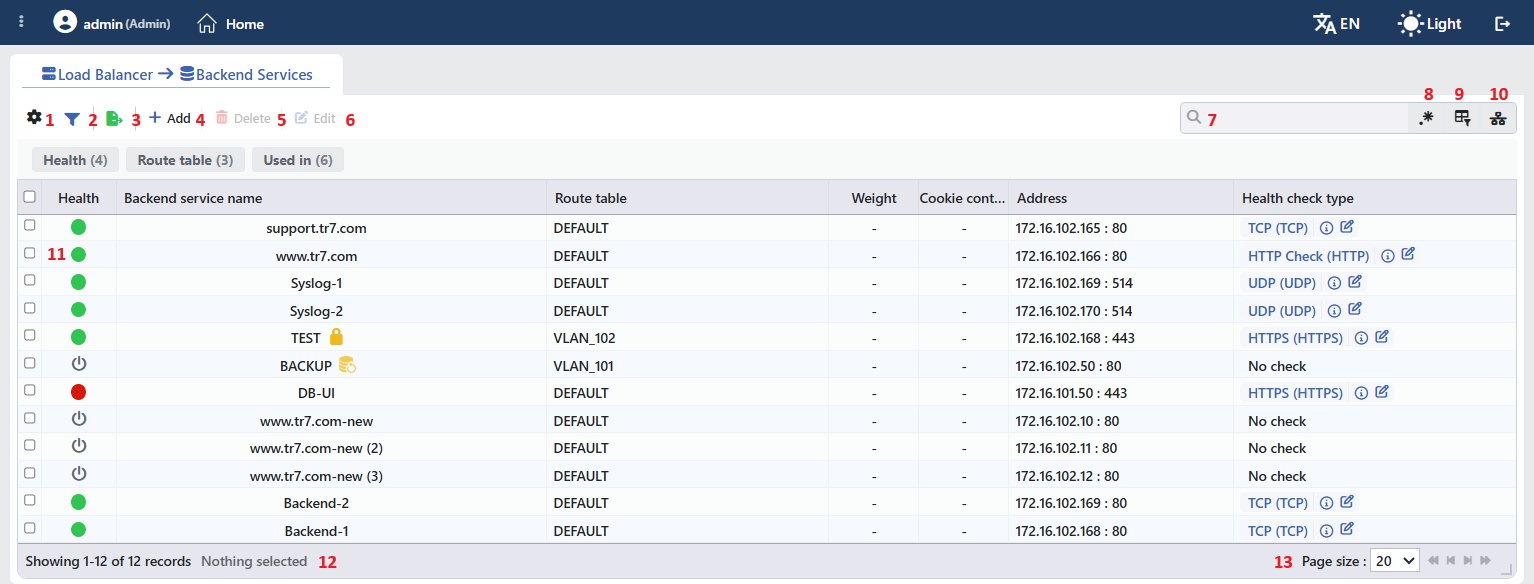 Backend Services Listing Form
The table opens with the following columns by default:
| Column | Description |
|---|---|
| Health | The health check status of the Backend Service is shown with a colored circle (described under Health Status Indicator). |
| Backend Service Name | The name of the Backend Service; next to it, if the related setting is on, there are the SSL (lock), maintenance mode (ambulance) and backup service icons, in order. When the pointer is over the icons, the SSL Service, Maintenance Mode and Backup Service tooltips are displayed. |
| Route Table | The route table the Backend Service is bound to. |
| Weight | The weight value; - if not defined. |
| Cookie Content | The cookie value; - if not defined. |
| Address | The address of the Backend Service, in the IP : port format. |
| Health Check Type | The assigned health check profile in the profile name (Type) format; No Check if no profile is assigned. The profile summary opens with the info icon next to the profile name, and the profile opens in an edit window with the pencil icon. |
| vDevice | The vDevice on which the Backend Service is defined. This column does not exist in virtual machine setups. |
There is no column hidden by default. When a column header is clicked, descending sorting is applied first, then ascending; on the third click, the sorting is removed.
The items in the toolbar are arranged from left to right in the following order; item 11 is the indicator in the table cell, and the last two items (Page Information and Page Size) are located in the information strip below the table.
Columns
Which columns are shown in the table is selected; all columns are on by default. In the same panel, columns are reordered by dragging and alignment (Align Left, Center, Align Right) is selected per column; the row height is fitted to the page with the Fit rows to the page button, and the column layout is reset to default with the Reset button. The layout is stored per user and is shared with the Backend Groups list.
Filter
The Filter button is used to filter the Backend Services shown in the list according to specific criteria; the button shows the number of active filters with a badge. The filter strip is open by default and contains three cards:
| Card | Values |
|---|---|
| Health | The health check profiles assigned to Backend Services (profile name (Type)). Services with no health check assigned are not included in the values of this card. |
| Route Table | The route tables the Backend Services are bound to. |
| Used in | The vServices that use Backend Services, and the Unused Entries value that lists the services not used anywhere. |
The card header contains the filter name and the number of values; when a card is clicked, the values are listed below it with their row counts.
Export
The table is exported as Excel, CSV or PDF by clicking the Export button. In the window that opens, the Filename, Format and Data Source, together with the Columns to be exported, are determined; the remaining fields are displayed according to the format: CSV Separator for CSV, Excel Sheet Name for Excel, and Page Orientation and Page Size for PDF.
Add
By clicking the Add button, the form for creating a new Backend Service opens in the Add tab.
Delete
When one or more Backend Services are selected and the Delete button is clicked, the related Backend Services are deleted. Before deletion, the confirmation "Are you sure that you want to delete backend service object?" is requested for a single selection and "Are you sure you want to delete N backend service objects?" for a multiple selection. The button is inactive when there is no selection.
WARNING
A Backend Service used in a vService is also deleted; the deletion is not blocked because of usage. The deleted Backend Service is removed from the Default Backend Services and Conditional Backend Services lists of the vServices it is bound to. The Used in tab in the preview should be checked before deletion. A Log record is written for each deleted Backend Service.
Edit
By clicking the Edit button, the edit form of the selected Backend Service opens in the Edit tab. The button becomes active only when a single Backend Service is selected.
Search
Used to search all information in the table.
RegExp Search
Used to search all information in the table with a regular expression (RegExp).
Column Based Search
Used to perform a column-based search on the information in the table.
Usage Filter
Used to filter which vServices the Backend Services are bound to. When the button is turned on, the search box turns into a vService selector and the first option is selected automatically; the selector contains the vServices that use at least one Backend Service and, at the bottom, Unused Entries. When a vService is selected, only the Backend Services used in that vService are listed; when Unused Entries is selected, the Backend Services not used anywhere are listed.
Health Status Indicator
The indicator in the Health column reports the health check status of the Backend Service with a color; when the pointer is over the indicator, the name of the status is displayed:
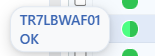 Health Check Status
| Indicator | Status | Description |
|---|---|---|
| ● Green | OK | The Backend Service is up according to the health check. |
| ● Red | Error | The Backend Service is down according to the health check. |
| ● Orange | Preparing | The check result is not yet final. |
| ● Gray | HC Disabled / No Data | There is no health check result, or no data has arrived yet. |
| ⏻ Black icon | Off | No health check is assigned to the Backend Service. |
In cluster setups, the indicator consists of two semicircles: one shows the status seen by this device, and the other the status seen by the peer device; when the pointer is over it, the device name and status are displayed for each half.
Page Information
Contains information about the total number of defined Backend Services and the number of Backend Services displayed in the list: Showing N-M of T records and the number of selected Backend Services (N selected, or Nothing selected when there is no selection). While a filter is active, the filter summary is also displayed.
Page Size
The maximum number of Backend Services to be displayed on the page is selected. The default is 20; the options are 5, 10, 20, 50, 100, 200, 500 and All.
Right-Click Menu
When a row is right-clicked, a menu with the Backend Service's name in its title opens. Both operations in the menu apply only to the right-clicked Backend Service; a selection made in the list does not affect the menu.
| Operation | What it does |
|---|---|
| Edit | Opens the Backend Service's edit form in the Edit tab; it is the same form as the one opened by the Edit button in the toolbar. |
| Delete | Deletes the right-clicked Backend Service; the same confirmation question as the single delete in the toolbar is displayed. |
Preview of the Selected Backend Service
When a row in the list is clicked, the preview of the Backend Service opens on the right side of the screen. The header contains the health check status indicator, the Backend Service's name and the Backend Service subtitle, and at the top right there are two operations and a menu. When the panel is closed, it is reopened with the ambulance-icon handle at the top right of the list area; the handle carries the health check color of the Backend Service.
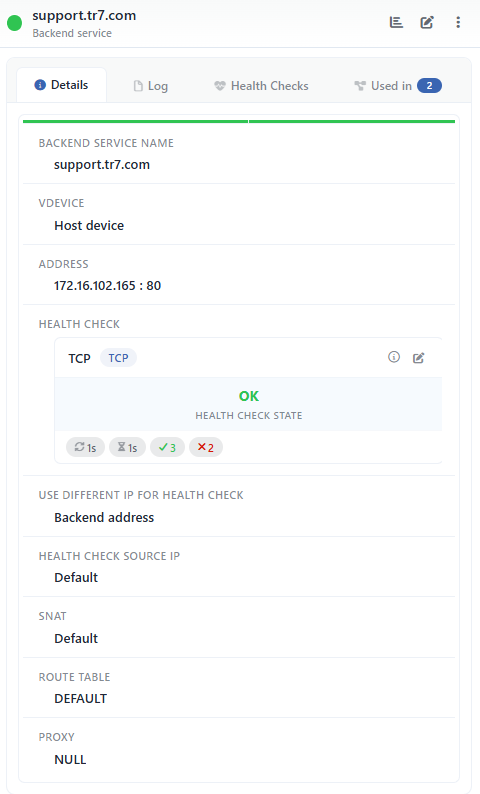 Preview of the Selected Backend Service
| Operation | What it does |
|---|---|
| Dashboard | Opens the Dashboard screen of the Backend Service. |
| Edit | Opens the Backend Service's edit form in the Edit tab. |
| ⋮ | Opens the menu containing the Log operation, which opens the records of the Backend Service in a window. |
There are four tabs in the panel; Health Checks is displayed only if a health check profile is assigned to the Backend Service, and Used in only if the Backend Service is used in at least one place:
Details
Lists the configuration rows and the health check card of the Backend Service (table below).
Log
Lists the user operations (add, edit, delete) performed on the Backend Service as a timeline.
Health Checks
Lists the health check result records.
Used in
Lists the vServices in which the Backend Service is used; the badge next to the tab name shows the usage count.
The controls and record format of the Health Checks tab are described on the Health Checks page.
The rows in the Details tab are as follows, in order:
| Row | Description | Visibility condition |
|---|---|---|
| Backend Service Name | The name of the Backend Service. | Always |
| vDevice | The device on which the Backend Service is defined; Host Device on the main device. | Always |
| Address | The address of the Backend Service, in the IP : port format. | Always |
| Health Check | The card of the assigned health check profile: the profile name and type badge, the info and edit icons, the current status (Health Check State), the error text if any, and the profile's Period, Timeout, Required Successes and Required Failures values. If no profile is assigned, a power icon and the No Check text are displayed. | Always |
| Use Different IP for Health Check | The address at which the health check is performed; Backend Address if no separate address is defined. | Always |
| Health Check Source IP | The source IP address of the health check packets; Default if not defined. | Always |
| Backup Service | Shows that the Backend Service is marked as a backup. | If backup service is checked |
| SSL Service | Shows that TLS is used in the connection to the Backend Service. | If SSL is checked |
| Maintenance Mode | Shows that the Backend Service is in maintenance mode. | If maintenance mode is checked |
| Use Frontend Port | Shows that the Backend Service is connected to with the destination port of the request coming to the vService. | If the setting is checked |
| SNAT | The source address translation used in the traffic to the Backend Service; Default if not defined. | Always |
| Spoofing | The spoofing setting; in a separate column per device in a cluster setup. | If spoofing is on |
| Cookie Content | The cookie value. | If a value is defined |
| Connection Limit | The concurrent connection limit. | If a value is defined |
| Weight | The weight value. | If a value is defined |
| Route Table | The route table the Backend Service is bound to. | Always |
| Proxy | The Proxy Protocol setting of the Backend Service; NULL is displayed if the setting has not been saved. | Always |
| Status Code | The HTTP status code received in the last health check. | If the health check type is HTTP or HTTPS |
| DNS Answers | The DNS answers received in the last health check. | If the health check type is DNS |
The "Used in" tab must be checked
The Used in tab shows on which vServices the Backend Service is active. Since updates to the service settings in a live environment will immediately affect all bound services, evaluating the possible service impacts before a change is critically important.
Backend Service Add Form
A new Backend Service is added to the TR7 device by following the Load Balancer → Backend Services → Add steps.
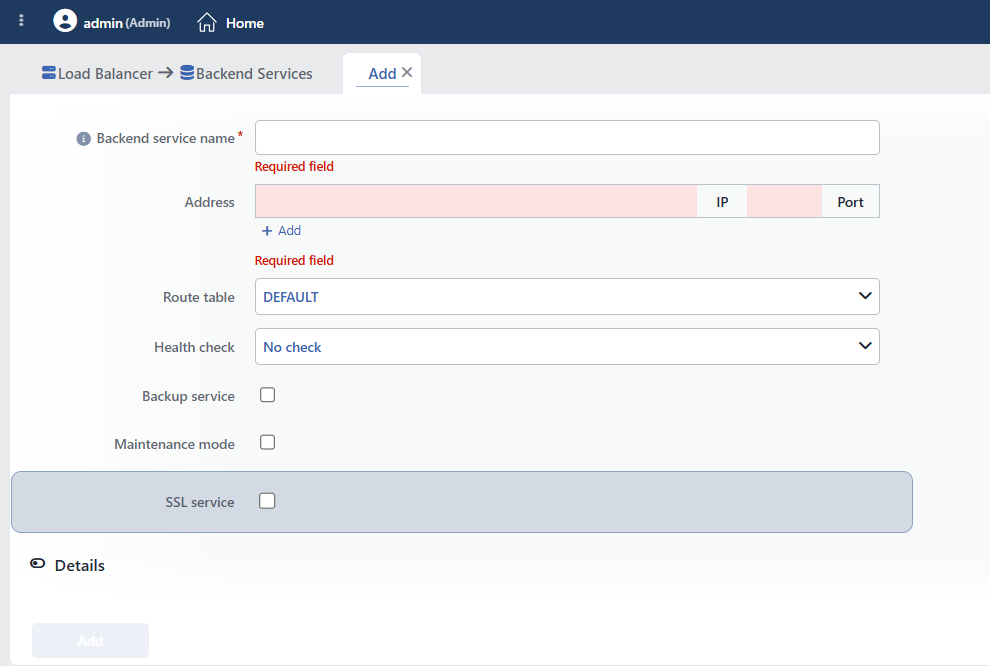 Backend Service Add Form
INFO
Backend Service Name Required
A unique name is entered for the Backend Service to be created. When the field is left empty, the "Required field" warning is displayed, and when a previously used name is entered, the "Name is used" warning is displayed, and saving is prevented.
INFO
vDevice
The vDevice on which the Backend Service will be defined is selected. This field is displayed only when there is more than one vDevice to choose from; it does not exist in virtual machine setups. When the vDevice is changed, the Route Table field returns to the DEFAULT value. While an existing service is being edited, the vDevice cannot be changed.
INFO
Address Required
The IP address and port information that determine the location of the Backend Service on the network are entered. When the IP field is left empty, the "Required field" warning is displayed. In the add form, addresses are entered as a multi-row list (rows are sorted by dragging from the handle and deleted with ✕); in the edit form, there is a single IP and port field.
IP Address
An IP address in IPv4 or IPv6 format, or a domain name (FQDN) that can be resolved with DNS, can be entered.
- IPv4 address:
192.168.1.10,10.0.0.5 - IPv6 address:
2001:db8::1,fe80::1 - FQDN (domain name):
web01.internal.company.com,api.backend.local
Port
The port number the Backend Service listens on is entered; for an invalid value, the "Invalid port" warning is displayed. Usually 80 or 8080 is used for HTTP, and 443 for HTTPS.
| Port | Protocol | Use |
|---|---|---|
| 80 | HTTP | Standard web server |
| 443 | HTTPS | SSL/TLS web server |
| 8080 | HTTP | Alternative web port |
| 8443 | HTTPS | Alternative SSL port |
| 3306 | MySQL | Database server |
| 6379 | Redis | Cache server |
By adding new IP:Port rows to the form with the Add row below the address list, multiple Backend Services with the same configuration are created at once; all fields other than the name and address are copied in common. To prevent name conflicts, TR7 automatically names the services from the second row onward: Name, Name (2), Name (3)… When the same IP:Port pair is entered in more than one row, the form gives the "Elements must be unique" warning.
WARNING
A Backend Service that points to loopback (127.0.0.0/8, ::1, localhost), link-local (169.254.0.0/16), 0.0.0.0/8 or addresses reserved for TR7's internal use is automatically disabled in the configuration and does not receive traffic.
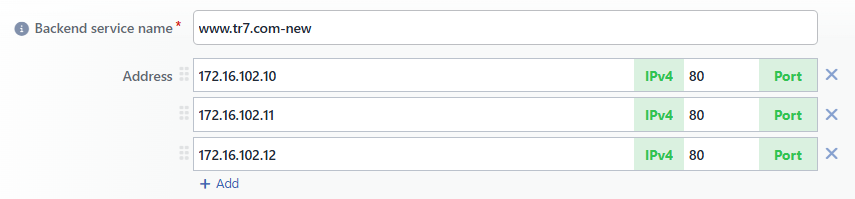 Adding Multiple Backend Services in a Single Form
 Automatic Naming
INFO
Route Table
The route table to be used to access the Backend Service is selected; the route tables of the selected vDevice are listed, and DEFAULT is selected by default. Route tables make it possible to define separate routing rules for different network segments. If more than one route table is defined, the table that can reach the network where the service is located must be selected; if there is a single table, it should stay as DEFAULT.
The route table selection also affects the SNAT IP and Health Check Source IP fields: the device IP lists in these fields are limited to the addresses belonging to the selected route table. In the default (Default) settings, the source IP is determined by the routing rules of the selected table. Details are on the Route Tables page.
INFO
Health Check
The health check profile to be used to periodically check the reachability and health status of the Backend Service is selected. The options are No Check (default) and the profiles in the profile name (Type) format; a new profile is created with the Add button in the drop-down list, and the created profile is selected automatically.
How it works: When a profile is assigned, TR7 sends check requests at the specified intervals; when a check fails, the service is automatically taken out of traffic, and when it becomes healthy again, it is included in traffic.
- Check succeeds → the service is marked healthy and continues to receive traffic.
- Check fails → the failure counter increases.
- When consecutive failures reach the Required Failures threshold in the profile → the service is taken out of traffic.
- A service out of traffic continues to be checked; when consecutive successes reach the Required Successes threshold in the profile → it is included in traffic again.
In check types that establish a TLS connection (e.g. HTTPS, TCPS), the SSL settings defined on the Backend Service (client certificate, CA profile and SSL security profile) are also applied to the health check connections; if a selection has also been made for these settings in the health check profile, the selection in the profile applies.
Points to consider when selecting a profile:
- Protocol compatibility: the protocol supported by the server (HTTP, HTTPS, TCP, etc.) should be used.
- Health endpoint: an endpoint that the servers actually respond to should be selected (e.g.
/health,/status,/ping). - Timeout value: it should be higher than the server's normal response time, but low enough to prevent unnecessary delays.
- Check interval: checking too often burdens the servers, and checking too rarely detects failures late. Usually 5–10 seconds is ideal.
Important
In production environments, services with no health check assigned continue to receive traffic even if they are unreachable. Defining an appropriate profile for all services is recommended.
Details are on the Health Checks profile page.
INFO
Enable HC Logs
Enables the health check results to be kept as records; it is on by default. This field is displayed only when a health check profile is selected. The records are monitored from the Health Checks tab of the preview panel; details are on the Health Checks page.
INFO
Backup Service Default: Off
Marks the Backend Service as a backup; it is off by default. When enabled, the service comes into play only when all other main (non-backup) services bound to the same vService are unavailable. Under normal conditions, no traffic is directed to backup services; even when the main services go down, only the first available backup service receives traffic at a time.
Use cases: disaster recovery servers in a different data center, low-capacity emergency servers, fallback servers that serve static content.
INFO
Maintenance Mode Default: Off
Puts the Backend Service into maintenance mode; it is off by default. No traffic is directed to services in maintenance mode. When enabled, the service is taken out of traffic regardless of the health check status. While the change is applied, the existing active connections are not cut; they are left to complete, and no new connections are sent to the service. A service in maintenance mode is marked with the maintenance (ambulance) icon next to its name on the listing screen.
Use cases: server maintenance/update, planned restart, troubleshooting, capacity management.
INFO
SSL Service Default: Off
Ensures that the connection between TR7 and the Backend Service is made with SSL/TLS encryption; it is off by default. When enabled, TR7 establishes an HTTPS (or TCP over TLS) connection to the Backend Service (backend encryption / re-encryption). The service must be configured to accept SSL/TLS; servers can listen for SSL on different ports (443, 8443, etc.).
Certificate verification: By default (Certificate Verification: None), TR7 does not verify the SSL certificates of Backend Services:
- Self-signed certificates work without problems.
- Certificates signed by an internal CA are accepted.
- The validity of the certificates presented by Backend Services is not checked.
- The connection is established even if the certificate has expired.
- Hostname matching (CN/SAN) is not checked.
This default is designed for scenarios where the Backend Services are inside a trusted network (internal network). If certificate verification is needed, Required must be selected in the Certificate Verification field below.
Use cases:
- Providing end-to-end encryption between TR7 and the Backend Services.
- Protecting sensitive data (payment information, personal data).
- Security standards (PCI-DSS, HIPAA) that require encryption.
- Corporate infrastructures where internal CA certificates are used.
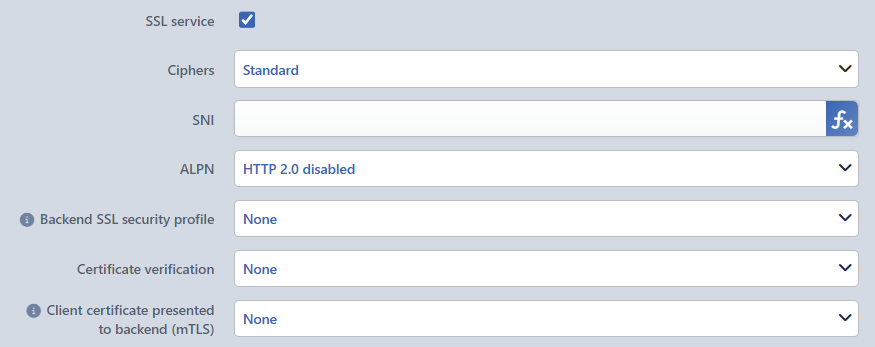 SSL Service
Ciphers
The cipher suite group to be used in the SSL/TLS connection is selected.
- Standard: TR7's default cipher setting is used; it is suitable for current servers. Default.
- Low: a wide compatibility mode that includes all cipher suites (
ALL:NULL:eNULL:aNULL:RC4-MD5:@SECLEVEL=0). Weak algorithms such as RC4 and DES are also included. It should be used only for mandatory compatibility with legacy servers that use TLS 1.0/1.1; it carries a security risk.
If a Backend SSL Security Profile is selected, this field is not taken into account; the cipher list comes from the profile.
SNI
The Server Name Indication value is determined. SNI is a TLS extension, sent in the ClientHello message during the TLS handshake, that tells the server for which hostname it should present a certificate (RFC 6066). It is required for the correct certificate to be selected on servers that present multiple certificates on the same IP (virtual hosting / name-based SSL); without SNI, the server presents its default certificate. The entered value is assigned to a transaction variable by TR7 and used as the sni parameter in the TLS connection. A fixed domain name can be written in the field, or Smart Variables can be added with the fx button next to it; in that case, the SNI is recalculated for each request.
TIP
Common use: Forwarding the Host header of the incoming request to the Backend Service as is. When the fx button next to the field is pressed, the window opens directly with the Request HTTP header content variable and with Host written in the Header name field; it is added to the field with Submit, and the ↓H badge appears in the field. It is used in scenarios where SNI is mandatory and multiple domain names are hosted on a single service; SNI is added this way on Windows IIS when Require Server Name Indication is enabled, and in ADFS services.
This variable reads the HTTP header of the request. Since the header cannot be read in an L7 TCP vService, a fixed domain name must be written in the field.
ALPN
Application-Layer Protocol Negotiation enables the application layer protocol to be determined during the TLS handshake (RFC 7301).
- HTTP 2.0 Disabled: The Backend Service is connected to with HTTP/1.1; no ALPN offer is made. Default.
- HTTP 2.0 Enabled: The connection is made with
alpn h2,http/1.1; HTTP/2 (h2) is tried first, and if it is not supported, a fallback to HTTP/1.1 is made. The service must support HTTP/2 and serve over TLS (h2 over TLS).
Backend SSL Security Profile
Defines the cryptographic security parameters (protocol version range and cipher suites) to be used in the SSL/TLS connection TR7 establishes to Backend Services. A profile from TLS Security Profiles is selected. Only the Min. SSL Version, Max. SSL Version, Cipher Algorithms and (in supporting versions) curve parameters of this profile are used; the other settings in the profile have no effect on this connection. When a profile is selected, TR7 limits the Backend Service connections with these security parameters, and the TLS handshake process with the Backend Service is performed according to these rules.
Scenarios:
- Corporate applications with a TLS version restriction.
- Environments where legacy and modern TLS configurations are used together.
- Standardization of cipher and TLS version in line with security policies.
Certificate Verification
It is determined whether the server certificate will be verified in the TLS connection TR7 establishes with the Backend Service (it affects only the TR7 → Backend Service direction and is independent of the client-side SSL).
- None: the certificate is not verified: self-signed certificates and certificates signed by an internal CA are accepted; the validity period, chain and hostname (CN/SAN) are not checked. Default.
- Required: the certificate is verified mandatorily: the trusted CA signature, chain validation, validity period and CN/SAN matching are checked.
Verification CA Profile
It appears when Required is selected in the Certificate Verification field. The CA profile to be used for verification is selected from the profiles on the Certificate Authorities (CA) screen.
Client Certificate Presented to Backend (mTLS)
Enables TR7 to use a client certificate in the TLS connection with the Backend Service. When a certificate is selected, TR7 presents this certificate to the service during the handshake; the service can verify TR7 according to this certificate (mTLS / client certificate authentication). The certificate affects only the TR7 → Backend Service connection. The selection is made from among the client certificates and certificates on the SSL/TLS Certificates screen; the default is None.
INFO
Details
Advanced configuration fields are accessed by turning on the Details switch at the bottom of the form; the switch is off by default when adding and editing. The following fields are in this section and control traffic management, source IP determination and health check behavior.
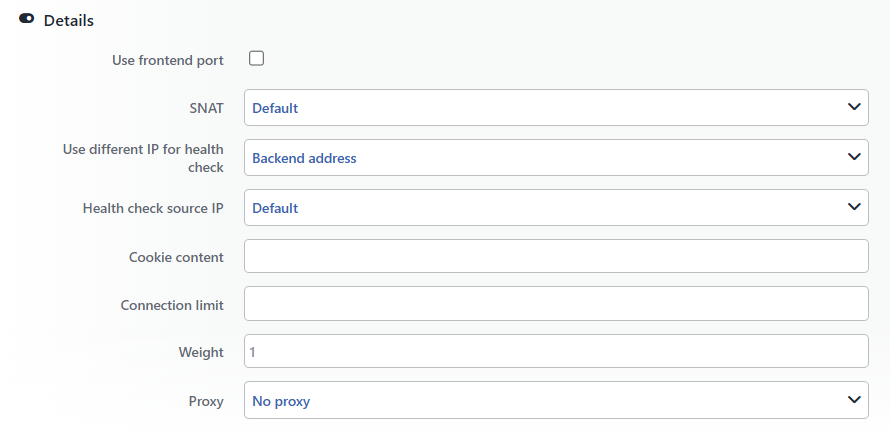 Backend Service Details Section
INFO
Use Frontend Port Default: Off
Dynamically determines the destination port to be used in the connection to the Backend Service; it is off by default. When enabled, the original destination port of the request coming to the vService is used instead of the port defined for the service. For example, if the vService listens on 80 and 443, a request arriving at 443 is also forwarded to the service over 443.
Warning
While this option is enabled, the port values entered in the Address section are ignored. The Backend Service must be listening on the vService ports.
Use cases: service over multiple ports with a single service definition, port-based routing, dynamic port mapping.
INFO
SNAT
The Source Network Address Translation settings are configured. It determines the source IP that TR7 will use when connecting to the Backend Service; this affects the source IP seen in the service's log records and access controls.
Default
The first interface IP in the route table the service is bound to is used as the source. It is suitable for most standard configurations; the service sees TR7's IP as the source.
TIP
In HTTP vServices, the real client IP address can be forwarded to the Backend Service with the X-Forwarded-For request header.
Use Client IP
The real (original) IP address of the client is used as the source IP in the connection made to the Backend Service (transparent / source IP preservation).
Requirements:
- The response traffic of the Backend Service must return through TR7.
- For this, the default gateway of the Backend Service must be TR7, or the Spoofing feature below must be used.
Use cases:
- Logging with the real client IP on the Backend Service.
- IP-based access control.
- Rate limiting applications.
Use Device IP
One of the device IPs is selected and used as the source for the connection to the Backend Service. The list in the SNAT IP field displayed when this option is checked is limited to the addresses belonging to the Route Table selected in the form, and the first address is selected automatically.
Use cases:
- Identifying the traffic coming from a specific source IP on the Backend Service.
- Source IP filtering in firewall rules.
- Traffic separation in multi-tenant environments.
INFO
Use Different IP for Health Check
It is determined whether the health check will be performed on the service's own address or on a different address.
Backend Address
By default, the health check is performed on the service's defined IP:Port address.
Different Address
The health check is performed on a different address entered in the IP and port fields that open. A domain name is not accepted in this field, and the port is required.
Use cases:
- If the service has a different health endpoint (e.g. if the
/healthpath is served from a different port). - If the service behind a load balancer is to be checked over the VIP address.
- If the health status is reported by a different service.
INFO
Health Check Source IP
The source IP from which the health check requests will be sent is selected. This setting can affect the firewall rules or access controls on the service.
Default
The source IP is determined by the routing rules of the selected route table.
Device IP
One of the device IPs is selected from the list that opens; the list is limited to the addresses belonging to the Route Table selected in the form. It is used when health check traffic needs to be allowed to the service from specific IPs.
INFO
Spoofing Default: Off
This field is displayed only while Use Client IP is selected in the SNAT field; it is off by default. When enabled, TR7 performs ARP spoofing on the network where the Backend Service is located and ensures that the service's response traffic returns through TR7; in this way, the client IP can be preserved without the need to change the default gateway of the Backend Service.
Spoofing IP VIP Condition
The condition that binds on which device spoofing will run to a cluster VIP is selected. When a VIP is selected, spoofing runs on the device where the VIP is active; when None is selected, it runs only on the device selected in the Spoofing Default Device field. This field is not displayed while clustering is off.
Spoofing Default Device
In cluster setups, the device that will perform spoofing by default is selected; the options are the names of the devices in the cluster, and the first device is selected by default. This field is not displayed while clustering is off.
Spoofing IP
The IP address that spoofing will target is entered. When left empty, the default gateway of the selected route table is targeted.
INFO
Cookie Content
When cookie-based persistence is used, the cookie value that identifies this service is determined. When the Cookie Based Connection Persistency action is active in the vService, TR7 sends clients a persistence cookie; this cookie ensures that the client is directed to the same service in its subsequent requests.
Readable manual values such as server1 and backend-web-01 are useful for troubleshooting; meaningful and unique cookie values should be assigned to each server. Characters in the value other than letters, digits and hyphens are reflected in the configuration as _.
INFO
Connection Limit
The maximum number of concurrent connections that can be directed to the Backend Service is determined; it prevents the service from being overloaded. Value range: 1–65535. For a value outside the range, the "Connection limit must be in range 1-65535" warning is displayed. When the limit is reached, new connections are directed to the other services bound to the same vService; if there is a single service, the connections are held in the queue. When left empty, the number of connections is not limited; as many connections as the Backend Service's capacity are accepted.
Use cases: different limits for different capacities, gradual loading of a new server, preventing specific servers from being overloaded.
INFO
Weight
The relative weight of the service in traffic distribution is determined; it is used in weighted round-robin and similar algorithms. Value range: 1–256; while the field is empty, 1 is applied. For a value outside the range, the "Weight must be in range 1-256" warning is displayed. Services with a higher weight receive proportionally more traffic. For example, when the weights are 1, 2 and 3: the first 16.7% (1/6), the second 33.3% (2/6), the third 50% (3/6). If a distribution algorithm that ignores weights is selected in the vService, this value is not applied.
Use cases:
- Capacity-based distribution: load proportional to different hardware capacities; powerful servers receive a higher weight.
- Canary deployment: a low weight (e.g. 1) for the new version on a single server, a high weight (e.g. 10) for the others; if it works without problems, the weight is increased gradually.
- Blue-Green deployment: Blue (old) weight 10, Green (new) weight 1; traffic is shifted gradually to Green (2, 5, 10…).
- Geographic optimization: latency improvement with a higher weight for the data center close to the user.
- Cost optimization: cost/performance balance with a low weight for expensive servers and a high weight for economical servers.
INFO
Proxy
Proxy Protocol is a protocol that preserves the real client IP and port information in the connections TR7 forwards to the Backend Service. The client IP/port information is forwarded to the service at the very beginning of the connection, before the application data starts. In this way, correct logging with the real client IP, IP-based access control and correct rate limiting are achieved on the service, and client information is preserved in non-HTTP TCP services as well.
Important requirement
The Backend Service must support Proxy Protocol and be configured to expect it. If a Proxy header is sent to a service that does not support it, the server interprets this data as application data and the connection fails.
No Proxy
Proxy Protocol is not used; the service sees TR7's IP as the source IP. Default value.
When it is used:
- If the Backend Service does not support Proxy Protocol.
- If an HTTP vService is used and the X-Forwarded-For header is sufficient.
- If the client IP is not needed on the Backend Service.
Proxy
Text (ASCII)-based Proxy Protocol (v1). Client information is sent to the Backend Service in a human-readable format.
Format example:
text
PROXY TCP4 192.168.1.100 10.0.0.50 54321 80\r\nPROXY: protocol identifierTCP4: transport protocol (TCP4 or TCP6)192.168.1.100: client IP address (source)10.0.0.50: TR7 IP address (destination)54321: client port number80: destination port number\r\n: end of line (CRLF)
Advantages:
- Simple and widely supported.
- It has a human-readable structure (ease of troubleshooting).
- It is compatible with HTTP and general TCP services.
Disadvantages:
- It uses more bytes than binary.
- The parsing overhead is higher.
Supporting software: NGINX, Apache (mod_remoteip), HAProxy, Envoy, Caddy.
Proxy v2
A more advanced Proxy Protocol version that works in binary format. It has the same basic purpose as the Proxy (v1) option but offers a higher-performance and extensible structure.
Advantages:
- It works more efficiently thanks to the binary format (fewer bytes, faster parsing).
- IPv4 and IPv6 support is standard.
- It allows additional meta information to be carried (TLV: Type-Length-Value fields).
- It is more suitable for high-traffic and complex architectures.
- SSL/TLS information (cipher, protocol version) can be added.
Disadvantages:
- It is not human-readable (binary format).
- It is supported by less software (compared to v1).
When is it preferred?
- If high performance is needed.
- If additional meta information needs to be carried.
- If the modern Backend Service infrastructure supports v2.
Configuration check. Before Proxy Protocol is enabled, it should be verified that the service is configured correctly:
- NGINX: the
listen 80 proxy_protocol;andset_real_ip_fromdirectives. - Apache: the
mod_remoteipmodule withRemoteIPProxyProtocol On.
Usage Location
Backend Services are building blocks that do not work independently in the TR7 architecture. After a Backend Service is defined, an association with a vService must be made in order to send traffic to it. The traffic flow takes place in the following order:
Two basic concepts need to be understood to establish the association.
INFO
Default Backend Services
These are the default Backend Services to which all requests coming to the vService are directed without any condition. They are used in standard scenarios in which traffic is distributed to uniform application servers and no special routing rule is required.
Example: All HTTP requests coming to the www.example.com address are load balanced and distributed among the web-01, web-02 and web-03 servers.
INFO
Conditional Backend Services
Enables traffic to be directed to different Backend Services when specific conditions are met (also known as Content Switching). TR7 evaluates the conditions in order from top to bottom; the first matching condition is applied and the evaluation stops. If no condition matches, Default Backend Services is used.
It is used to separate different URL paths (/api/*, /admin/*, /images/*), mobile/desktop traffic (User-Agent), traffic coming from specific IPs or different domains (Virtual Hosting).
Example: www.example.com/api/* requests are sent to api-backend-01 and api-backend-02, and all other requests to the default web servers.
Practical Usage Steps
1
Step 1 Backend Services are defined
For all application servers to which the traffic will be distributed, Backend Service definitions are created with Load Balancer → Backend Services → Add.
Example definitions:
- web-server-01: Address:
192.168.1.10:80, Health Check:HTTP-Basic-Check - web-server-02: Address:
192.168.1.11:80, Health Check:HTTP-Basic-Check - api-backend-01: Address:
192.168.1.20:8080, Health Check:HTTP-API-Check
2
Step 2 A vService is created or edited
Load Balancer → Load Balancer vService List → Add (or Edit for an existing vService).
3
Step 3 Backend Services are associated
On the vService add/edit screen, the default services (web-server-01, web-server-02) are added to the Default Backend Services field; as long as no special condition matches, all requests are distributed among these services.
For Content Switching, the Conditional Backend Services button is clicked:
- Condition: if
Path→ starts with/api/ - Backend Service:
api-backend-01
With this rule, all requests starting with /api/ are directed to api-backend-01.
Real-Life Scenarios
Scenario 1: E-Commerce Site, Simple Load Balancing
Need: Load balancing among 3 web servers for www.shop.com.
Backend Services:
shop-web-01→192.168.10.11:80(Health Check: HTTP-80, Weight: 100)shop-web-02→192.168.10.12:80(Health Check: HTTP-80, Weight: 100)shop-web-03→192.168.10.13:80(Health Check: HTTP-80, Weight: 50; a new server, receives less traffic)
vService Configuration:
- Name:
www.shop.com - Frontend IP:Port:
172.16.100.7:443(SSL: HTTP/2.0) - Default Backend Services:
shop-web-01,shop-web-02,shop-web-03 - Conditional Backend Services: None
Result: All incoming HTTPS traffic is distributed among the three servers according to their weights (shop-web-01 and shop-web-02 66% of the total traffic, shop-web-03 33%). If a server fails the health check, the traffic is automatically directed to the healthy servers.
Scenario 2: Microservice Architecture, Content-Based Routing
Need: Routing to different microservices over a single domain (/api/auth/*, /api/payment/*, /api/products/*, the rest → main web).
Backend Services:
auth-service-01→172.16.1.10:8081auth-service-02→172.16.1.11:8081payment-service→172.16.2.10:8082(SSL Service: Enabled, encrypted for payment data)product-service-01→172.16.3.10:8083product-service-02→172.16.3.11:8083web-frontend-01→172.16.4.10:80web-frontend-02→172.16.4.11:80
vService Configuration:
- Name:
api.company.com - Frontend IP:Port:
192.168.50.7:443(SSL: HTTP/2.0) - Conditional Backend Services:
- Path → starts with
/api/auth/→auth-service-01,auth-service-02 - Path → starts with
/api/payment/→payment-service - Path → starts with
/api/products/→product-service-01,product-service-02
- Path → starts with
- Default Backend Services:
web-frontend-01,web-frontend-02
Result:
GET /api/auth/login→auth-service-01/auth-service-02POST /api/payment/process→payment-service(with SSL)GET /api/products/list→product-service-01/product-service-02GET /→web-frontend-01/web-frontend-02
Scenario 3: Backup Server Strategy
Need: Minimizing outages by using a backup server in the vService.
Backend Services:
prod-web-01→192.168.1.10:80(Backup: Disabled)prod-web-02→192.168.1.11:80(Backup: Disabled)back-web-01→10.10.10.10:80(Backup: Enabled)
vService Configuration:
- Name:
www.example.com - Default Backend Services:
prod-web-01,prod-web-02,back-web-01
Result: Under normal conditions, all traffic is shared between prod-web-01 and prod-web-02; back-web-01 receives no traffic at all. If both prod-web-01 and prod-web-02 fail the health check, TR7 automatically starts directing to back-web-01. When one of the main servers becomes healthy again, the traffic returns to it.
Scenario 4: Mobile and Desktop Traffic Separation
Need: Traffic coming from mobile devices should be directed to optimized mobile services.
Backend Services:
mobile-backend-01→192.168.5.10:80mobile-backend-02→192.168.5.11:80desktop-backend-01→192.168.6.10:80desktop-backend-02→192.168.6.11:80
vService Configuration:
- Name:
www.responsive-site.com - Conditional Backend Services:
- User-Agent → contains
Mobile|Android|iPhone→mobile-backend-01,mobile-backend-02
- User-Agent → contains
- Default Backend Services:
desktop-backend-01,desktop-backend-02
Result: An iPhone/Android request is directed to the mobile services; a desktop browser request to the desktop services.
Scenario 5: Server Update with Maintenance Mode
Need: Updating one of the web servers without service interruption.
Backend Services: web-01 → 192.168.1.10:80, web-02 → 192.168.1.11:80, web-03 → 192.168.1.12:80
vService Configuration: Default Backend Services: web-01, web-02, web-03
Process flow:
- Maintenance Mode is enabled for
web-01(Edit → Maintenance Mode: Enabled). - TR7 does not send new connections to
web-01; the existing connections end. - The update is performed on
web-01(Apache restart, code deploy, etc.). - When the update is finished, Maintenance Mode is disabled.
- TR7 performs a health check; if it succeeds, traffic starts to be sent again.
- The same process is repeated for
web-02andweb-03.
Result: All servers are never disabled at the same time; users receive uninterrupted service.
Common Mistakes and Solutions
WARNING
🔴 A Backend Service was created but it receives no traffic
- Cause: The Backend Service has not been added to any vService.
- Solution: The related vService is edited and the Backend Service is added to the Default Backend Services or Conditional Backend Services list.
WARNING
🔴 A 503 Service Unavailable error is received
- Cause: Default Backend Services has been left empty in the vService and no Conditional Backend Services has matched.
- Solution:
- At least one Backend Service, or a condition that will meet all requests, is added to the Default Backend Services field.
- The health check status of the Backend Service is checked.
- In a service that works over SSL/TLS, the Host variable is entered in the SNI field.
WARNING
🔴 The Backend Service fails the Health Check
- Cause: The Health Check profile may be configured incorrectly (e.g. the back end responds not on the
/path but on the/healthpath). - Solution: The Health Check profile is edited according to the real health endpoint of the service. It is verified in the service logs that the health check requests succeed.
WARNING
🔴 Conditional Backend Services does not work
- Cause: The condition may be defined incorrectly, or the matching order may be wrong.
- Solution: The conditions are checked from top to bottom; more specific rules are kept at the top and general rules at the bottom. Which condition matches is checked with Debug mode.
WARNING
🔴 The SSL Backend Service connection cannot be established
- Cause: The Backend Service does not accept SSL/TLS, or there is a cipher mismatch.
- Solution:
- It is verified that the service really listens on the SSL port (443).
- While Certificate Verification: None (default) is set, a self-signed certificate is not a problem; if Required is selected, it is checked that the CA profile contains the CA that signed the server certificate.
- If it is an old service, the Low option is tried in the Ciphers field, or a Backend SSL Security Profile is selected.
The details of vService configuration are on the HTTP (L7) vService, L7 TCP vService and Network vService pages.
