
Smarter by Design.Simpler for Business
Total Request Protection
What Is Total Request Protection?
Total Request Protection limits the number of requests that all the sources produce together. Unlike the source-based blocks, a single counter is kept: even if no address exceeds the threshold on its own, the block is triggered when the total load rises above the defined ceiling. The situations in which every participant sends few requests in a distributed flood are met with this block.
The block is present only on the vServices of the HTTP type.
A Single Counter
All the Sources Together
Even if no address exceeds it on its own, the total load is caught by the ceiling
10,000
Default Limit
The number of requests across the vService in a 10-second window
Show Captcha
Default Action
A recoverable enforcement; if it is defined, the hard ceiling takes on the tier that has no return
Silent Drop
The Hard Ceiling Enforcement
The action of the ceiling cannot be selected
Outside the Chain
The Availability Ceiling
The total hard ceiling is kept outside the first match wins chain
HTTP Only
vService Type
The request counting is not made on L7 TCP vServices
The Total Request Protection Card on L7 DDoS Protection
The block in the body of the L7 DDoS Protection card reduces its setting to a single sentence: if traffic from all IPs combined exceeds <limit> requests in <window>, <action>. The limit value is written in bold, the time window faded, and the action in its own color. If a hard ceiling is defined, a second tier is added to the end of the sentence with a semicolon.
When the pencil icon at the top right of the card is clicked, the edit screen opens.
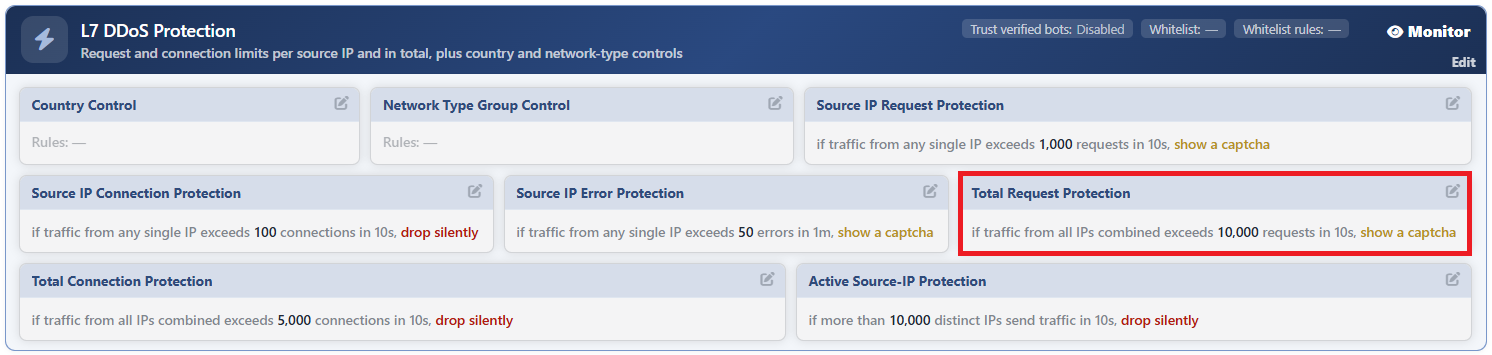 L7 DDoS Protection - The Total Request Protection Card
The Total Request Protection Edit Screen
- The Bot/DDoS Management tab is opened.
- The pencil icon at the top right of the Total Request Protection block in the body of the L7 DDoS Protection card is clicked; the edit window titled Edit - Total Request Protection opens.
- The following fields are edited and confirmed with the
Editbutton.
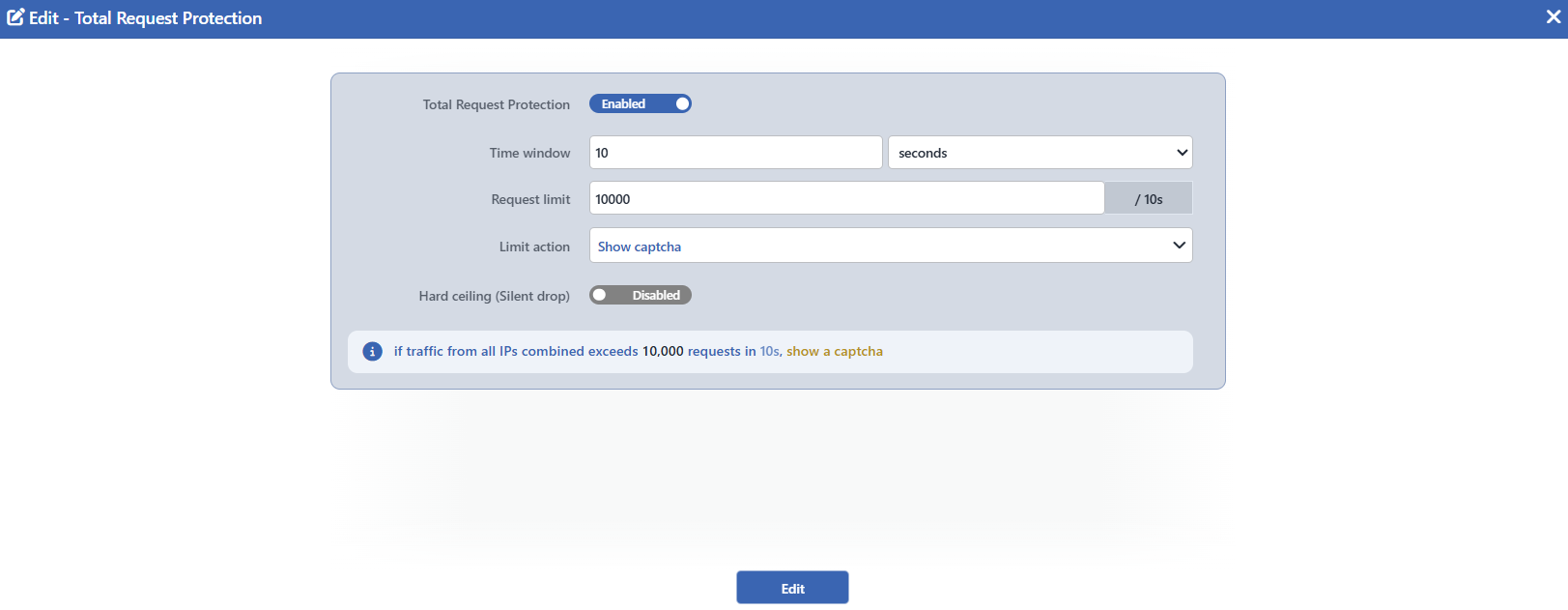 The Total Request Protection Edit Screen
INFO
Total Request Protection Default: On
It determines whether the block is on or not; its default value is on and this value is written to the configuration record created when the protection is enabled. While it is on, the block makes measurements and produces events even while the protection is in the Monitor mode; for it to be off, the switch must be turned off manually.
When it is turned off, all the other fields in the form (the time window, the limit, the action and the hard ceiling if there is one) are hidden.
When it is turned off, the block card does not leave the screen: it fades and the Disabled badge appears on it, and the values written continue to be read.
INFO
Time Window Default: 10 seconds
For how long the counter will be accumulated is defined. The value is entered with a number and unit pair; seconds, minutes or hours can be selected as the unit. Its default value is 10 seconds; at least 1 second and at most 1 hour can be defined.
The window is repeated in the suffix on the right of the limit field as well: with a label such as / 10s the field shows to which period the limit belongs.
INFO
Request Limit Default: 10000
How many requests all the sources can produce together within the window is defined; its default value is 10000. Only an integer, at least 1, can be entered in the field. When the counter exceeds this value, the block is triggered.
INFO
Limit Action Default: Show Captcha
The enforcement to be applied when the limit is exceeded is selected; its default value is Show Captcha.
| Option | What it does |
|---|---|
| Silent Drop | The request is left unanswered, the connection is silently dropped. |
| Block | It is blocked with the defined status code. |
| Redirect | It is redirected to the defined address. |
| Show Content | A page from the selected content profile and a status code are returned. |
| Show Captcha | The source is directed to the shared challenge. |
The action set of the total blocks is narrower: Tarpit and Quarantine are not present here, because a total limit covers not a single source but the whole of the traffic.
According to the selected action, additional fields appear in the form: Block status code (default 403) for Block, Redirect location (default /robots.txt) and Redirect code (default 302) for Redirect, and Content page and Status code (default 403) for Show Content. Show Captcha does not carry an additional field in this form: the appearance of the challenge is managed from the Captcha card.
INFO
Hard Ceiling (Silent Drop) Default: Undefined
It is the second and harder tier; it is not defined by default. When it is turned on, the field is filled with twice the default limit of the block (20000); the current value written in the limit field does not change this pre-filling, and the value needed is written manually. The enforcement of the ceiling cannot be selected: in this block it is always Silent Drop and this name is written in the label of the field as well.
While the ceiling is on, Limit Action works only in the region between the limit and the ceiling; when the counter exceeds the ceiling, the decision passes to the enforcement of the ceiling. This two-tier distinction is set up only in the Active mode: in the Monitor mode the ceiling does not work as a separate tier. This second tier is added to the card sentence with a semicolon: …; over <ceiling> requests, <action>.
INFO
Edit
Changes in the form are saved by clicking the Edit button. There is no additional confirmation window or deploy step; the Load Balancer configuration is regenerated and applied automatically. The operation is written to the user log with a change summary.
The sentence below the form is live
The information box below the fields builds the sentence that will appear on the card while it is being written: as the limit, the window and the action change, the sentence is updated instantly. Before saving, how the setting will be read on the screen is seen from here.
The total hard ceiling is an availability ceiling
Unlike the source-based ceilings, the total hard ceiling is kept outside the first match wins chain: even if a block further above has already decided the request, the ceiling comes into play. The purpose is deliberate; at the moment of a flood an availability ceiling must not be reduced to the softer enforcement of another block.
The trust in the verified bots does not cover this block
The Trust Verified Bots setting of the card affects only the source-based blocks. A verified search engine bot is also included in the total limit and in the total hard ceiling: a crawling storm must also stay under the flood ceiling.
Scope and Limits
INFO
- It is present only on HTTP vServices. The request counting is not made on L7 TCP vServices.
- A single counter is kept. The threshold is valid not per source but for the whole of the traffic.
- The block is on by default. When the configuration is saved, the switch is written as on; turning it off is the decision of the operator.
- The enforcement is applied only in the Active mode. While L7 DDoS Protection is in the Monitor mode, the counters work, events are produced and the card sentence is read; however no request is stopped.
- The first match wins. If a request has been decided in a block further above, this block does not produce an enforcement for that request.
- The pencil icon depends on the permission. The block card is displayed with read-only permission; the pencil icon that opens the edit window is displayed only on the users that have edit permission.
- The enforcement of the hard ceiling is fixed. When the ceiling is exceeded, the traffic is always dropped silently; the action cannot be selected.
