
Smarter by Design.Simpler for Business
Conditions
What Are Conditions?
Conditions are reusable decision mechanisms that check specific properties of the HTTP and L7 TCP traffic passing through TR7 Load Balancer.
Conditions are one of the basic building blocks of modern Load Balancer and Application Delivery Controller (ADC) systems. They are the GUI-based and no-code/low-code counterpart in TR7 of the script-based condition logic in traditional systems. Functionally, they check "whether a situation is met" and determine when Actions will run or how traffic distribution will be done.
Each Condition enables the traffic to be managed dynamically by being used on one or more Actions or vServices. By combining conditions with AND/OR logic, complex decision trees can be built.
What Can Be Checked?
- Client Information: Source IP address, country, browser, mobile platform, bot type
- Request Properties: Path, query parameter, HTTP method, header values, cookie, request body
- Server Status: Number of healthy Backend Services, response time, status code
- Security: IP Intelligence, WAF attack signature, blacklist check
- Session and Identity: User authentication, AGS session information, quarantine status
- Network: Destination IP/Port, SSL cipher/version, SNI information
How Conditions Work
TR7 Conditions are evaluated in real time in the traffic lifecycle and return true or false as the result.
Condition Evaluation Order
- Conditions are evaluated before the Action is run.
- If there is more than one condition in an Action, they are combined according to the AND/OR operators:
- AND (◆): All conditions must be true → the Action runs.
- OR (◇): At least one condition must be true → the Action runs.
- If the condition returns false, the related Action is skipped and the next Action is evaluated.
Condition Matching Criteria
Different matching operators are used for each condition type.
Text-Based Conditions (Path, Header, Cookie, etc.):
| Operator | Meaning | Example |
|---|---|---|
| Exact Match | Exact one-to-one match | /admin = /admin, /Admin ≠ /admin |
| Start | Starts with | /api/v1/users START /api |
| End | Ends with | image.jpg END .jpg |
| Includes | Contains | /user/123 INCLUDES /user |
| Regex | Regular expression | /user/\d+ → /user/123 matches |
| Is Present | Whether the item exists regardless of its value; offered only in the HTTP Header, Query Parameter, User/Server Cookie and RDP Cookie conditions | Matches if the X-Debug header is present in the request |
Numeric Conditions (Port, Size, Count, etc.):
| Operator | Meaning |
|---|---|
| < LESS THAN | Less than |
| = EQUALS TO | Equal to |
| > GREATER THAN | Greater than |
| RANGE | Range |
Case Sensitivity
- By default, conditions are case-sensitive (
/Admin≠/admin). - With the case-insensitive option, the difference between uppercase and lowercase letters is ignored.
Relationship Between Conditions and Actions
- Unconditional Action: Always runs on all traffic.
- Conditional Action: Runs only when the conditions are met.
Reusability of Conditions
- A condition can be used in more than one Action or vService.
- A change made in the condition is reflected in all related Actions/vServices.
- With the "Used in" feature, where the condition is used is tracked.
Automatic NOT (Negation) Condition Creation
Each defined condition is offered in two forms in the selection lists at its usage locations: the condition itself and its negation (NOT). No separate NOT object is created; the negation is a flag kept at the place where the condition is used; for this reason, only the condition itself is visible in the Conditions list.
How It Works:
- A new condition is added:
SourceIP_OfficeNetwork = 192.168.1.0/24 - Two options appear in the selection lists at the usage locations:
SourceIP_OfficeNetworkandNOT(SourceIP_OfficeNetwork) - The NOT form is not visible as a separate record in the "Conditions" list.
- It can be selected in the dropdown when adding an Action or Conditional Backend Services.
Usage Areas:
1. When Adding an Action:
- Load Balancer → Actions → Add/Edit
- Both the original and the NOT version are visible in the Conditions dropdown.
- Example: both
Path = /adminandNOT(Path = /admin)can be selected.
2. Conditional Backend Services:
- While making the vService → Conditional Backend Services selection,
- the NOT version can be used when routing Backend Services according to the condition.
- Example: all requests other than
/adminare sent to Backend-B →NOT(Path = /admin)is used.
- No need to create a manual NOT condition: The system handles it automatically.
- Management from a single place: When the original condition is updated, the NOT version is also updated automatically.
- Less configuration complexity: The list shows only the positive conditions; the negative versions are ready in the background.
- Flexible logic: Both "matches" and "does not match" scenarios can be applied easily.
TIP
Example: Office IP Whitelist Scenario
Defined Condition: SourceIP_OfficeNetwork = 192.168.1.0/24
Action: Security check for all requests other than office IPs.
- Condition:
NOT(SourceIP_OfficeNetwork)→ such as showing CAPTCHA + applying rate limiting.
Condition Types and Categories
TR7 offers more than 40 condition types for different traffic scenarios. These conditions can be divided into the following categories according to their functions.
40+
Condition Types
Ready-made condition types that check traffic properties
11
Categories
Client, request, response, security, SSL and more
AND / OR
Logic Operators
Multi-layered decision trees can be built
NOT
Automatic Negation
The negative version of each condition is prepared automatically
1. Client and Device Information
- Source IP: Check of the client's source IP address or CIDR block. Used for whitelist/blacklist and geographic restriction.
- Blacklist IP Category: IP reputation check with IP Intelligence. Categories such as Malicious, Proxy, Tor and Spam.
- Browser: Detection of the browser type, such as Chrome, Firefox, Safari and IE.
- Mobile Platform: Check of the mobile platform, such as iOS, Android and Windows Phone.
- Bot Type: Distinction between search engine bots, malicious bots and good bots.
2. Request Properties
- Path: URL path check (
/admin,/api/v1/users). - Path + Query: Check of the path and query string together.
- Query Parameter: Check of the query string parameter value (
?user=123). - URL: Full URL check (protocol + host + port + path + query).
- HTTP Header: HTTP header (request/response) value check.
- HTTP Request Body: Check of the POST/PUT request body content.
- User Cookie Name: Check of the name/value of the cookie coming from the client.
- Request Size (bytes): HTTP request body size check.
3. Response Properties
- Status Code: The HTTP status code returned from the Backend Service (200, 404, 500, etc.).
- HTTP Response Body: Response body content check.
- Response Size (bytes): HTTP response body size check.
- Server Cookie Name: Check of the Set-Cookie header returned from the Backend Service.
- Response Based URL List: Check of the presence of specific URLs in the response content.
4. Backend Service and Server Status
- Number of Active Servers: The number of Backend Services in the UP state.
- Server Response Time: Backend Service response time check (ms).
5. Traffic Load and Rate Control
- Frontend Connection: Total number of active TCP connections.
- Frontend Number of HTTP Requests /s: Number of HTTP requests arriving within a specific period.
- Frontend Number of New Sessions /s: New TCP session rate check.
6. Security and WAF
- WAF Attack ID: Check of a specific WAF attack signature ID.
- WAF Attack Group: WAF attack category check (SQL Injection, XSS, etc.).
- Quarantine Condition: Check of the user's quarantine status.
7. SSL/TLS
- SSL Cipher: The cipher suite used in the TLS handshake.
- SSL Version: TLS version (TLS 1.2, TLS 1.3).
- SSL SNI Info: SNI header check before SSL Termination.
8. Network
- Destination IP: Destination IP address of the traffic.
- Destination Port: Destination port number of the traffic.
- Network Type Category: Evaluation according to the network type category of the client.
- Network Type Group: Evaluation according to the network type group of the client.
9. Authentication and Session
- User Authentication: Is the user authenticated at the TR7 level?
- AGS Condition: AGS - AAM (Application Access Management) session information check.
- RDP Cookie: RDP cookie check.
10. Custom and Advanced
- Dynamic Condition: Creating a dynamic condition with a Smart Variable.
- Dynamic List: Checking whether a Smart Variable is in a list.
- Tracking Condition: A condition based on the data logged by the Advanced Traffic Inspection action.
11. Other
Advantages of Conditions
TR7 Conditions offer many operational and technical advantages over traditional script-based traffic control methods.
No Need to Write Code (No-Code/Low-Code)
- Conditions are created entirely through a GUI-based interface.
- No knowledge of any programming language or script writing is required.
- Complex if/else logic is built with simple dropdowns and input fields.
- The risk of syntax errors, logic errors or runtime crashes is eliminated.
Central, Single-Point Management
- A condition created once can be reused on more than one Action and vService.
- A change made in the condition is automatically reflected in all Actions/vServices that use that condition.
- In which Actions/vServices the condition is used is easily monitored with the "Used in" feature.
- Central management minimizes the risk of inconsistency.
Powerful and Flexible Logic Structure
- Multi-layered condition chains can be built with AND/OR operators.
- Complex business logic can be expressed with a simple GUI.
- Example: "(if it comes from IP A OR if it comes from IP B) AND (if the path is /admin) AND (if the time is between 18:00-09:00)"
Dynamic Control with Smart Variables
- Dynamic evaluations are made by using Variables in conditions.
- Access to 50+ data points such as client IP, Host, Path, Header, Cookie and Timestamp.
- Dynamic values are produced at runtime and used in conditions.
Wide Range of Matching Options
- Operators optimized for each condition type.
- Case-sensitive / case-insensitive options.
- CIDR block and regex support.
- Numeric, string, IP and list-based matching.
Ease of Testing and Debugging
- Monitoring condition matches in real time with Debug Mode.
- Seeing in HTTP/TCP logs which condition returned true/false.
- Verification in a test environment before moving to production.
High Performance and Scalability
- Conditions are optimized for high throughput and low latency.
- They work efficiently in large-scale deployments (high-traffic websites).
- They provide maximum processing capacity with minimal system resource consumption.
Operational Best Practices
The following best practices should be followed to use TR7 Conditions efficiently and securely in production environments.
- Descriptive names should be used. What the condition checks should be stated clearly; meaningless names such as
Condition1andTestshould be avoided. - A naming standard should be established. For consistency, a format such as
[CheckedItem]_[Value]_[Purpose]should be defined and applied across the team. - The right operator should be selected.
STARTshould be used for path checks,EXACT MATCHfor exact matches andINCLUDESfor content checks; each has a different performance cost. - Case sensitivity should be taken into account. Since the default is case-sensitive, the case-insensitive option should be considered in conditions that contain user input.
- CIDR blocks should be preferred. Instead of several individual IPs, CIDR blocks such as
192.168.1.0/24perform better. - Regex should be minimized. Regex is the slowest matching method with the highest CPU cost;
START/END/INCLUDESshould be preferred where possible. - AND/OR complexity should be limited. Too much mixing of AND/OR should be avoided; complex logic should be split into more than one Action.
- Changes should be tried in a test environment first, and a "Used in" check should be made. Before changing a condition, in which Actions/vServices it is used should always be checked.
Naming Rules (with Examples)
Descriptive names should be used: What the condition checks should be stated clearly.
- ✅ Good examples:
Check_SourceIP_OfficeNetwork,Path_AdminPanel,WAF_SQLInjection_Block - ❌ Bad examples:
Condition1,Test,New_Cond
A naming standard should be established: A format should be defined for consistency.
- Format:
[CheckedItem]_[Value]_[Purpose] - Example:
IP_Blacklist_Security,Path_API_RateLimit,Browser_IE_Compatibility
The purpose of use should be stated: Where/how the condition will be used should be expressed in the name.
- Example:
ForAdminPath_IPWhitelist,ForAPI_BandwidthLimit
Operator Selection and Matching Strategies
The right operator should be used:
- Path check:
STARTis more efficient (example:/api/v1/users→ does it start with/api?) - If an exact match is needed:
EXACT MATCH. - Content check:
INCLUDES(but its performance cost is high). - Regex: Only when needed (highest CPU cost).
Case sensitivity should be taken into account:
- Default is case-sensitive →
/Admin≠/admin - If there is user input, case-insensitive should be used.
CIDR blocks should be preferred:
- CIDR instead of several IPs:
192.168.1.0/24(256 IPs) - Better performance than an IP list.
Care When Using Regex
Regex should be minimized: Regex is the slowest matching method.
- ✅ Preferred:
START,END,INCLUDES - ❌ To be avoided: Complex regex patterns.
Regex should be optimized:
- Unnecessary capturing groups should be removed:
(pattern)should be written aspattern - Anchors should be used and unnecessary wildcards avoided:
/api/.*should be written as^/api/
Points to Consider with Smart Variables
Smart Variable syntax should be used correctly:
- Square brackets:
[Client IP address] - Uppercase/lowercase matters.
- The documentation should be checked.
Runtime values should be known:
[Host]may contain the port:example.com:443[Path]does not contain the query string:/api/users(query is separate)
Production Deployment Checklist
- Changes should be tried in a test environment first: The condition logic should be verified in staging.
- A "Used in" check should be made: Before changing a condition, in which Actions/vServices it is used should be checked.
- Incremental test:
- The condition is kept simple and tested.
- It is made more complex and tested again.
- A rollback plan should be in place:
- The previous configuration should be noted.
Common Usage Scenarios
The scenarios in which TR7 Conditions are most frequently used in live environments are listed below.
Security Scenarios
Office IP Whitelist Check
Access to the management panel is allowed only from the office network.
Malicious IP Blocking
Known malicious IPs are blocked with IP Intelligence.
- Condition: Blacklist IP Category =
Malicious, Proxy, Tor - Action: Block or Quarantine
- Result: Suspicious IPs are blocked automatically.
Path-Based Controls
API Endpoint Rate Limiting
Rate limiting is applied to requests starting with /api/.
- Condition: Path START
/api/ - Action: Bandwidth Limitation
- Result: API abuse is prevented.
Admin Panel Protection
A special security layer for the /admin and /wp-admin paths.
- Condition: Path START
/adminOR/wp-admin - Action: Advanced Captcha
- Result: Two-layer security.
Browser and Device-Based Controls
Internet Explorer Warning
A modern browser warning is shown to old IE users.
- Condition: Browser =
Internet Explorer - Action: Show Content → Browser update page
- Result: IE users are informed.
Mobile User Redirection
Those coming from mobile devices are redirected to the mobile version.
- Condition: Mobile Platform =
iOS, Android - Action: Set Path →
/mobile/app - Result: The mobile experience is optimized.
Backend Service Status-Based Controls
All Backend Services Down
A maintenance page is shown when no healthy Backend Service is left.
- Condition: Number of Active Servers =
0 - Action: Show Content → "Service temporarily unavailable"
- Result: A user-friendly error message.
Traffic Load Control
DDoS Protection: High Connection Count
Rate limiting is activated when the number of connections is excessive.
- Condition: Frontend Connection >
10000 - Action: Bandwidth Limitation + CAPTCHA
- Result: The DDoS effect is minimized.
High Request Rate
If 1000+ requests arrive per second, they are limited.
- Condition: Frontend Number of HTTP Requests /s >
1000/second - Action: Quarantine or Block
- Result: The system is protected.
How to Add?
A new Condition can be added through the TR7 web management interface by following the steps below:
- The Configuration Menu is opened by clicking the TR7 logo at the bottom left.
- The Load Balancer → Conditions → Add steps are followed.
- A unique and descriptive name is entered for the condition. (Optional)
- The condition type is selected.
- The related values are configured according to the selected Condition type.
- The Condition is added by clicking the
Addbutton.
TIP
Reaching the page via quick search
Instead of navigating the menu step by step, the related page is reached directly by using the search bar in the bottom left corner of the screen. The search bar opens with the Alt + T shortcut on Windows and Opt + T on macOS; typing the name of the feature being searched for is then sufficient.
The created Condition can be used on one or more vServices and Actions.
Conditions Listing Screen
The list of all Conditions added on the TR7 device is reached by following the Load Balancer → Conditions path. Operations such as adding, editing and deleting Conditions are performed on this screen.
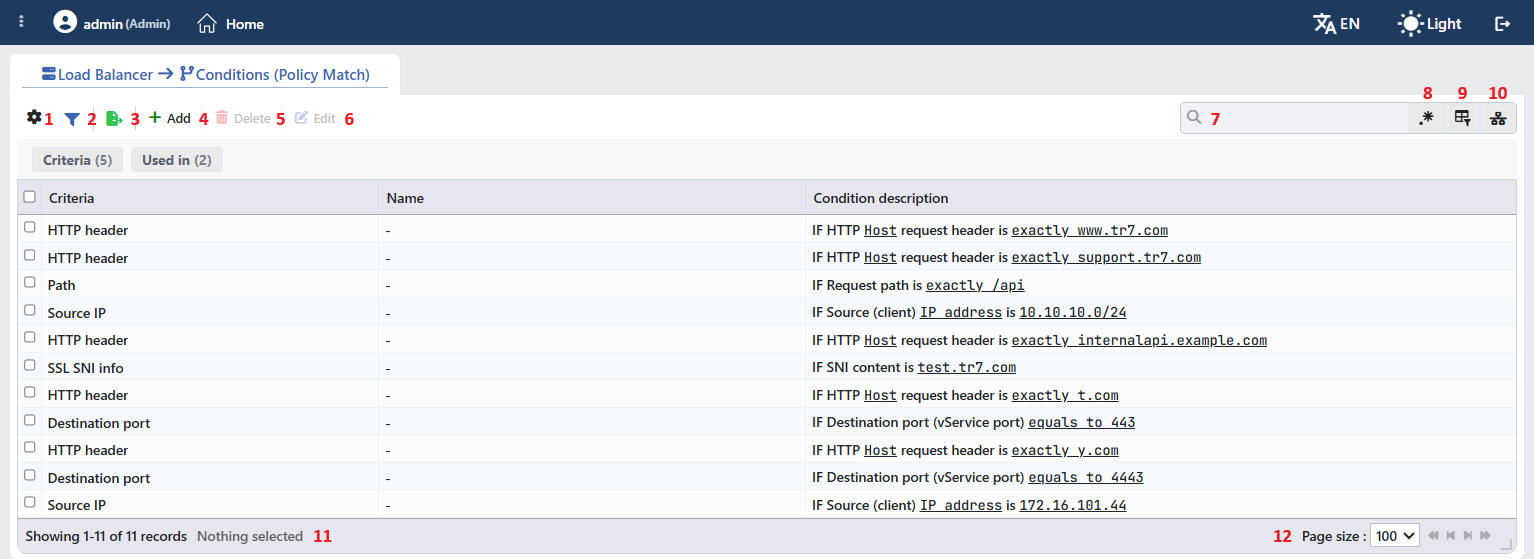 Condition Listing Form
The table opens with the following columns by default:
| Column | Description |
|---|---|
| Criteria | The criterion the condition checks (e.g. HTTP Header, Path, Source IP, SSL SNI Info, Destination Port); the full long label is visible when the pointer is over the cell. |
| Name | The name given to the condition; - if no name is entered. |
| Condition Description | The readable expression of the condition (e.g. IF HTTP Host request header is exactly www.tr7.com); the full expression is also visible when the pointer is over the cell. |
The name and the expression are two separate columns: giving a Condition a name does not prevent its expression from being visible in the list. There is no column hidden by default; these three columns are located in the column selector. The table is not sorted on opening; when a column header is clicked, descending sorting is applied first, then ascending; on the third click, the sorting is removed.
The items in the toolbar are arranged from left to right in the following order; the last two items (Page Information and Page Size) are located in the information strip below the table.
Columns
Which columns are shown in the table is selected; all three columns are on by default. In the same panel, columns are reordered by dragging and alignment is selected per column; the row height is fitted to the page with the Fit rows to the page button, and the column layout is reset to default with the Reset button. The layout is stored per user.
Filter
The Filter button is used to filter the Conditions shown in the list according to specific criteria; the button shows the number of active filters with a badge. There are two cards in the strip: Criteria and Used in. The card header contains the filter name and the number of values; when a card is clicked, the values are listed below it with their row counts. The Used in card lists the names of the vServices in which the Condition is used; for Conditions not used in any vService, there is the Unused Entries option. The selections are displayed as closable tags below the card strip, right above the table.
Export
The table is exported as Excel, CSV or PDF by clicking the Export button. In the window that opens, the Filename, Format and Data Source, together with the Columns to be exported, are determined; the remaining fields are displayed according to the format: CSV Separator for CSV, Excel Sheet Name for Excel, and Page Orientation and Page Size for PDF.
Add
By clicking the Add button, the form for creating a new Condition opens in a new tab.
Delete
When one or more Conditions are selected and the Delete button is clicked, the related Conditions are deleted. Before deletion, the confirmation "Are you sure that you want to delete conditions object?" is requested; if more than one Condition is selected, the text becomes "Are you sure you want to delete N conditions objects?".
WARNING
The confirmation window does not show the usage locations of the Condition. Before deletion, in which Actions and vServices the Condition is used should be checked with the Used in tab in the preview panel.
Deleting a Condition in use is not blocked. The Condition is permanently removed from the condition lists of the Actions, cache rules and vServices in which it is used, and a condition group with no other condition left in it is also dropped. An Action whose conditions are all deleted in this way becomes unconditional and is applied to all traffic of the vService it is bound to; Action types that require a condition, on the other hand, are never triggered.
Edit
By clicking the Edit button, the edit form of the selected Condition opens in the Edit tab. The button becomes active only when a single Condition is selected.
Search
Used to search all information in the table.
RegExp Search
Used to search all information in the table with a regular expression (RegExp). This button is hidden while column-based search or the usage filter is active.
Column Based Search
Used to perform a column-based search on the information in the table.
Usage Filter
Used to filter which vServices the Conditions are bound to; the Conditions used in the selected vService are listed, and for those not used in any vService, there is the Unused Entries option. While the filter is active, the selector takes the place of the search box; when the icon is clicked again, the search box returns.
Page Information
Contains information about the total number of defined Conditions and the number of Conditions displayed in the list: Showing N-M of T records and the number of selected Conditions (N selected, or Nothing selected when there is no selection). If a selection has been made in the filter strip, the number of applied filters and the shown/total row information are added to the same line.
Page Size
The maximum number of Conditions to be displayed on the page is selected. The default is 100; the options are 5, 10, 20, 50, 100, 200, 500 and All.
Right-Click Menu
When a row is right-clicked, a menu with two operations opens; the menu has no title row. As long as the menu stays open, the right-clicked row is displayed highlighted; right-clicking does not change the selection in the list and does not open the preview panel. Both operations apply only to the right-clicked Condition and are active on every row.
| Operation | What it does |
|---|---|
| Edit | Opens the edit form of the condition in the Edit tab; it is the same form as the one opened by the Edit button in the toolbar. If the edit tab of the condition is already open, no new tab is opened; the open tab is switched to. |
| Delete | Deletes the right-clicked Condition; before deletion, the confirmation "Are you sure that you want to delete conditions object?" is requested. Only this Condition is deleted even if other Conditions are selected in the list. Deleting a Condition in use is not blocked; the warning of the Delete item in the toolbar also applies here. |
Preview of the Selected Condition
When a row in the list is clicked, the preview of the Condition opens on the right side of the screen; when the selected row is clicked again, the panel closes. The header contains the condition icon, the name of the Condition (its short expression if no name is given, e.g. ↓IP = 10.10.10.0/24) and the Condition subtitle, and at the top right there is a single operation.
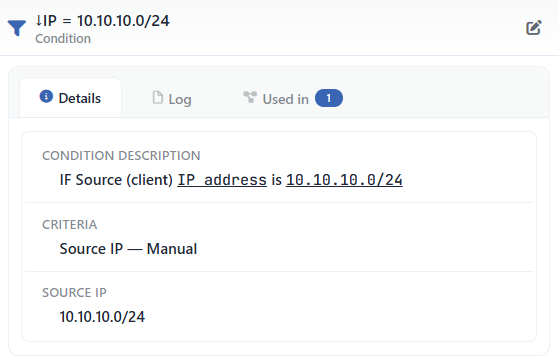 Preview of the Selected Condition
| Operation | What it does |
|---|---|
| Edit | Opens the edit form of the condition in the Edit tab. |
There are three tabs in the panel; the last one is displayed only if the Condition is used somewhere:
Details
Lists the settings of the condition row by row (table below).
Log
Lists the user operations (add, edit, delete) on the condition as a timeline.
Used in
Lists the vServices and Actions in which the condition is used. The badge next to the tab name shows the usage count; if the Condition is not used anywhere, the tab is not displayed at all.
The rows in the Details tab are as follows, in order:
| Row | Description | Visibility condition |
|---|---|---|
| Name | The name given to the condition. | If a name is entered |
| Condition Description | The readable expression of the condition (e.g. IF Source (client) IP address is 10.10.10.0/24). | Always |
| Criteria | The name of the criterion; for content-based criteria and for Source IP, the match or source format is shown next to it (e.g. Source IP — Manual). | Always |
| Criterion-specific rows | The values of the criterion (e.g. Header Name, Query, Source IP, Destination IP, Browser Name, WAF Attack Signatures). | According to the selected criterion |
| Condition Level | The level at which the condition is evaluated. | If a value is defined (manual and custom list conditions) |
| Condition Protocol | The protocol of the condition. | If a value is defined (manual and custom list conditions) |
The "Used in" tab must be checked
The Used in field shows on which vServices or Actions the related Condition is actively used. This information enables a quick and accurate analysis of which services a change to be made on the Condition will affect. Especially in live environments, it is critically important for evaluating possible service impacts before updates to the Condition settings are made.
Common Issues and Solutions
Some common issues encountered while working with conditions and suggested solutions are listed below.
WARNING
Problem 1: Condition Does Not Match
Symptom:
- The condition seems correct, but the Action is not triggered.
- It works in some requests and does not work in others.
Checklist:
✅ Case sensitivity
- Default is case-sensitive →
/Admin≠/admin - Solution: The case-insensitive option should be enabled.
✅ Is the operator correct?
- EXACT MATCH: Exact match | START: Starts with | END: Ends with | INCLUDES: Contains | REGEX: Pattern
- Solution: The right operator should be selected and tested.
✅ The Smart Variable value is different from what is expected
- Solution: The value should be checked in the debug logs |
[Host]may contain the port:example.com:443
✅ The AND/OR logic is wrong
- AND: All must be met | OR: At least one must be met
- Solution: The logic should be verified | Test cases should be prepared.
WARNING
Problem 2: Unexpected Behavior
Symptom:
- The condition matches in a different way.
- The desired result cannot be obtained.
Checklist:
✅ Is the condition type selected correctly?
- Path ≠ Path+Query | Header ≠ Cookie | URL ≠ Path
- Solution: The documentation of the condition should be read.
✅ Is the Smart Variable format correct?
- Solution: Square brackets should be used:
[Client IP address]| Uppercase/lowercase must match.
✅ Is the CIDR/IP list correct?
- Solution: CIDR format:
192.168.1.0/24
TIP
Debug Tips: Step-by-Step Troubleshooting
1. Enabling Debug Mode
- vService → Details → Debug Mode = Enabled
- Detailed information is visible in the Debug Mode logs.
2. Reviewing the Logs
- Monitor Mode → Related vService → Logs & Tracking → HTTP/TCP Logs
3. Simplifying the Condition
- All AND/OR conditions are removed → Only a single condition is tested → The condition causing the problem is found.
4. Controlled Test with a Test Client
- A specific request is sent with curl/Postman → Header/cookie is added manually → The condition match is verified.
5. "Used in" Check
- In which Actions/vServices the condition is used is checked → It may have been used in the wrong place.
