
Smarter by Design.Simpler for Business
Learning Methods
What Is Learning Methods?
Learning Methods manages the way WAF gets to know the protected site: the rule creation policy of the learning on a page (path) basis (Rule Creation Policy) and the three methods that provide selective learning from the live traffic (Conditional Learning, AI Learning, Teacher) are configured from this screen.
The three methods are independent of the Learning mode on the WAF Mode screen: while the Learning mode processes all the traffic coming to the host group in the learning mode, the methods here learn only from the selected sources or from the accumulated records even while the vService is in the Blocking or Monitor mode.
What the learning touches
The learning widens or clears the fields of the existing rules under WAF Rules: the new rules specific to a page are derived from the Any Paths rule (the allowed methods, the path depth and the OWASP exclusions are inherited from there, and the inspection field that triggers the learning is added as a copy of its counterpart in Any Paths) and in the regular expression (regex) inspections the pattern that produces a false positive is cleared entirely. The Header inspections are kept site-wide; whatever the policy is, the header learning is always written into the Any Paths rule. The learning never creates a new argument rule. Every learning that is applied automatically leaves a learning record that can be undone and an operation record with the system user.
The scope
The Learning Methods settings are valid across the vService and are common in all the host groups.
The Learning Methods Card on WAF Management
The Learning Methods card in the Learning & Reporting section of the WAF Management screen summarizes the methods that are on and the rule policy line by line. The lines are arranged in the order Teacher, AI Learning, Conditional Learning, the rule policy; the methods that are off are combined in a single sentence at the very bottom:
- The Teacher line: while it is on, it summarizes with the pattern Teacher is on — teaching sources are identified by IP + cookie (processing period 30 minutes), joining the identity fields that are full (IP, cookie, header) with
+. If no identity field is full, the line turns into the warning Teacher is on but no identity is set — nothing can teach. - The AI Learning line: it shows the selected period with the pattern AI learning is on — traffic is evaluated collectively every 1 hours; if no period has been selected, the warning AI learning is on but no period is selected is displayed.
- The Conditional Learning line: it shows the identity fields that are full with the pattern Conditional learning is on — the analyst is recognised by IP; while there is no identity, it turns into the warning Conditional learning is on but no identity is set.
- The rule policy line is displayed in every case: Rule policy is Page independent — pages are not learned individually; access is governed by one general rule, Rule policy is Data based — unlearned accesses carrying data are blocked or Rule policy is Comprehensive — any access outside the learned pages is blocked.
- The methods that are off are combined in a single sentence: while all three are off it is displayed as Teacher, AI learning and Conditional learning are off, while two are off as Teacher and AI learning are off, and while only one is off as Conditional learning is off.
While all three methods are off, the card goes dim and the Disabled pill is displayed; the rule policy line takes place on the dim card as well.
When the pencil icon at the top right of the card is clicked, the edit screen opens.
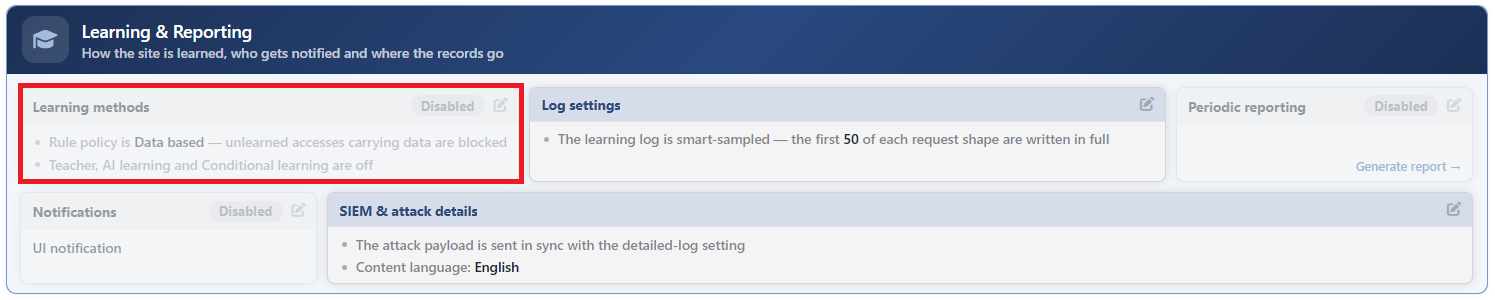 WAF Management - The Learning Methods Card
The Learning Methods Edit Screen
- The WAF Management tab is opened.
- The pencil icon at the top right of the Learning Methods card in the Learning & Reporting section is clicked; the editing window titled Learning Methods opens.
- The following fields are edited and confirmed with the
Editbutton.
The form opens with Rule Creation Policy, the reverse of the line order on the card; the Teacher section is at the very end.
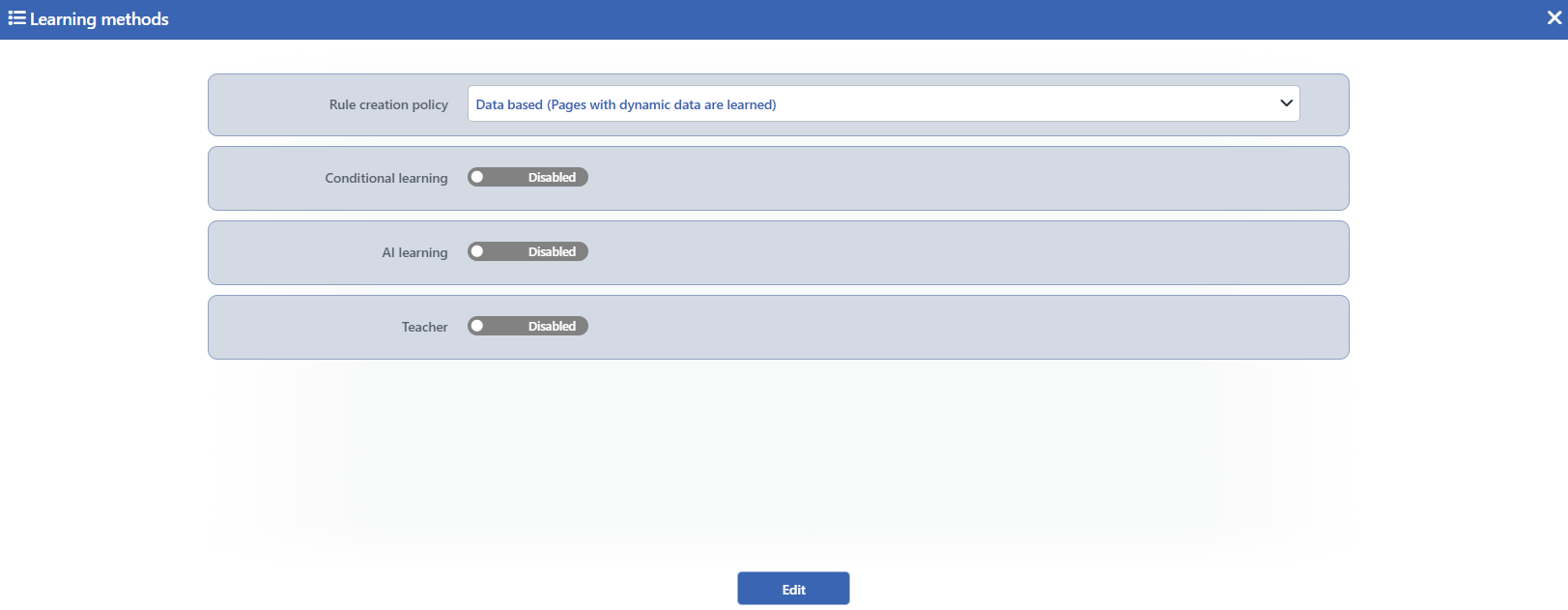 The Learning Methods Edit Screen
INFO
Rule Creation Policy Default: Data Based
The rule creation policy of the learning on a page basis is selected; its default value is Data Based:
| Option | Meaning |
|---|---|
| Page independent (Pages are not learned) | The pages are not learned one by one; all the requests are managed with a single common rule (Any Paths) and the learning does not produce a rule specific to a page. |
| Data Based (Pages with dynamic data are learned) | The inspection fields that carry data (Query, JSON, XML, Form, RAW) are learned on a page basis; the requests that carry data to the pages that have not been learned fall to the common rule and are blocked, the access without data stays free. |
| Comprehensive (Each page is learned) | Every page is learned together with its access methods; every access outside the learned pages is blocked. |
The policy selection alone does not change the existing rules: the selection determines the rule creation way of the following automatic learning runs (Teacher, AI Learning). In a manually started Analysis & Learning run, on the other hand, the rule creation mode is selected separately from the Rule Creating Mode field on the start screen of the run. The "blocking the unlearned access" effect of the Data Based and Comprehensive policies appears with the Any Paths rule being set up again restrictively according to this policy in an analysis run that ignores the old rules: in Comprehensive the allowed methods of the common rule are closed entirely, and in Data Based only GET, HEAD and OPTIONS are left and the JSON, XML and Form bodies with the query data are blocked. In an analysis run that combines with the existing rules, the common rule is not restricted in this way.
INFO
Conditional Learning Default: Off
It turns on the conditional learning; it is off by default. When it is turned on, the three identity fields below appear in the form and every request whose identity matches is processed in the learning mode specifically for that request, independently of the mode of the host group: the request is not blocked, the rules are not applied and a full learning record is written. Thus an analyst collects learning data by browsing the site without the live Blocking mode being disturbed. Conditional Learning does not produce a rule on its own; the records it collects are the input of the Analysis & Learning runs.
Conditional Learning IP
Into this field that appears in the form when the switch is turned on, the IP addresses of the analyst whose learning data will be collected are entered separated by a space. Besides the individual addresses, network blocks can also be defined (such as 192.168.10.0/24); only the IPv4 addresses and the IPv4 blocks are valid, the IPv6 addresses are ignored.
Conditional Learning Cookie
Into this field that appears in the form when the switch is turned on, the value of the cookie named TR7-ANALYZE that the analyst will carry in their requests is entered.
Conditional Learning Header
Into this field that appears in the form when the switch is turned on, the value of the HTTP header named TR7-ANALYZE that the analyst will carry in their requests is entered.
The identity fields are not validated in the form
The values entered in the identity fields are not inspected in terms of format: an invalid address or block can be saved, the card still reports that the identity is defined but at runtime no request matches this identity. The same situation is valid for the Teacher identities as well.
The identities should be cleared while Conditional Learning is being turned off
In this version, when the switch is turned off, the saved identity values are not deleted and the requests that carry this identity continue to be processed in the learning mode (without being blocked). While the method is being turned off, the identity fields need to be emptied as well.
INFO
AI Learning Default: Off
It turns on the collective (artificial intelligence supported) learning; it is off by default. While it is on, the attack records accumulated in the selected period are evaluated collectively: the false positives that pass the filters below and that meet all the prevalence thresholds are applied to the rules automatically. Every learning applied leaves a record that can be undone and is listed in the AI learning history view of the AI Learning & Teacher Tracking tab; the candidates that have not filled the threshold yet are watched from the AI learning tracking view and, if wanted, are applied manually without waiting. In a cluster the automatic learning runs (AI Learning and Teacher) run on a single device but the records of all the devices are evaluated together. When the switch is turned off, the fields below are hidden but their values are preserved; when it is turned on again, the same settings become valid.
AI Learning Frequency
With this field that appears in the form when the switch is turned on, the evaluation period is selected; while None is selected, the collective evaluation does not run and a warning is displayed on the card. The options are listed with the period and, in parentheses, the record window that is evaluated (the duration texts are displayed in the interface with the plural unit pattern, for example 1 hours):
| Option | Meaning |
|---|---|
| 30 minutes (1 days) | Every 30 minutes, the records of the last 1 day are evaluated. |
| 1 hours (2 days) | Every hour on the hour, the records of the last 2 days are evaluated. |
| 2 hours (4 days) | Every 2 hours, the records of the last 4 days are evaluated. |
| 6 hours (1 weeks) | Every 6 hours, the records of the last 1 week are evaluated. |
| 12 hours (2 weeks) | Every 12 hours, the records of the last 2 weeks are evaluated. |
| 1 days (1 months) | Every day, the records of the last 1 month are evaluated. |
| 1 days (3 months) | Every day, the records of the last 3 months are evaluated. |
Country Filter
With this field that appears in the form when the switch is turned on, the evaluation is limited to the records coming from the selected countries; when it is left empty, No restriction is displayed and all the countries are evaluated.
Only Browsers
While this switch that appears in the form when the switch is turned on is on, only the records of the clients that are evaluated as a browser are taken into account.
Only Valid Domain Names
While this switch that appears in the form when the switch is turned on is on, only the records of the requests that come to a valid domain name are taken into account.
Skip Blacklist IPs
While this switch that appears in the form when the switch is turned on is on, the records coming from the IP addresses in the blacklist are left out of the evaluation.
Required Requests Default: 10
Into this field that appears in the form when the switch is turned on, the least number of requests needed for a suggestion to be applied is entered (a required field; at least 1). Its default value is 10.
Required Clients Default: 5
Into this field that appears in the form when the switch is turned on, the least number of different clients needed is entered (a required field; at least 1). Its default value is 5.
Required Countries Default: 1
Into this field that appears in the form when the switch is turned on, the least number of different countries needed is entered (at least 1; it can be left empty). Its default value is 1.
Required ASN Networks
Into this field that appears in the form when the switch is turned on, the least number of different ASN networks needed is entered (at least 1; it can be left empty).
A false positive suggestion is applied only when it is seen in a prevalence that meets all of the defined thresholds; the thresholds make it possible to be sure that the suggestion represents the legitimate traffic coming from different clients, countries and networks.
INFO
Teacher Default: Off
It turns on the teacher mode; it is off by default. While it is on, the requests that match one of the identity fields below are inspected in the normal way but are never blocked; the attack records they trigger are written with the teacher mark and at the end of the selected period are cleared automatically from the rules as a false positive. Differently from AI Learning, the prevalence thresholds are not applied; a single teacher record is enough for the learning. The clearings applied leave a record that can be undone and are listed in the Teacher history view of the AI Learning & Teacher Tracking tab; the rehearsal of the ones to be applied in the next period is watched from the Teacher tracking view.
Teacher IP
Into this field that appears in the form when the switch is turned on, the IP addresses of the teacher are entered separated by a space. Besides the individual addresses, network blocks can also be defined (such as 192.168.10.0/24); only the IPv4 addresses and the IPv4 blocks are valid, the IPv6 addresses are ignored.
Teacher Cookie
Into this field that appears in the form when the switch is turned on, the value of the cookie named TR7-LEARN that the teacher will carry in their requests is entered.
Teacher Header
Into this field that appears in the form when the switch is turned on, the value of the HTTP header named TR7-LEARN that the teacher will carry in their requests is entered.
Teaching Frequency
With this field that appears in the form when the switch is turned on, the processing period of the teacher records is selected:
| Option | Meaning |
|---|---|
| None | The records are not processed. The teacher requests are still not blocked and their records are written but are not turned into a rule; the card displays a processing period (1 minutes) in this case as well. |
| 1 minutes | The teacher records are processed every minute. |
| 2 minutes | The teacher records are processed every two minutes. |
| 5 minutes | The teacher records are processed every five minutes. |
| 30 minutes | The teacher records are processed every half an hour. |
| 1 hours | The teacher records are processed every hour. |
The Teacher identity should be kept secret
Every request that carries the teacher identity is both not blocked and loosens the rules. A client that gets hold of the TR7-LEARN cookie or header value can teach WAF its own traffic; the identity values should be kept secret and when the teaching is completed, Teacher should be turned off.
INFO
Edit
The changes in the form are saved by clicking the Edit button; the button becomes enabled when no error remains in the form. There is no additional confirmation window or deployment (deploy) step; the WAF configuration is automatically produced again and applied. The changes in the identity fields become valid instantly; the effect of the policy change is seen in the next learning run.
The monitoring and the record
Everything the methods teach is recorded. While AI Learning or Teacher is on, a monitoring tab whose name changes according to the methods that are on is added to the WAF screen of the vService: while both are on AI Learning & Teacher Tracking, while only one is on Teacher Tracking or AI Learning Tracking. Conditional Learning does not open this tab on its own; the records it collects are read from the Analysis & Learning screen. In the source selector on the tab the views of the methods that are on are listed; while both are on, all four views are present:
- AI Learning Tracking: it lists the suggestion candidates that have not been applied yet, with the progress bars that show how full the thresholds are; the selected candidates are applied manually without waiting with the Learn Selected button.
- AI Learning History: it lists the AI learnings that have been applied; both the ones applied automatically and the ones applied manually are here.
- Teacher Tracking: it shows the rehearsal of the state of the teacher records that will be applied in the next processing period.
- Teacher History: it lists the clearings applied from the teacher.
The detail of the views is explained on the AI Learning & Teacher Tracking page.
Every learning applied is additionally written into the operation record of the vService: in the record there is which inspection of which page has been learned, from how many attacks and from which sources (the teacher identities, the most intensive clients) and the learning can be undone with the Revert Learning button below the record; the record is located on the Log tab of the WAF - WAAP Data Flow Panel (Reverting the Learning). The attack records triggered by the teacher requests are seen as the Teacher slice on the Dashboard.
The mode behavior
The methods are defined independently of the mode of the host group. In the Learning mode, since all the traffic is already processed in the learning mode, Conditional Learning has no additional effect. In the Blocking mode the requests that carry the Conditional Learning and Teacher identity are processed without being blocked; for the other requests the mode behavior does not change.
