
Smarter by Design.Simpler for Business
Quarantine Condition
What Is Quarantine Condition?
Quarantine Condition is a condition type used to determine whether clients will be quarantined within the scope of the Quarantine action.
This condition compares the metrics collected by the Quarantine action during its tracking stage (number of requests, number of errors, bandwidth, number of connections, etc.) with a threshold value. When the threshold is exceeded, the client is quarantined.
1. Tracking
Client metrics are collected (number of requests, bandwidth, etc.)
2. Evaluate
The Quarantine Condition is checked (e.g. HTTP requests > 1000)
3. Quarantine
The client exceeding the threshold is blocked for a specific period.
WARNING
This condition is designed to be selected in the Quarantine Condition section of the Quarantine action. Even if it is selected in another rule or action, it is silently ignored in the configuration: only the Quarantine action binds the quarantine tracking table.
TIP
Quarantine Behavior
- The tracking key does not have to be only IP: in the Quarantine action, the IP, IP + User-agent, V-Host + IP, V-Host + IP + User-agent or manual (smart variable) keys can be selected.
- For quarantined clients, counting stops; the counters are not triggered again during the quarantine.
- The quarantine list is preserved across configuration reloads and between cluster devices; when the quarantine period expires, the record drops by itself and access is opened automatically.
The Importance of Quarantine Condition
Quarantine Condition is the critical component that determines which clients the Quarantine action will quarantine and when.
With Quarantine Condition:
- In DDoS attacks, clients exceeding the request threshold can be quarantined automatically,
- In brute-force attempts, clients with a high error rate can be detected,
- In bandwidth consumption attacks, clients transferring excessive data can be blocked,
- By combining different metrics (AND/OR), sensitive detection rules can be created,
- Clients showing abnormal connection behavior can be isolated.
Relationship Between the Condition and the Action:
| Component | Role |
|---|---|
| Quarantine Condition | Defines the threshold at which the client is quarantined |
| Quarantine Action | Collects the client metrics, evaluates the condition and applies the quarantine |
Supported vService Types
HTTP
L7 TCP
Network
How to Add?
A new Quarantine Condition can be added through the TR7 web management interface by following the steps below:
- The Configuration Menu is opened by clicking the TR7 logo at the bottom left.
- The Load Balancer → Conditions → Add steps are followed.
- Quarantine condition is selected as Criteria.
- The related configurations of the condition are made.
- The condition is added by clicking the
Addbutton.
TIP
Quarantine Condition can also be created directly by clicking the (+) button in the Quarantine Condition field of the Quarantine action.
Quarantine Condition Add Form
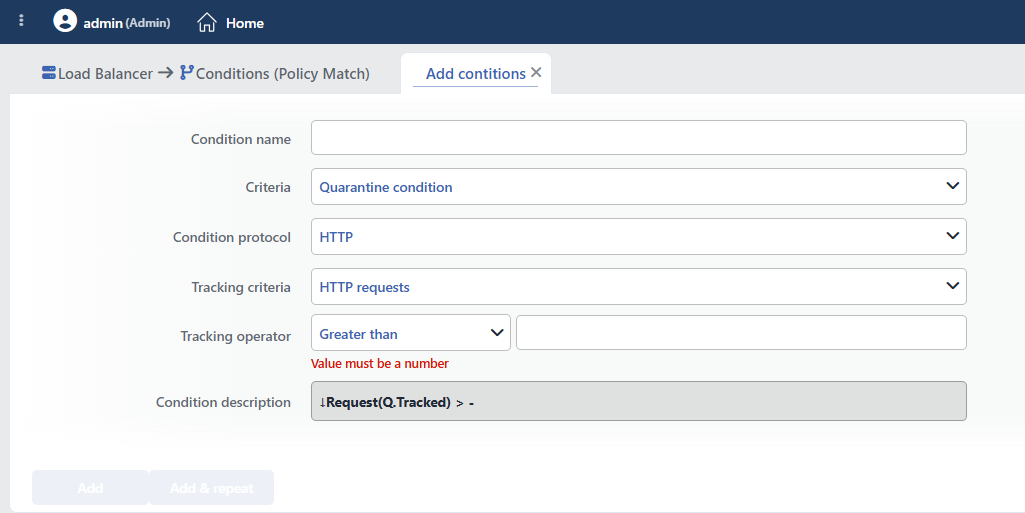 Quarantine Condition Add Form
INFO
Condition Name
An optional name can be entered for the condition to be created.
This field is especially important in the following scenarios:
- When many conditions are defined under the same vService,
- When conditions with similar criteria need to be distinguished,
- When it is necessary to quickly understand which business rule the condition represents.
When this field is left empty, TR7 analyzes the content of the related condition and creates an automatic, descriptive name in the Condition Description field. This generated description is used as the name in condition lists.
INFO
Criteria Required
The field that determines the type of the condition; Quarantine condition is selected from the searchable dropdown list. This selection determines the fields displayed in the form. The criterion cannot be changed after the condition is saved: if a different criterion is needed, a new condition is defined. For all criteria in the list and their scopes, the criteria catalog on the Conditions page can be referred to.
INFO
Condition Protocol
Which vService type the condition will be valid for is selected. The available Tracking Criteria options change according to the selection.
- HTTP: Used for HTTP vServices. All tracking criteria can be used.
- TCP: Used for L7 TCP vServices. Only data and connection metrics can be used.
INFO
Tracking Criteria
Which metric will be checked in the quarantine evaluation is selected. The available metrics change according to the selected Condition Protocol. The field cannot be changed after saving; if the condition is created with the (+) inside the Quarantine action, the protocol is selected automatically according to the vService type and comes locked.
HTTP vService:
| Criterion | Description |
|---|---|
| HTTP requests | The number of HTTP requests in the tracking period |
| HTTP errors | The number of faulty HTTP requests in the tracking period (4xx) |
| Incoming data (B) | The amount of incoming data in the tracking period (bytes) |
| Outgoing data (B) | The amount of outgoing data in the tracking period (bytes) |
| Total connections | The total number of connections in the tracking period |
| Current connections | The instantaneous number of active connections |
L7 TCP vService:
| Criterion | Description |
|---|---|
| Incoming data (B) | The amount of incoming data in the tracking period (bytes) |
| Outgoing data (B) | The amount of outgoing data in the tracking period (bytes) |
| Total connections | The total number of connections in the tracking period |
| Current connections | The instantaneous number of active connections |
INFO
Tracking Operator
The numeric comparison operator and threshold value are entered.
| Operator | Symbol | Description |
|---|---|---|
| Less than | < | The value must be less |
| Equals to | = | The value must match exactly |
| Greater than | > | The value must be greater |
| Range | - | The value must be between two values |
TIP
The threshold value should be determined according to the Tracking Time period in the Quarantine action. For example, if the Tracking Time is 1 minute and HTTP requests > 1000 is set, clients that make more than 1000 requests per minute are quarantined.
INFO
Condition Description
It is created automatically by TR7 in line with the entered criteria and values.
This description:
- which value the condition applies to,
- which criterion it works on,
- the quick understanding of the condition on listing screens
is produced dynamically by the system so as to provide these.
INFO
Form Buttons
Add
The condition adding process is completed by clicking the Add button.
Add & Repeat
With the Add & Repeat button, the condition adding process is completed, and another new condition can be added with different configurations without leaving the related window.
 Condition Added
Usage with the Quarantine Action
Quarantine Condition is used together with the Quarantine action. The action collects the client metrics, and the condition determines the threshold values.
1
Step 1 Creating the Condition
First, the condition(s) containing the quarantine threshold values are created.
- Criteria:
Quarantine condition - Condition Protocol:
HTTP - Tracking Criteria:
HTTP requests - Tracking Operator:
> 1000
2
Step 2 Creating the Action
Then the Quarantine action is created and the condition is added.
- Action Type:
Quarantine - Tracking Key:
IP - Tracking Time:
1 minute - Quarantine Condition: the Quarantine Condition created in Step 1
- Quarantine Time:
30 minutes - Quarantine Action:
Silent drop
Result:
- IP-based traffic metrics are collected in 1-minute periods.
- IPs that make more than 1000 requests per minute are detected.
- Detected IPs are quarantined (blocked) for 30 minutes.
- After the quarantine period expires, access is opened automatically.
TIP
By creating more than one Quarantine Condition, they can be combined with the AND or OR operators.
Example: With the HTTP requests > 1000 AND HTTP errors > 50 condition, clients that make both high requests and high errors are targeted.
Operational Usage Recommendations
- Threshold Values Should Be Determined Carefully. Thresholds that are too low can block legitimate users. Appropriate threshold values should be determined by monitoring normal traffic patterns.
- Sensitive Detection with Multiple Conditions. Instead of a single metric, the false positive rate should be reduced by combining more than one condition with the AND operator (e.g. high requests AND high errors).
- Threshold Should Match the Tracking Time. Threshold values should be appropriate for the Tracking Time period in the Quarantine action. Low thresholds should be used for short periods and high thresholds for long periods.
- Verification Should Be Done in a Test Environment. Threshold values should be verified in a test environment before production. Wrong configuration can quarantine legitimate users.
