
Smarter by Design.Simpler for Business
Waiting Room
What Is Waiting Room?
Waiting Room is the waiting room that limits with a ceiling the number of visitors served at the same time on a vService. When the ceiling is full, the newcomers are not rejected: they are taken into the queue, a waiting page is shown to them and, as room becomes available, they are taken inside in the order in which they have arrived.
Unlike the other three cards, this card is not an attack enforcement. Its purpose is not to sift out malicious traffic but to keep the backend services standing in a legitimate demand burst: in the pile-ups that occur in ticket sales, in a campaign launch or after an announcement, it passes a constant load to the backend by taking the requests into a queue.
The room keeps two separate populations: the visitors inside that are still being served and the visitors in the queue that are waiting for room. The visitors are monitored not according to their addresses but with a signed cookie written to their browsers; this cookie is the carrier both of the seat inside and of the place in the queue.
1,000
Default Capacity
The number of visitors that can be inside at the same time; the lower limit is one, the upper limit is undefined
FIFO
Queue Order
The moment of the first contact with the queue counts as seniority; the one that comes first is taken inside first
Cookie
Visitor Identity
The seat and the place are carried with signed cookies; the address and the browser information are bound to the signature
Off
Default Mode
The room has three modes and comes off by default; unlike the protections, it does not start in monitoring
5 Minutes
Default Idle Time
The seat of the visitor that does not send a request throughout this period is freed
6 Seconds
Page Refresh
The admission attempt interval of the waiting page; a random deviation is added to every attempt
5
Conditional Page Limit
Different waiting pages are shown according to the condition; the first matching rule wins
4
Page Variables
The number of people ahead, the estimated period, the demand percentage and the refresh second are printed on the page
HTTP Only
vService Type
The card is present only on the HTTP vServices; it is not produced at all in the L7 TCP form
The room has three modes:
| Mode | Behavior |
|---|---|
| Off | The room is completely off. No counter is kept, no waiting page is produced, the source of the live table is not created. It is the default mode. |
| Monitor | It is the rehearsal mode. The visitor population is measured and how many people would be taken inside and how many people would enter the queue are counted; however nobody is kept waiting. No ticket is given, no waiting page is produced. |
| Active | The room works: the capacity is checked, the queue is set up, the waiting page is shown to the one that waits. |
Scope
Waiting Room is present only on HTTP type vServices. In the L7 TCP form the card and its fields are not produced at all, because the waiting room is based on showing a page to the visitor and writing a cookie.
For the room to work, the Bot/DDoS protection must be enabled on the vService. The settings are kept independently of the mode of the protection: all the fields stay in the record even while the room is in the Off mode, and when the mode is made Active, it works with the values that have been written.
The display of the screen requires monitoring permission in the Load Balancer area; the pencil icon that opens the edit window is displayed only on the users that have change permission in the Load Balancer area.
Nobody is kept waiting in the Monitor mode
The Monitor mode is a capacity rehearsal: the number of visitors is measured, the capacity overrun is counted and the answer to the question "how many people would have entered the queue with this setting" is produced. However no ticket is given to any visitor, no waiting page is produced at all and nobody is delayed. In this mode the visitors are counted approximately with a signature derived from their addresses and their browser information; in the inside table the identities consist of these signatures.
To see that the capacity has been selected correctly, the room is first run in the Monitor mode for a while, the measured occupancy is examined and then it is switched to the Active mode.
The place in the queue is written to the browser
Both the seat inside and the place in the queue are carried in the signed cookies written to the browser. The cookie is signed together with the address and the browser information of the visitor: a cookie copied to another browser is considered invalid.
This has two consequences. The first is that the queue membership is counted only for the visitors that come back with a valid cookie; request floods that do not carry a cookie cannot inflate the queue. The second is that a visitor that deletes its cookie or that comes from another browser loses its place and is written to the end of the queue.
The Waiting Room Card on Bot/DDoS Management
The Waiting Room card in the body of the Bot/DDoS Protection Mode strip shows the mode of the room with a badge next to its title: Active appears green, Monitor in the warning color and Off faded. The card fades only in the Off mode; a faded card can also be edited, the pencil icon continues to work.
In the body of the card only the values that have been written are displayed as rows: Maximum Concurrent Visitors, Surge Protection (New Visitors/Min) if it is defined, and the number of rules in the Conditional Waiting Pages row if a conditional page is defined.
The learning badge next to the title shows the evaluation of the engine about this setting; its icon and its text change according to the state of the evaluation. In the image the Learning state with the hourglass icon is displayed. When the badge is clicked, the evaluation window opens. The states of the badge are explained in the Learning Badge section below.
The Table → link at the bottom right opens the live table of the room as a closable tab on the same screen. When the pencil icon at the top right of the card is clicked, the edit screen opens.
 Bot/DDoS Protection Mode - The Waiting Room Card
The Waiting Room Edit Screen
- The Bot/DDoS Management tab is opened.
- The pencil icon at the top right of the Waiting Room card in the body of the strip is clicked; the edit window titled Edit - Waiting Room opens.
- The following fields are edited and confirmed with the
Editbutton.
The window consists of a single section. When Off is selected as the mode, all the other fields are hidden and the window comes down to a single row; in the Monitor and Active modes all of the fields are displayed. To the left of the label of most of the fields there is an information icon, and when it is hovered over, the description of the field is displayed.
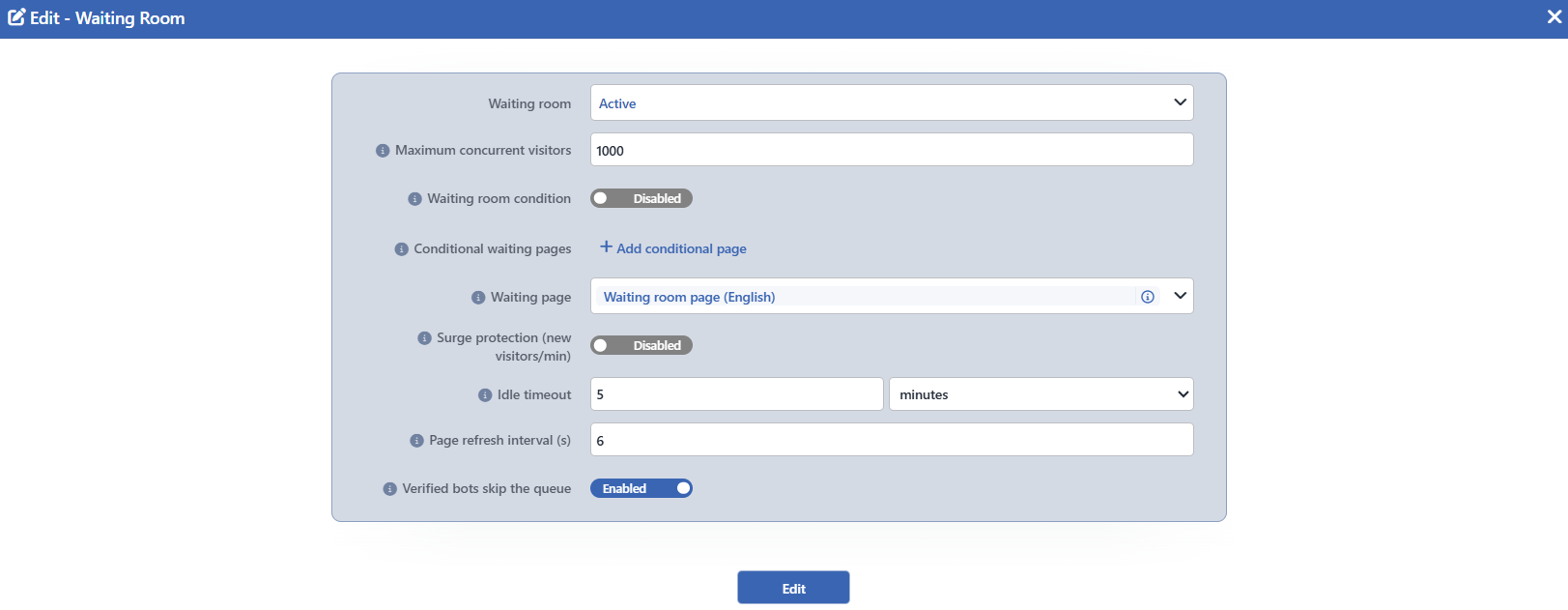 The Waiting Room Edit Screen
INFO
Waiting Room Default: Off
Selects the mode of the room: Off, Active or Monitor. The default value is Off.
Unlike the protections, the room is not born in the monitor mode. The reason for this is that the waiting room is not an attack control but a capacity tool that the operator enables consciously.
INFO
Maximum Concurrent Visitors Default: 1000
It is the number of visitors that can be inside at the same time. The default value is 1000 and the lower limit is 1; the upper limit is not defined.
The description of the field explains this value as follows: When this many visitors are active, newcomers are queued.
The value counted is the number of sessions that have a valid ticket at that moment. In the Monitor mode, instead of this, the approximate number of unique visitors derived from the address and browser information is measured.
INFO
Waiting Room Condition
Limits to which requests the room will be applied. First a Disabled and Enabled switch is displayed; when the switch is turned on, the condition builder appears. Only the HTTP conditions that can be evaluated at the moment of the request can be selected.
The description of the field is as follows: Empty = applies to every request; requests not matching the condition bypass the room.
When the condition is left empty, all the requests pass by the room. When a condition is defined, a request that does not meet the condition is neither counted, nor does it enter the queue, nor does it see the waiting page.
INFO
Conditional Waiting Pages
Shows different waiting pages according to the condition. The + Add conditional page link adds a new rule row; in every row there is a Condition and a Page Profile field. At most five rows are defined. If there is more than one row, the rows are ordered by dragging and dropping and every row has its own delete icon.
The description of the field is as follows: The first matching condition wins; the waiting page below is the fallback. E.g. serve TR/EN by Accept-Language.
The rules are evaluated from top to bottom and the first matching one wins; if none of them matches, the page selected in the Waiting Page field below is shown. The rows whose condition or page profile is left missing are silently skipped.
INFO
Waiting Page
Selects the page that will be shown to the visitor waiting in the queue. The list is fed from the defined content profiles and inside the picker there is a shortcut for defining a new content profile. The default value is the Waiting room page (English) page that comes with the product; its Turkish twin is also present ready.
The description of the field is as follows: A factory (builtin) page or your own content profile. Selected content runs as the BODY inside the waiting-room shell (auto refresh + countdown); %WR_* variables are available. To drop an indicator, clone the page and delete its row.
The selected profile is only the body of the page: the outer shell that carries the automatic refresh and the countdown execution is added in every case. The variables that can be used on the page are explained in the Waiting Page section below. If the selected profile has been deleted, the page silently returns to the page that comes with the product.
INFO
Surge Protection (New Visitors/Min) Default: Empty
Even if the capacity is not full, when the number of new visitors taken inside per minute exceeds this value, it takes the newcomers into the queue. First a Disabled and Enabled switch is displayed; when the switch is turned on, the number box appears and the value 300 is proposed. In the default state the field is empty, that is, it is off.
The description of the field is as follows: Queue newcomers when new visitors per minute exceed this, even below capacity. Empty = off.
The value measured is the admission rate in the last one minute. This setting ensures that the capacity is filled not at once but gradually: instead of thousands of new sessions at once, the defined number of sessions per minute passes to the backend.
INFO
Idle Timeout Default: 5 minutes
It is the period of inactivity that must pass for the seat of a visitor inside to be freed. The default value is 5 minutes, the lower limit is 1 minute and the upper limit is 30 minutes. Only minutes can be selected as the unit.
The description of the field is as follows: A visitor's seat frees after this much inactivity. Keep it longer than your average time-between-clicks; too long wastes capacity on ghost sessions.
The period is a sliding window: every request of the visitor refreshes its seat. When less than half of the period remains, the ticket is renewed by itself with the same identity, and the visitor does not notice this.
INFO
Page Refresh Interval (s) Default: 6
It is the interval at which the waiting page retries admission. The default value is 6 seconds, the lower limit is 3 and the upper limit is 60 seconds.
The description of the field is as follows: Queue-page admission polling cadence (±2s jitter). Raise it for very large queues.
A random deviation is added to every attempt; in this way all the browsers in the queue do not try together in the same second. The value is used in three places at once: in the page's own refresh tag, in the countdown on the page and in the retry information added to the response of the server. In very large queues, raising the value reduces the waiting page's own load.
INFO
Verified Bots Skip the Queue Default: On
Ensures that the verified search engine robots never pass by the room. It is on by default.
The description of the field is as follows: Verified crawlers like Googlebot never see the queue page (SEO).
The verification is based not on the browser name that the robot introduces itself with but on the address range: a client that introduces itself as Googlebot but that comes from outside the verified ranges is not exempted. The setting is independent of the similar exemptions on the L7 DDoS Protection and Bot Protection cards and affects only the waiting room.
INFO
Edit
The changes in the form are saved by clicking the Edit button. There is no additional confirmation window or deployment (deploy) step; the Load Balancer configuration is automatically regenerated and applied.
Waiting Page
The page shown to the visitor in the queue consists of two layers. The outer layer is the shell that refreshes the page at certain intervals and runs the countdown; the page that comes from the content profile works as the body of this shell. The shell is added in every case and cannot be removed from the content profile.
Four variables can be used in the body of the page:
| Variable | Meaning |
|---|---|
%WR_AHEAD | The number of people waiting in the queue. Since the visitor has not been written to the queue yet at the first contact, the value gives exactly the ones ahead of it; in the subsequent refreshes the visitor itself is also included in the number. |
%WR_ETA | The estimated waiting period (seconds) |
%WR_DEMAND | The ratio of the total of the ones inside and the ones waiting to the capacity (percentage) |
%WR_REFRESH | The refresh interval of the page (seconds). The value also includes the random deviation, for this reason it may not be exactly the same at every refresh. |
%WR_DEMAND and %WR_ETA are calculated only when they appear on the page: the value of an indicator that is not used is not produced at all. %WR_REFRESH is produced in every case (the shell itself needs this value), and %WR_AHEAD, since it is already calculated for the queue order, does not bring an additional cost. To remove an indicator from the page, the page profile is copied and that row of it is deleted.
The texts of the page that comes with the product are as follows:
You are in line
Due to high demand you are briefly queued; your spot is safe — you'll be let in automatically.
Ahead of you ~%WR_AHEAD
Estimated wait ~%WR_ETA s
Demand %WR_DEMAND%
Refreshing in %WR_REFRESH seconds
Learning Badge
The learning engine monitors two values of the waiting room: Maximum Concurrent Visitors and Surge Protection (New Visitors/Min). For the first one the occupancy corridor and for the second one the admission rate is measured.
These two values are never applied by themselves. Even if the engine proposes a value, it does not have the permission to write it and there is no apply button in the recommendation window: the decision of taking into the queue has been left to the operator. The proposed value is read and, if it is seen as suitable, it is written manually into the edit form. The general working of the learning engine is explained on the Learning page.
When the badge in the header of the card is clicked, the evaluation window titled AI assessment · Waiting Room opens. The upper band of the window shows the current state of the engine, and the box below it shows the justification of the state.
 AI assessment - Waiting Room
While the room is in the Off mode, the window takes the appearance above: in the upper band the Learning state with the hourglass icon, and in the box below it the justification are located.
Not enough data has built up for this setting yet; learning continues.
This facility is off, so there is no traffic to learn from. Turn it on and the engine starts measuring and will propose a value.
When the measurement matures, the state turns into the information badge and the proposed value is displayed in the window together with the following note indicating that it cannot be applied:
This value was learned but the engine may not apply it: the waiting room queues your visitors, and that call is yours. You can write the proposed value in the settings form.The badge opens only one of the two settings
There is a single badge in the header of the card and this badge opens the first setting that has an evaluation. While there is a result for Maximum Concurrent Visitors, an evaluation produced for Surge Protection (New Visitors/Min) cannot be opened from anywhere: since the learning strip lists only the applicable recommendations, the advice of the waiting room is not located there either.
The Waiting Room Table
The Table → link below the card opens the live table of the room as a closable tab named Waiting Room on the upper strip of the screen. The table is not a saved history but the current content of the room. The link stays in place even while the room is in the Off mode; however, since no source is created in that mode, there is no data to be shown on the tab that opens.
It is switched between the two views with the Logs Type picker in the toolbar. In the Monitor mode, since there is only a single source, the picker is not displayed.
Waiting Room — Inside
 The Waiting Room Table - The Visitors Inside
The name of the source is in the form Waiting room — inside in the Active mode and Waiting room — population (rehearsal) in the Monitor mode. It lists the visitors that are still inside.
The table opens with the following columns by default:
| Column | Description |
|---|---|
| Quarantine Start | The moment of the last activity of the visitor. Since the column heading comes from a component shared with the penalty box table, it carries the quarantine name; in the waiting room it has no quarantine meaning. |
| Quarantine Expiry | The moment at which the seat will be freed when the idle period expires. If the visitor sends a new request within this period, the time shifts forward. |
| Identity | The identity of the visitor. It is the identity produced for the session in the Active mode, and the signature derived from the address and browser information in the Monitor mode. Values longer than fourteen characters are displayed shortened. The address and the browser information of the visitor are not located in the table directly. |
Waiting Room — Queue
 The Waiting Room Table - The Queue
The name of the source is in the form Waiting room — queue and it is present only in the Active mode. It lists the visitors waiting for room in the queue order.
The table opens with the following columns by default:
| Column | Description |
|---|---|
| # | The place number in the queue. It does not come from the server; it is calculated during the listing after the rows have been ordered according to the moment of joining the queue. |
| Identity | The identity produced for the waiting visitor. |
| Joined At | The moment at which the visitor has first joined the queue. The seniority in the queue is determined according to this value. |
| Waiting For | The period that the visitor has waited up to that moment. This value is also calculated during the listing. |
The following column is hidden by default in both views and is added from the column selector:
| Column | Description |
|---|---|
| Source | The name of the TR7 device that holds the record (in cluster setups). |
Removal from the table is not permanent
The Remove from Table operation drops the selected rows from the room: the seat of a visitor inside is freed, a visitor in the queue is removed from the queue. However, as long as the signed cookie in the browser of the visitor is valid, the row is created again at the next request. For this reason there is no delete icon in the preview panel either. The button is not a permanent blocking tool; if the source really needs to be stopped, Quarantine or the rule lists of the protections are used.
The items in the toolbar are arranged from left to right in the following order; the last two items (Page Information and Page Size) are located in the information strip below the table.
Columns
Which columns are shown in the table is selected. In the same panel, columns are reordered by dragging and alignment is selected per column; the row height is fitted to the page with the Fit rows to the page button, and the column layout is reset to default with the Reset button. The layout is stored per user.
Logs Type
The source to be displayed is selected: Waiting room — inside or Waiting room — queue in the Active mode. In the Monitor mode, since there is a single source, the picker is not displayed.
Export
The table is exported as Excel, CSV or PDF by clicking the Export button. In the window that opens, the Filename, Format and Data Source, together with the Columns to be exported, are determined; the remaining fields are displayed according to the format: CSV Separator for CSV, Excel Sheet Name for Excel, and Page Orientation and Page Size for PDF.
Refresh
The current content of the room is brought again by clicking the Refresh button.
Remove from Table
When one or more rows are selected and the Remove from Table button is clicked, the related visitors are dropped from the room. The operation is verified with the Are you sure? confirmation. The button is passive while no row is selected. The same operation is also present in the right-click menu.
Search
Used to search all information in the table.
RegExp Search
Used to search all information in the table with a regular expression (RegExp).
Column Based Search
Used to perform a column-based search on the information in the table.
Page Information
Contains information about the total number of fetched records and the range of records displayed in the list: Showing N-M of T records and the number of selected rows (N selected, or Nothing selected when there is no selection).
Page Size
The maximum number of records to be displayed on the page is selected. The default is 100; the options are 50, 100, 250 and All. The selection is not stored, and at the next opening it starts with 100 again.
Right-Click Menu
When a row is right-clicked, a menu with a single operation opens. The operation applies only to the right-clicked record; a selection made in the list does not affect the menu.
| Operation | What it does |
|---|---|
| Remove from Table | Drops the right-clicked visitor from the room; like Remove from Table in the toolbar, it asks for Are you sure? confirmation and for the same reason it is not permanent. It is not displayed in the menu while the operation is going on. |
Preview of the Selected Record
When any row in the list is clicked, the preview panel belonging to that record opens on the right side of the screen. In the header of the panel the hourglass icon and the name of the selected source are located; in its body the fields in the table are listed one below the other.
Unlike the penalty box and challenge tables, there is no delete icon in this panel. The reason is that the table is not a record book but an instant count: the signed cookie of the visitor is not affected by the deletion of the row and the visitor returns to the list at its next attempt preserving its seniority. Dropping a row is done only with the Remove from Table button in the toolbar or from the right-click menu, and that too is not permanent for the same reason.
Scope and Limits
INFO
- It is present only on the HTTP vServices. In the L7 TCP form the card and its fields are not produced at all.
- The default mode is Off. Unlike the three protections, the room is not born in the monitor mode; enabling it is a conscious decision of the operator.
- Nobody is kept waiting in the Monitor mode. In this mode only measurement is made: no ticket is given, no waiting page is produced, no queue is set up.
- The queue order is in the form of first come, first in. The seniority is determined according to the moment of the first contact of the visitor with the queue and is carried in the cookie. A visitor that deletes its cookie is written to the end of the queue.
- The queue membership is counted only with a valid cookie. Request floods that do not carry a cookie cannot inflate the queue.
- The capacity has no upper limit. The field asks only for the value
1as the lower limit; in practice the monitoring tables of the room hold a hundred thousand records. - The occupancy and the queue are specific to the device. The counters are not synchronized between the cluster members: after a failover, the room starts empty on the peer device. The tickets of the visitors are valid on both devices.
- When the protection is removed, the room is completely emptied. The queue and the visitors inside are lost, everybody passes directly. The settings stay in the record and become valid when the protection is enabled again.
- The settings are included in the export and the import. When the Bot/DDoS configuration is exported, all of the nine fields are carried. However the waiting page content profiles are not carried: if the same profile is not present on the target device, the page silently returns to the page that comes with the product.
- The learned values are not applied by themselves. The engine can propose a value for the capacity and the surge threshold, but it cannot write them; the value is entered manually into the edit form.
- The pencil icon depends on the permission. The card and the table are displayed with read-only permission; the pencil icon that opens the edit window is displayed only on the users that have change permission.
