
Smarter by Design.Simpler for Business
TCP
What Is TCP?
TCP meets the attacks that target the connection establishing and keeping-open mechanisms themselves. In TCP every connection is opened with a three-step handshake and holds resources at both ends until it is closed; an attacker can exploit either of these two facts. The band is on the L4 DDoS Management screen and its explanation note gives its scope in a single line: TCP handshake, connection and flag-based attacks.
The band brings three separate attack forms together and each of them is gathered in its own box:
| Box | What it looks at |
|---|---|
| SYN Flood | The handshake itself: the rate of opening new connections, the packets that do not obey the handshake rule and the half-open connection stance of the kernel. |
| Connection Abuse | The open connections themselves: how many connections a source can hold at the same time and after how long the idle connections will be collected. |
| Malformed Flags & Scans | The flag pattern of the packet itself: the flag combinations that can never occur in legitimate traffic and the scan traces. |
10
Rules
SYN Flood 4 · Connection Abuse 2 · Malformed Flags & Scans 4
8
Able to Send to Quarantine
All the rules except the two on/off settings can take a source into quarantine
2
Threshold-Measuring Rules
The new connection rate and the number of concurrent connections; six of them look at a signature, two write a kernel setting
2
On/Off Settings
SYN cookies and connection cleanup; open/closed instead of the mode levels
4
Exempt from the Promotion Permission
The flag and scan rules can promote into enforcement while the permission is off as well
In Every Table
Visibility
The band is displayed with the same ten rules in every route table
The band has no setting of its own
The band and the boxes carry no editing element: neither a mode selector nor a pencil icon is found. Every rule is adjusted with the pencil in its own row, in its own edit window.
This is different from the Whitelist & Known Peers box on the status card; there the pencil is in the header of the box.
The TCP Band on L4 DDoS Management
The band is located right below the learning strip. In the header there are the name of the band, the number of rules it carries in parentheses and below it the explanation note; at the top right there are the mode distribution badges.
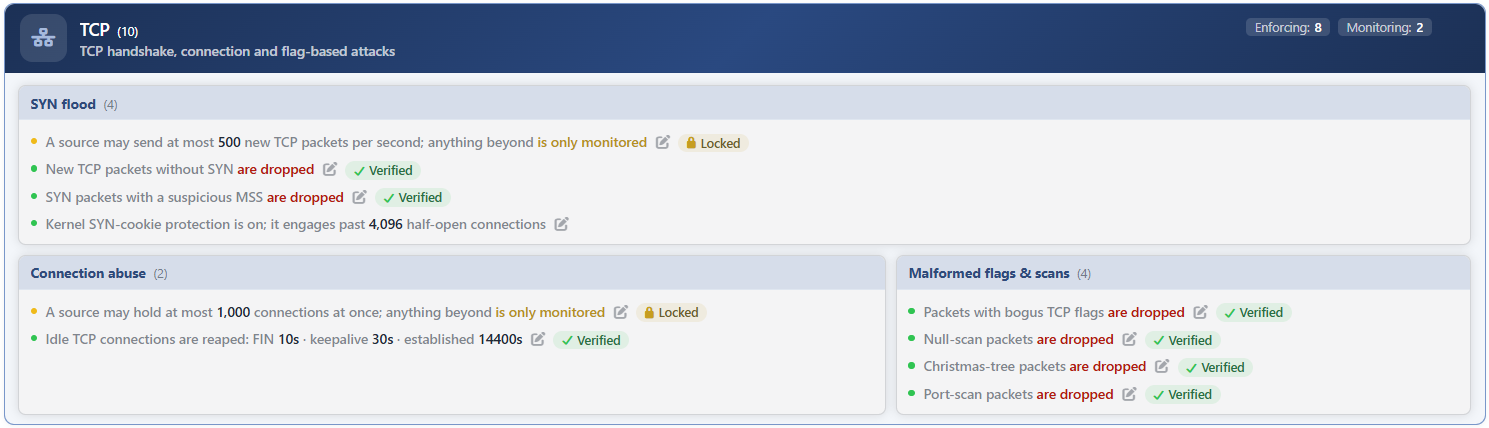 L4 DDoS Management - The TCP Band
| Element | Meaning |
|---|---|
| The title and the number | The name of the band and the number of rules in it: TCP (10). This number is fixed; the band carries the same ten rules in every route table. |
| The explanation note | The fixed text that summarizes the scope of the band. |
| The distribution badges | The mode distribution of the ten rules of the band: Enforcing, Monitoring and Off. A badge whose number is zero is not displayed. |
| The three boxes | In the header of every box there are its name and the number of rules it carries. |
The Enforcing number on the band and the number on the status card do not count the same set
The band counts all of the rules and writes the two settings with an on/off structure into the Enforcing column while they are on. The status card, however, counts only the rules that use the enforcement levels and leaves these two outside.
The practical result of this is as follows: the band saying Enforcing 8 does not mean that eight rules drop packets. Two of them drop no packet; one adjusts the SYN cookie stance of the kernel, and the other the time in which the idle connections are cleaned.
Rule Modes
The rules in the band use two separate value sets:
| Rule class | The values offered | How many rules |
|---|---|---|
| The ones that use the enforcement levels | Disabled · Monitor · Block · Quarantine | 8 |
| The on/off settings | Enabled · Disabled | 2 |
Two of the ten rules of the band (SYN Cookies and Zombie TCP) do not produce a firewall rule; they write the system's own stance. For this reason, instead of the mode levels they are only on or off and they cannot send a source to quarantine.
The color of the row is the color of the mode
At the beginning of every rule row there is a status dot and its color shows the mode of the rule:
| Mode | Dot |
|---|---|
| Block and Quarantine | Green |
| Monitor | Amber |
| Disabled | Dim gray |
| Enabled in an on/off setting | Green |
In the sentence of the rules that use the enforcement levels, the action word is colored separately: amber in the monitoring mode, red in the enforcement mode. That is, a green dot and a red "are dropped" are seen in the same row; the dot says that the rule is on, and the red word says what happens to the traffic.
In the sentence of the on/off settings there is no colored action word; the only color emphasis is in the SYN Cookies setting: when the setting is Disabled, the whole sentence (Kernel SYN-cookie protection is off) is displayed in the warning tone, amber. For a rule in the Disabled state, not only the dot but the whole row is displayed pale.
The default value and the value the box is born with are not the same thing
In the rule catalog every rule has a default value and these values are in force: the catalog defaults are written to the table while the route table is being created and in the configuration check at device startup, and in addition, in every network write the fields whose value remains undefined are filled again.
For this reason, in a route table that has never been touched as well, the ten rules of the band are in a mode: eight are born in enforcement, two in monitoring, and the band reads Enforcing 8 · Monitoring 2. The two that are born in monitoring are the two threshold-measuring rules in the band.
The way to return all the rules to the catalog defaults at once is the returning to the default operation on the Learning strip.
Badges on the Row
At the right end of the rule row, where the sentence ends, there are small indicators. Their order from left to right is fixed: padlock → pencil → verdict badge.
| Indicator | What it is | When it is seen |
|---|---|---|
| Padlock | A lock icon without a word, on its own. It is the operator's Learning Lock switch. | While the learning lock of the rule is on. |
| Pencil | It opens the edit window of the rule. | While there is change authorization. |
| Verdict badge | A clickable badge carrying an icon and a word. It is the verdict of the learning engine about this rule in the last round. | If the engine has run at least one round. |
The verdict badge shows one of four words:
| Badge | Icon | What it tells |
|---|---|---|
| Suggestion | The engine has a recommendation for this rule waiting to be applied. | |
| Locked | There is a change the engine wants to apply, but a setting does not allow this. | |
| Learning | The engine does not have a word to say for this rule yet; either enough data has not accumulated or the attack and the usual traffic could not be separated. | |
| Verified | The engine looked at the rule and decided that the current setting is in place. |
When the pointer is moved over the badge, the meaning of the badge, the line that starts with If applied: … and shows the sentence of the setting when it is applied (if the engine has a recommendation) and the Click for the details and to apply hint are displayed. When the badge is clicked, the recommendation window that shows the justification of the engine and, if there is one, the new sentence it recommends opens.
The Locked badge and the padlock icon are not the same thing
Both of them carry the lock icon, but they tell different things and stand in separate places in the row.
The padlock icon is the operator's own decision: the Learning Lock switch of the rule is on, the engine cannot touch this rule. It is without a word and stands on the left of the pencil.
The Locked badge is the complaint of the engine: there is a change the engine wants to apply, but a setting is obstructing this. It carries a word and stands on the right of the pencil. The obstacle can have two sources:
| The source of the obstacle | What has happened |
|---|---|
| The rule's own lock | The Learning Lock switch of the rule is on. The engine has a ready recommendation, but the recommendation of a locked rule is not counted as applicable. |
| A door the operator can open | The Mode Promotion permission is off. The exemption list being empty is counted in this band as a warning, not an obstacle; the management access exemption list obstacle occurs only in the TR7 management port rules. |
In the first case there are both the wordless padlock icon and the Locked badge in the row; in the second case there is only the badge. That is, the badge alone does not mean "this rule was locked manually" but "the engine has a change and it cannot be applied".
There is neither a badge nor a padlock in the SYN Cookies row
The SYN Cookies setting produces no measurement and the learning engine does not evaluate it; for this reason there is no Learning Lock switch in its edit window and no verdict badge in its row.
Edit Window
The pencil that comes right after the sentence in every row opens the rule's own edit window. The title of the window is in the form Rule settings · <rule name>; in the rules that have no short name the title carries the long name of the rule, e.g. the SYN Cookies window opens with the title Rule settings · (SYN cookies) - Kernel-native SYN flood protection. The content of the window changes according to the type of the rule:
| Element | When it is found |
|---|---|
| The information band | In every rule. It shows the catalog definition of the rule. |
Status | In every rule. The option set changes according to the type of the rule. |
Learning Lock | In the rules that produce a measurement. It is found in nine of the ten rules of the band; it is not found in SYN Cookies. |
| Sub-fields | Only in the rules that have an adjustable value: the limit, the backlog size or the timeout values. |
Save | In every rule. It is inactive while there is a validation error. |
The saving updates only the changed fields and takes effect immediately.
Why is the learning lock not in one rule?
The Learning Lock switch is for closing the rule to the learning engine. Since the engine evaluates only the rules that produce a measurement, in a rule that has no measurement there is nothing to lock either.
Nine of the ten rules of the band produce a measurement; SYN Cookies does not, because it does not write a firewall rule and has no packet to be counted.
Rules in the Box
SYN Flood
The new connection rate, the new packets that do not carry SYN, the SYN packets with a suspicious MSS and the SYN cookie stance of the kernel.
→
Connection Abuse
The concurrent connection limit per source and the collection times of the idle connections.
→
Malformed Flags & Scans
The broken flag combinations, the empty and full-flagged scan packets and the port scan trap.
→
Scope and Limits
INFO
- The band is displayed with the same ten rules in every route table. The rules do not change according to the route table; only their modes and limits change.
- The band and the boxes have no editing element of their own. The editing is in the pencil of every row.
- The counter on the band counts a different set from the one on the status card; it includes the on/off settings as well.
- Two of the rules do not produce a firewall rule and cannot send a source to quarantine.
- The settings are per route table and are written to both devices in a cluster; the measurements and the quarantine lists, on the other hand, are per device. A source taken into quarantine on one device does not enter quarantine on the other by itself.
- The sources in the exemption list are not caught by the eight rules of the band that produce a firewall rule and are not written to the measurements of these rules. Since SYN Cookies and Zombie TCP are each a kernel setting, they do not recognize the exemption list; they are applied to all the connections in the route table and the Zombie TCP counter counts the connections of the exempt sources as well.
- The editing requires change authorization in the Network area. With a monitoring-only authorization the band and the sentences are displayed, the pencil icons are not displayed. While the network configuration is locked during synchronization, the editing is closed as well.
